Find and filter bookings
Updated 13 October 2026
The Bookings page lists every booking and owner stay. Search it, narrow it with the cards and column filters, then click a booking to open it.
Steps
Go to Bookings.
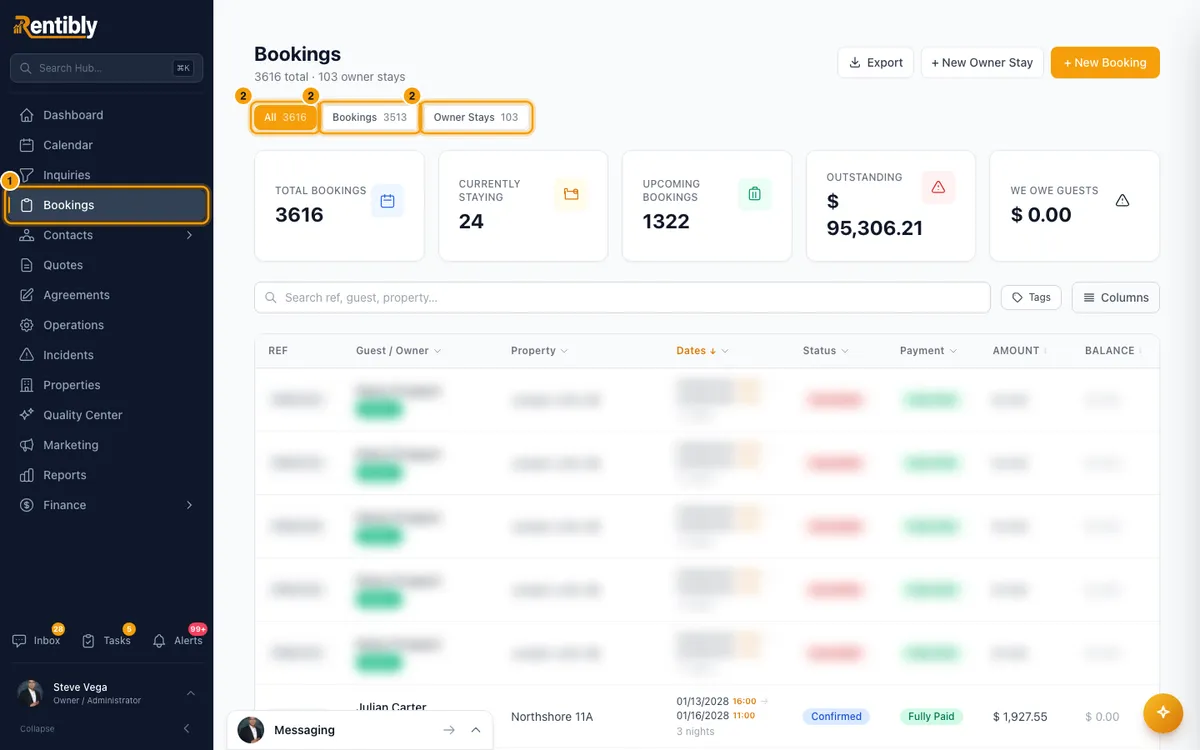
Pick a tab at the top: All, Bookings (guest bookings) or Owner Stays. Each tab shows its count.
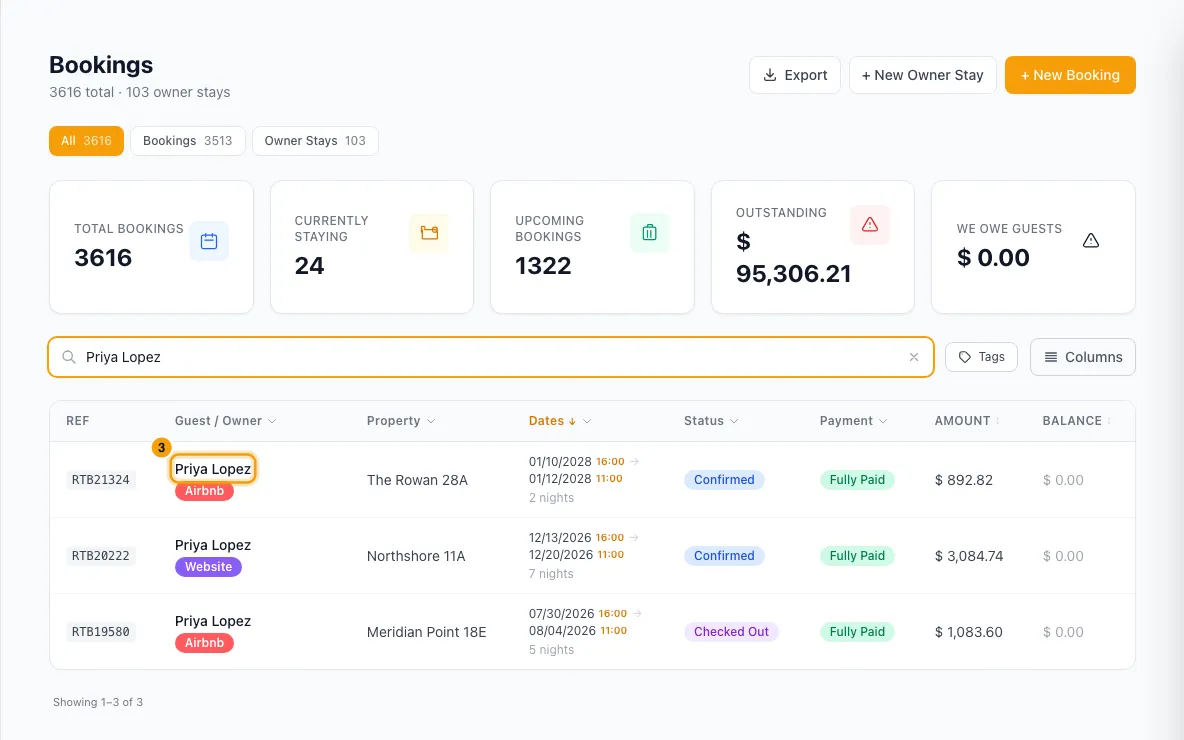
To search, type in Search ref, guest, property….
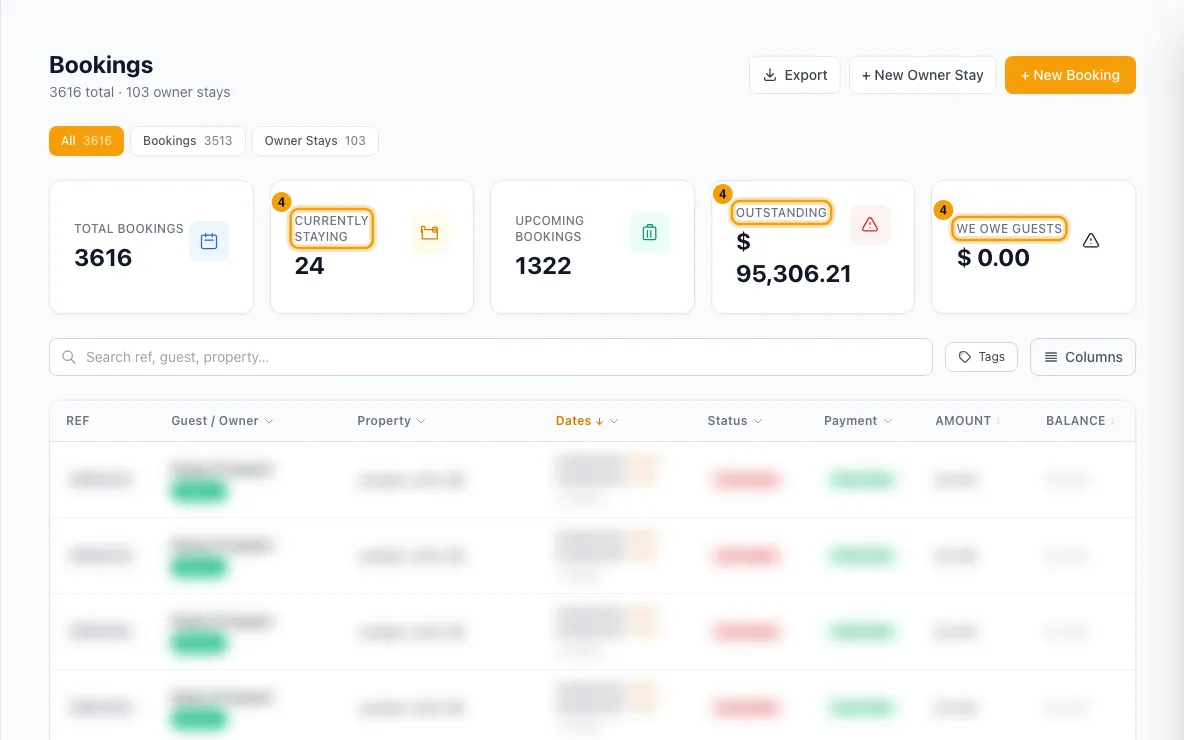
To jump to a common view, click a card:
- Total Bookings: clears the status, payment, source, date and search filters.
- Currently Staying: guests whose stay includes today.
- Upcoming Bookings: arrivals from tomorrow on.
- Outstanding: bookings where the guest still owes money, not counting no-shows.
- We Owe Guests: bookings where the guest has paid more than they owe, not counting no-shows.
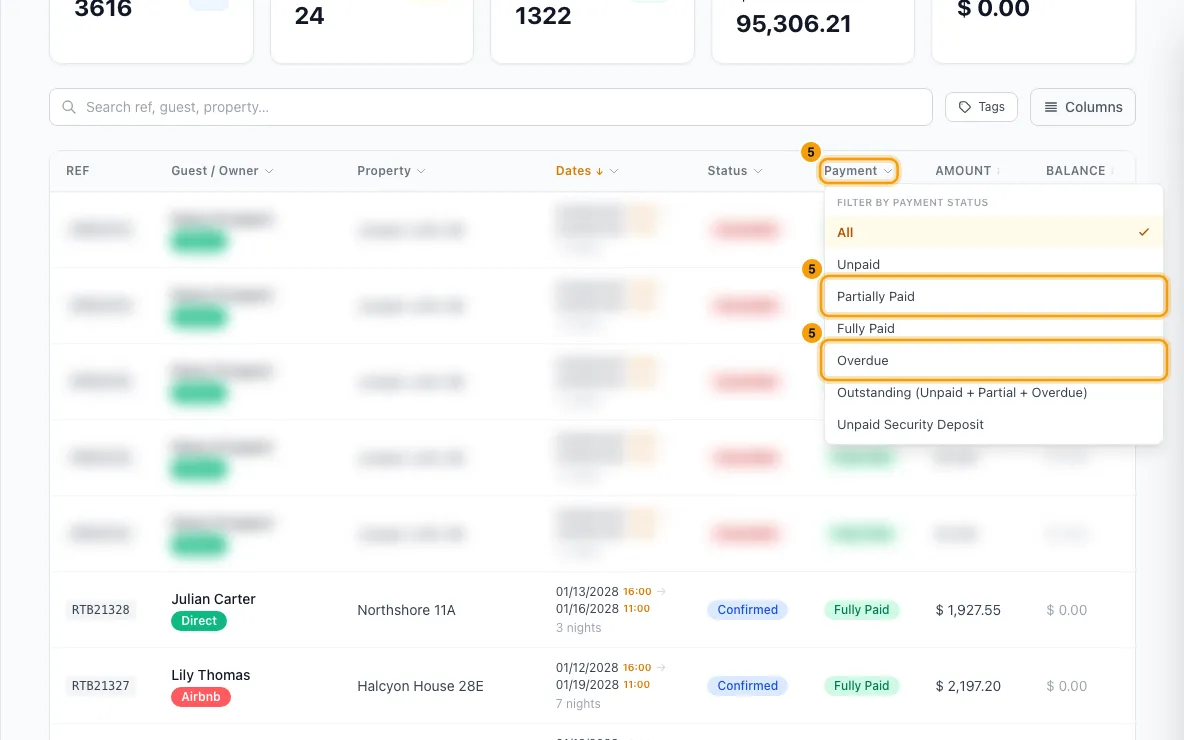
To filter by a column, click its header and pick a value:
- Guest / Owner: Filter by Source.
- Property: Filter by Property.
- Dates, Check-in or Check-out: Today, Tomorrow, This week, This month or Custom range…. Click Clear date filter to remove it.
- Status: a booking status, ⚠ Warnings or 🚨 Incidents.
- Payment: Unpaid, Partially Paid, Fully Paid, Overdue, Outstanding (Unpaid + Partial + Overdue) or Unpaid Security Deposit.
- Pick All in a filter to remove it.
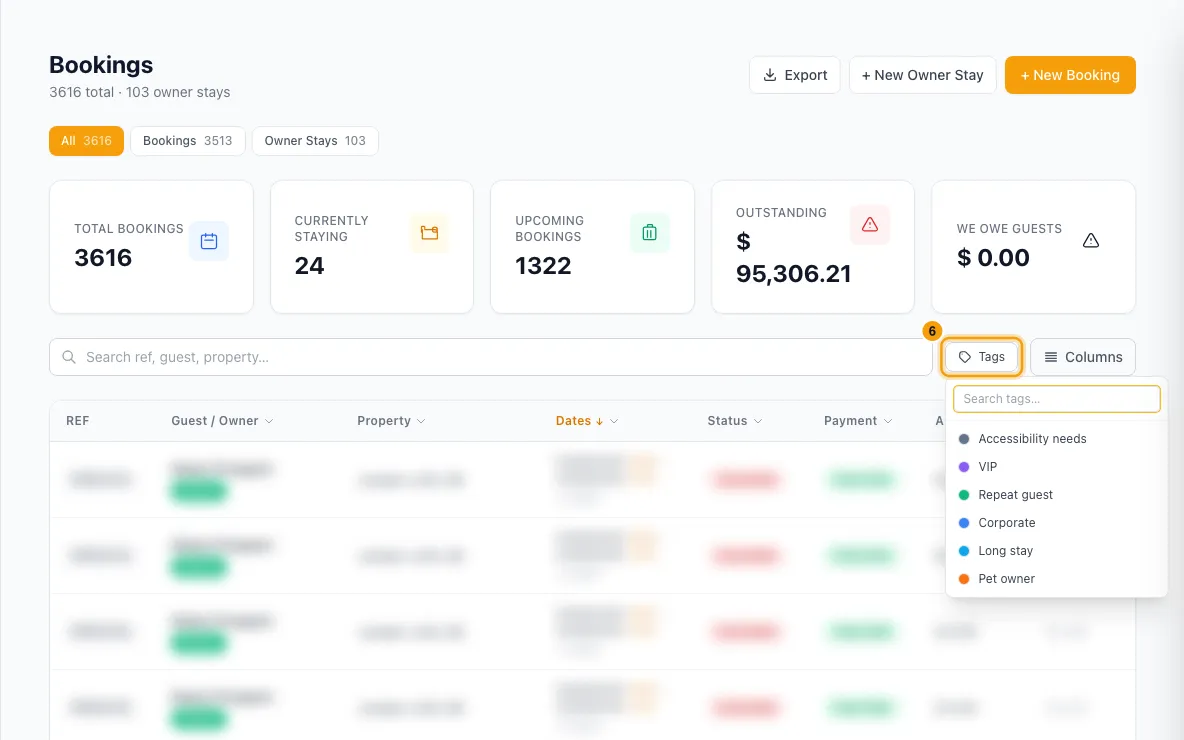
To filter by tags, click Tags next to the search box and tick one or more.
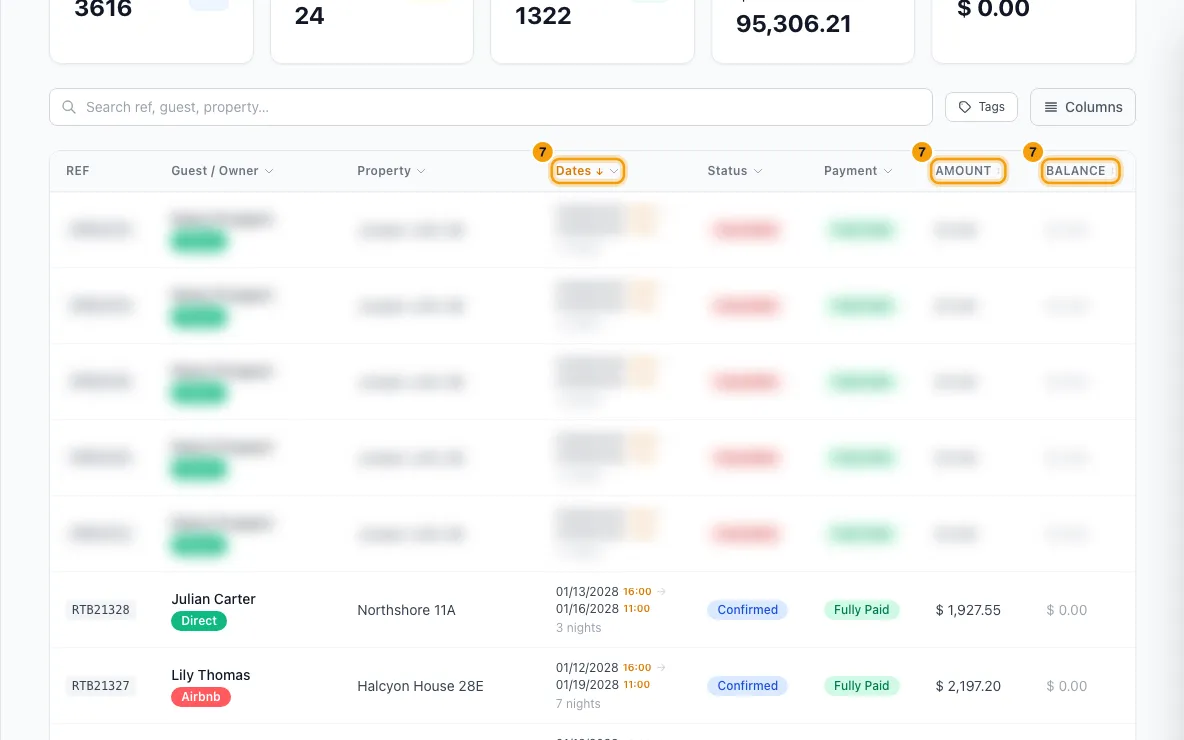
To sort, click the Amount, Balance or Booked On header, or use Ascending ↑ / Descending ↓ in a date column's menu.
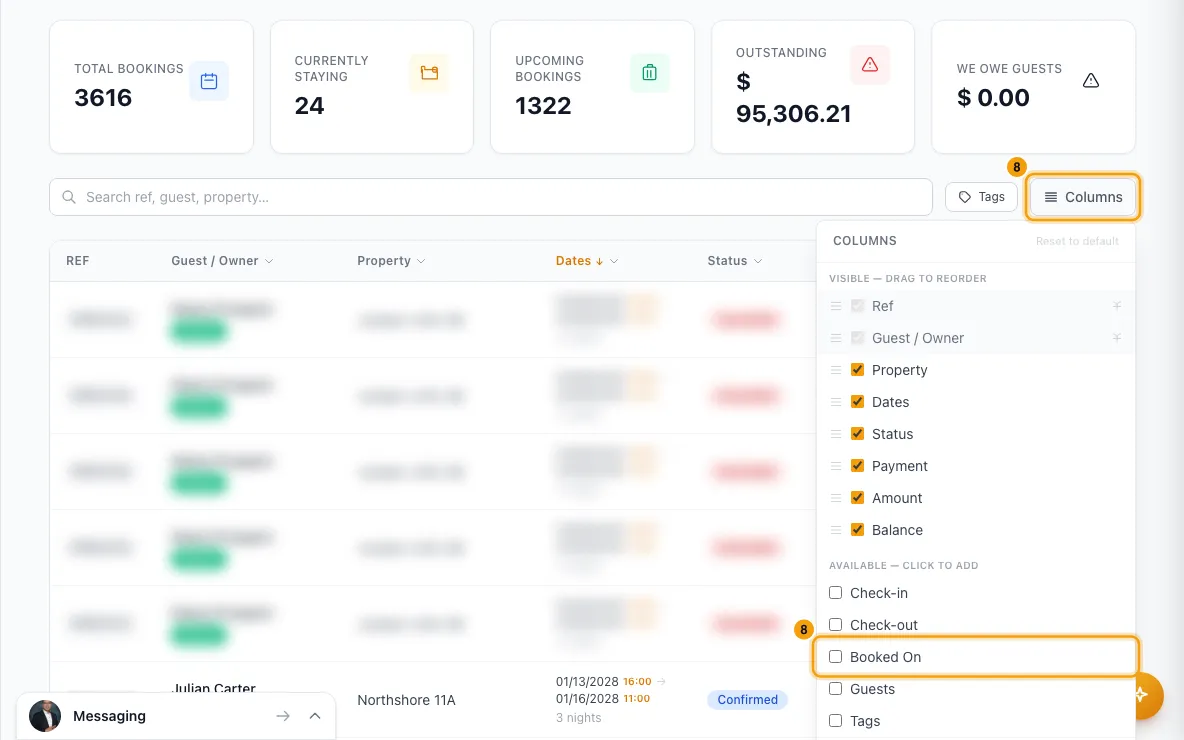
To choose columns, click Columns. Tick the ones you want, or click Reset to default.
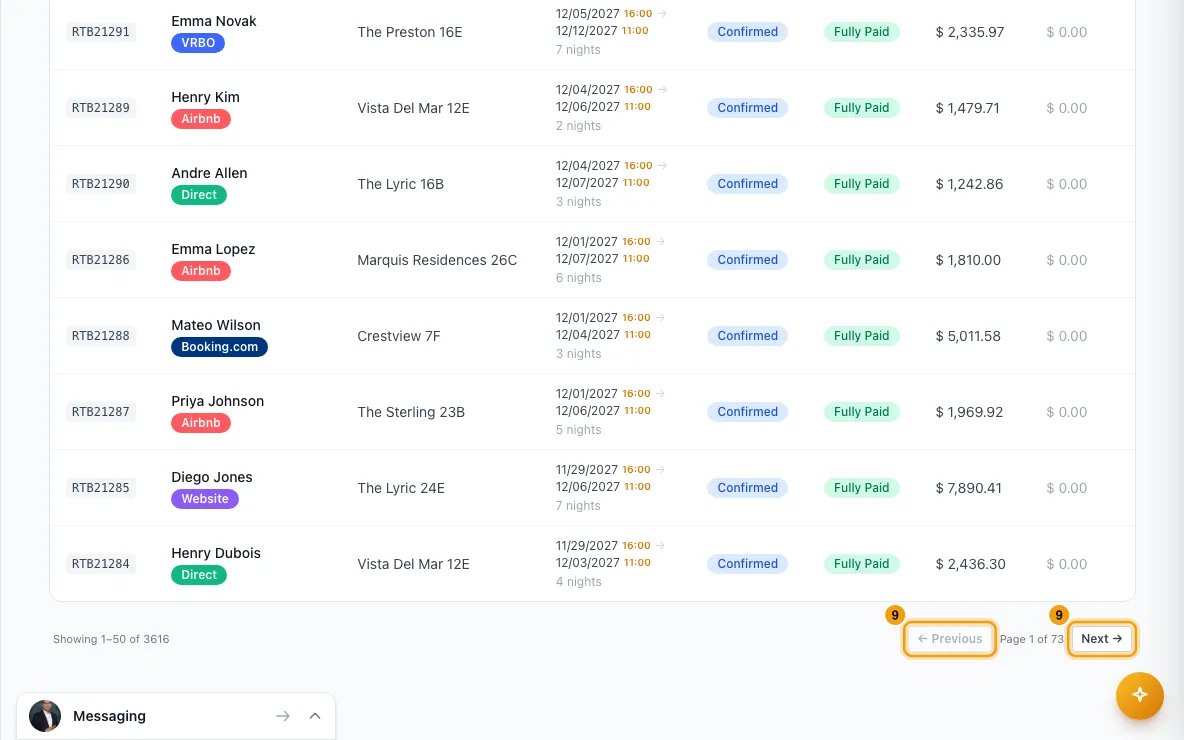
Click a booking to open it. Use ← Previous and Next → at the bottom to move between pages.
Good to know
- The list shows 50 bookings per page. It is sorted by check-in date, latest first, until you choose another sort.
- Search looks in the booking reference, the channel's reservation code, the guest's first, last and display name and email, the property name, special requests and internal notes. It does not search phone numbers.
- The cards count every booking you have. They don't change with the tab, search or filters. The Outstanding and We Owe Guests totals leave out no-show bookings, and so do their lists.
- Currently Staying counts Confirmed and Checked In bookings that started today or earlier and end after today. Upcoming Bookings counts every booking with a check-in after today that isn't cancelled or a no-show.
- ⚠ Warnings lists bookings still Confirmed after their check-in date, and bookings still Confirmed or Checked In after their check-out date. To fix these, see "Check a guest in or out".
- 🚨 Incidents lists bookings with an open incident. A 🚨 badge under a booking's Ref shows its incidents; click it to see them.
- The Status and Payment filters only offer values that some booking actually has.
- A card's filter stays on until you click another card or change the Status, Payment, Source or a date filter.
- Extra columns you can add: Check-in, Check-out, Guests, Tags and Booked On. Ref and Guest / Owner always show. Your column choice is saved for you.
- Booked On is the Booked on date shown on the booking, which you can correct there. If it was never set, it is the date the booking was added to Rentibly. Sorting by Booked On uses the same date.
- The list updates by itself when someone on your team adds or changes a booking.
- On a phone, bookings show as cards. Column filters, sorting and Columns are not available there. The tabs, cards, search and Tags are.
- Export:
- Click Export at the top of the page.
- Under Date range, pick Check-in date, Check-out date, Stay overlaps range or Booked date, and set the dates. Leave them blank for no extra date limit.
- Choose the Columns. Under Fees, taxes & discounts, choose Combined or Separate for each, and Off for Transaction fees if you don't want them.
- Under Also include, tick Security deposit or Rental agreement link if you want them.
- Click Download CSV.
- The export keeps every filter on the page: the tab, search, Status, Payment, Source, Property, Tags, the date column filters and a card's filter. Dates you set in the export window apply on top; for the same date column, the export window's dates replace the page's.
- The export stops at 25,000 bookings. If there were more, the page tells you how many matched, so you can narrow the filters and export the rest.
- The Booked date range and the Booked On column use the booking's Booked on date, or the date it was added to Rentibly if that was never set.
- + New Booking and + New Owner Stay are at the top of the page. For owner stays, see "Block dates or add an owner stay". + New Booking uses the same steps as a quote; see "Create a quote and turn it into a booking".
- You need View on Bookings to see this page. The Export button only shows with the Export data to spreadsheets permission.
Rentibly AI can help
- Ask "who checks in tomorrow?" or "show bookings for this guest". It lists bookings with opens one in detail with.
- It can export a list of bookings as a CSV of up to 5,000 rows with. That needs Reports at View level, because the download is a saved report.
Still stuck?
Open Support from your profile menu in Rentibly, or email hello@rentibly.com — we answer fast.