Cancel a booking or mark a no-show
Updated 13 October 2026
Cancel a booking, or record that the guest never arrived. In the same window you decide what happens to the money the guest already paid.
Steps
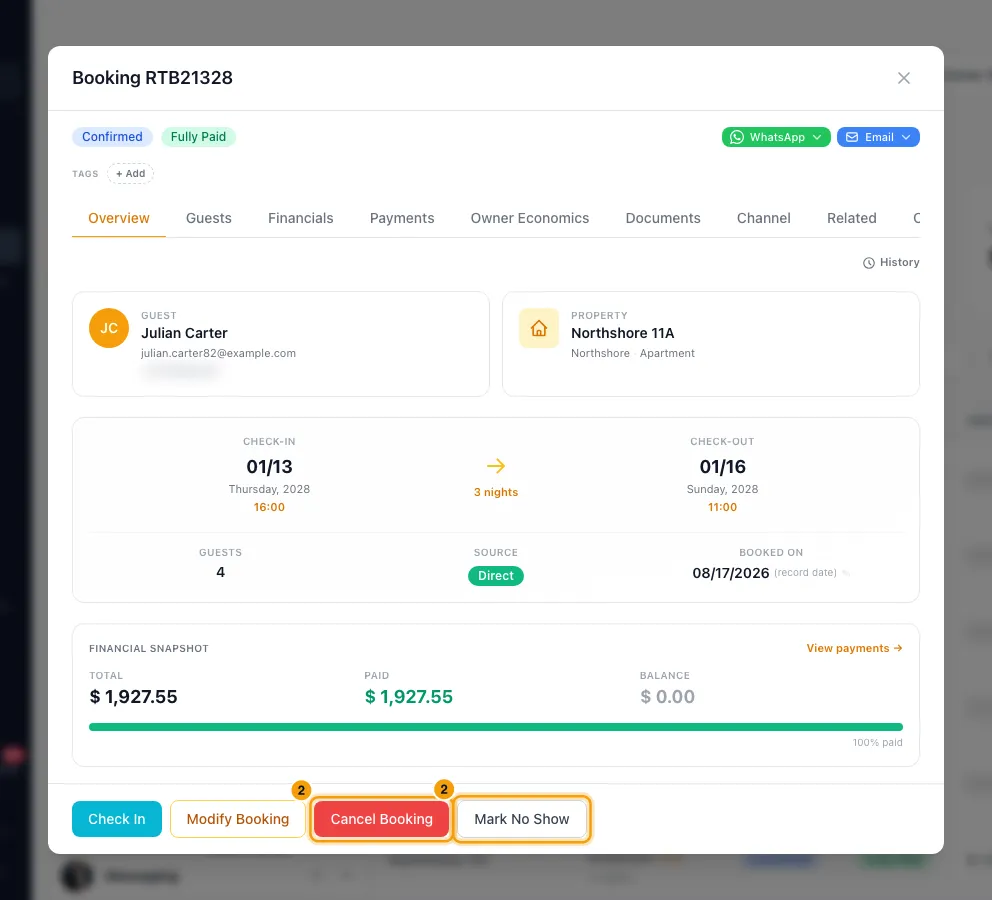
Go to Bookings and open the booking.
Click Cancel Booking, or Mark No Show, in the bar at the bottom.
Read the Cancellation policy summary at the top. It shows the refund the booking's policy works out for today.
Under How should this cancellation settle? (or no-show), pick one:
- Full nullify: refund everything paid. The booking total becomes 0.
- Partial refund per policy: refund the policy amount and keep the rest as a cancellation fee.
- Custom retention: type the Refund amount. The rest is your cancellation fee.
- I will decide later: change only the status. No refund is recorded.
- Issue guest credit instead: give the guest a credit for a future booking instead of money back. Enter the Credit amount and choose when it Expires in. For a credit, the Notes (optional) box below is required: write the reason there.
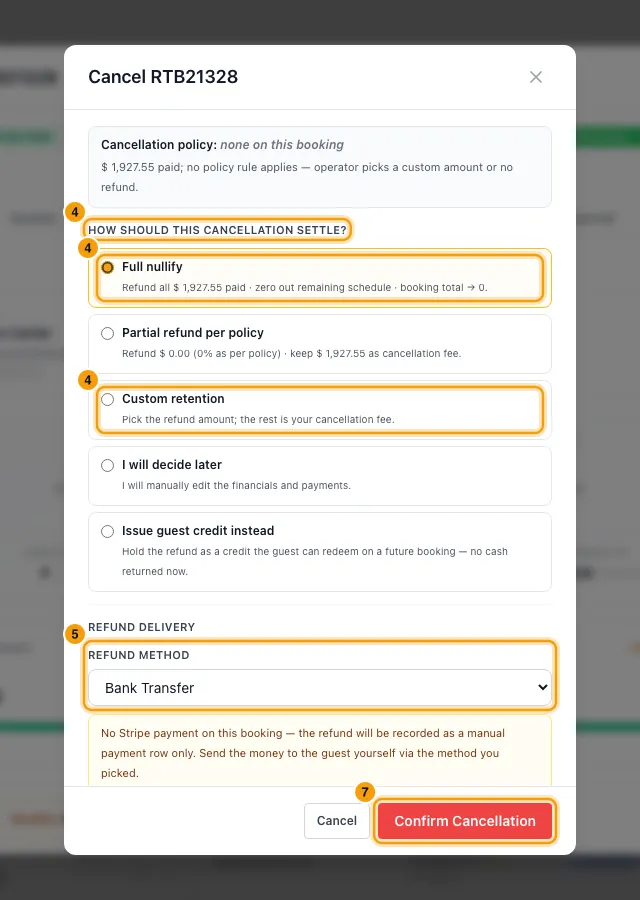
If money goes back, choose the Refund method. For a card payment taken through Stripe, leave Trigger Stripe refund automatically ticked to send it back to the card.
If the booking has a security deposit, choose Return the deposit in full or Leave the deposit for now.
Add Notes (optional), read the Confirming will: list, then click Confirm Cancellation (or Confirm No Show).
Good to know
- The refund can't be more than the guest paid for the stay. The security deposit is never part of it; it has its own choice in step 6.
- With Partial refund per policy, the policy rule is picked by how many days are left before check-in. With no matching rule, the policy refund is 0.
- What happens to the booking:
- Full nullify, Partial refund per policy and Custom retention set the booking total to the amount you keep, and cancel its unpaid installments.
- I will decide later leaves the total and the installments as they are. Adjust them later on the Financials and Payments tabs.
- An unpaid security deposit is removed in every case.
- Refunds:
- With Trigger Stripe refund automatically, the refund is sent to Stripe at once. The guest sees it on their card within 5–10 business days.
- Each card payment gives back only what is still refundable on it. Anything already refunded from it, from the Payments tab or the Stripe dashboard, is taken off first, and the rest comes from the next card payment.
- If part of what you refund was paid another way, for example by bank transfer or cash, Stripe can't send that part back. It is recorded as a manual refund by the method the guest paid it with, never as a card refund, and you send that money yourself. The window shows how much that is before you confirm.
- If part of the refund matches no payment it can go back through, for example money paid with a guest credit, it is not recorded. The window tells you, and the booking shows that amount owed back to the guest. Record it from the Payments tab once you have returned it.
- If Stripe refuses it, the booking is still cancelled, but the window stays open and tells you the card refund failed and why. Nothing is recorded as refunded, so the booking shows that amount owed back to the guest. Refund it from the Payments tab: retry the card, or record a manual refund once you have sent the money another way.
- Any other method only records the refund in Rentibly. You still need to send the money to the guest yourself.
- A payment still marked pending, such as a channel payout that hasn't arrived, is cancelled rather than refunded.
- Guest credit:
- Leave Notify the guest on to email the guest about their credit, if your Guest — credit issued notification rule is on.
- From Cancel Booking, the booking ends up Cancelled and its dates are freed.
- From Mark No Show, the booking ends up No-show and its dates stay blocked, the same as a no-show without credit.
- The booking total becomes the amount you keep, and its unpaid installments are cancelled.
- Cancel Booking frees the dates on the calendar and on your connected channels. Mark No Show keeps the dates blocked.
- When a booking is cancelled, jobs your automations created for it follow each automation's own setting. By default they are cancelled.
- If a channel (such as Airbnb) manages the booking, Cancel Booking, Mark No Show and Reactivate Booking are disabled. Do it on the channel; the change syncs back. To take the booking over yourself, disconnect it on its Channel tab.
- To undo:
- Open the booking and click Reactivate Booking, then Reactivate.
- It is refused if a guest credit was issued, a refund was recorded, or the dates are now taken.
- Reactivating doesn't restore charges, payments or installments.
- You need Edit on Bookings.
Rentibly AI can help
- Rentibly AI can't cancel a booking or mark a no-show yet. Do it from the booking.
Still stuck?
Open Support from your profile menu in Rentibly, or email hello@rentibly.com — we answer fast.