Block dates or add an owner stay
Updated 13 October 2026
Make nights unavailable to guests, as a block (maintenance, personal use, a deep clean) or as an owner stay. The dates also close on every connected channel.
Steps
Go to Calendar.
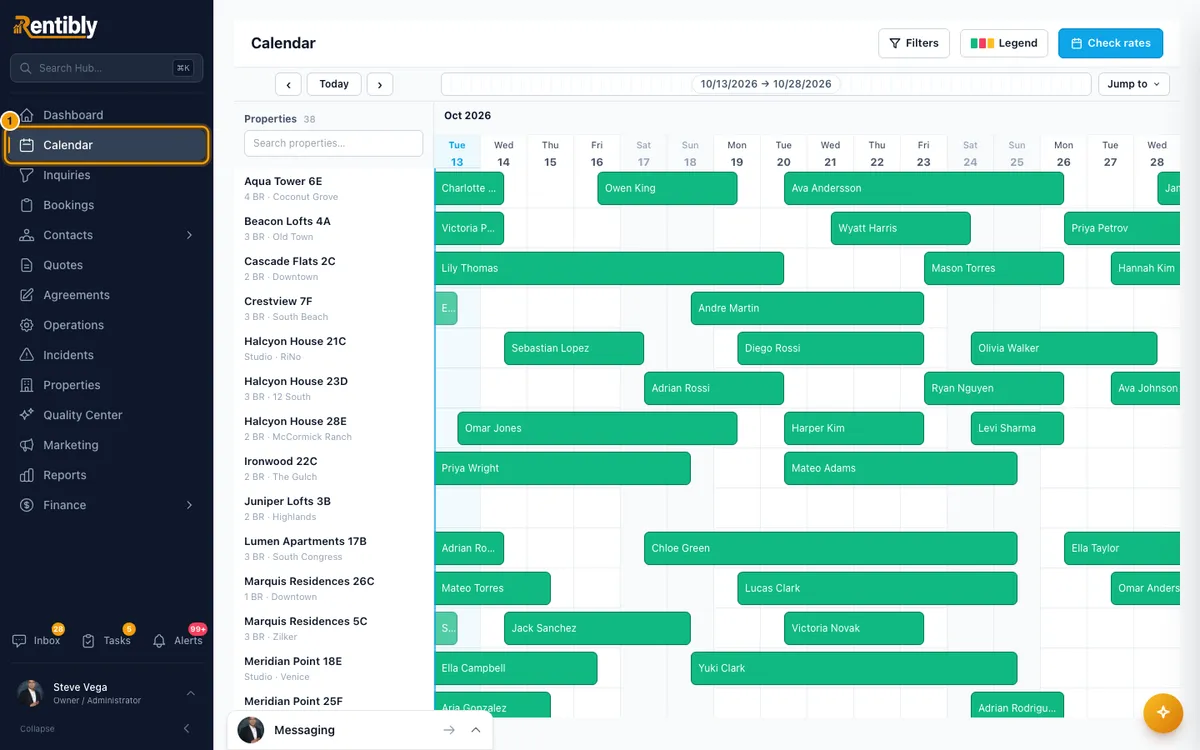
On the property's row, click and drag across the dates: from the first night to the day the block ends, the same way you'd mark a stay. A single click selects one night.
In the menu that opens, choose Block dates or Owner stay.
Check From and To (the night count shows below them). Enter a Title, which appears on the calendar bar, and a Reason, which appears when you hover over it. Both are required.
Click Create.
You can also do this from the property itself: open it from Properties, go to its Calendar tab, drag across the days and choose Block dates. Pick a Type (Block (unavailable) or Owner Stay), check From and To, add an optional Title and Notes, then click Create Block.
Good to know
- You can't block dates that already have a booking, an owner stay or another block. The Date conflict window shows what is in the way and who created it.
- If open quotes cover those dates, Open quotes overlap these dates lists them. Click Revoke quotes and block dates (on the property's Calendar tab: Block & revoke) to go ahead. Those quotes are revoked, and their inquiries are marked Lost, each with a note on its Notes tab saying which quote and why ("Auto-marked Lost — synced from quote …"). The guest is not told automatically.
- If you later delete the block, quotes it revoked come back, as long as they are still valid and their dates are free.
- To change or remove a block, click it on the calendar: edit Title, Start date, End date or Reason and click Save, or click Delete. On a computer you can also right-click it and choose Edit or Delete. Moving a block onto open quotes asks first: Revoke quotes and move.
- Two kinds of owner stay:
- An owner stay made here is a calendar entry. It blocks the dates and counts as occupied, but it sends the owner no alert and does not appear on the Bookings page.
- To record the owner's stay as a booking, use Bookings → + New Owner Stay. Those appear under Owner Stays and send the owner their own alerts (Owner stay booked, changed, cancelled), which you switch on or off under Owner notifications in Settings → Owner Portal. To turn one off for a single owner, use the Notifications tab of that owner's Portal Access window.
- Owners can book this kind of owner stay themselves from the owner portal, if Let this owner book their own stays is on for them. See "Let owners book their own stays in the owner portal".
- Blocks never send the owner an alert.
- In the owner portal, occupancy counts guest stays, owner stays and blocks. Your Hub dashboard and reports count blocks and owner stays only if Include blocks in occupancy is on in Settings → Dashboards.
- Creating, changing and deleting blocks needs Edit on Calendar.
Rentibly AI can help
- Ask it to block dates, block the same dates on many properties at once, or add an owner stay for one of the property's owners. These make calendar entries, like the steps above. You confirm each one.
Still stuck?
Open Support from your profile menu in Rentibly, or email hello@rentibly.com — we answer fast.