Use the calendar
Updated 12 October 2026
The Calendar shows every active property as a row and its bookings, owner stays, blocks and quote holds as bars across the dates. Use it to see what's free, check prices for dates and act on a stay.
Steps
Go to Calendar. It opens on today, in your company's timezone.
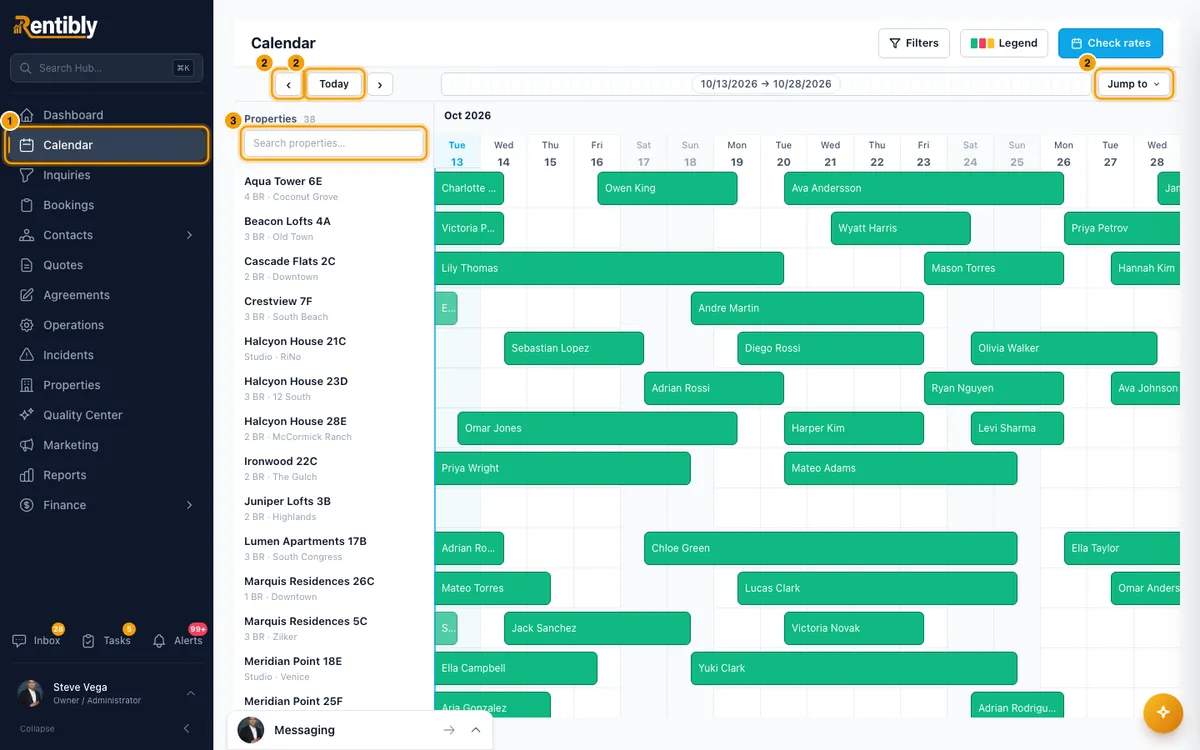
Move through dates: click ‹ or › to go back or forward 7 days, Today to come back, or Jump to to pick a month. You can also drag the strip above the dates.
Find a property: type in Search properties… at the top of the property column. It matches the name, area and property code.
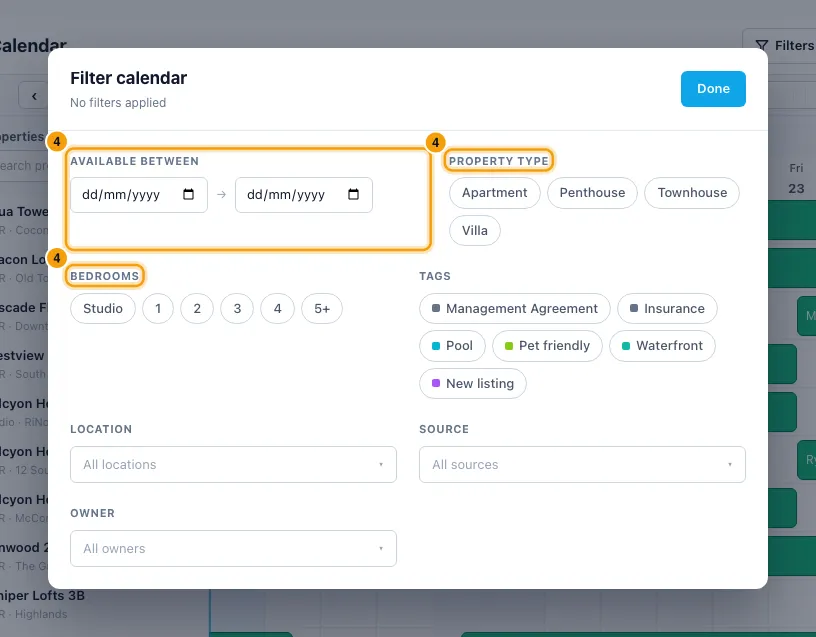
Filter: click Filters. In Filter calendar, set any of Available between, Property type, Bedrooms, Tags, Location, Source and Owner, then click Done. Clear all removes them.
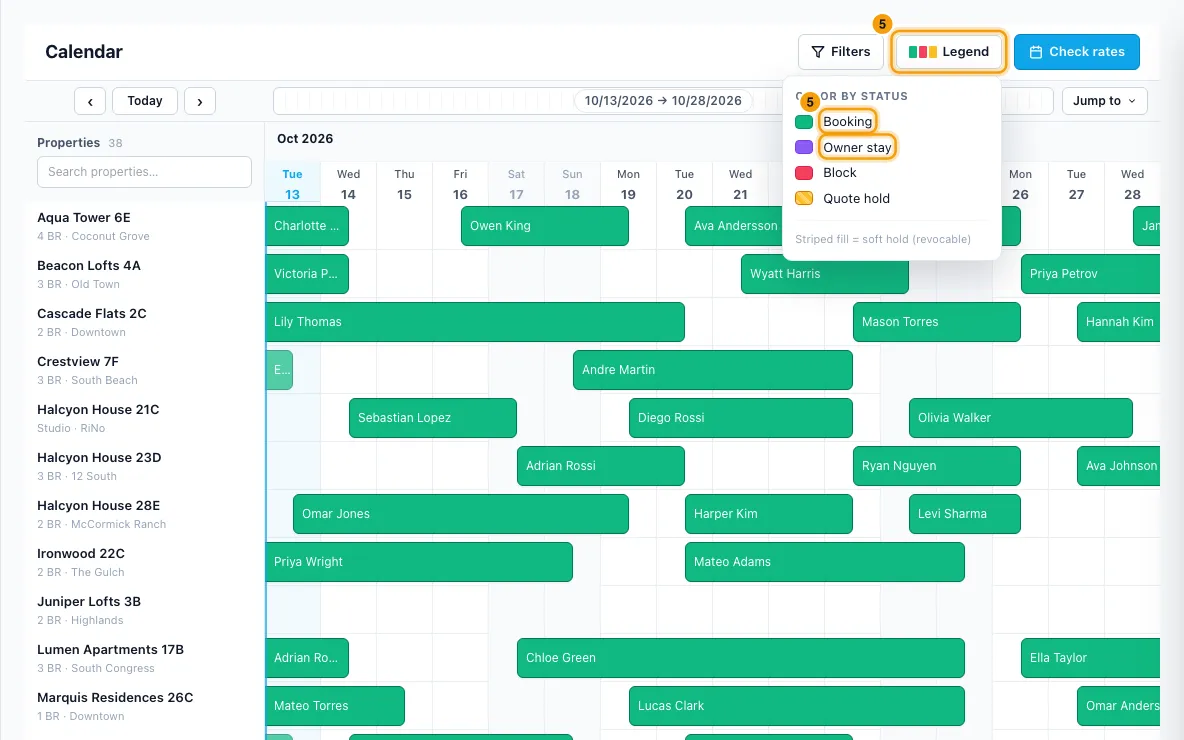
Read a bar: hover over it to see the dates, totals, balance and who created it. Click Legend for what each colour means: Booking, Owner stay, Block, Quote hold.
Open a stay: click a booking bar to open the booking, or a quote hold to open the quote. Click a block or owner stay to edit it.
Right-click a bar for more: View booking; View quote or Release hold; or Edit or Delete on a block or owner stay.
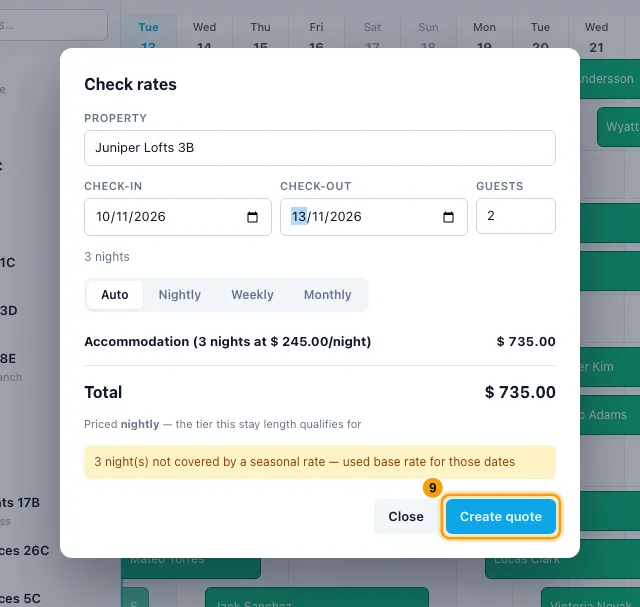
Check rates for dates: drag across a property's dates and choose Check rates, or click Check rates in the toolbar and pick the property and dates.
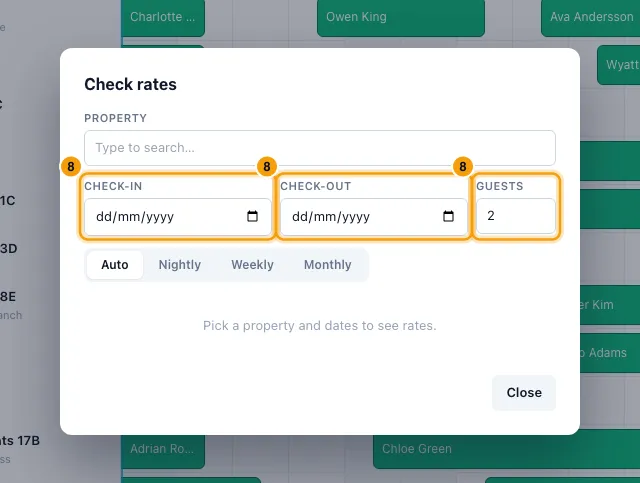
In Check rates, adjust Check-in, Check-out, Guests and, if the property is on channels, Source. Then click Create quote to open the quote wizard with the property and dates filled in.
Good to know
- Only properties with status Active appear. Properties still being onboarded, and archived ones, are not shown.
- Dragging selects from the first night to the check-out day. The same drag menu has Block dates and Owner stay; see "Block dates or add an owner stay".
- Check rates in the drag menu is greyed out when the dates overlap a booking, block or owner stay. Quote holds don't stop it.
- Inside Check rates:
- Dates not available means another entry is in the way. Prices still show, but Create quote is hidden.
- Property rule violations (for example minimum stay or allowed check-in days) is a warning only. You can still create the quote; the wizard asks you to override.
- On Direct, choose Auto, Nightly, Weekly or Monthly pricing. On a channel, the panel shows that channel's price list and markup and how it prices the stay.
- Release hold removes a quote's hold from the calendar and turns off the quote's Hold these dates. The quote itself stays.
- Bookings can't be deleted from the calendar. Cancel the booking instead.
- Available between checks the dates you enter, even when they are not on screen. A property is hidden when a booking, owner stay, block or quote hold overlaps those dates. A stay that checks out on your first date does not count. Both dates are needed, and the second must be after the first.
- The calendar always opens with no filters. Filters are not saved when you leave the page.
- Source shows properties that have at least one bar from that source in the dates on screen.
- The calendar refreshes by itself when anyone on your team changes a booking or block.
- On a phone: tap a booking for a summary card with View Booking →, and tap a property name for View Property →. Filters, Rates and Jump to sit at the top, with the search box below.
- Seeing the calendar needs View on Calendar and on Properties. Changing blocks needs Edit on Calendar.
Rentibly AI can help
- It can tell you what is blocking a property and why, and find properties free for dates.
- It can price a stay and show a property's rates.
Still stuck?
Open Support from your profile menu in Rentibly, or email hello@rentibly.com — we answer fast.