Handle an owner inquiry
Updated 13 October 2026
An owner inquiry is a property owner asking you to manage their home. It runs its own pipeline: New, Assigned, Contacted, Proposal Sent, then Signed or Lost.
Steps
Open Inquiries and click the Owner Inquiries tab.
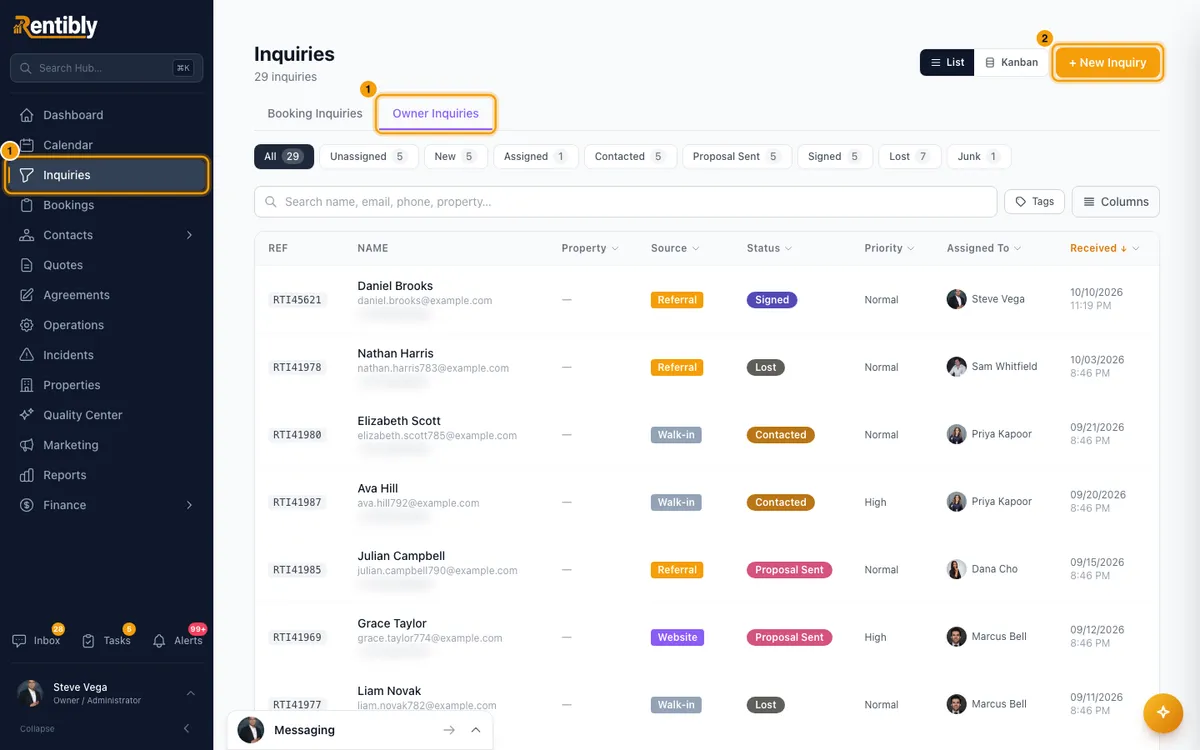
To add one by hand, click + New Inquiry, fill in Owner Name, their phone or email, and any of Property Type, Bedrooms and Area, then click Create Inquiry. Which fields show, and which are required, depends on your inquiry field settings. From an Inbox conversation with someone who has no inquiries or bookings yet: open Details (the "i" icon), click + Create Inquiry on the Contact tab and choose Owner Inquiry. The owner inquiry form opens with their name and phone filled in.
Click the inquiry. Assign it in the header with Assign or Assign to me.
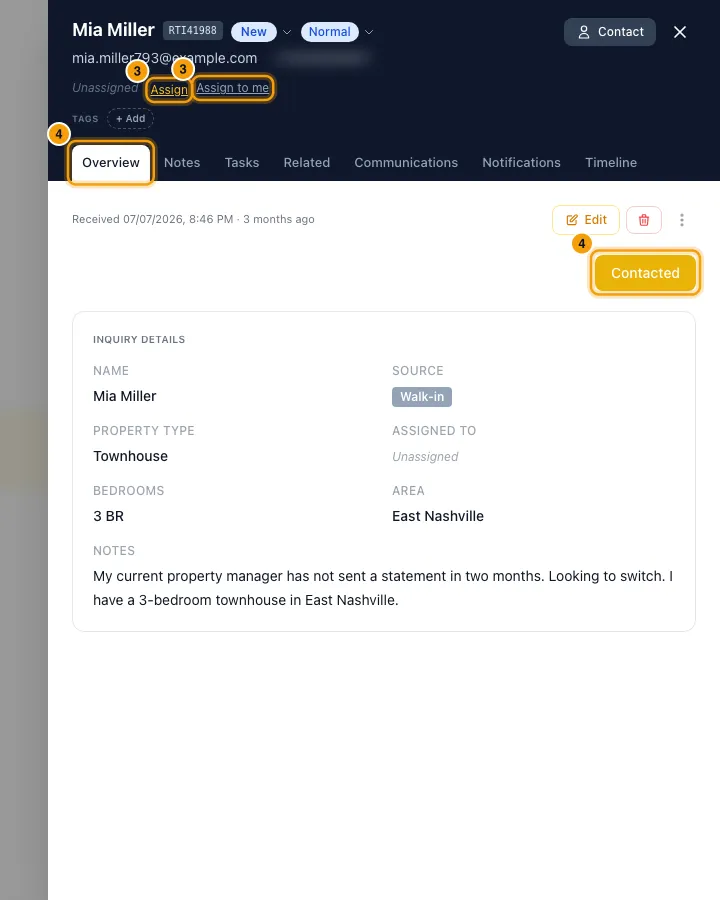
On the Overview tab, click the button for the next step:
- New or Assigned: Contacted.
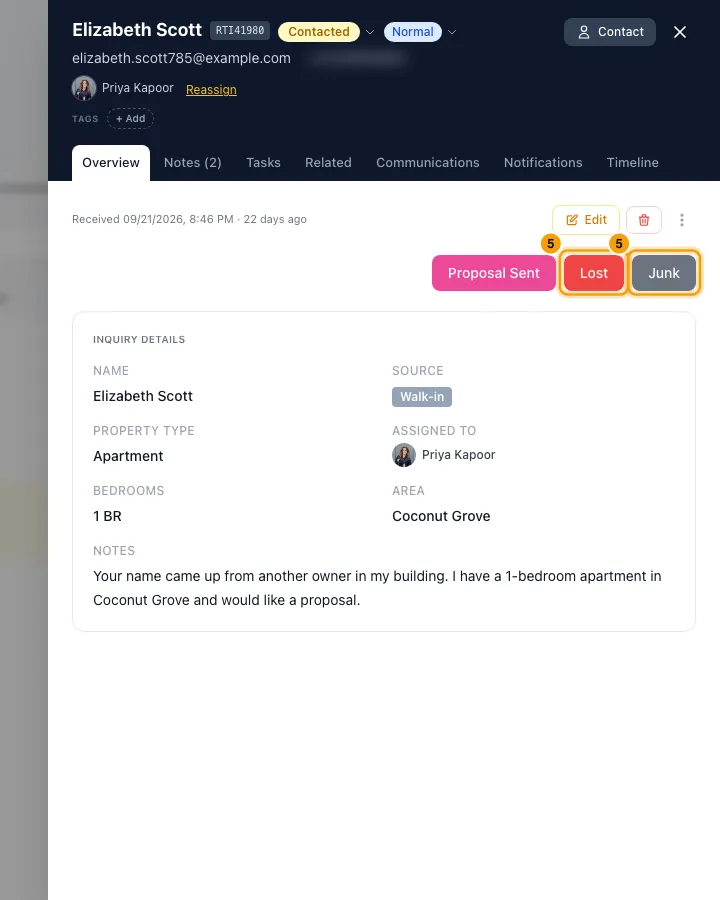
- Contacted: Proposal Sent, Lost or Junk.
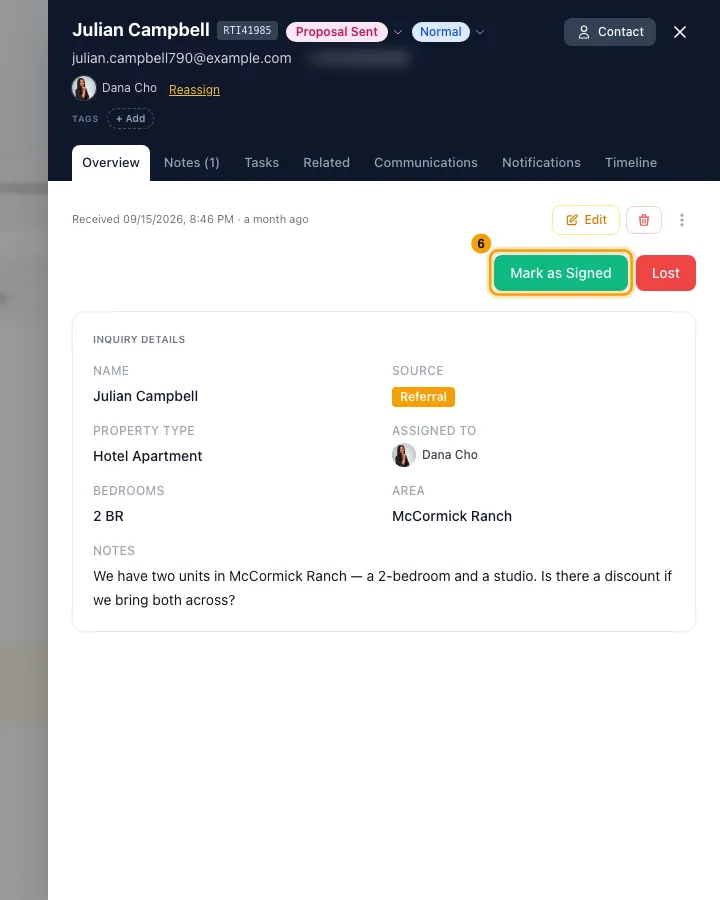
- Proposal Sent: Mark as Signed or Lost.
- Signed (but no Owner contact created yet): Create Owner contact.
- Lost or Junk: Re-open.
You can also click the stage badge next to the owner's name and pick any stage.
For Lost, choose a Lost Reason, write Notes (both required), then click Confirm Lost. Junk works the same way with Confirm Junk.
When the owner signs, click Mark as Signed. A dialog asks Create an Owner contact for …?
- Click Create Owner contact to make them an Owner and mark the inquiry Signed.
- Click Mark Signed only to move the stage without creating the owner.
After creating the owner, the inquiry shows Owner contact created. Click Open owner to carry on setting them up.
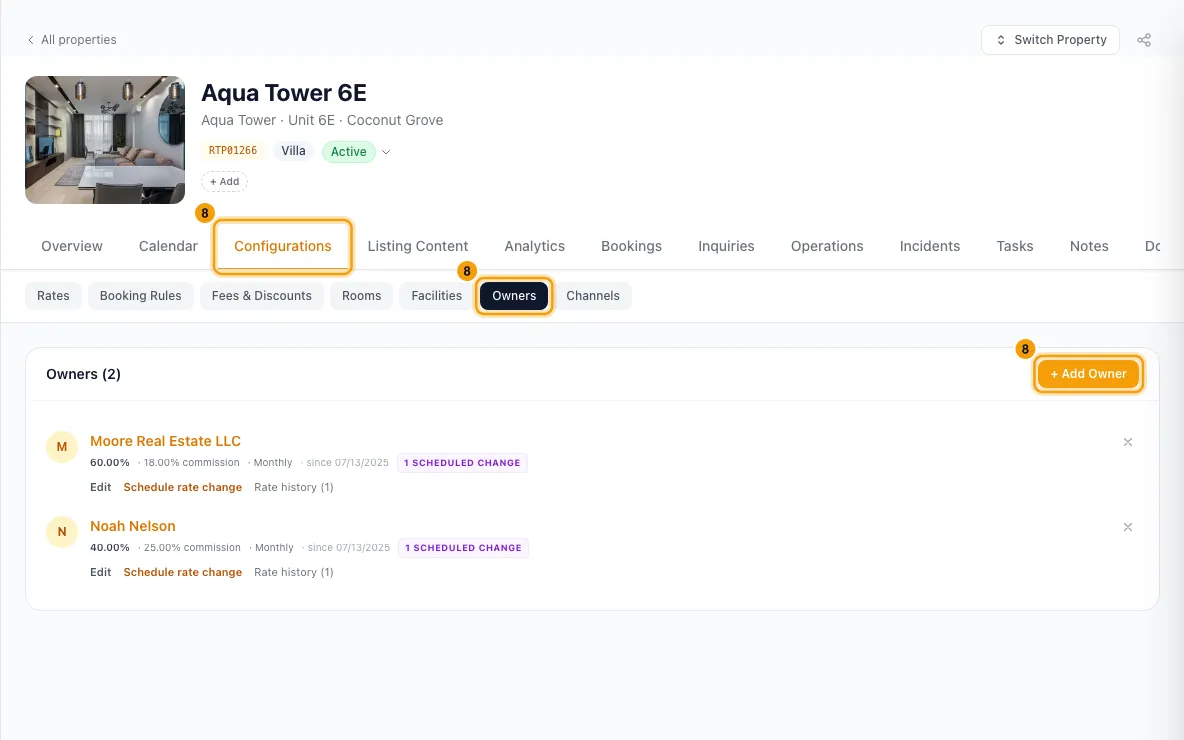
Link the owner to their property: open the property, go to Configurations → Owners → + Add Owner (see Add an owner to a property). You set the commission there.
Good to know
- Create Owner contact creates the owner only. It uses the inquiry's contact if it has one, otherwise a new or matching contact, and makes them an Owner. It creates no property, no property link and no commission.
- The dialog opens whenever you move the inquiry to Signed, from Mark as Signed or from the stage badge. It does not open if the inquiry's contact is already an Owner.
- An inquiry creates its owner once. Creating again is refused. Only owner inquiries can create an owner.
- Mark Signed only changes the stage. Create Owner contact is still offered on the Signed inquiry.
- A new owner inquiry from someone not yet in your contacts creates them as an Owner Lead. Owner leads are listed under Contacts → Leads, never under Owners, until you create the owner.
- Owner inquiries have no quotes or bookings, so Create Quote and Mark as Booked never appear.
- Owner lost reasons are their own list, for example Commission / Fee Too High, Chose Another Manager and Owner Will Self-Manage. Edit it in Settings → Data Management → Reference Lists → Lost Reasons.
- Kanban shows Unassigned, New, Assigned, Contacted and Proposal Sent.
- An owner inquiry whose stage is not in the owner pipeline shows a Needs a stage badge, and is listed under the Needs a stage button (and in a Needs a stage Kanban column when assigned). Open it and pick a stage.
- If a guest inquiry is really an owner, use the ⋮ menu → Reclassify as Owner Inquiry. The check-in, check-out, guests, budget and rental type are cleared. The reverse, Reclassify as Booking Inquiry, clears the property type, bedrooms and property name.
- In the Inbox, Rentibly AI may suggest an Owner inquiry card on a conversation that reads like an owner wanting to list. Approving it creates the owner inquiry and links it to the conversation.
- Each stage change fires an owner-inquiry event your notification rules can use, and moving to Lost fires its own event. This includes Lost and Junk from their buttons.
- Assigning an owner inquiry sends the new assignee the Owner inquiry assigned to me alert. Picking the person who already has it sends nothing.
- Changing an owner inquiry, or creating its Owner contact, needs Edit on Inquiries.
- Creating the owner fires the owner-inquiry Owner contact created event your notification rules can use, plus the stage-changed event when it moves the inquiry to Signed.
Rentibly AI can help
- It can find owner inquiries, assign them, edit their details and stage ( — only a stage the owner pipeline has) and mark them lost with a reason. You confirm each change.
- Its stage changes fire the same owner-inquiry events as yours, including the Lost event.
- When it assigns an owner inquiry, the new assignee gets the same Owner inquiry assigned to me alert as when you assign it.
- It can't mark an owner inquiry Signed, one at a time or in bulk. It tells you to click Mark as Signed on the inquiry yourself, so you are asked whether to create the Owner contact. It can't create the Owner contact either.
Still stuck?
Open Support from your profile menu in Rentibly, or email hello@rentibly.com — we answer fast.