Upload and manage a property's documents
Updated 13 October 2026
Keep a property's files (permits, insurance, floor plans, manuals) on its Documents tab. Add an expiry date to get a warning before a document runs out, pin the important ones to the property's Overview, and choose which ones the owner can see.
Steps
Upload files
Go to Properties and open the property.
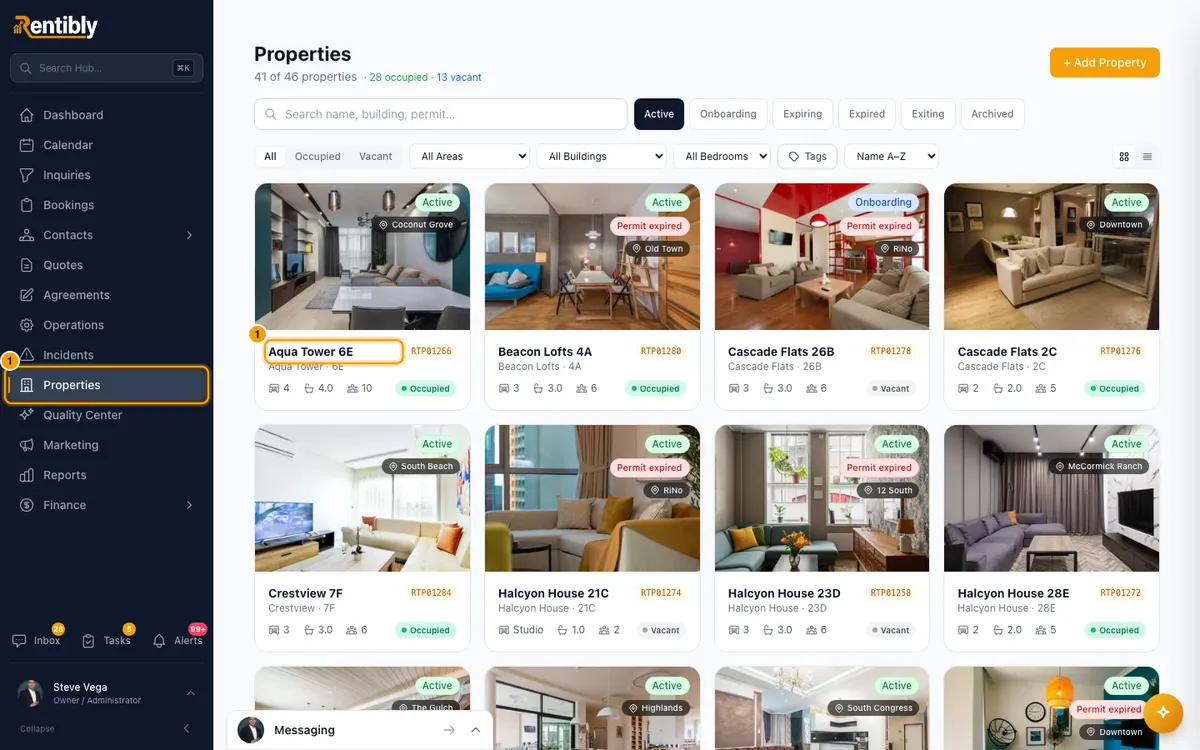
Click the Documents tab.
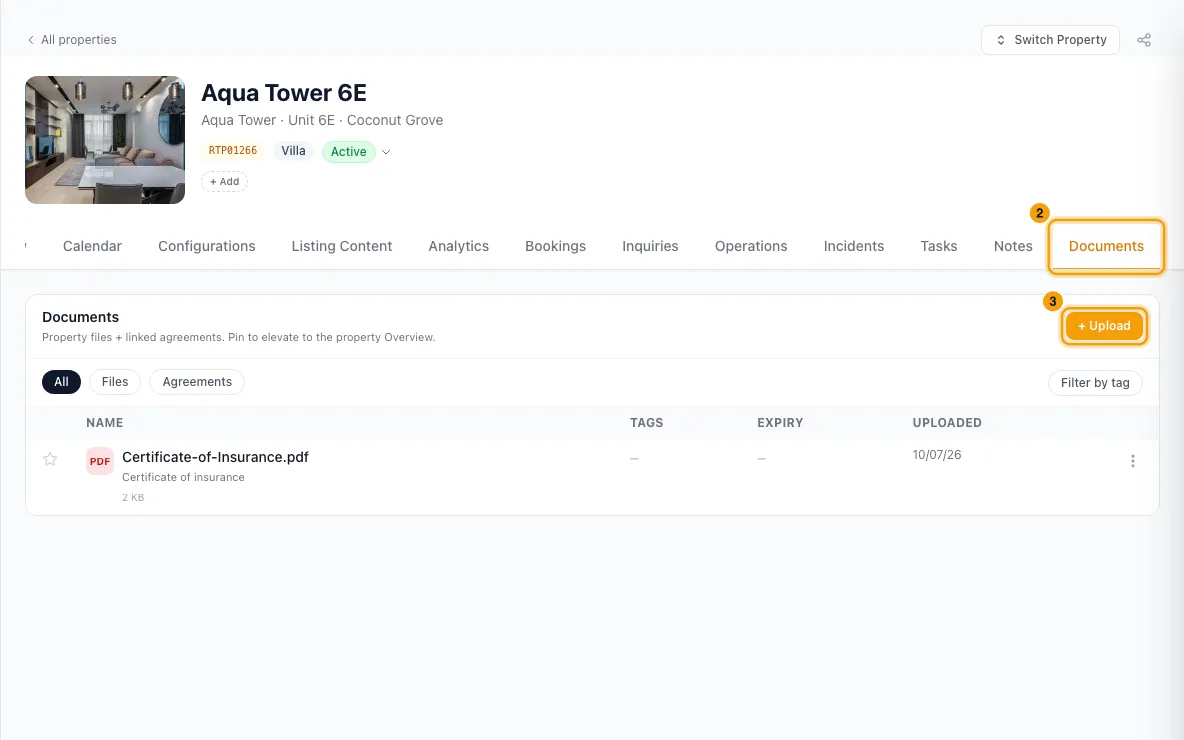
Click + Upload and choose one or more files. You can also drag files from your computer and drop them anywhere on the Documents card.
For each file, check the Name. Add Tags, a Description and an Expiry date if you want.
With several files, click Copy first file's details to all to give every file the first file's tags, description and expiry. Names are not copied.
To leave a file out, click the × next to its name.
Click Upload.
Manage a file
Click a file's name to preview it. Word, Excel and other files the preview can't show open in a new browser tab.
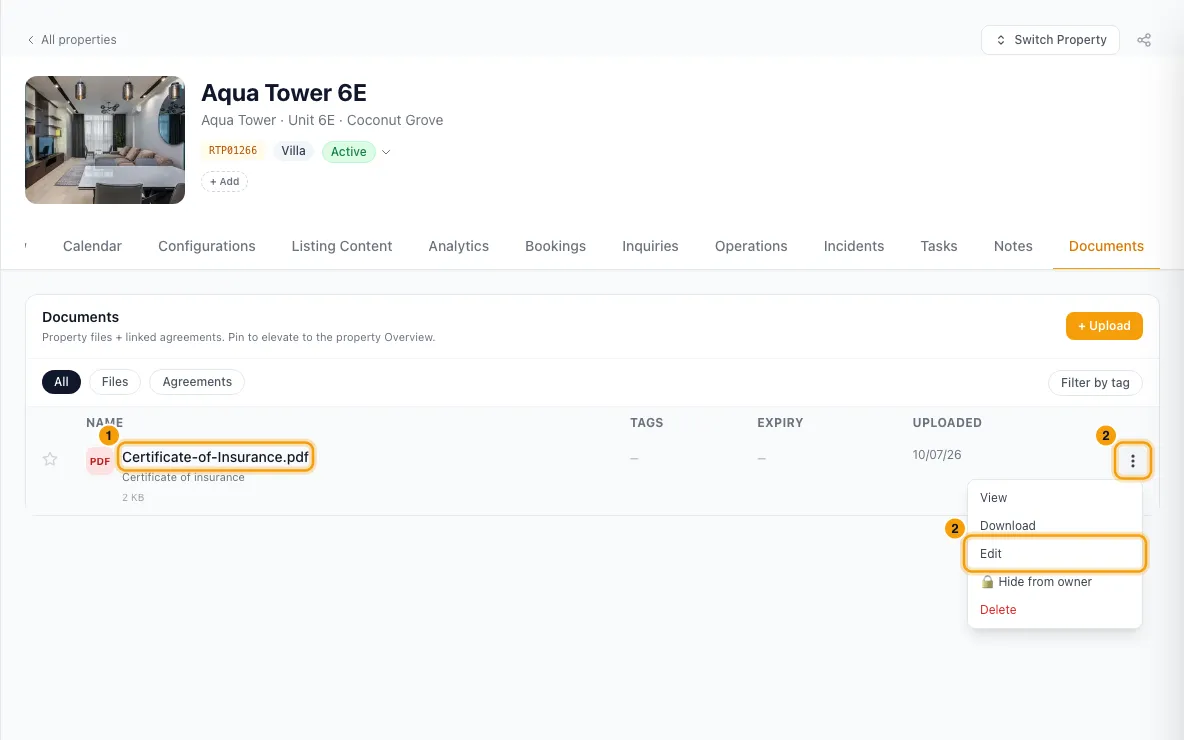
Click the ⋮ menu on its row for View, Download, Edit, 👁 Show to owner (or 🔒 Hide from owner) and Delete.
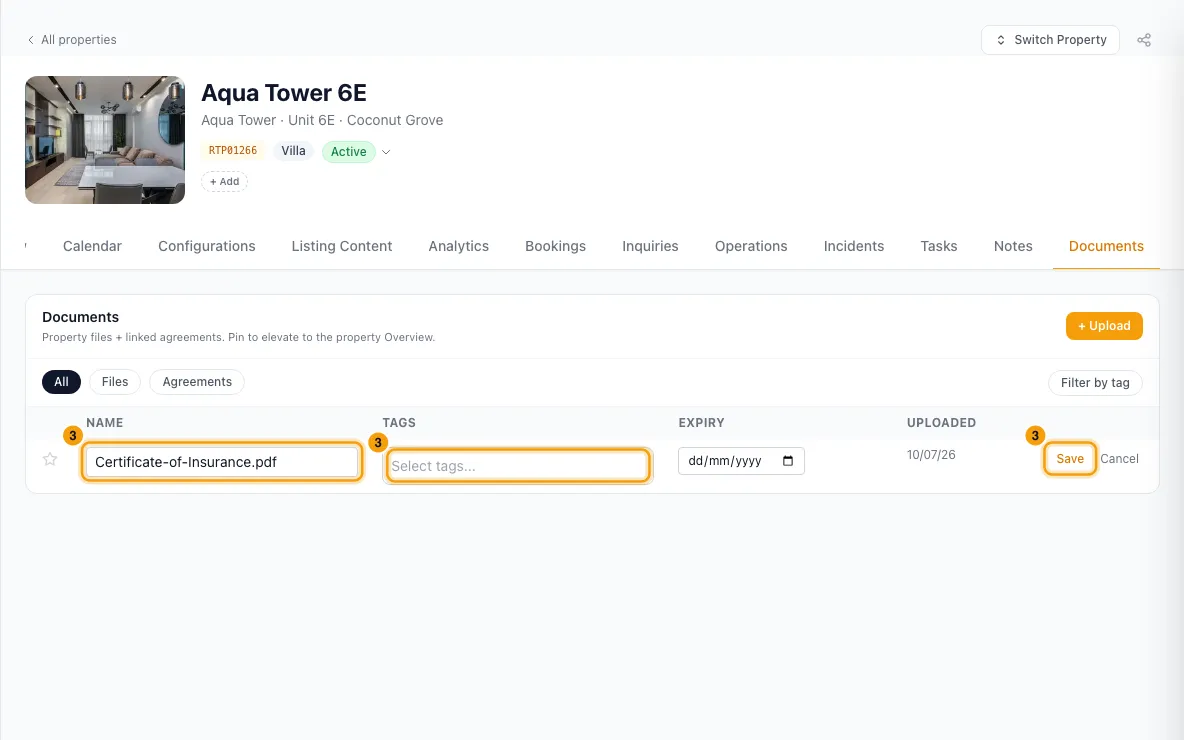
After Edit, change the name, tags or expiry date in the row, then click Save.
Pin a file to the Overview
Click the star at the start of a row. A filled star means it is pinned.
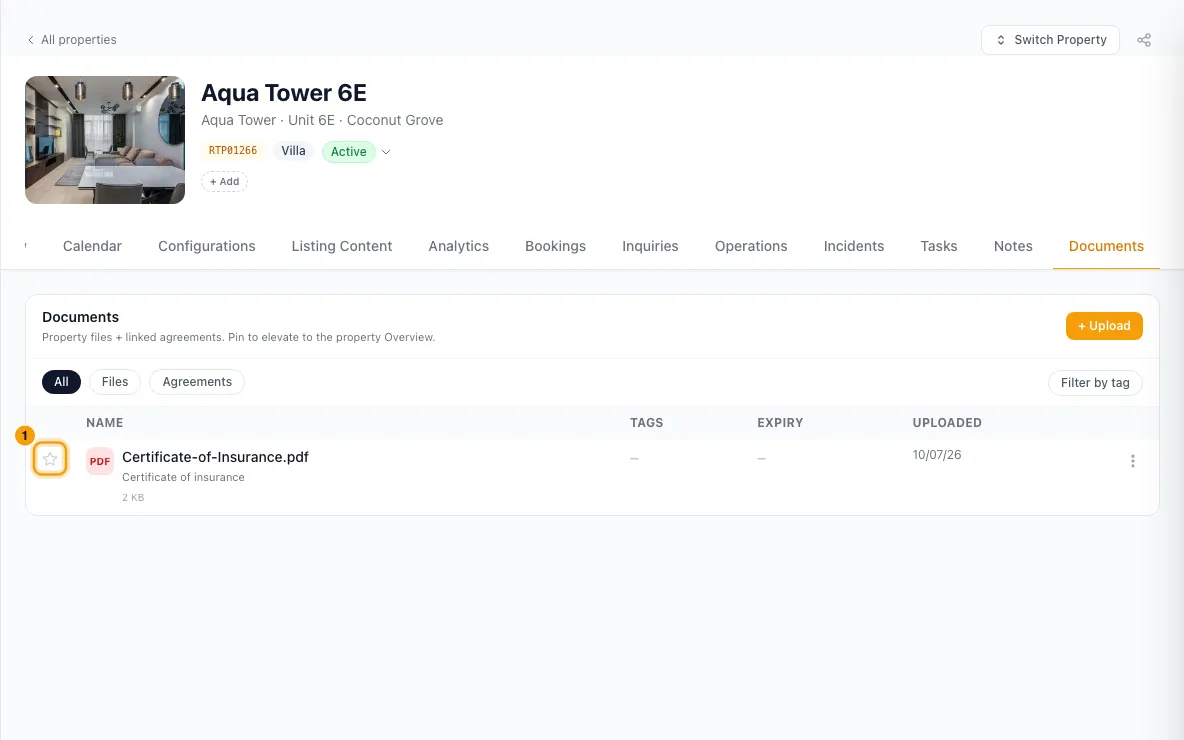
Pinned files show under Key Documents on the property's Overview tab. Click the star again to unpin.
Find a file
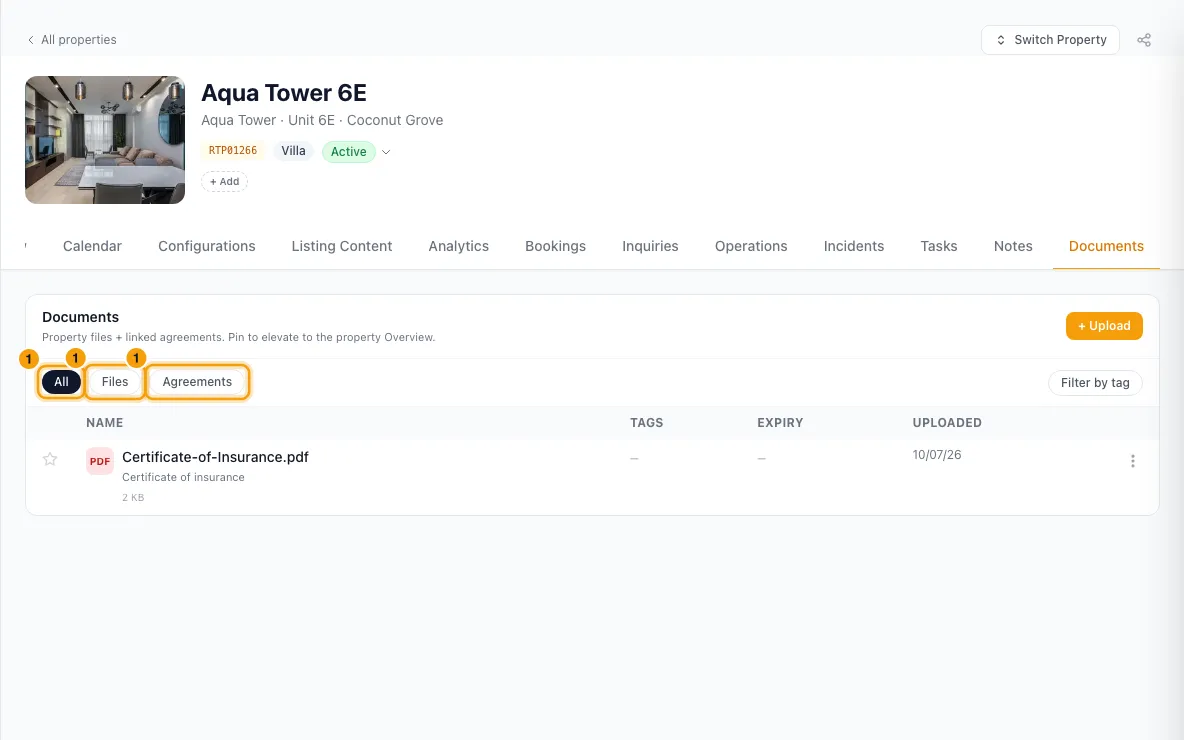
Use All, Files or Agreements to narrow the list.
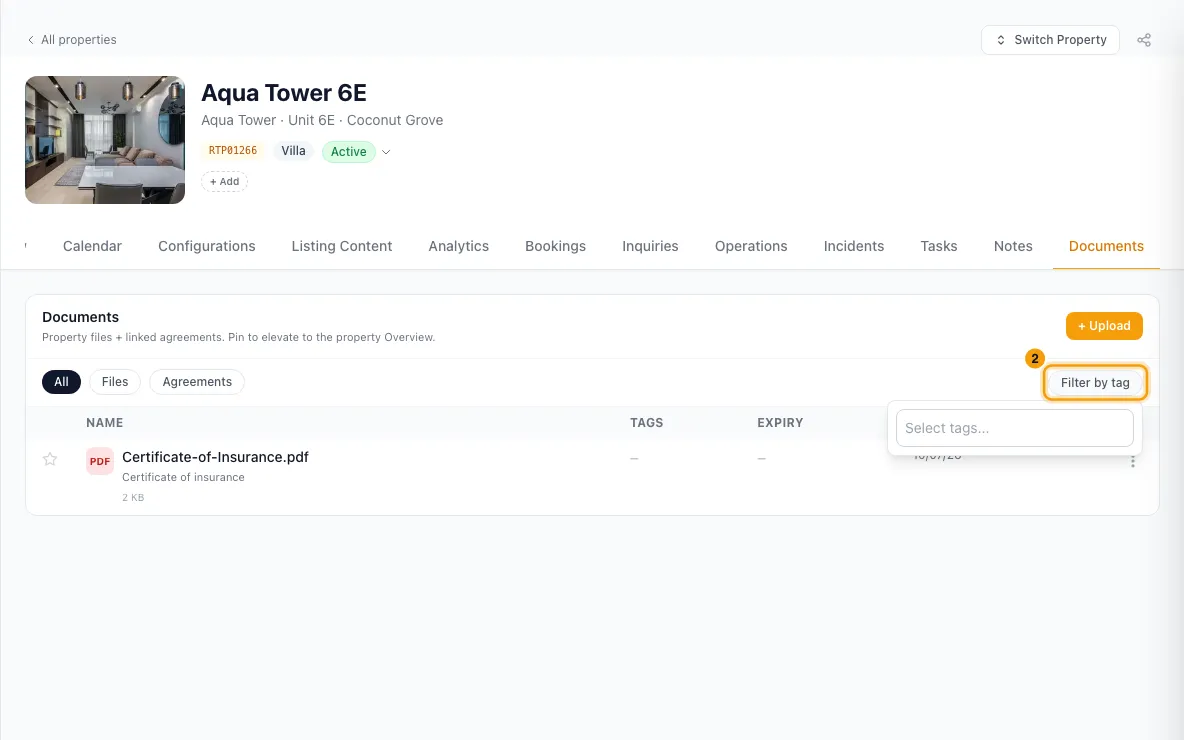
Click Filter by tag and pick tags to show only files with any of them.
Good to know
- Allowed files: images, PDFs, Office documents, video and archives (zip, 7z, rar, tar), up to 99 MB each. A file of another type, or a bigger one, is refused before it uploads, with the reason.
- Drop zone: the whole Documents card accepts dropped files, whether or not it already has files. Drops are ignored while an upload is still running.
- Each file uploads on its own, so one failed file doesn't stop the others. You can cancel one file or all of them from the upload progress card.
- Expiry: a date within 30 days shows in amber, a past date in red. Those documents also appear at the top of Key Documents on the Overview, pinned or not.
- Owners: every new file is hidden from the owner. After 👁 Show to owner, the owner sees it on that property in the owner portal, as long as Properties and Documents (under Property detail) are switched on for them in Settings → Owners → Owner Portal.
- Agreements linked to the property also appear here. Open them from the ⋮ menu: Open signing link or View in Agreements. They can be pinned but not edited from this tab.
- Tags come from Settings → Tags: any tag whose modules include Documents, or that has no modules set.
- Permissions: you need Properties at View to see the tab and at Edit to pin or unpin. Uploading, editing and deleting files are checked against Files & documents.
Rentibly AI can help
- Rentibly AI can't upload, pin or share property documents yet. It can explain how the Documents tab works.
Still stuck?
Open Support from your profile menu in Rentibly, or email hello@rentibly.com — we answer fast.