Archive a property or schedule its exit
Updated 13 October 2026
When a property is leaving your management, you can record the date it leaves (an "exit") ahead of time, and archive it when the day comes. Archiving takes it off your channels and cancels its open work. Properties are never deleted, and you can bring an archived one back.
Steps
Schedule an exit
Go to Properties and open the property.
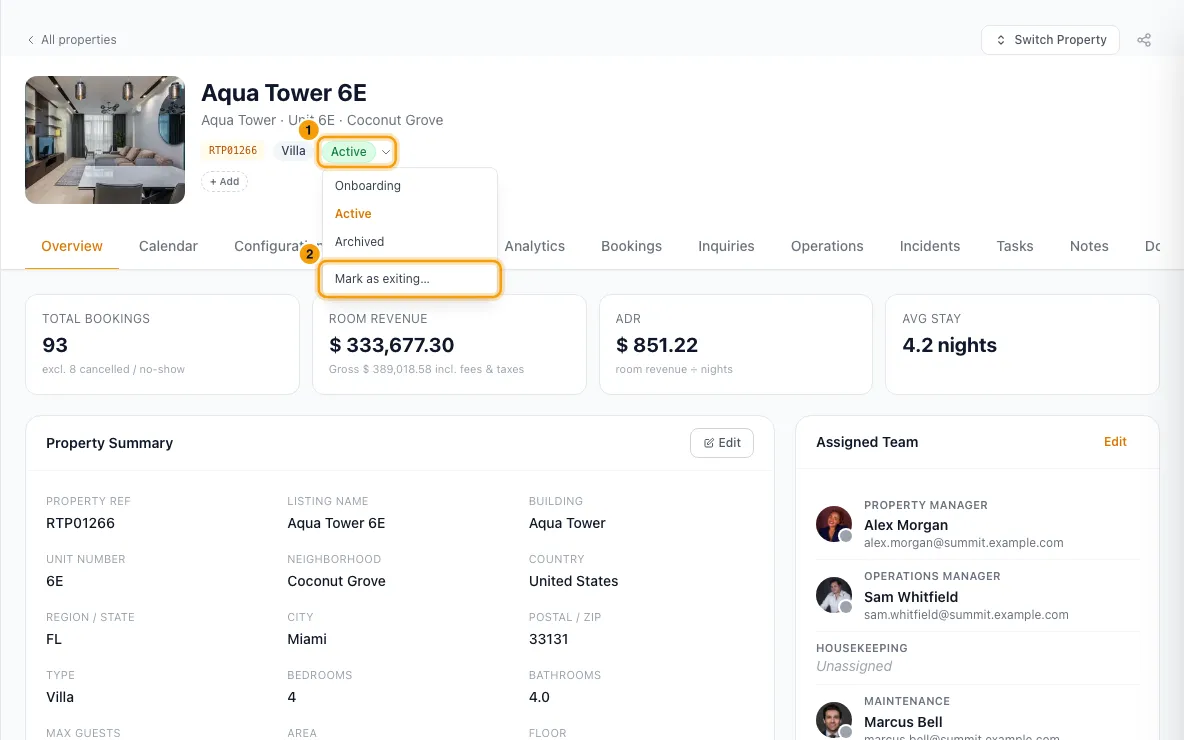
Click the status pill under the property name and choose Mark as exiting….
Pick the Exit date and, if you like, a Reason.
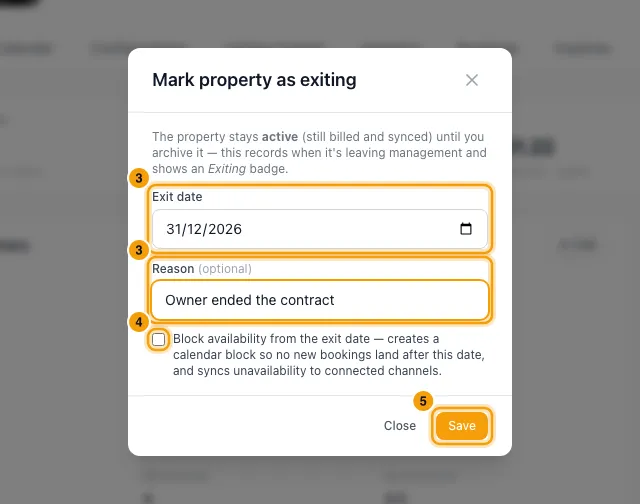
Optional: tick Block availability from the exit date so no new bookings land after it.
Click Save. The property shows an Exiting badge with the date.
To change or cancel it, click the status pill and choose Edit scheduled exit…. Change the date or reason and click Save, or click Cancel exit, choose whether to Also remove the availability block, and click Cancel exit again.
Archive the property
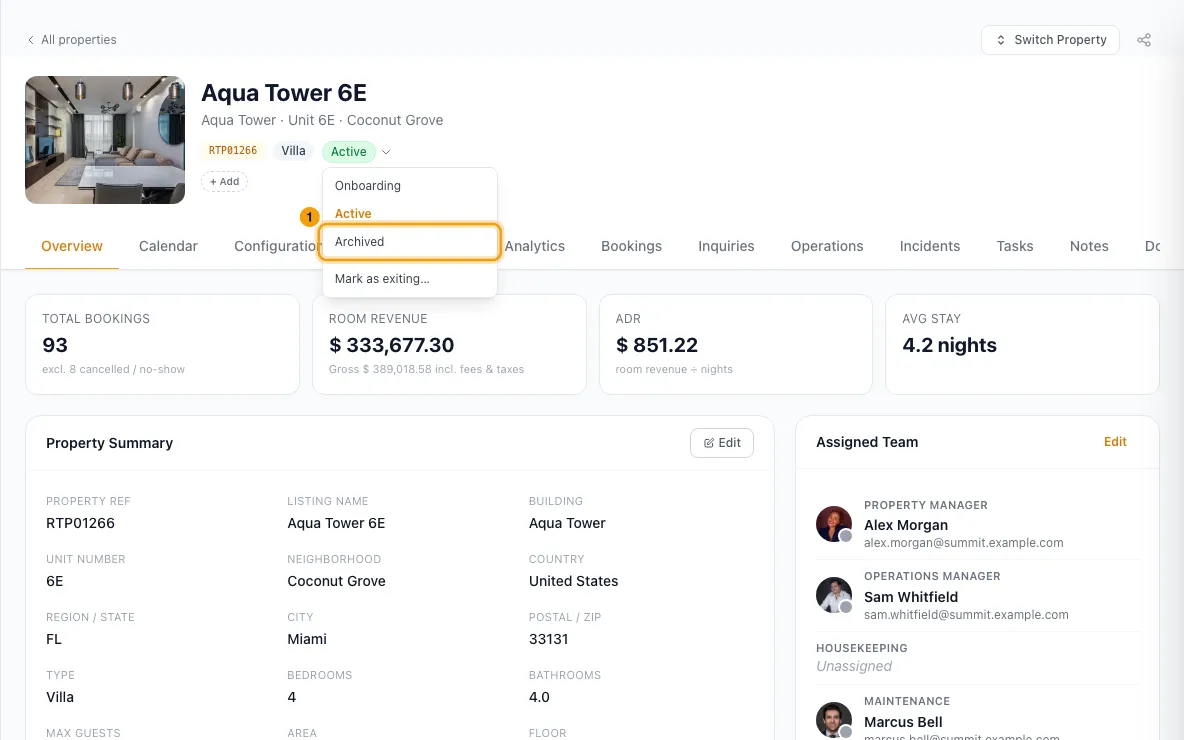
Open the property, click the status pill and choose Archived.
Read the Archive window. It lists what will happen: channels to disconnect, smart locks to disconnect, scheduled operations to cancel and automations to switch off.
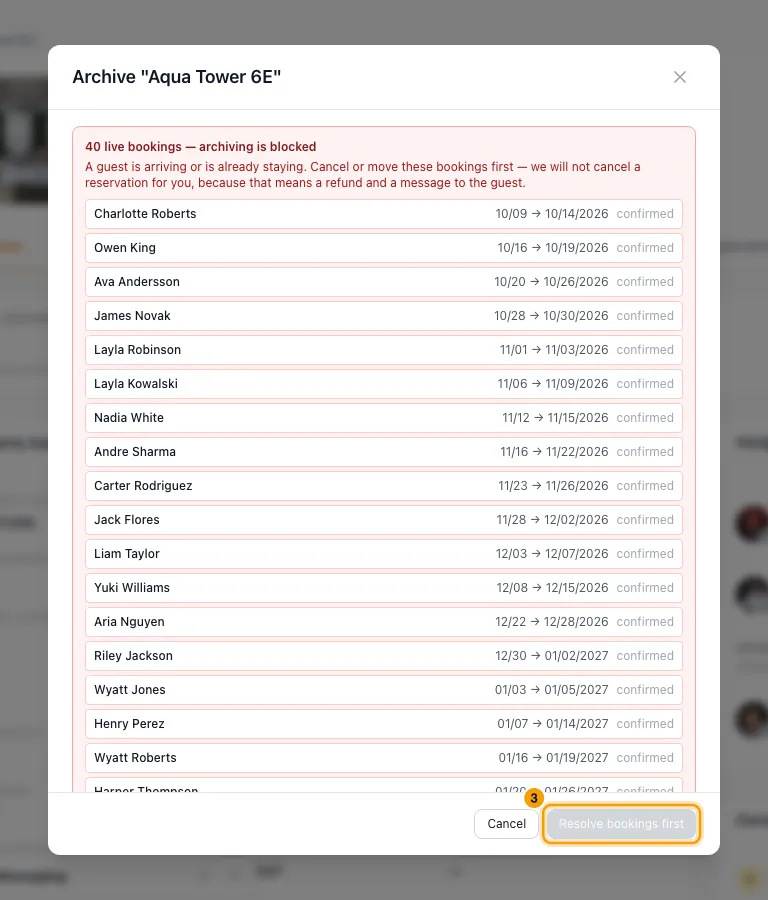
If live bookings are listed, cancel or move them first. The button reads Resolve bookings first until you do.
Click Archive property and wait while each step runs. Then click Close.
Bring a property back
On Properties, click the Archived filter and open the property.
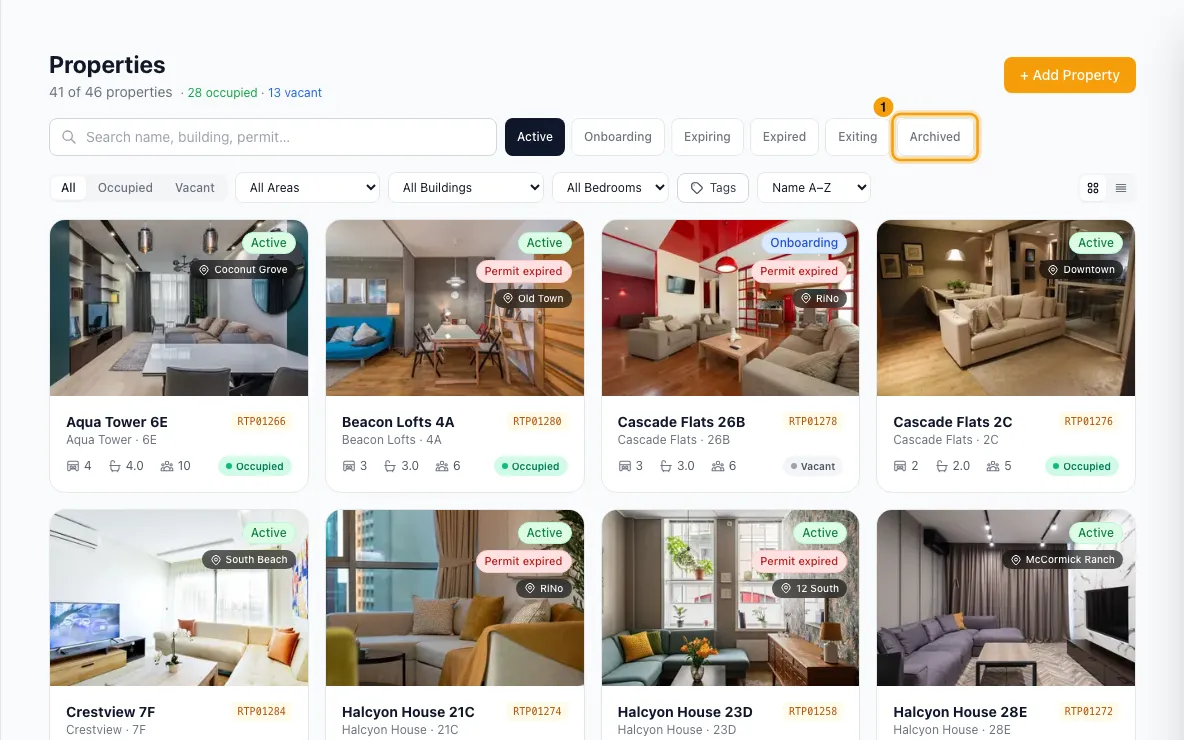
Click the status pill and choose Onboarding or Active.
Good to know
- A property whose owner is inactive can't be brought back until you mark the owner active again: open the owner's contact, and on Overview click Mark as Active.
- An exit doesn't archive anything. The property stays active, billed and on your channels until you archive it. Once the exit date has passed, the badge reads Exit overdue.
- Blocking availability adds a calendar block, titled "Property exiting", from the exit date for five years, and your channels stop selling those dates. It can't be added if a booking, owner stay, block or open quote already falls after the exit date. Then nothing is saved and the message says why. Save without the block, or clear those dates first.
- Moving the exit date also moves the linked block. If the block can't move, you're told and the new date is still saved.
- Moving the exit date also moves the jobs a When a property is marked as exiting automation made from the exit date, such as an exit inspection 3 days before. Jobs that are completed, started or moved by hand stay put. Cancelling the exit (clearing the exit date) cancels the open jobs that automation made. Jobs that are completed, started or moved by hand, and jobs you made yourself, stay. Setting a new exit date later runs the automation again and makes a fresh set.
- When you cancel an exit with Also remove the availability block ticked and the block can't be removed, you're told why and the exit is not cancelled. If the block was already deleted from the calendar, the exit is cancelled as normal.
- What blocks archiving: a confirmed or checked-in booking that hasn't checked out yet. A guest leaving today doesn't block it. Rentibly never cancels a guest's booking for you.
- What archiving does, in order:
- Channels: each connected channel is disconnected. The window says per channel whether the listing is removed automatically. For Emerging Travel Group it says You must contact the channel to close it. Do that after archiving, or the listing stays sellable.
- Operations: pending, in-progress, on-hold and pending-review operations are cancelled.
- Smart locks: connected locks are disconnected and existing guest codes stop being managed. To use a lock on another property, connect it there from Settings → Integrations → Door access.
- Automations: automations set up only for this property are switched off.
- Then the property is set to Archived.
- If some steps fail, the property is still archived and the window says Archived, but not everything confirmed. Check the channels or locks marked in red yourself. If it says Not archived, the property keeps its current status.
- You can close the window while it runs. The archive carries on.
- Bringing it back switches the automations back on. It doesn't reconnect channels or smart locks. Reconnect those yourself.
- Archived properties don't count toward your subscription. Onboarding, Active and exiting properties do.
- Automations: you can run work from these moments, with the triggers When a property is marked as exiting, When a property exit date is reached and When a property is archived (Settings → Automations).
- You need Edit on Properties. Blocking availability also needs Edit on Calendar.
Rentibly AI can help
- It can move a property between Onboarding and Active.
- It can't schedule an exit or archive a property. Use the status pill on the property's page.
Still stuck?
Open Support from your profile menu in Rentibly, or email hello@rentibly.com — we answer fast.