Manage the amenities list
Updated 13 October 2026
The amenities list is the set of groups and items your team ticks on each property, such as Kitchen & Dining → "Dishwasher". You can add your own groups and amenities next to the standard ones.
Steps
Click your name at the bottom of the sidebar, then Settings. Under Property Settings, open Amenities.
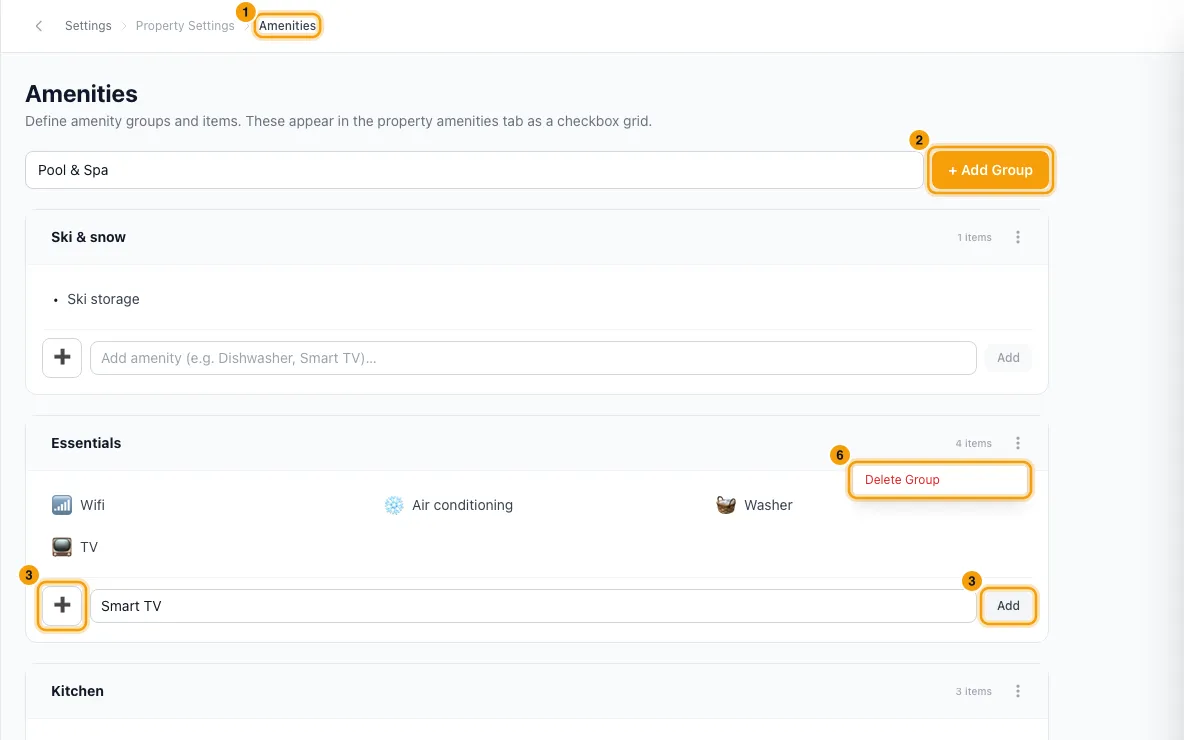
To add a group, type its name in the box at the top and click + Add Group (or press Enter).
To add an amenity, go to its group, type the name in Add amenity (e.g. Dishwasher, Smart TV)…, pick an icon if you like, and click Add.
To change an amenity's icon, click the icon next to it and pick a new one.
To rename one of your own amenities, point at it and click the pencil, type the new name and press Enter. To rename one of your own groups, click its name, type, and click away.
To remove one of your own amenities, point at it, click the bin and confirm Remove. To delete one of your own groups, open its ⋯ menu and choose Delete Group.
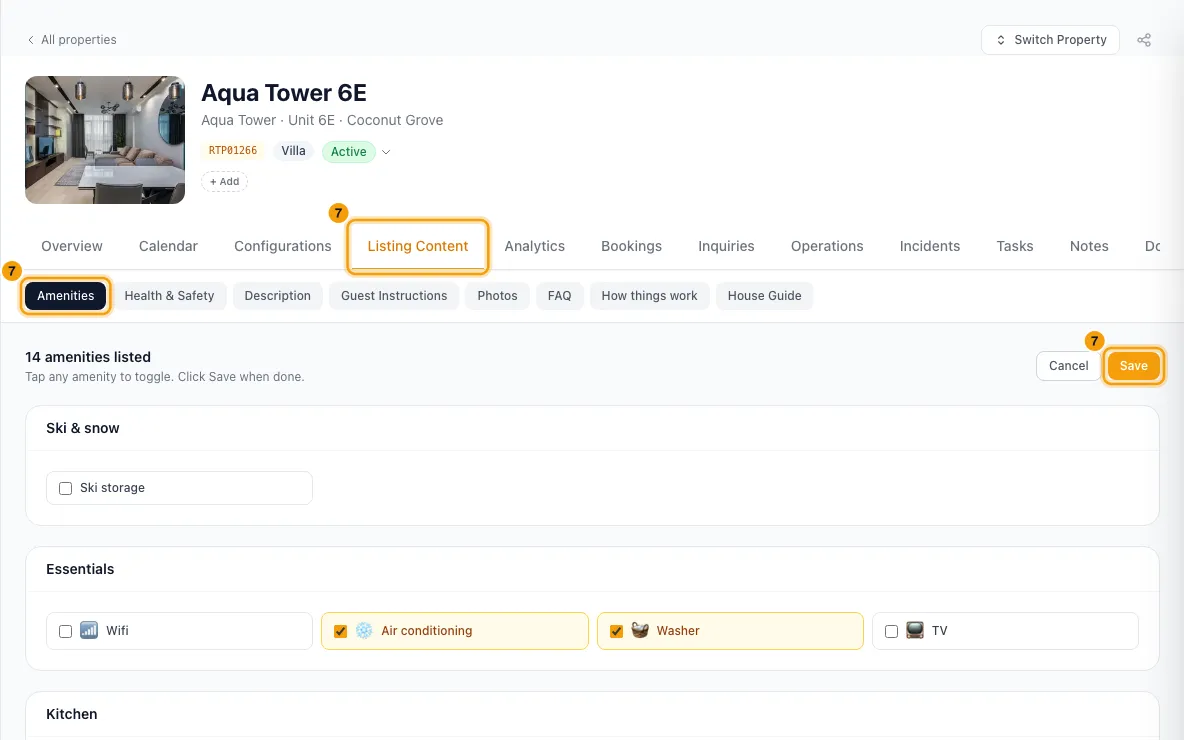
Tick the amenities on each property: open it from Properties, go to Listing Content → Amenities, click Edit, tick or untick the amenities and click Save.
Good to know
- Groups and amenities marked System are the standard list every account starts with. Their names are fixed and they can't be moved or deleted, because they are matched to booking channels' own amenity lists. You can still change their icon.
- Saving a property's amenities sends them to its connected channels. Rentibly matches each ticked amenity by name to the channel's list. An amenity you added yourself is sent only if its name matches one Rentibly knows; otherwise the channels don't receive it. To be sure an amenity reaches channels, use the System one.
- Some groups carry a note, shown under the group name. For example, the Expectations group is sent only to Airbnb.
- Renaming your own amenity also renames it on every property that has it ticked, and sends those properties' amenities to their connected channels again.
- Removing an amenity takes it off the list, but properties that had it ticked keep it in their data. It no longer appears in the property's amenities grid.
- Deleting a group removes every amenity inside it.
- Everyone can see the amenities list. Changing the list needs the Settings permission. Ticking amenities on a property needs permission to edit Properties.
Rentibly AI can help
- It can add or remove amenities on a property from your list. It can't change the list itself; add new amenities here first.
Still stuck?
Open Support from your profile menu in Rentibly, or email hello@rentibly.com — we answer fast.