Set up a house guide template for all properties
Updated 13 October 2026
Write the house guide once and use it on every property. Blocks like Photos, Amenities and Arriving & leaving fill in from each property's own details, so one template gives every property a correct guide.
Steps
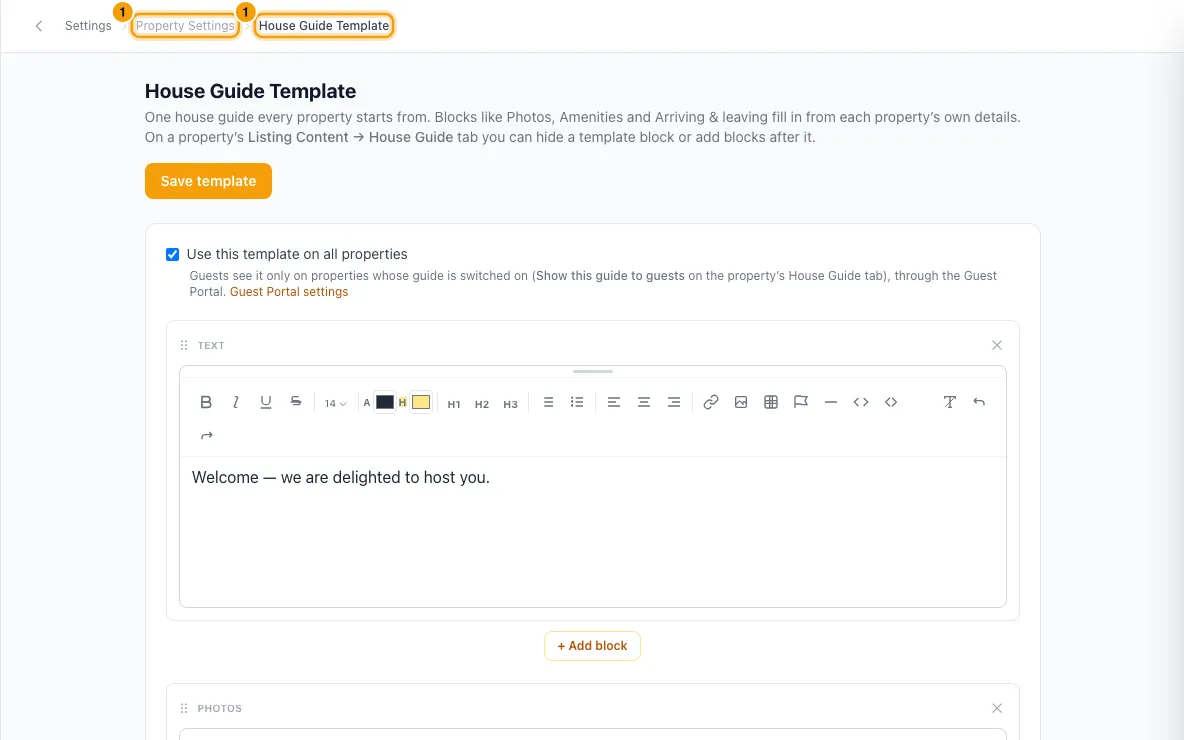
Click your name at the bottom of the sidebar, then Settings. Under Property Settings, open House Guide Template.
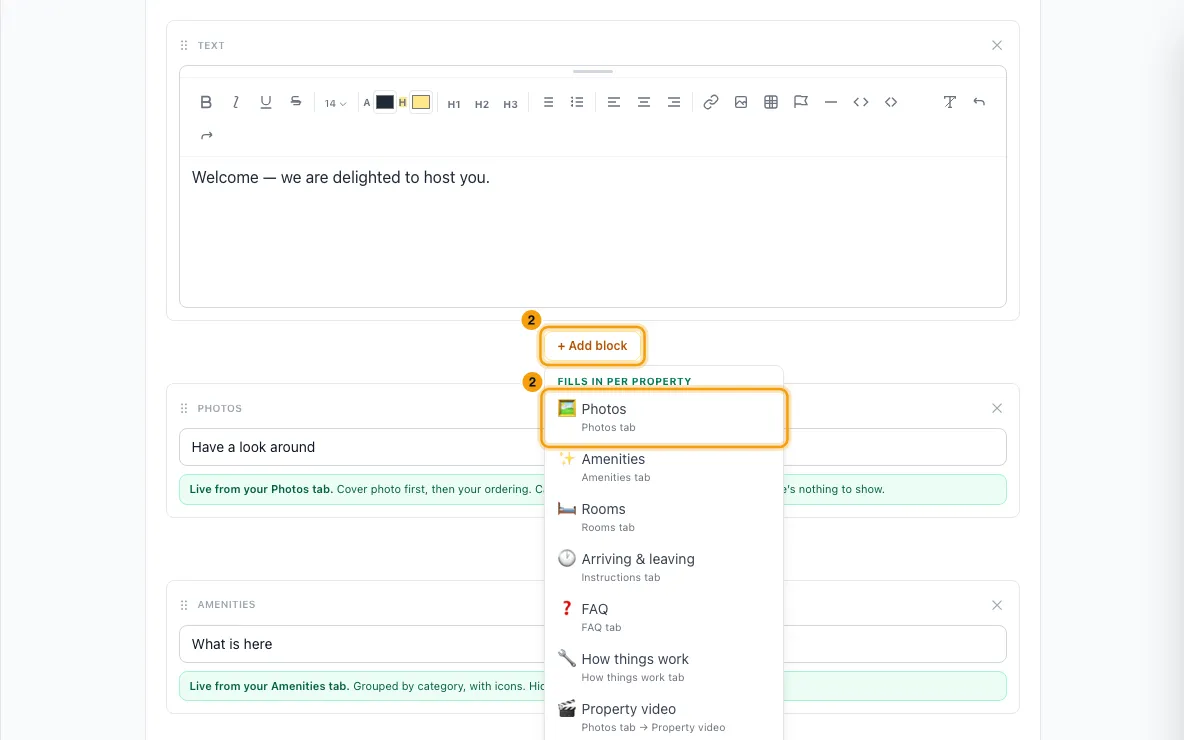
Click + Add block. Choose a block that fills in per property (Photos, Amenities, Rooms, Arriving & leaving, FAQ, How things work, Property video, Location map), or one that reads the same on every property (Heading, Text, Video, Callout, Buttons, Divider, List).
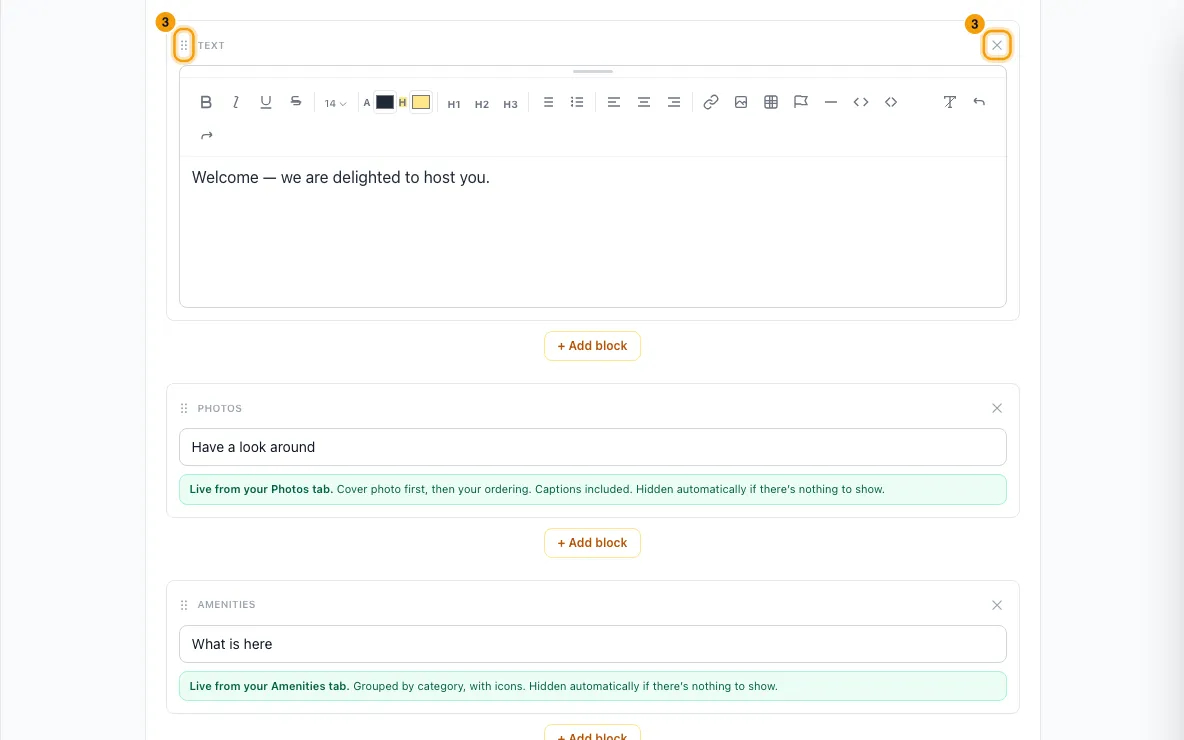
Fill in the block. Drag the ⠿ handle to reorder blocks. Click ✕ to remove one.
Tick Use this template on all properties.
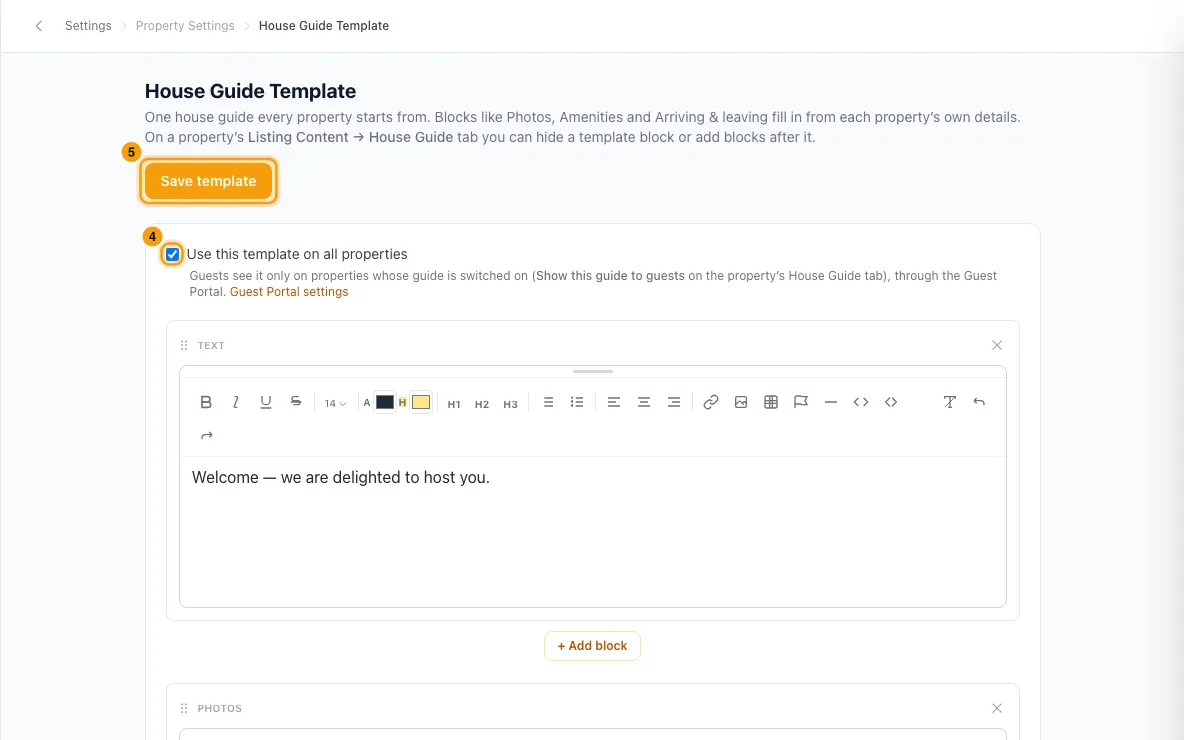
Click Save template.
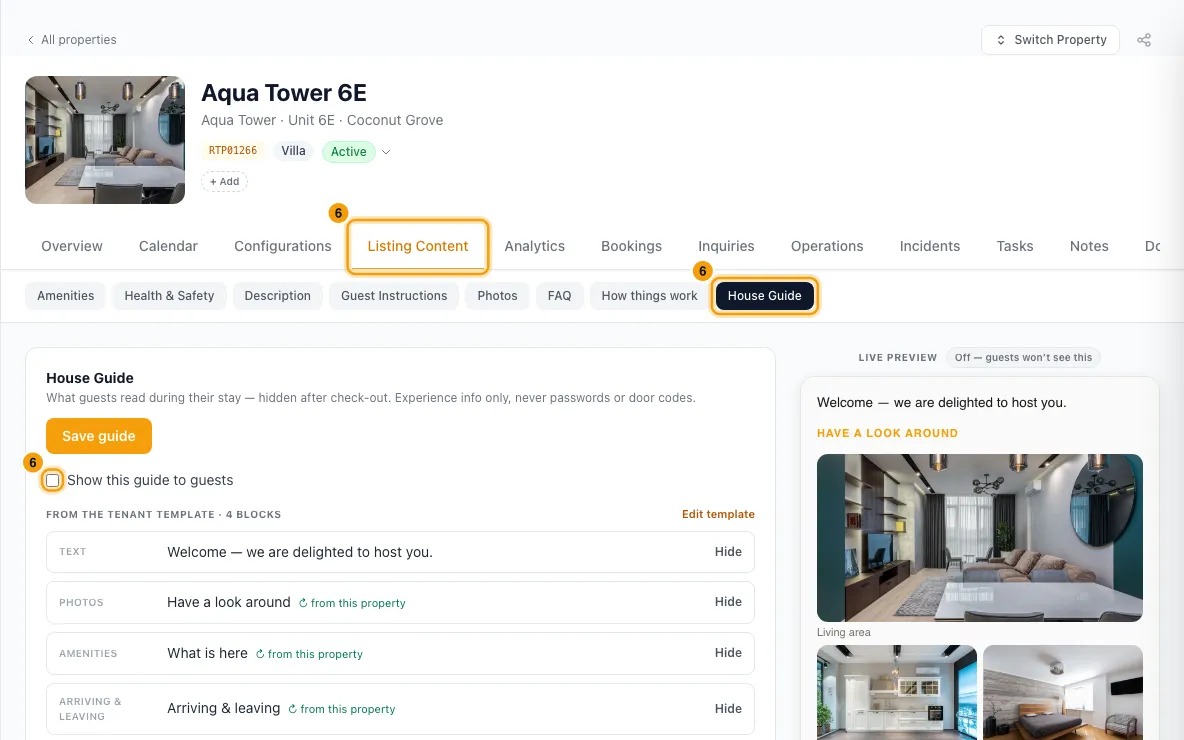
On each property, go to Properties, open the property, then Listing Content → House Guide. Tick Show this guide to guests and click Save guide.
Good to know
- Guests see the guide in the guest portal during their stay. A property shows it only when Show this guide to guests is ticked on that property.
- On a property's House Guide tab, the template blocks are listed under From the tenant template. Click Hide to leave one out on that property, and Show to bring it back. A property can't delete or move a template block. The property's own blocks come after the template blocks.
- A block that fills in per property is left out on a property with nothing to show (for example, Photos on a property with no photos).
- Untick Use this template on all properties and save to stop using the template. Each property then shows only its own blocks. Your template is kept.
- If you remove a block from the template, it disappears from every property, including any changes a property made to it.
- You can't upload images into the template, so there is no Images block here. Add images on a property's House Guide tab.
- If a block is empty or a button link isn't http(s), it's dropped when you save and the page tells you how many.
- To give a Callout or a button its icon, click its icon box. Pick a suggestion or search every emoji. Clear removes it, and a callout then shows its type's own icon.
- The template is saved with your Guest Portal. If the Guest Portal has never been set up, saving says so. Set it up under Settings → Integrations → Guest Experience.
- Keep door codes and Wi-Fi passwords out of the guide. Guests get those in their access details near arrival.
- You need Access on Settings in your role to see and change the template.
Rentibly AI can help
- Rentibly AI can't edit the house guide or its template yet. Use the House Guide Template page.
Still stuck?
Open Support from your profile menu in Rentibly, or email hello@rentibly.com — we answer fast.