Organise properties into areas and locations
Updated 13 October 2026
Areas are your list of neighbourhoods and regions, such as "Dubai" → "Dubai Marina" → "JBR". You build the list once, then tag each property with its area so you can filter, group and price by location.
Steps
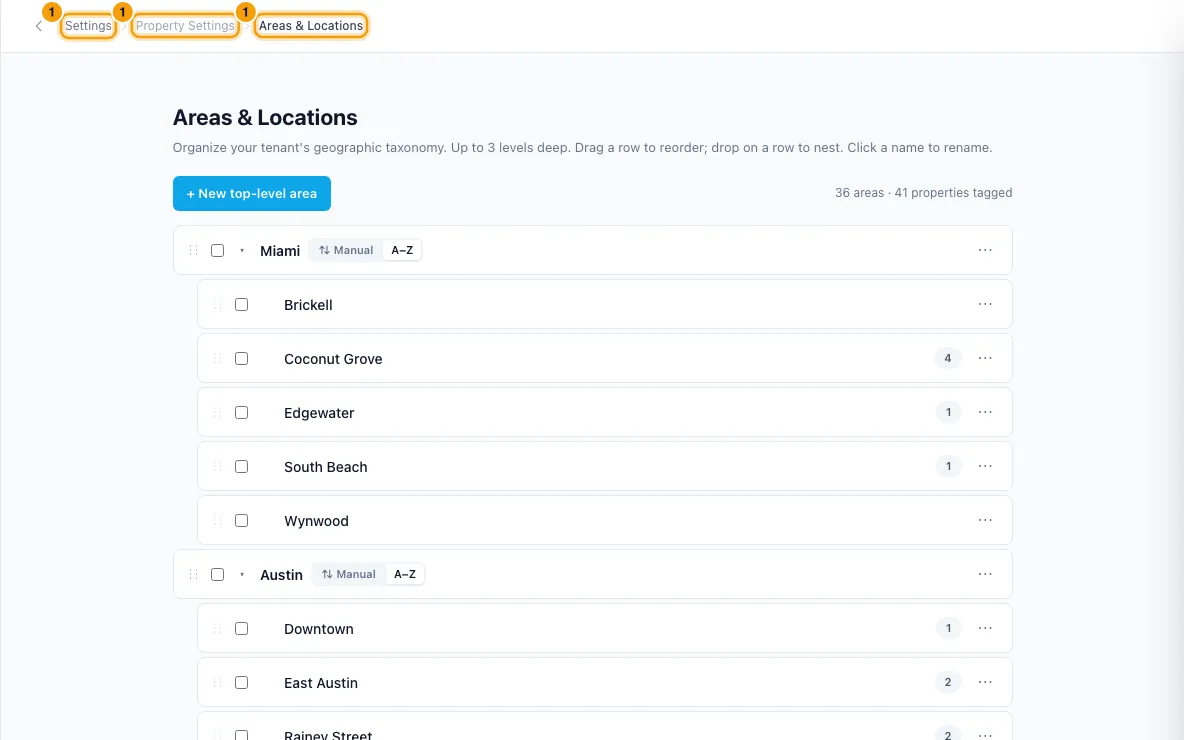
Click your name at the bottom of the sidebar, then Settings. Under Property Settings, open Areas & Locations.
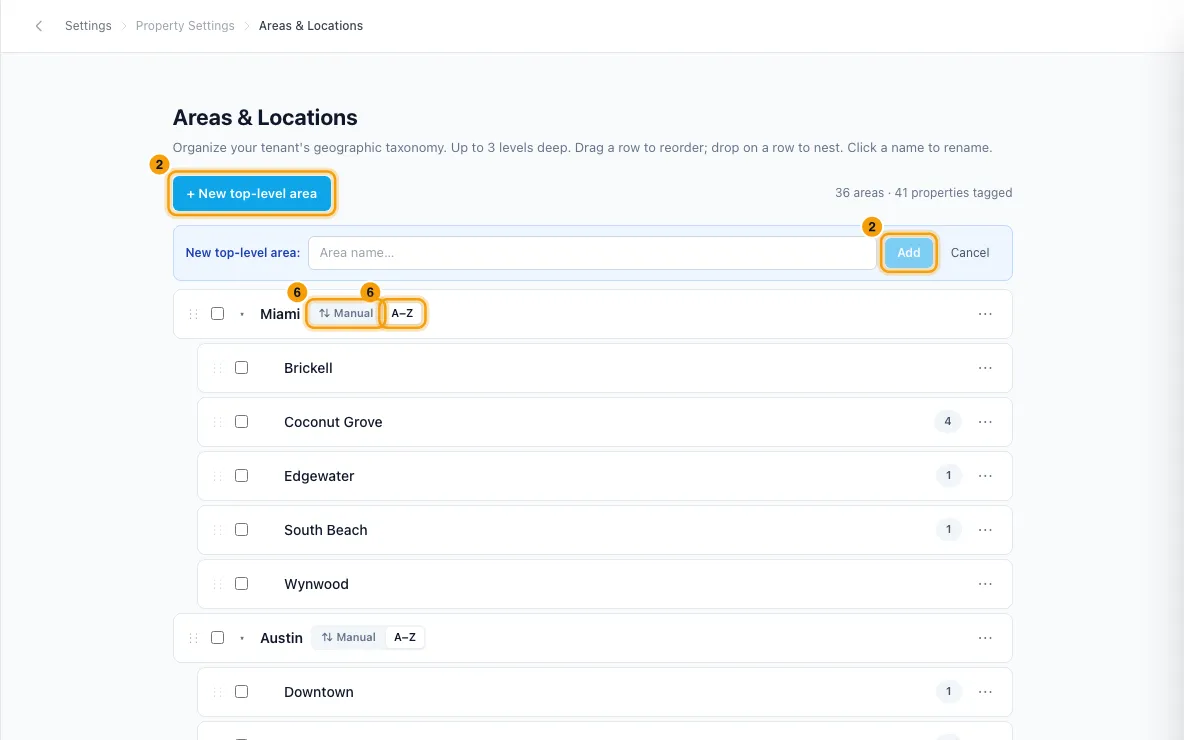
Click + New top-level area, type the name and click Add (or press Enter).
To add an area inside another, open the ⋯ menu on the parent and choose Add child. Type the name and click Add.
To rename an area, click its name (or ⋯ → Rename), type the new name and press Enter.
To reorder, drag a row by its ⋮⋮ handle. Drop it on the top half of a row to place it beside that row, or on the bottom half to put it inside that row.
To sort an area's children alphabetically, expand it and choose A–Z next to its name. Choose ⇅ Manual to go back to your own order.
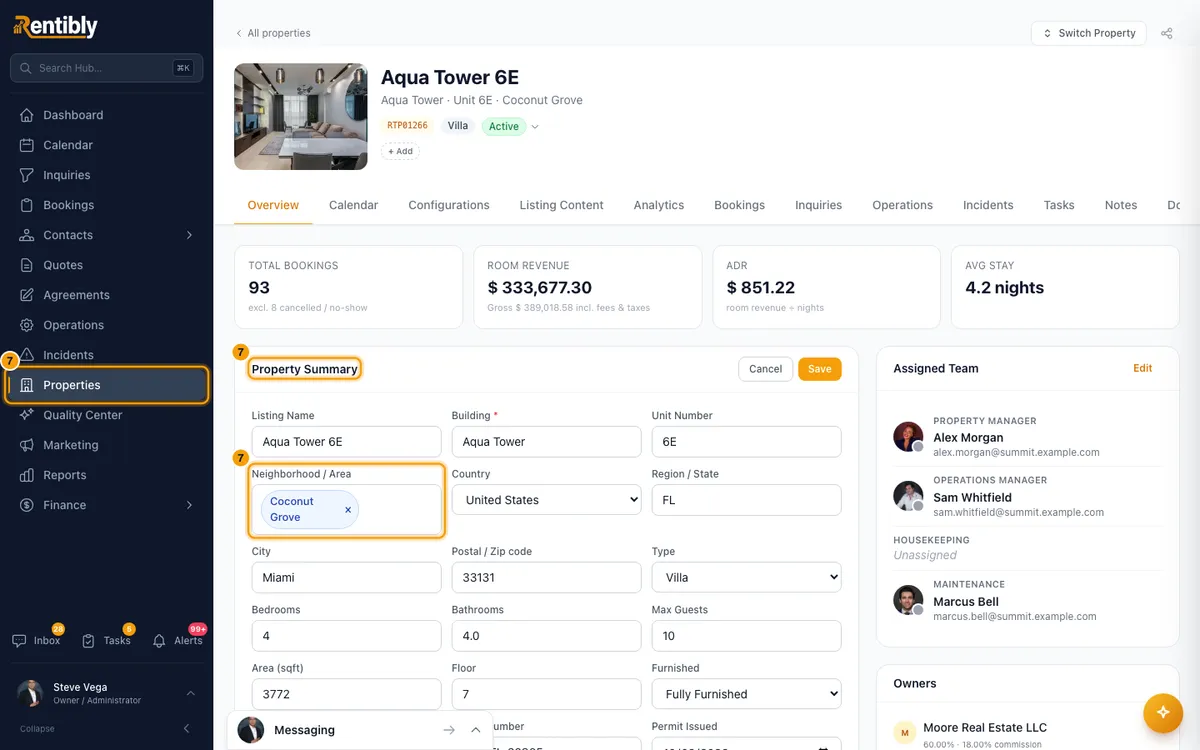
Tag each property: open it from Properties, click Edit on Property Summary and pick the area under Neighborhood / Area. Click Save. When you add a new property, the same picker is called Area/District.
To move several areas at once: tick them, choose a parent under — Move to — in the bar at the bottom (or (Top level)), and click Move. Click Clear to untick them.
To delete an area: open ⋯ → Delete. In the Delete area window, decide what happens to:
- its children: Promote them to top level, Move them under another area, or Delete all … child areas too;
- its properties: Reassign them to another area or Leave them un-tagged.
If you move anything, pick the area under Move to. Then click Delete area.
Good to know
- Areas go up to three levels deep: top level, child and sub-child. A move that would go deeper is refused.
- Each row shows how many properties use the area. Click the number to open the Properties list filtered to that exact area (not its sub-areas). The filter shows as Area: and the area name; click × or Clear filters to remove it. The number includes archived properties, which the list only shows under the archived filter.
- Renaming an area updates the area name on every property tagged with it. The Properties list shows the new name straight away. So does deleting an area, for the properties that were in it.
- Deleting can't be undone. Child areas you choose to delete are removed with all their sub-areas, and their properties follow the choice you made for properties.
- Dragging is turned off inside an area whose children are sorted A–Z.
- Where areas are used:
- The All Areas filter and the Area A–Z sort on the Properties list. The filter matches that exact area, not its sub-areas.
- Pricing rules: a fee, tax, discount or rate adjustment can apply only to properties in chosen areas (the Area condition). A parent area includes its sub-areas.
- Booking widgets: the search bar offers the areas your listed properties are in, with their parent areas. Picking a parent area includes its sub-areas.
- Inquiries have an Area field. It fills in from the property when you pick one.
- Reports and charts: Portfolio Composition can group by area, and the dashboard has Bookings by area, Revenue by area, Occupancy by area and ADR by area charts.
- The owner portal dashboard shows Owner revenue by area and Occupancy by area charts, when Revenue by area & bedroom is on in that owner's Portal Access settings.
- A property with no area is shown as "Unassigned" in Portfolio Composition and as "Other" in the owner portal charts.
- Everyone can see the list of areas. Adding, renaming, moving or deleting areas needs the Settings permission. Picking an area on a property needs permission to edit Properties.
Rentibly AI can help
- Rentibly AI can't create or change areas yet. It can explain how areas are used.
Still stuck?
Open Support from your profile menu in Rentibly, or email hello@rentibly.com — we answer fast.