Add a new property
Updated 13 October 2026
Create a property in Rentibly by typing in its basic details. If the property is already listed on Airbnb, you can import it instead (see "Import a property from Airbnb").
Steps
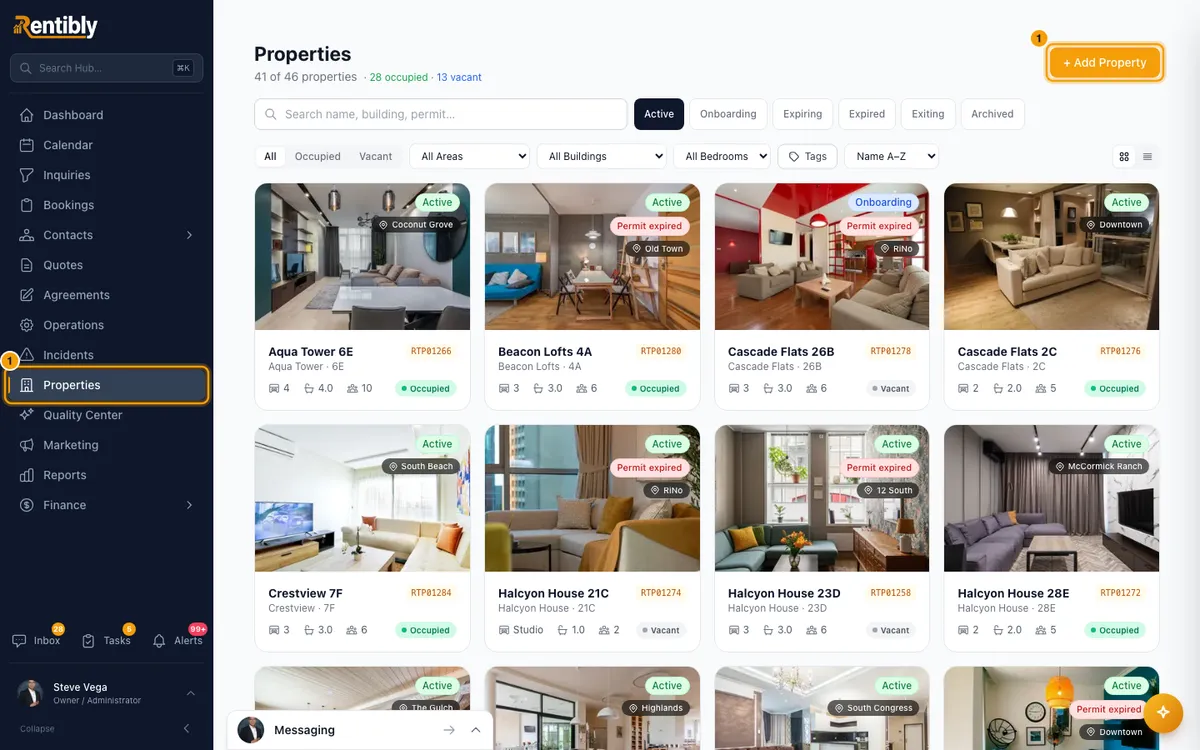
Go to Properties and click + Add Property (on a phone, + Add).
In the Add Property window, fill in Property Name, Building, Unit Number, Area/District, Country, Floor, Property Type, Furnished, Bedrooms (0 = Studio), Bathrooms, Max Guests, Area (sqft) and Permit Number. Fields with a red * are required.
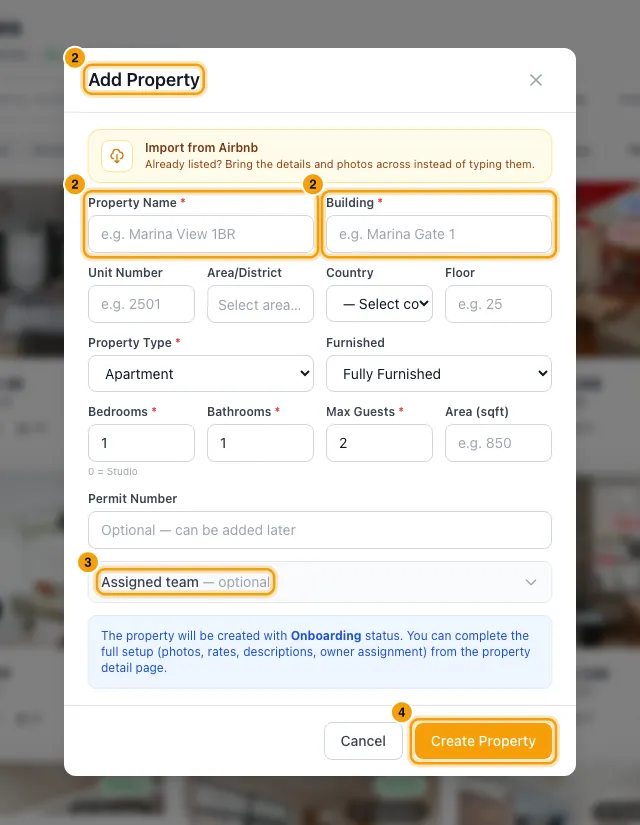
Optional: open Assigned team and pick the Property Manager, Operations Manager, Housekeeping and Maintenance.
Click Create Property. The new property's page opens.
Finish the setup on that page: prices under Configurations → Rates, booking rules under Configurations → Booking Rules, owners under Configurations → Owners, and photos and descriptions under Listing Content.
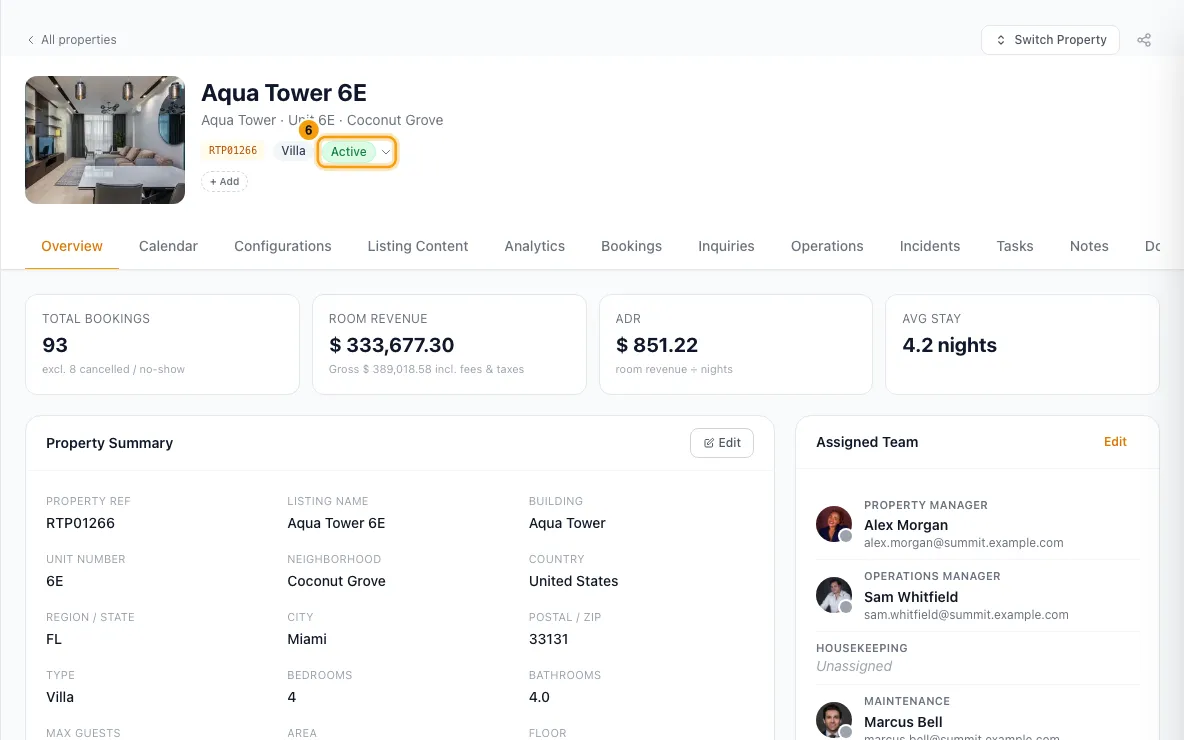
When it's ready, click the status pill under the property name and choose Active.
Good to know
- Always required: Property Name, Building, Property Type, Bedrooms, Bathrooms and Max Guests. An admin can also make Area (sqft), Floor, Area/District and Permit Number required for your account, under Settings → Custom Fields.
- Area/District picks from your own list of areas in Settings → Areas & Locations.
- Property Type can be Apartment, Villa, Townhouse, Penthouse or Hotel Apartment.
- Country is part of the location sent to booking channels once the property is connected to one.
- New properties always start in Onboarding. The status pill offers Onboarding, Active and Archived. Choosing Archived opens a separate archive check (see "Archive a property or schedule its exit").
- Every property that isn't archived counts toward your Rentibly subscription, including ones still in Onboarding.
- Moving a property to Active re-sends its availability and prices to any channels it is connected to. Account-wide rate adjustments only apply to Active properties.
- Assigned team: set it here if an automation hands work to the property's team. Automations with the trigger When a property is added (onboarding) run the moment you click Create Property, and give tasks to whoever is in these slots at that moment. If the slots are empty then, those first tasks stay unassigned. There is also a trigger When a property goes live for when you choose Active.
- Properties are never deleted. You archive them instead.
- You need Edit on Properties to add a property.
Rentibly AI can help
- It can fill in or change a property's details, move it between Onboarding and Active, assign its team, and draft listing descriptions for each channel.
- It can't create a new property. Use + Add Property.
Still stuck?
Open Support from your profile menu in Rentibly, or email hello@rentibly.com — we answer fast.