Set up vendors and their price lists
Updated 13 October 2026
A vendor is a company or person who does work for you, such as a cleaning company. Give each vendor a price list, and an operation's cost fills in by itself when you assign that vendor.
Steps
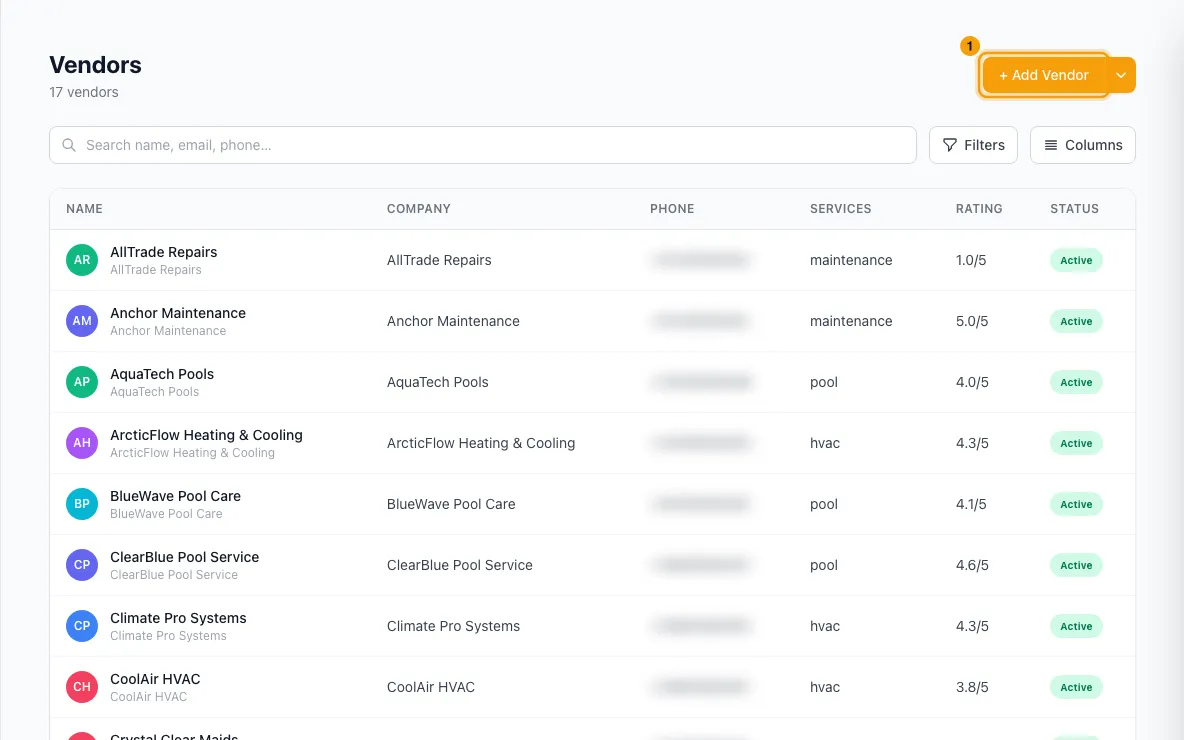
Go to Contacts → Vendors. Click + Add Vendor, fill in the details and click Create Vendor.
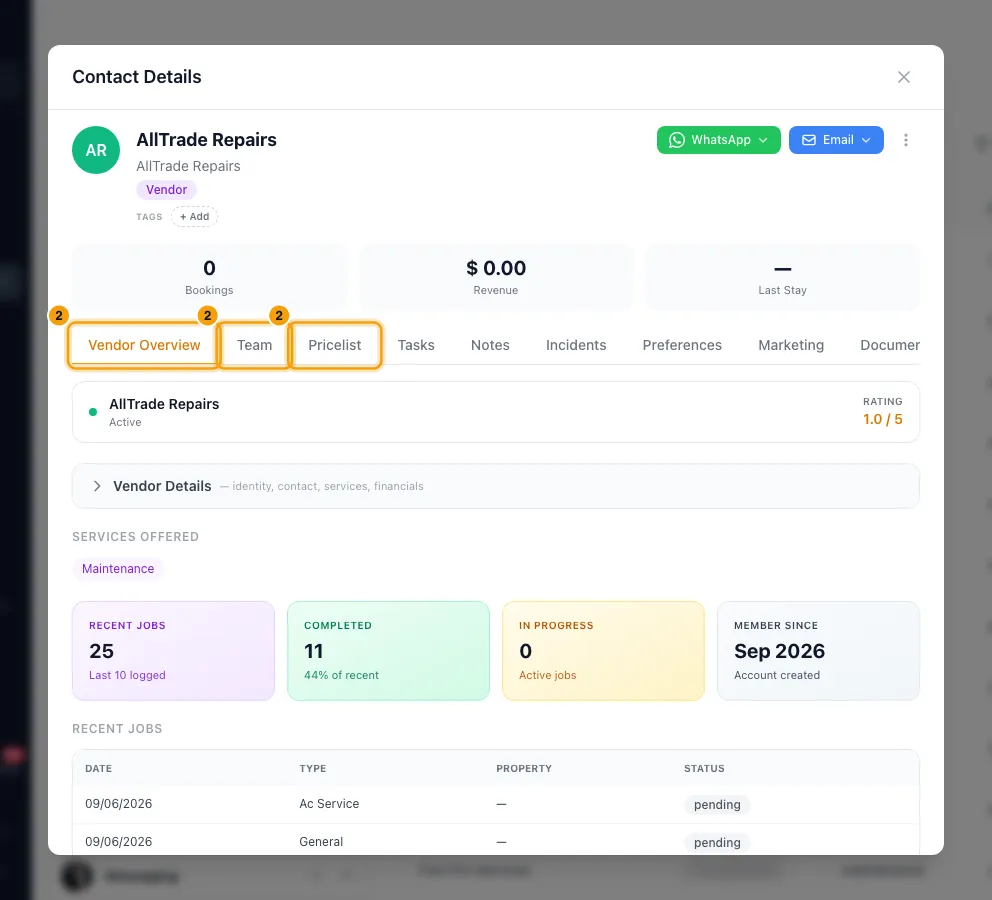
Open the vendor. Its window has the Vendor Overview, Team and Pricelist tabs.
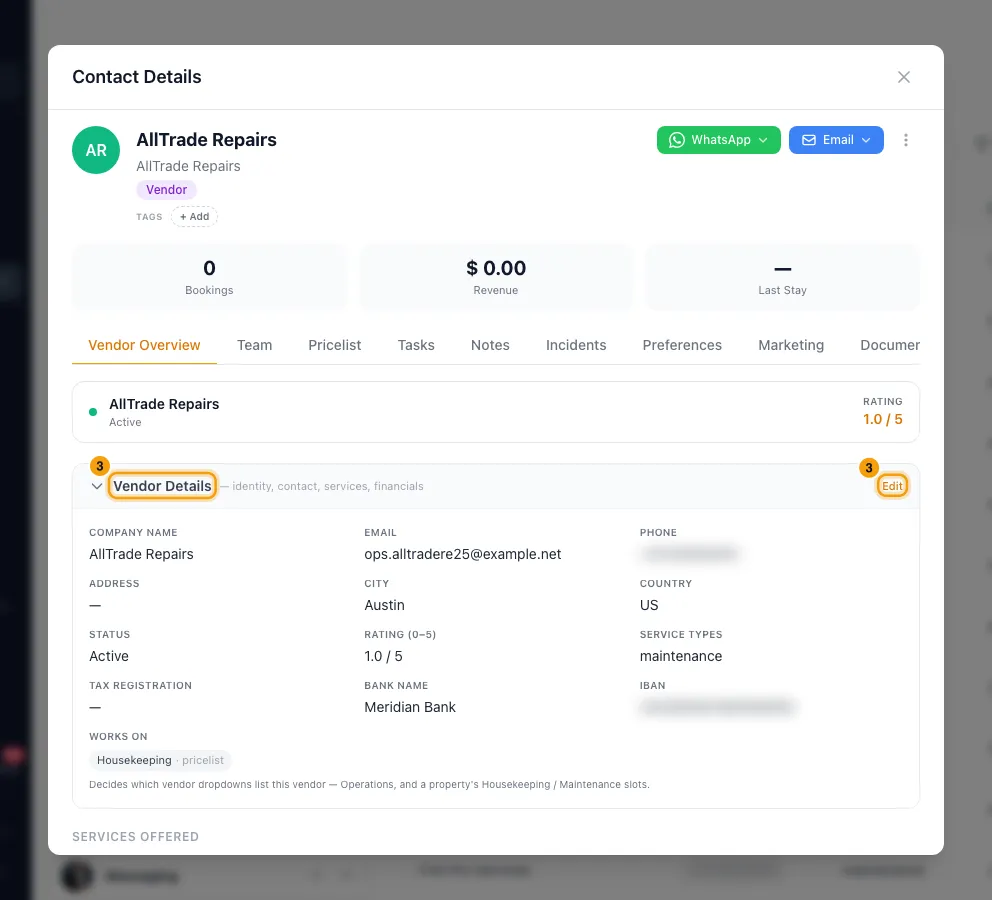
On Vendor Overview, click Vendor Details, then Edit. Set the Status, the Service types and, under Works on, the operation categories this vendor does. Click Save details.
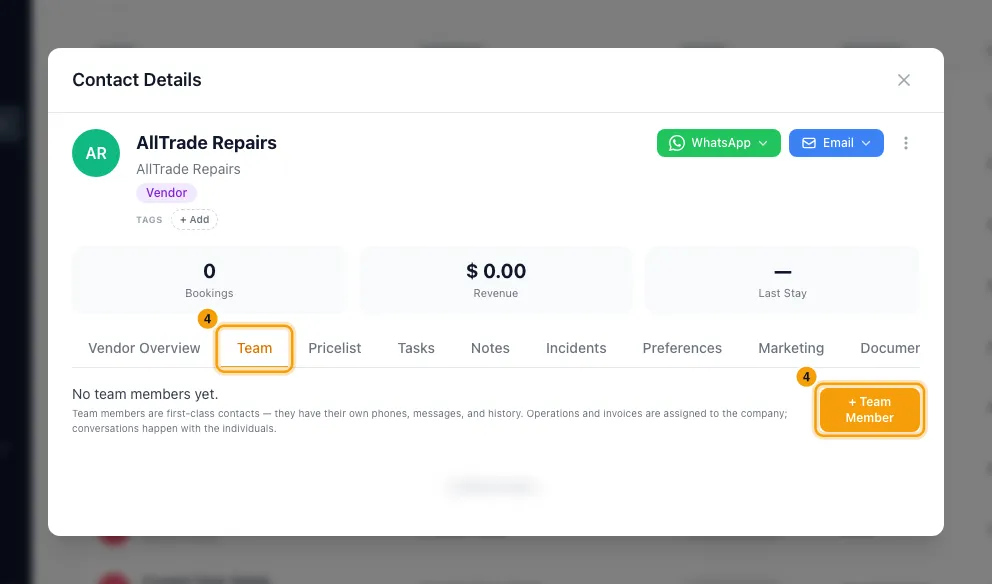
To add the people who work for the vendor, open Team and click + Team Member. Enter their First name, Last name, Role at company, Email, Phone and WhatsApp number, then click Add.
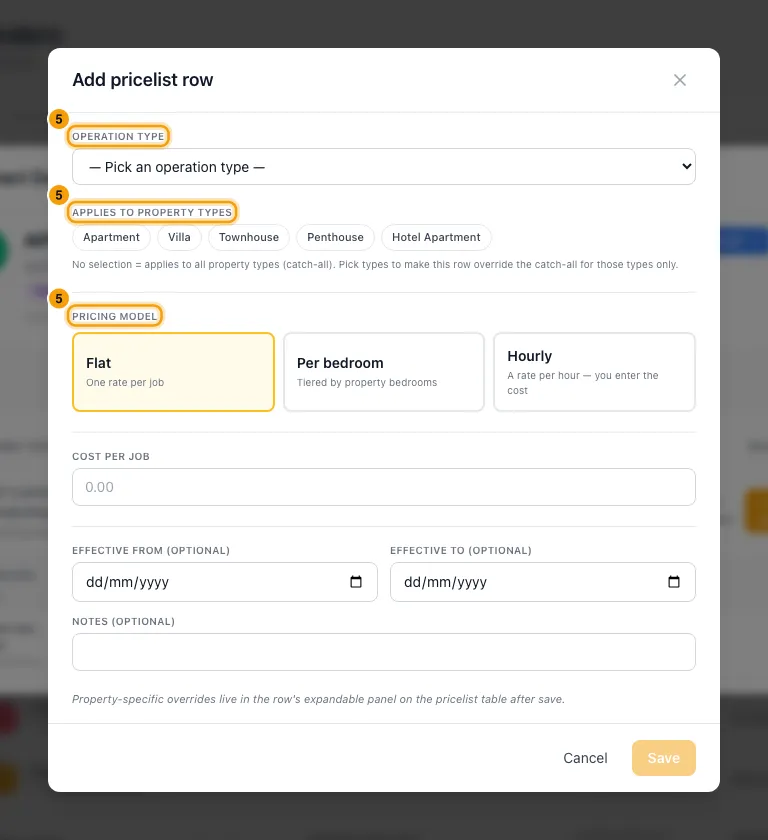
To add a price, open Pricelist and click + Add price. In Add pricelist row:
- Pick the Operation type.
- Under Applies to property types, leave nothing selected for all properties, or pick types such as Villa.
- Choose a Pricing model: Flat, Per bedroom or Hourly.
- For Flat, enter the Cost per job.
- For Per bedroom, enter a rate for each tier. Click + Add tier for more. Then enter a Fallback cost (when no tier matches).
- For Hourly, enter the Hourly rate and Minimum hours.
- Optionally, set Effective from (optional), Effective to (optional) and Notes (optional).
- Click Save.
To set a different price for one property, click the row's Property overrides cell. Click + Add property override, pick the Property, enter the Cost and click Add.
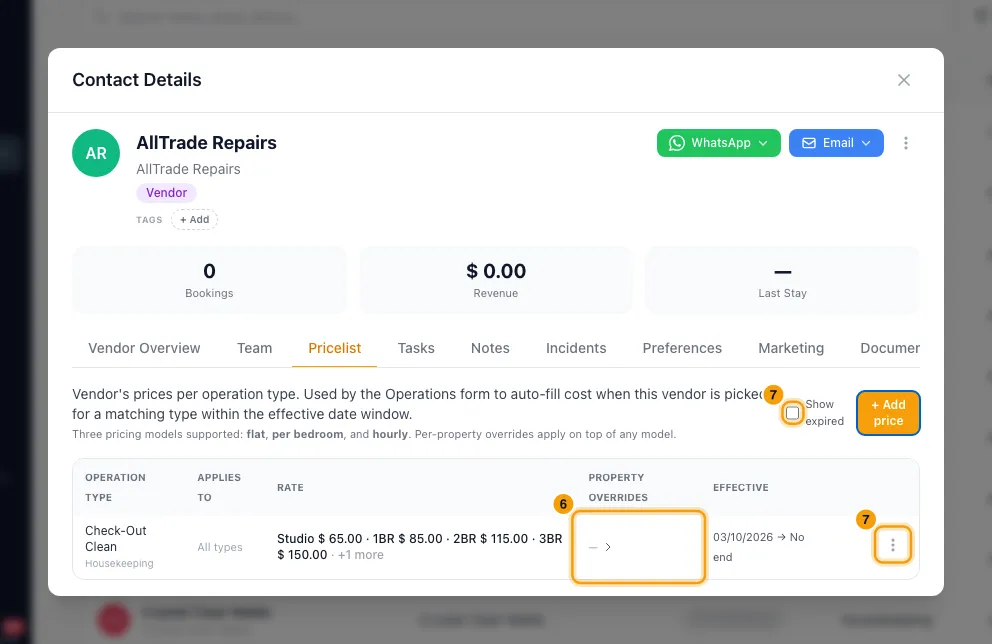
To change a row, open its menu and click Edit, Duplicate or Remove. Tick Show expired to see rows whose dates have ended.
Good to know
- When the price is used: on an operation with a vendor and a type, the Cost fills in from the price list while it is empty. The form shows Auto-filled from vendor pricelist and which rule was used. Typing your own cost always wins. Operations created by automations, the API or Rentibly AI get the price too.
- How a price is picked:
- Only rows for that vendor and type whose dates cover the operation's start date count. Among them, the one with the latest Effective from wins.
- A row for the property's type beats a row for all property types.
- A property override for that property beats everything else.
- Otherwise: Flat uses the cost per job. Per bedroom uses the tier for the property's exact bedroom count, then the highest "N+" tier at or below it, then the fallback cost. Hourly leaves the cost empty and shows the rate and minimum as a hint. You enter the cost yourself; it is not calculated for you.
- Per-bedroom tiers are named by bedroom count: "0" for studios, "1", "2", "3", or "4+" for 4 or more. Empty tiers are dropped when you save.
- Changing a price doesn't change operations that already have a cost.
- The operation's cost is what the vendor sees in the Ops Portal as Your rate. Owner billing amounts are never shown to them.
- Utility Bills types can't have price list rows. Enter the bill amount on the operation instead.
- Works on decides which vendor lists show this vendor: Operations, a property's Housekeeping and Maintenance slots, and Automations. A category with no vendors attached offers every vendor. A vendor with a price list row for a type is added to that type's category automatically, and stays even after the row's dates end. This is the same list as Vendors on Settings → Categories & Types.
- Set Status to Inactive to take a vendor out of those lists. The contact and its history stay.
- Operations are assigned to the vendor company. Team members are separate contacts you can message, and each one can get their own Ops Portal login. See "Give field staff and vendors access with the Ops Portal". Removing a team member keeps their contact.
- Permissions: you need View on Vendors to see the price list and Edit on Vendors to change it. Editing vendor details, Works on and the team needs Edit on Contacts. Tax registration, Bank name and IBAN show to everyone who can see the vendor; only people with the Edit vendor bank details permission can change them.
- If a price, override or vendor save is refused, the window says why and keeps what you typed.
Rentibly AI can help
- It can add a vendor contact.
- When it schedules an operation with a vendor, the price list price applies.
- It can't add or change price list rows yet.
Still stuck?
Open Support from your profile menu in Rentibly, or email hello@rentibly.com — we answer fast.