Give field staff and vendors access with the Ops Portal
Updated 13 October 2026
The Ops Portal at ops.rentibly.app is a mobile-friendly site for your cleaners, technicians and vendors. Each person sees only the jobs assigned to them. They can accept or decline jobs, work through checklists, upload photos and mark jobs complete.
Steps
Make sure each person has an email address. Staff are your team members. Vendor companies are under Contacts → Vendors. Add the people who work for a vendor on its Team tab with + Team Member.
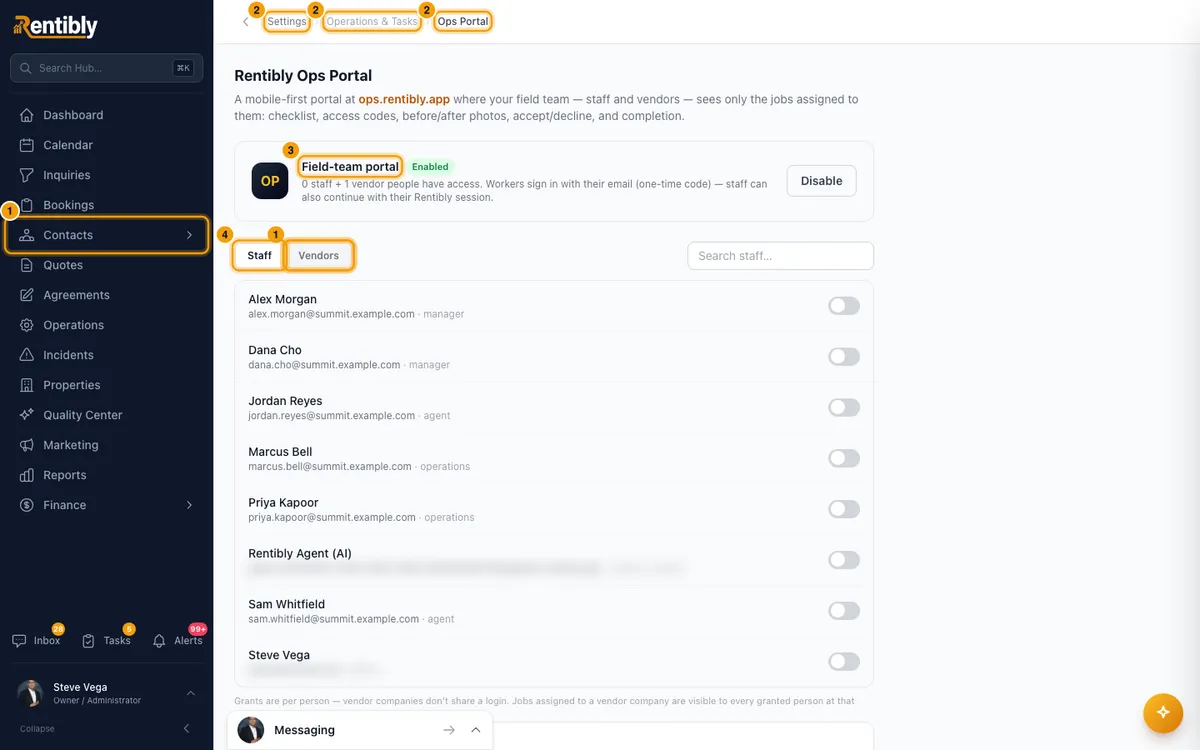
Open Settings from your profile menu in the sidebar, then go to Operations & Tasks → Ops Portal.
On the Field-team portal card, click Enable portal.
On the Staff tab, switch on access for each person who should use the portal. Do the same on the Vendors tab. Use the search box to find people.
Optionally, under Email job alerts, click Turn on for each alert you want sent.
Optionally, under WhatsApp job alerts, click Enable on each template. This needs a connected WhatsApp account; if you have none, click Connect WhatsApp first.
Assign jobs to these people under Assigned To on each operation: User for staff, Vendor for a vendor.
Ask them to go to ops.rentibly.app, type their email and tap Continue. They get a 6-digit code by email. On the code screen they can tap Get it on WhatsApp instead or Get it on SMS instead (when available).
Good to know
- You can't switch on access for someone without an email address. The row says No email — add one to grant access.
- Access is per person. Vendor companies don't share a login. Jobs assigned to a vendor company are visible to everyone at that company who has access.
- What workers see: staff see jobs where they are the assignee. Vendor people see jobs assigned to them or to their company. They see no other jobs, no bookings and no finances.
- The operation's Cost shows to the worker as Your rate. Owner billing amounts are never shown.
- Workers sort their jobs into Overdue, Today, Upcoming and Done. The portal also has Schedule, Alerts and Profile.
- Accept or Decline: declining asks for a reason. The job leaves their list, and a "Declined this job" comment is added to the operation so you can reassign it.
- Workers must accept a job before ticking its checklist or uploading files. Steps marked Required must be ticked before the job can be completed.
- Mark complete completes the operation just like the Operations board, including the owner expense when the job is billed to the owner. If the category has Require operator review before completion on, the button reads Submit for review and the job goes to the Review column for you to approve.
- Photos and files appear on the operation's attachments straight away. Comments are a two-way thread with your team.
- Who gets a code. A code only ever goes to someone who can sign in: access switched on, the Ops Portal enabled for that workspace, not deleted, and (for staff) not deactivated. Other contacts or users with the same email never receive one.
- Code requests are limited. An email can ask for 5 codes in 5 minutes, and at most 3 of them from the same device or network. After that the sign-in page shows "Too many requests — please wait and try again." They can ask again within 5 minutes. Signing in with a code resets the count. When a WhatsApp or SMS code falls back to email, that counts as one request.
- WhatsApp and SMS codes. For a vendor, WhatsApp uses their WhatsApp number first and SMS uses their phone number first, and each falls back to the other. For staff, both use the phone number on their user. If there is no number on file, the code is sent by email instead.
- A WhatsApp or SMS code opens only the workspaces whose person has that same number. Someone who works for several companies and wants to pick from all of them should use the email code.
- Staff already signed in to Rentibly on the same device get a one-tap Continue as … instead of a code. Someone who works for several companies on Rentibly picks a workspace after signing in.
- Switching later. The workspace menu on My jobs and the Workspace list in Profile show only the workspaces their sign-in opened: all of them after an email code, only the ones with that number after a WhatsApp or SMS code, and only their own after Continue as …. To reach another, they sign out and sign in with the email code. People who were signed in before this change see only their current workspace until they sign in again.
- Changing someone's email signs them out of the Ops Portal, on every device. They sign in again with the new address. Changing only capital letters or spaces doesn't.
- Changing someone's number signs them out if they signed in with it. Someone who signed in with a WhatsApp or SMS code is signed out on their next action when the number the code went to is no longer their phone number (or, for a vendor, their WhatsApp number). That's true whether you change it in Rentibly or a vendor changes it in Profile → Contact details. Putting the number back doesn't bring that sign-in back. People who signed in by email or with Continue as … aren't affected.
- Workers can't change their email in the portal. In Profile → Contact details, a vendor can update their Phone and WhatsApp number, but the Email is read-only, because it is what they sign in with. To change it, edit the person's contact in Rentibly.
- Push alerts and the portal's Alerts feed work as soon as the portal is on. Email and WhatsApp alerts are only sent once you switch them on. Turning on an email alert copies its wording to Settings → Email Templates, where you can edit it. WhatsApp templates go to Meta for approval and use your own message credits. Each worker can turn alerts off for themselves in Profile.
- Switching off access signs the person out straight away: their next action in the Ops Portal asks them to sign in, and they can't. The same happens when you switch the Ops Portal off for the workspace, deactivate the user, or delete the vendor contact. Switching access back on later doesn't revive the old sign-in. Reassign their open jobs so the work isn't left waiting.
- If your Rentibly account is suspended or cancelled, the Ops Portal stops too. Your staff and vendors get no sign-in code, Continue as … isn't offered, and anyone already signed in is asked to sign in on their next action. Their sign-in isn't ended: when your account is active again, it works again. Someone who also works for another company on Rentibly can still sign in to that one. A trial, a past-due account or read-only mode doesn't affect the portal.
- You need the Settings permission set to Access to change this page.
Rentibly AI can help
- Rentibly AI can't switch the portal on or grant access yet.
- It can create an operation for a worker or reassign one.
Still stuck?
Open Support from your profile menu in Rentibly, or email hello@rentibly.com — we answer fast.