Automate work with Automations
Updated 13 October 2026
An automation is a rule: when something happens, Rentibly creates an operation or a task for you. For example, a cleaning after every check-out, an onboarding task for every new property, or a reminder on the 1st of every month.
Steps
Open Settings from your profile menu in the sidebar, then go to Operations & Tasks → Automations.
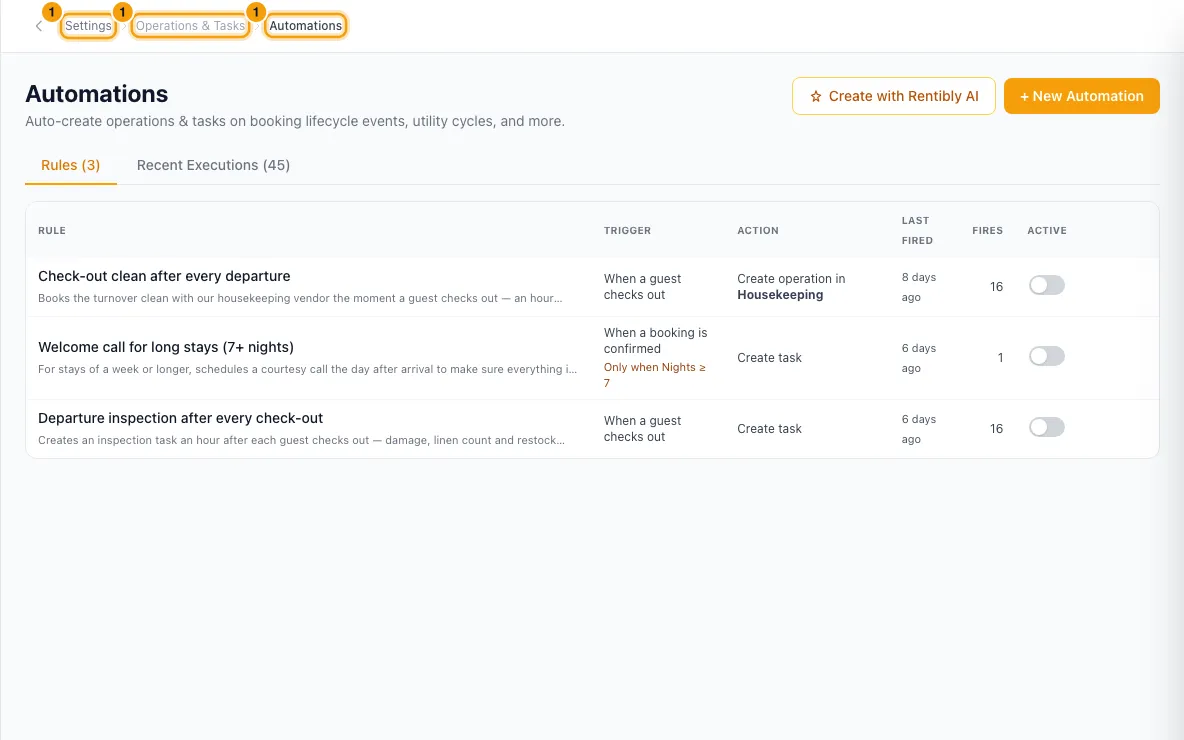
Click + New Automation. Or click Create with Rentibly AI and describe the rule in your own words.
Enter a Name and, if you like, a Description (optional). Leave Enabled ticked to switch the rule on when you save it.
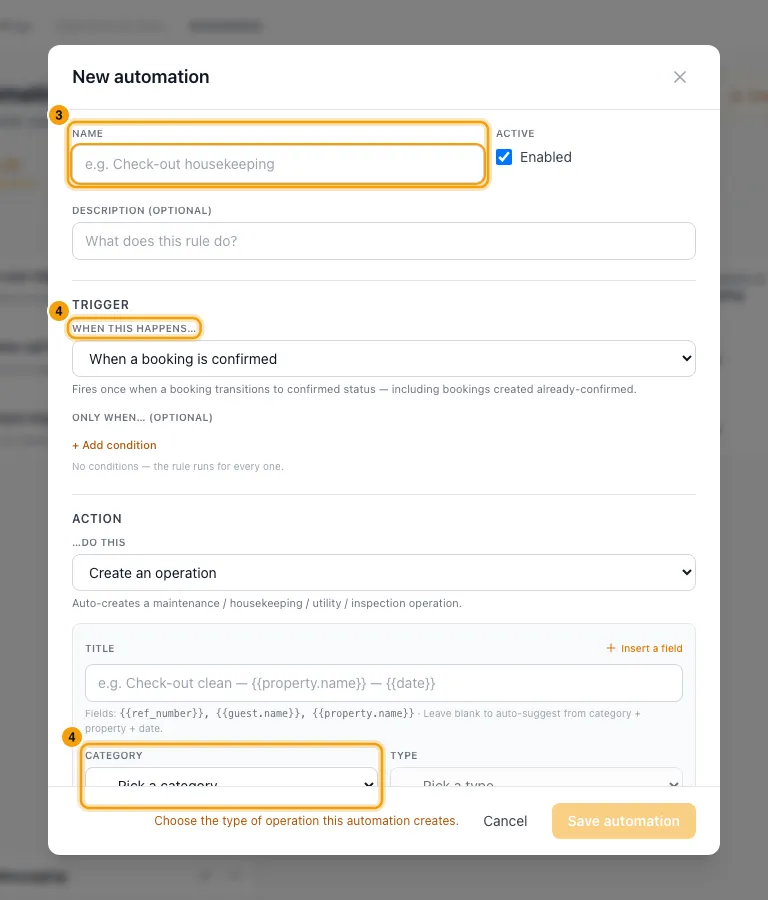
Under When this happens…, choose the trigger.
- For On a schedule, set the Frequency (Daily, Weekly, Monthly or Yearly), the day, and Time of day (optional). Then search for and pick the Property the rule is for. It is required when the rule creates an operation, and optional for a task.
- For When an operation is scheduled or When an operation is completed, choose the Category under Which operations. Then pick one or more types, or leave Any type.
To run the rule only sometimes, click + Add condition under Only when… (optional). Pick a field, then is, is not, at least or at most, then the value.
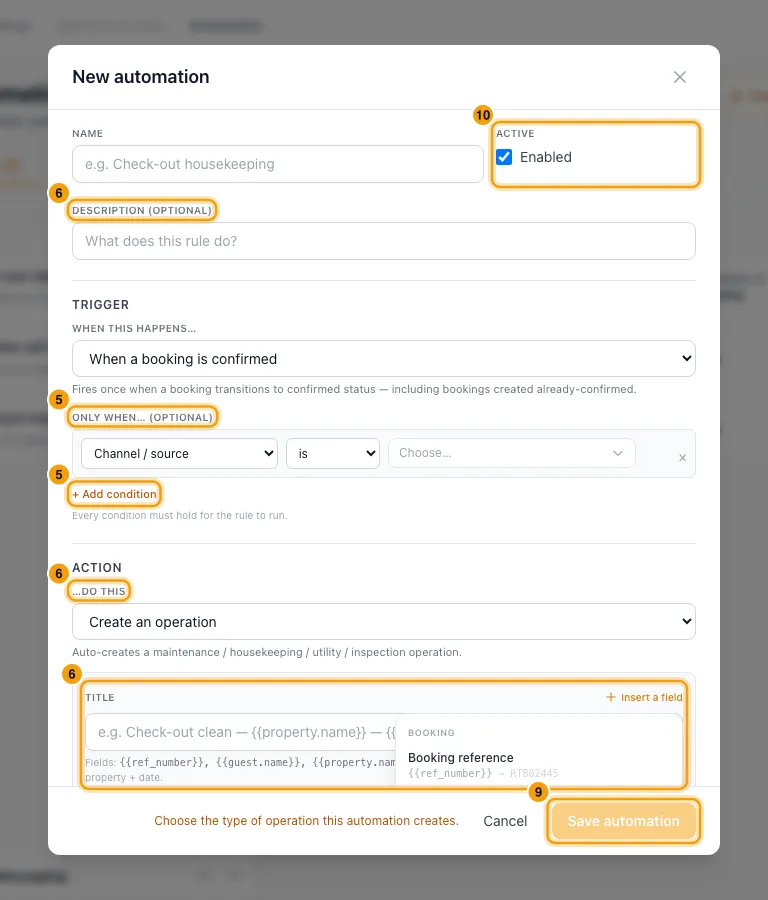
Under …do this, choose what to create:
- Create an operation: pick a Category and a Type (both required). Optionally set a Title, a Default vendor (optional), Assigned to (optional), Priority and Bill to owner.
- Create a task: enter a Title (required). Optionally add a Description (optional), Assigned to, Priority and a Checklist (optional).
- To put details such as the property name in a title, click Insert a field and pick one.
Under When should it be scheduled?, choose the Direction (After or Before), the Amount, the Unit (Minutes, Hours or Days), the Anchor and, if you like, At time (optional). The line below tells you when the job will be scheduled.
If the rule creates an operation tied to a booking date, choose what happens under If the booking changes. For operation triggers, choose under If the operation changes.
Click Save automation.
Manage your rules on the Rules tab:
- Click a rule to edit it.
- Use the switch in the Active column to turn it on or off.
- Click Backfill to apply it to what already exists.
- To remove a rule, open it and click Delete rule.
Check what your rules did on the Recent Executions tab. Filter by All results or All rules. Click a row to open what was created.
Good to know
- Triggers you can use:
- Bookings: When a booking is confirmed, When a booking is cancelled, When a guest checks in, When a guest checks out.
- Properties: When a property is added (onboarding), When a property goes live, When a property is marked as exiting, When a property exit date is reached, When a property is archived, When a property permit is expiring (30 days before the expiry date), When a property permit has expired.
- Operations: When an operation is scheduled, When an operation is completed.
- Time: On a schedule, and Each utility billing cycle (older; use On a schedule for new rules).
- When a booking is confirmed includes bookings that arrive from sales channels.
- Each rule runs once per booking, property or operation. A permit-expiring rule runs again when a new expiry date comes round. When a property is marked as exiting does not run again if the exit date moves. Instead, the operations and tasks it made that are timed from the exit date move to the new date, at the same time before or after it. These stay where they are: jobs that are completed, cancelled or started, jobs someone moved by hand, and jobs timed from Right now. If the exit is cancelled (the exit date cleared), its open jobs are cancelled. Jobs that are started or moved by hand stay, with a note in their history. Setting a new exit date afterwards runs the rule again and makes a fresh set, except for a rule whose job stayed.
- Conditions: up to 10, and all of them must match. Booking rules can test Channel / source, Nights, Guests, Booking total and the property's Property, Building, Area, Bedrooms and Property type. Property rules can test the property fields. Operation rules can test the operation's category and type, and its property and booking. Schedule and utility rules can't have conditions.
- The Anchor list only shows dates the trigger knows, such as Booking check-out time or The permit expiry date.
- Insert a field only offers fields the trigger can fill. A field it can't fill is refused when you save. An operation left without a Title gets one from the type, the property and the date.
- Assigned to can follow each property's team: Property's property manager, Property's operations manager, Property's housekeeping (user or vendor) or Property's maintenance (user or vendor). A task can't go to a vendor, so it stays unassigned when that slot is a vendor.
- New operations get their type's checklist, the category's defaults and, with a vendor, the price from the vendor's price list. Whoever is assigned is notified as usual.
- If the booking changes and If the operation changes only appear on rules that create an operation. Tasks a rule created don't follow a booking or an operation (only exit-date tasks follow the exit date, see above). A job someone has moved by hand is never touched.
- On a schedule with Create an operation needs a Property: every operation belongs to one, and each run creates the operation on it. Until you pick one, Save automation stays greyed out with a note saying why. The property must be one of yours and not archived. Create a task rules on a schedule don't need a property; picking one lets the task use the property's details and team.
- A scheduled rule made from a property's utility account (Configurations → Facilities, + Automate) shows its property but you can't change it here. Each utility billing cycle rules still have to be made from the utility account.
- Nothing runs for an archived property. A rule linked to a property that gets archived is switched off (Auto-disabled · property archived) and comes back when the property is unarchived.
- Backfill appears only on active rules with When a booking is confirmed (timed from check-in or check-out) or When an operation is scheduled. It shows how many records it will cover before anything is created. Operation backfills cover up to 500 operations per run and skip jobs that would be in the past.
- Rules marked SYSTEM can't be deleted, only disabled. Deleting a rule leaves the operations and tasks it already created.
- Recent Executions shows the last 200 runs. A skipped run says why, for example "Didn't match the rule's filters" or "Already created for this earlier".
- More examples: "Automatically create a cleaning after every check-out", "Create an operation automatically after another operation" and "Use a different time on a same-day turnover".
- You need the Settings permission set to Access to see or change automations.
Rentibly AI can help
- Create with Rentibly AI opens a chat that builds the rule with you. Rules it creates are saved switched off until you turn them on. It needs the Rentibly AI add-on.
- It can also edit rules, switch them on or off, backfill them, list them and explain recent runs.
- It can create a scheduled operation rule for one property, the same as this page (it asks which property).
Still stuck?
Open Support from your profile menu in Rentibly, or email hello@rentibly.com — we answer fast.