Create an operation automatically after another operation
Updated 12 October 2026
Have one operation create another automatically, for example an inspection after every Check-Out Clean. The new job is linked to the first one: it moves when that operation moves and is cancelled when it is cancelled.
Steps
Open Settings from your profile menu in the sidebar, then go to Operations & Tasks → Automations. Click + New Automation.
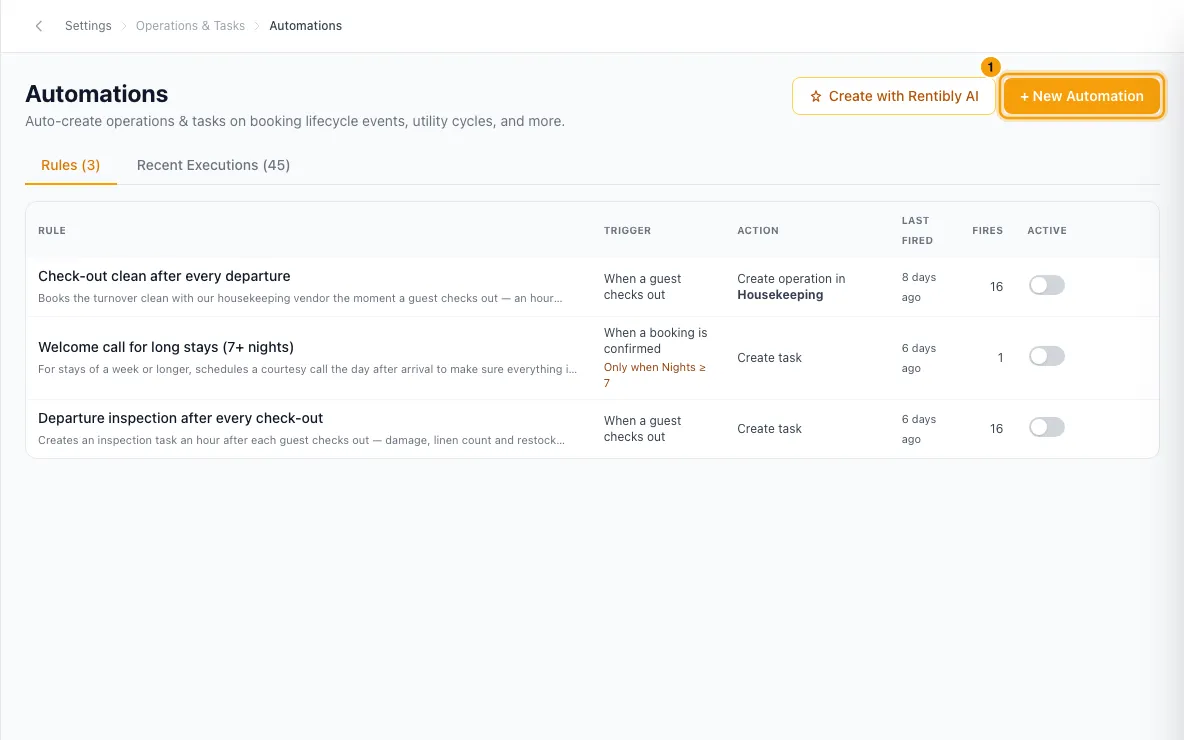
Under When this happens…, choose When an operation is scheduled or When an operation is completed.
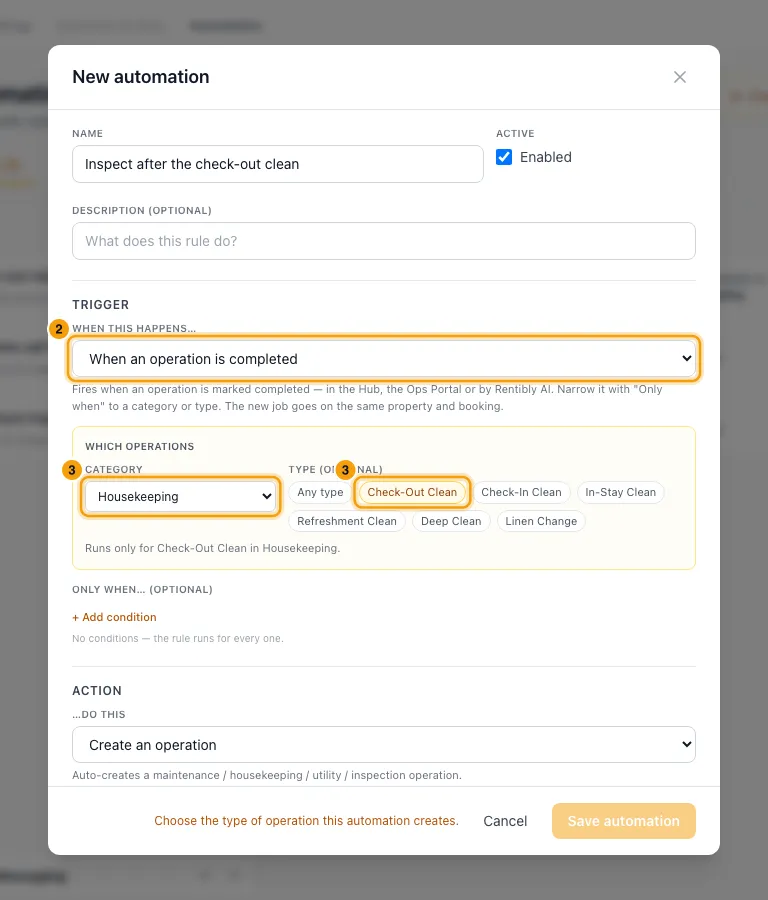
Under Which operations, pick the Category (required). Then tick one or more types, or leave it on Any type. For example: Housekeeping → Check-Out Clean.
Under …do this, choose Create an operation, then pick its Category and Type. For example: Inspection → Pre-Check-In Inspection.
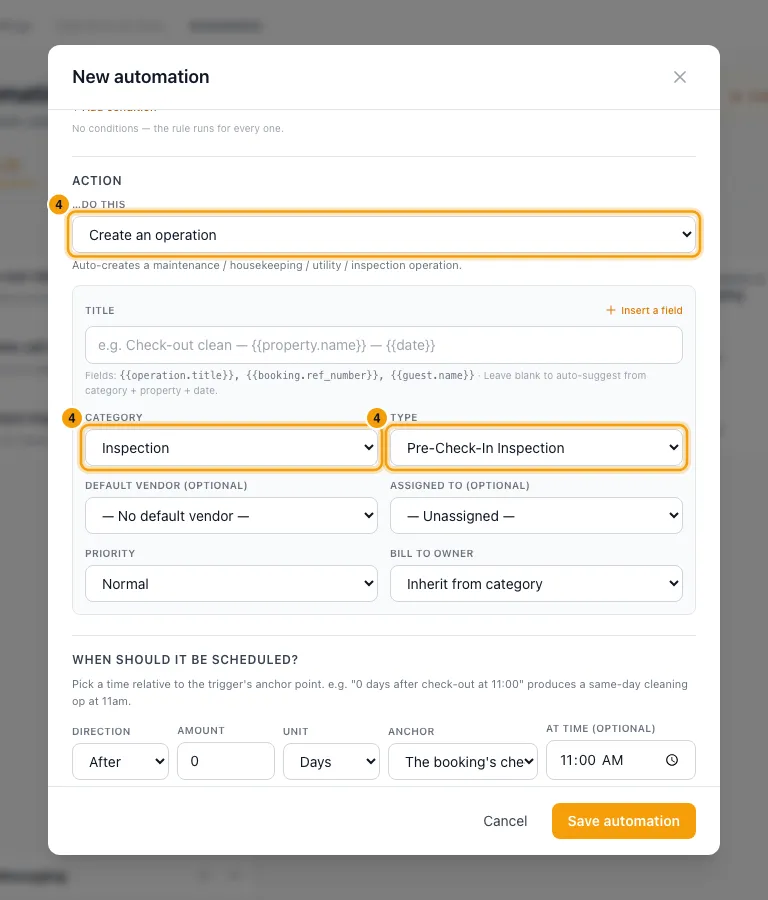
Under When should it be scheduled?, set the timing. The Anchor can be The operation's start, The operation's end, The booking's check-in (when it has one) or The booking's check-out (when it has one). With When an operation is completed, you can also pick Right now (when it was completed).
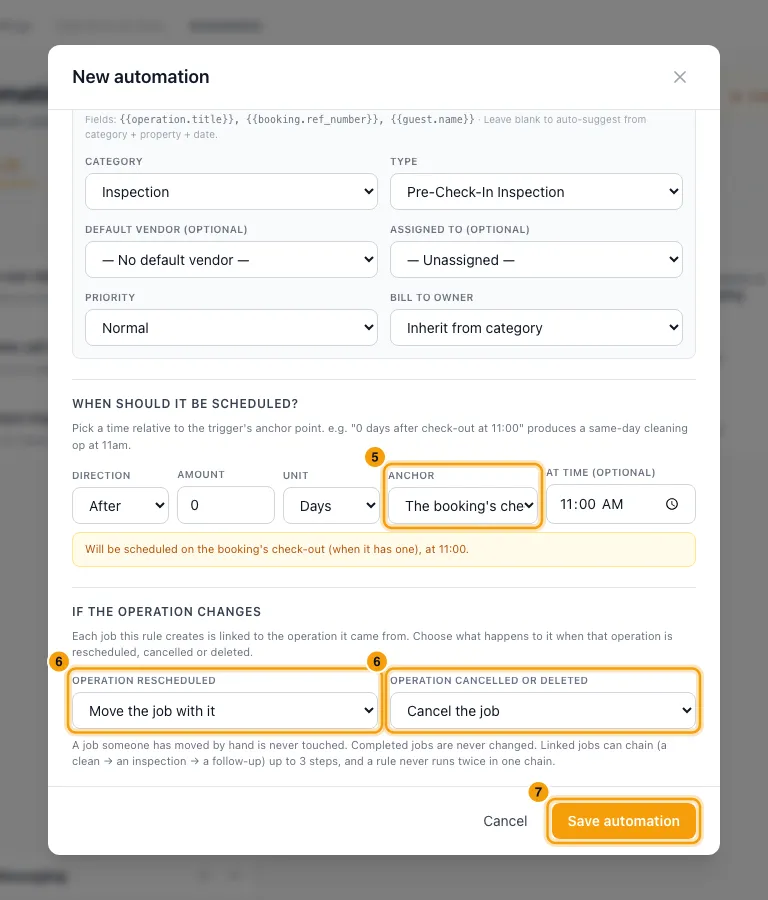
Under If the operation changes, set Operation rescheduled to Move the job with it or Leave the job where it is. Set Operation cancelled or deleted to Cancel the job or Keep the job.
Click Save automation.
To add the new job to operations that are already scheduled, click Backfill on the rule in the list.
Good to know
- The new job goes on the same property and booking. Its details show where it was Created from. The original operation lists it under Linked jobs (created by automations from this one).
- Chains: jobs can chain up to 3 steps, and a rule never runs twice in the same chain.
- Never changed automatically: jobs someone moved by hand and completed jobs. A job already in progress is not cancelled when its source is cancelled; review it yourself.
- Backfill:
- For operation rules, it only works with When an operation is scheduled, and only while the rule is on.
- It skips operations that already have the job, and jobs that would land in the past. It covers up to 500 operations per run; run it again for the rest.
- It shows how many jobs it would create, then you confirm with Create N. Assignees are notified as usual.
- Permission: changing automations needs Settings set to Access.
Rentibly AI can help
- It can build or change the rule and apply it to operations already scheduled.
Still stuck?
Open Support from your profile menu in Rentibly, or email hello@rentibly.com — we answer fast.