Automatically create a cleaning after every check-out
Updated 12 October 2026
Set up one automation that schedules a cleaning on the check-out day of every confirmed booking. The cleaning moves if the booking's dates change, and is cancelled if the booking is cancelled.
Steps
Open Settings from your profile menu in the sidebar, then go to Operations & Tasks → Automations. Click + New Automation.
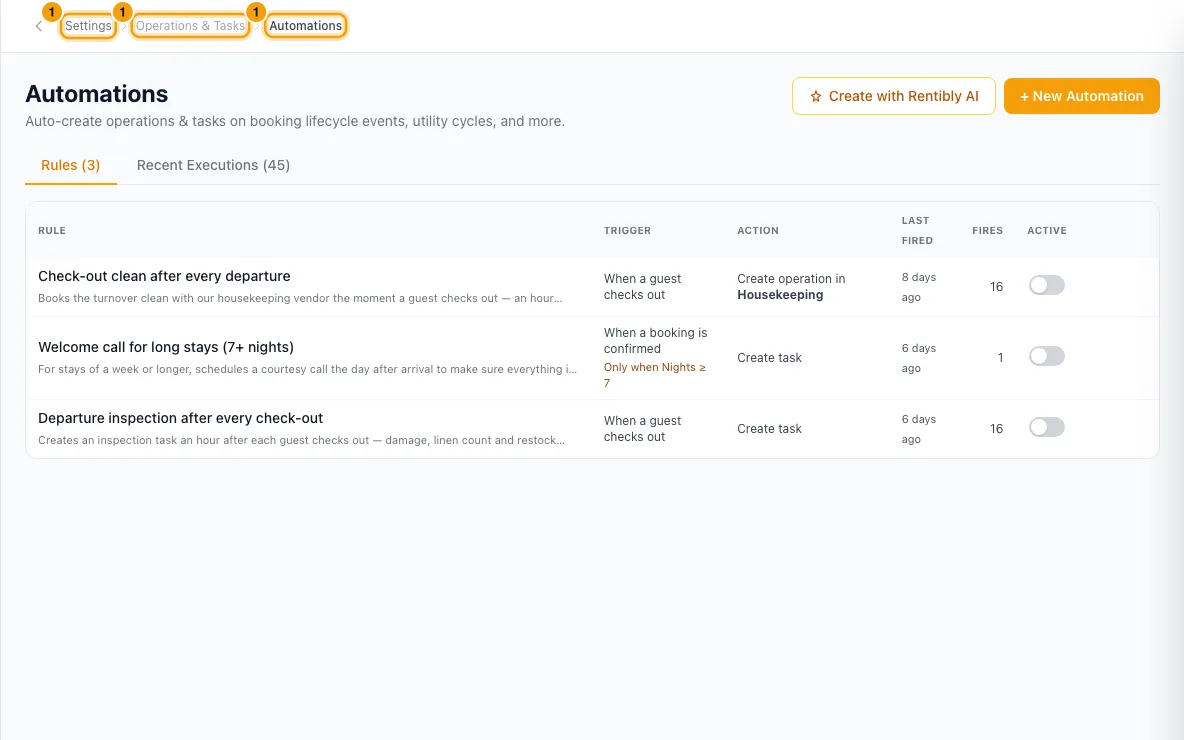
Enter a Name, for example "Check-out housekeeping". Leave Enabled ticked.
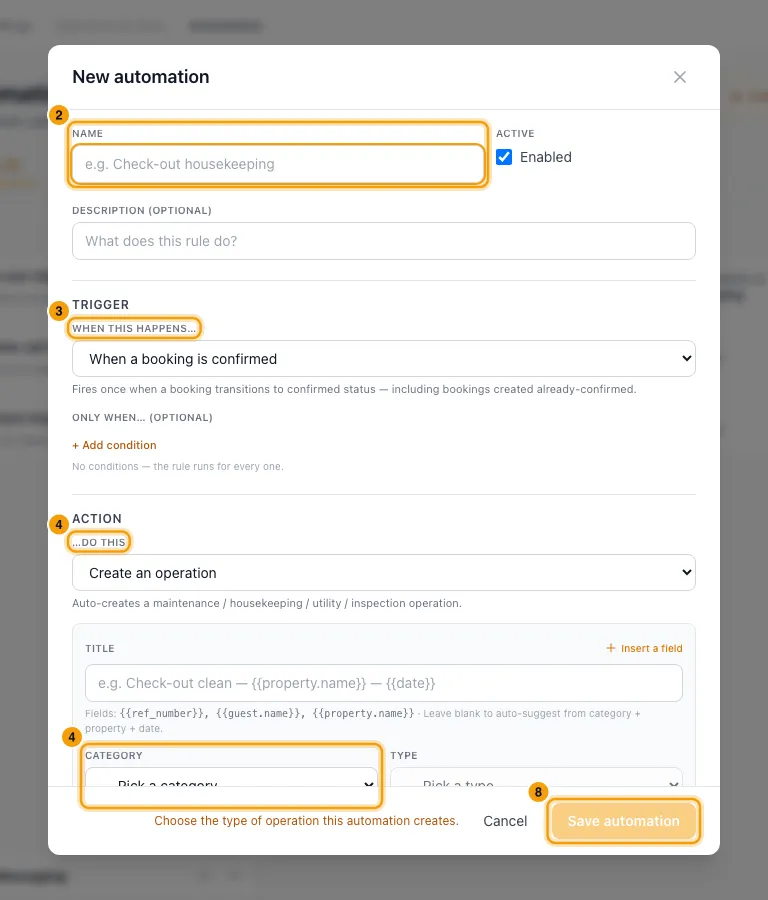
Under When this happens…, choose When a booking is confirmed.
Under …do this, choose Create an operation. Pick a Category (for example Housekeeping) and a Type (for example Check-Out Clean). The type is required.
Optionally, under Assigned to (optional), choose Property's housekeeping (user or vendor). You can also pick a Default vendor (optional).
Under When should it be scheduled?, set Direction to After, Amount to 0, Unit to Days, and Anchor to Booking check-out time. Set At time (optional), for example 11:00.
Under If the booking changes, leave Dates change on Move the job to the new dates and Booking cancelled or deleted on Cancel the job.
Click Save automation.
To add cleanings for bookings you already have, click Backfill on the rule's row, then confirm.
Good to know
- When a booking is confirmed covers direct bookings and bookings from sales channels. It runs once per booking.
- When a guest checks out only runs when a booking is marked as checked out, so it doesn't schedule the cleaning in advance.
- On a back-to-back booking you can use a different time. See "Use a different time on a same-day turnover".
- Property's housekeeping (user or vendor) uses whoever is set as housekeeping on each property. A Default vendor on the rule wins over a vendor from the property.
- The new cleaning gets the type's checklist. With a vendor and a type, its cost fills in from the vendor's price list.
- The person or vendor assigned is notified as usual.
- To run the rule only for some bookings, use Only when… (optional) → + Add condition, for example Channel / source or Property.
- Backfill covers confirmed and checked-in bookings whose check-out (or check-in, if that is the anchor) is today or later. It skips bookings that already have an operation in the same category, even one added by hand.
- A cleaning that someone has moved by hand is never moved or cancelled by the rule.
- The Recent Executions tab shows each run: what was created, skipped or failed, and why.
- You need the Settings permission set to Access to create or change automations.
- For everything else automations can do, see "Automate work with Automations".
Rentibly AI can help
- Describe the rule and it builds it. Rules it creates are saved switched off: turn them on in the Active column, or ask it to.
- It can change a rule, apply it to bookings you already have, list your rules and show recent runs.
Still stuck?
Open Support from your profile menu in Rentibly, or email hello@rentibly.com — we answer fast.