Plan and review operations on the Operations page
Updated 13 October 2026
The Operations page shows every cleaning, repair and inspection as a board, a list or a calendar. From here you find what's due, approve work your field team has finished, and change many jobs at once.
Steps
Go to Operations in the sidebar.
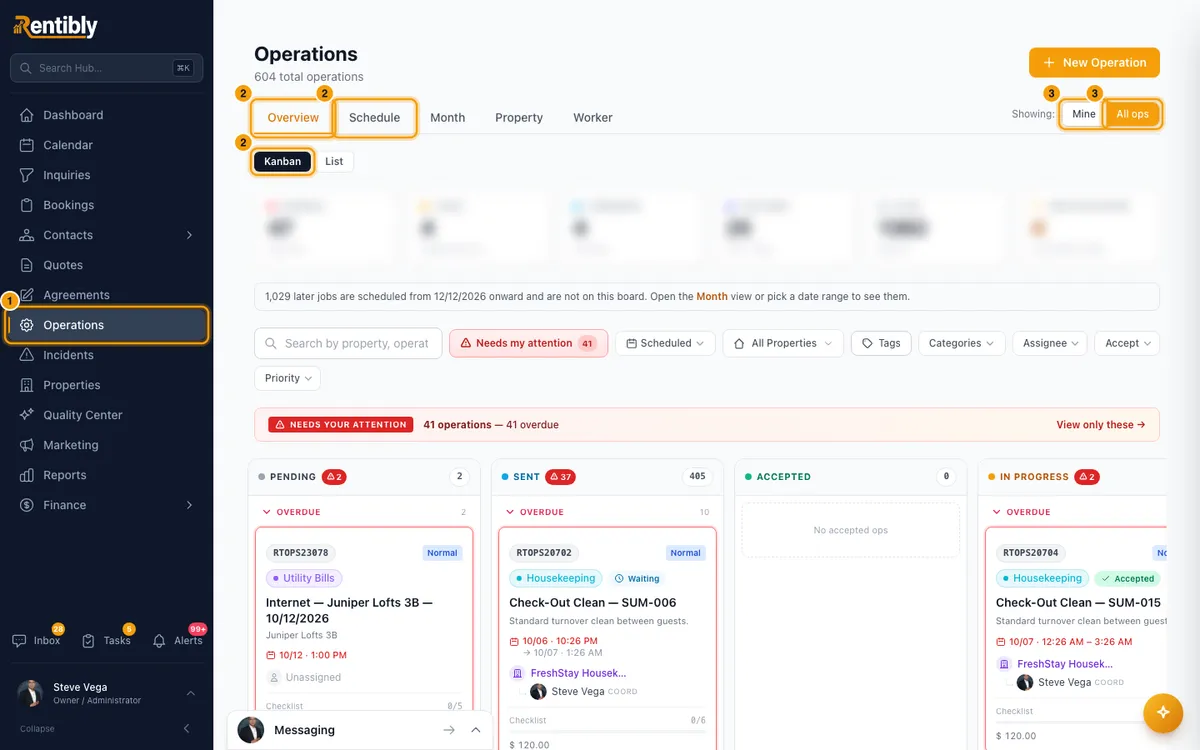
Pick a view at the top: Overview, Schedule, Month, Property or Worker. In Overview, choose Kanban or List.
Next to the view tabs, choose Showing: Mine (only jobs assigned to you) or All ops (everyone's).
In Overview, click a tile to show only those jobs: Overdue, Today, Tomorrow, This week, Later or Awaiting review. Click it again to show everything.
Narrow the jobs with the filter bar: Search by property, operation, assignee..., the date button (Scheduled, Created or Completed, then a preset or a custom range, then Apply), All Properties, tags, Categories, Assignee, Accept and Priority (Urgent, High, Normal or Low). Reset clears Assignee, Accept and Priority.
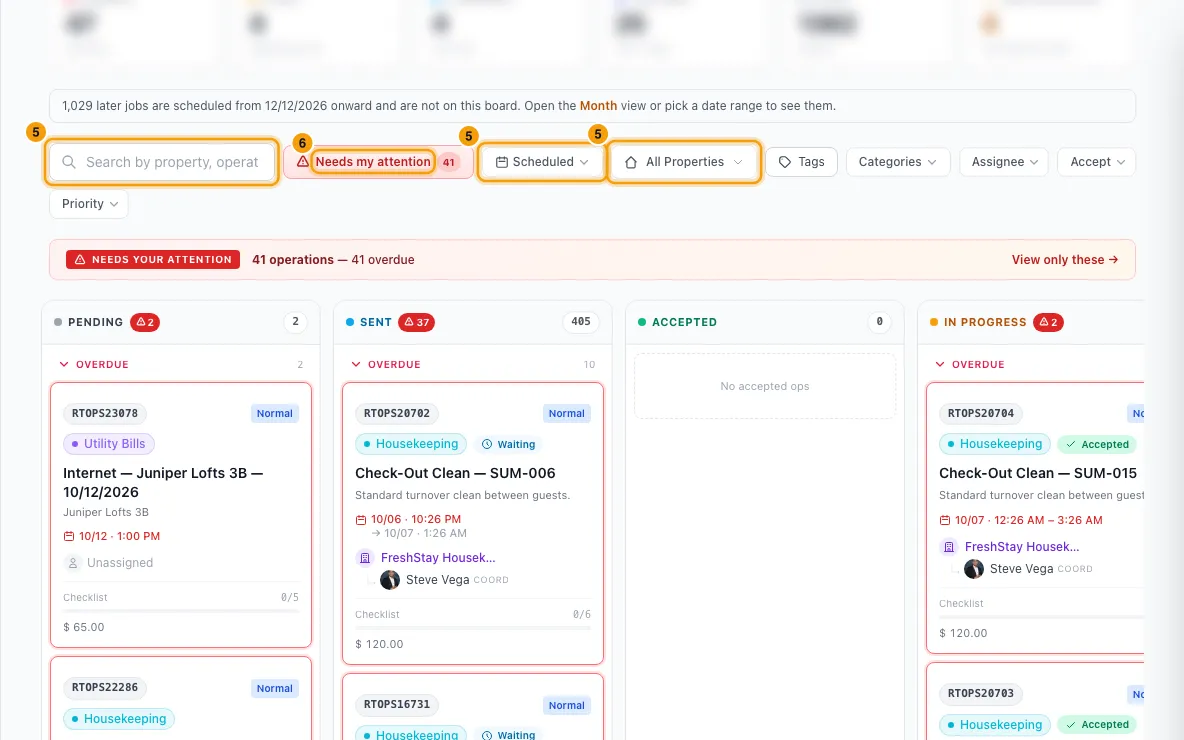
If Needs my attention appears, click it to see only the jobs waiting on you.
To review finished work, click Awaiting review, then open a job:
- Click Approve → Complete, then confirm.
- Or click Send back, write What needs to change? (at least 3 characters), and click Send back.
To change many jobs at once in Overview, hover a card or row and tick its box. Then use the bar at the bottom: Reassign, Reschedule, Mark complete, Cancel or Delete. Click Clear to unselect.
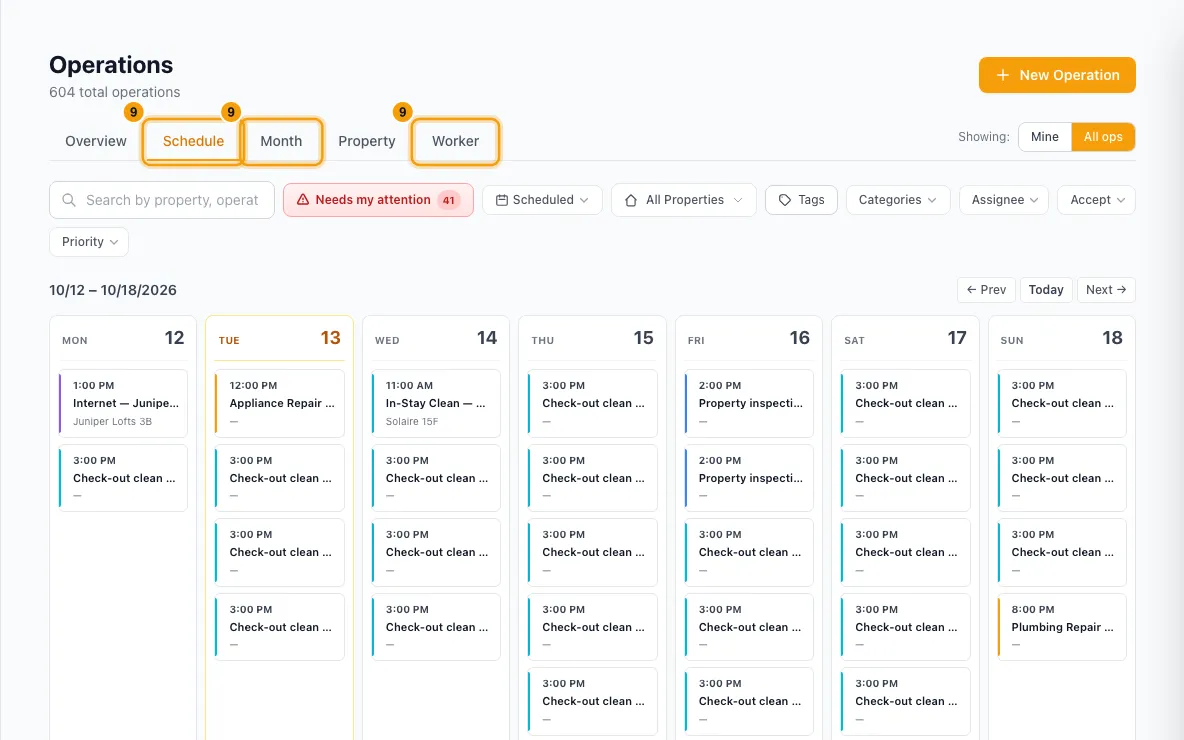
To move one job in Schedule, Month, Property or Worker, drag it to another day.
To manage one job, click it to open Operation Details. Use the buttons at the bottom: Start Operation, Mark Completed, Cancel Operation, Reopen Operation, Edit Operation or Delete operation.
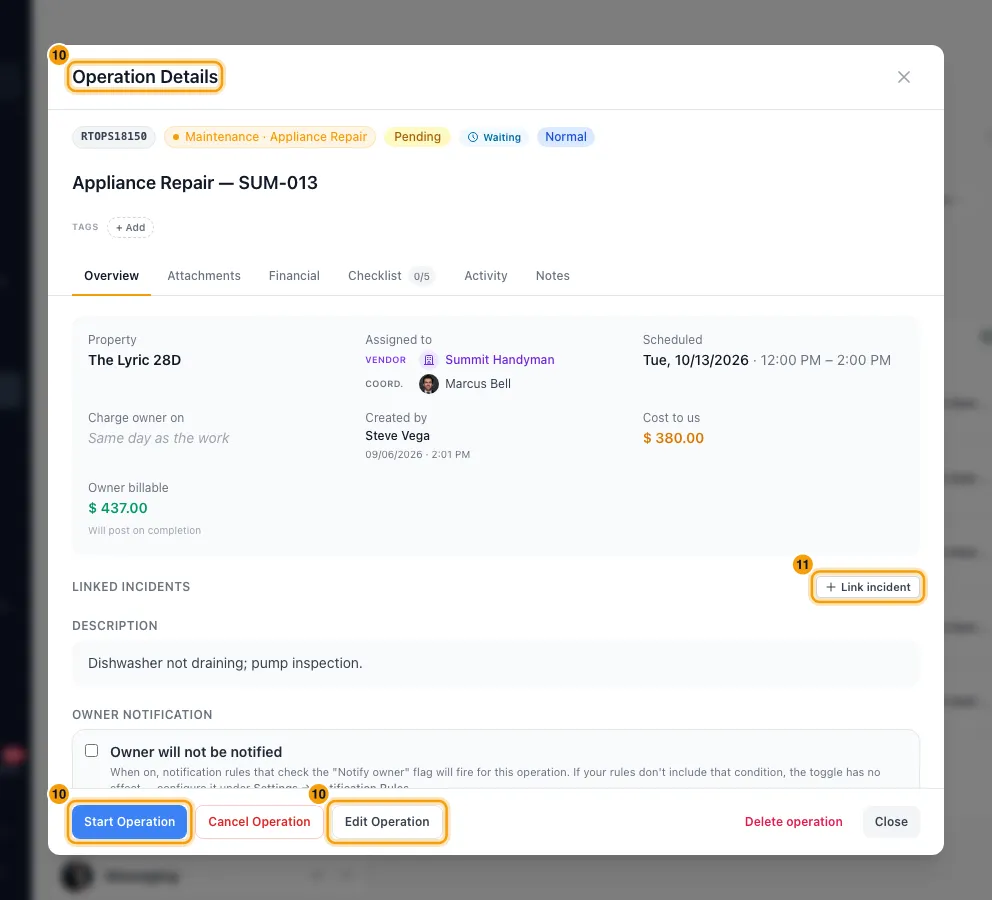
To link an incident, open the job and click Link incident under Linked incidents, then pick one. Hover a linked incident and click the × to unlink it.
Good to know
- Kanban columns:
- Pending: no one assigned yet. Sent: assigned, no answer yet. Accepted: the worker said yes.
- In progress, Review (awaiting your approval) and Completed (the 10 most recent).
- A red Declined column appears when a worker turns a job down.
- Each column shows 10 cards; click Load 10 more for the rest. Full Completed and Cancelled tables sit under the board.
- List is one table with Status, Category and Priority filters in the column headers. Click a header to sort. Choose 10, 25 or 50 Rows per page.
- The tiles count every open job (not completed or cancelled), even ones the board hasn't loaded. Later includes jobs with no date. Awaiting review counts every job in review across the company, not just yours. The tiles ignore Mine / All ops.
- What the board loads: jobs from 30 days ago to 60 days ahead, every overdue open job, and jobs with no date. To see further out, page forward in Month or pick a date range.
- Calendar views (Schedule, Month, Property, Worker):
- They show only jobs that aren't completed or cancelled. The week starts on the day set in your company settings.
- Dragging keeps the time of day and the job's length. In Property and Worker, you can only drag within the same row.
- Two jobs at the same property on the same day are flagged in amber as a conflict.
- Needs my attention shows jobs where:
- you are the coordinator and the vendor declined;
- you are the coordinator and no one answered within 30 minutes;
- you created the job and it is overdue;
- or it is assigned to you and awaiting review.
- Review: a job lands in Awaiting review when the category has Require operator review before completion on and a field worker completes it in the Ops Portal.
- Approve → Complete runs the normal completion: the required-files check, the owner expense and owner notifications.
- Send back moves the job to In Progress. Your note is added to the job's Notes for the field worker to see in the Ops Portal, and notification rules for Operation sent back for rework run.
- Declined jobs: changing the assignee or vendor clears the decline and offers the job to the new person.
- Bulk actions:
- Reassign only assigns to a team member, and removes any vendor. To give jobs to a vendor, edit them one at a time.
- Reschedule moves every selected job to the same start. Each end time is reset from the job type's usual length.
- Mark complete follows the same checklist and required-file rules as one at a time. Jobs that break them fail and the rest go through.
- Click Stop to halt a running bulk action.
- Cancel Operation moves the job to the Cancelled list. Cancelling or deleting a job also cancels any pending follow-up jobs that automations made from it, unless the rule keeps them.
- Reopen Operation moves a completed job back to In Progress. Any owner expense already posted stays.
- Delete operation:
- The job goes to the Recycle Bin (Settings → System → Recycle Bin, System trash). You can restore it there for 30 days.
- Its owner expense is removed too. Restoring the job posts its owner expense again, from the job as it is now.
- A job whose owner expense is on an approved owner statement can't be deleted.
- Linking incidents: only open incidents on the job's booking (or property) are offered.
- Owner notification: the tick on the Overview tab only matters if one of your notification rules checks the "Notify owner" condition. Its starting value comes from the category.
- Notes for owners: on the Notes tab, turn on Owner-visible to show a note in the owner portal. This needs Share notes and files with owners. Field-worker visible shows a note in the Ops Portal.
- Pinned: a job an automation made, then moved by hand, shows Pinned and no longer follows its booking. Click Resume auto-sync to undo this.
- Mine shows the jobs where you are the assignee, including vendor jobs you coordinate. It applies to every view and is remembered. Managers, admins, agents and finance start on All ops; everyone else starts on Mine.
- Permissions: viewing needs Operations set to View. Every change on this page, including review and delete, needs Operations set to Edit.
- To create a job, see Schedule an operation. To finish one, see Complete an operation.
Rentibly AI can help
- It can list and look up operations, for example "what's overdue" or "what's due today".
- It can start, complete or cancel a job, and change its date, assignee or other details.
- For a job awaiting review, completing it approves the field worker's work, the same as Approve → Complete. It approves with nothing else changed: ask for other changes separately.
- It can send a job awaiting review back to the field worker, the same as Send back. It needs your note saying what to fix, and asks for one if you haven't given it. It can't move that job back to pending or in progress any other way.
- It can link an incident to an operation.
Still stuck?
Open Support from your profile menu in Rentibly, or email hello@rentibly.com — we answer fast.