Schedule an operation
Updated 13 October 2026
Create a one-off job at a property, such as a cleaning, a repair or an inspection, and give it to a team member or a vendor.
Steps
Go to Operations and click New Operation.
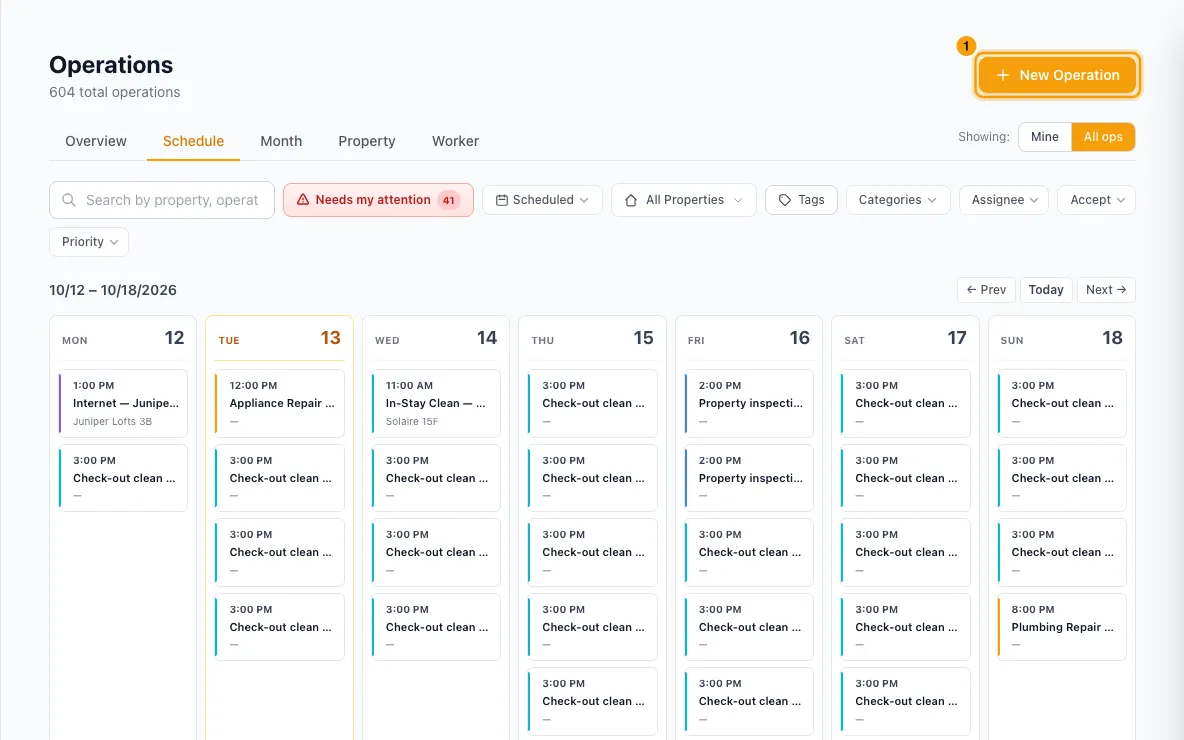
Pick a Category (for example Housekeeping), then a Type (for example Check-Out Clean). The Priority changes to the category's default.
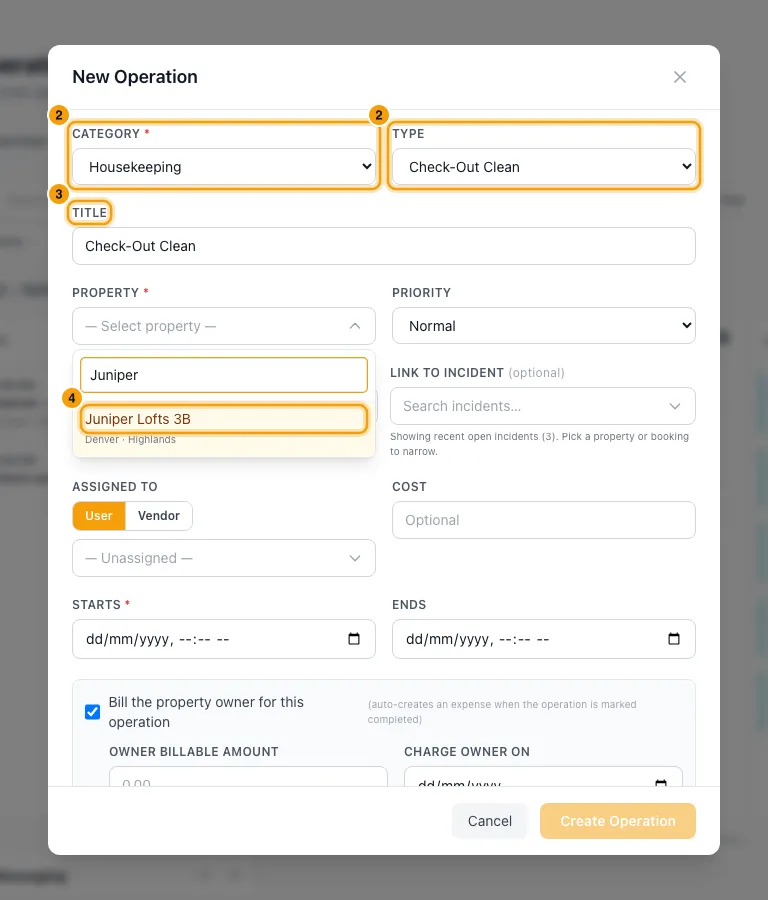
Leave Title blank to get a suggested title (type, property and date), or type your own.
Choose the Property and, if needed, a different Priority.
Optionally pick a booking in Link to booking and an open incident in Link to incident.
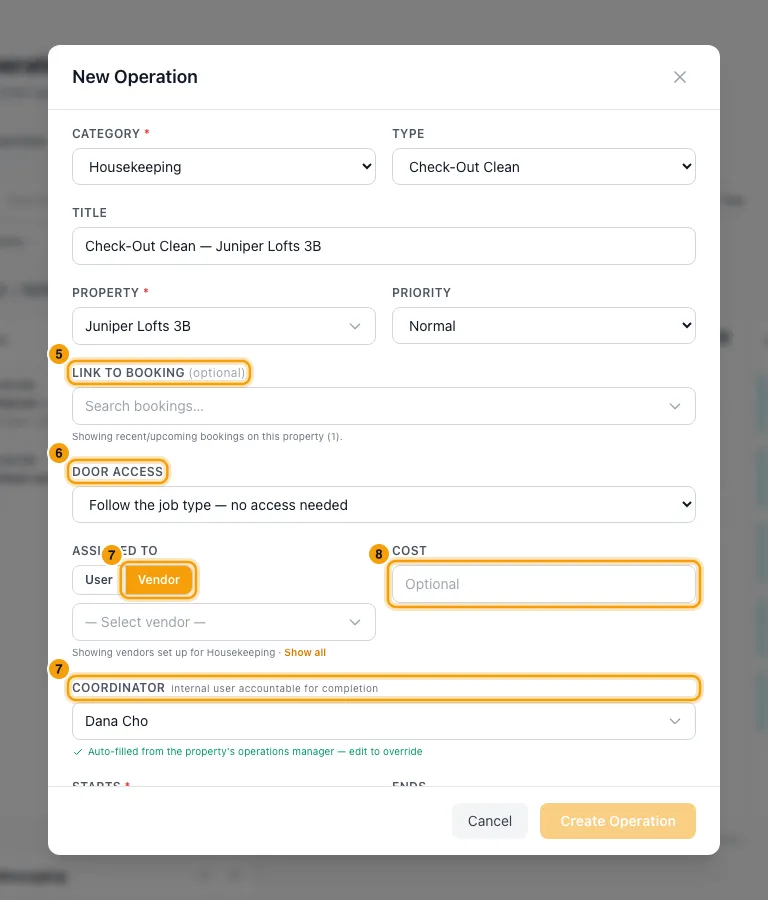
Under Door access, leave Follow the job type, or choose This job needs to get in or This job doesn't need to get in.
Under Assigned To, choose User and pick a team member, or choose Vendor and pick a vendor. With a vendor, also pick a Coordinator: the team member accountable for the job.
Enter a Cost, or let it fill in from the vendor's price list.
Set Starts. Ends fills in from the type's usual duration.
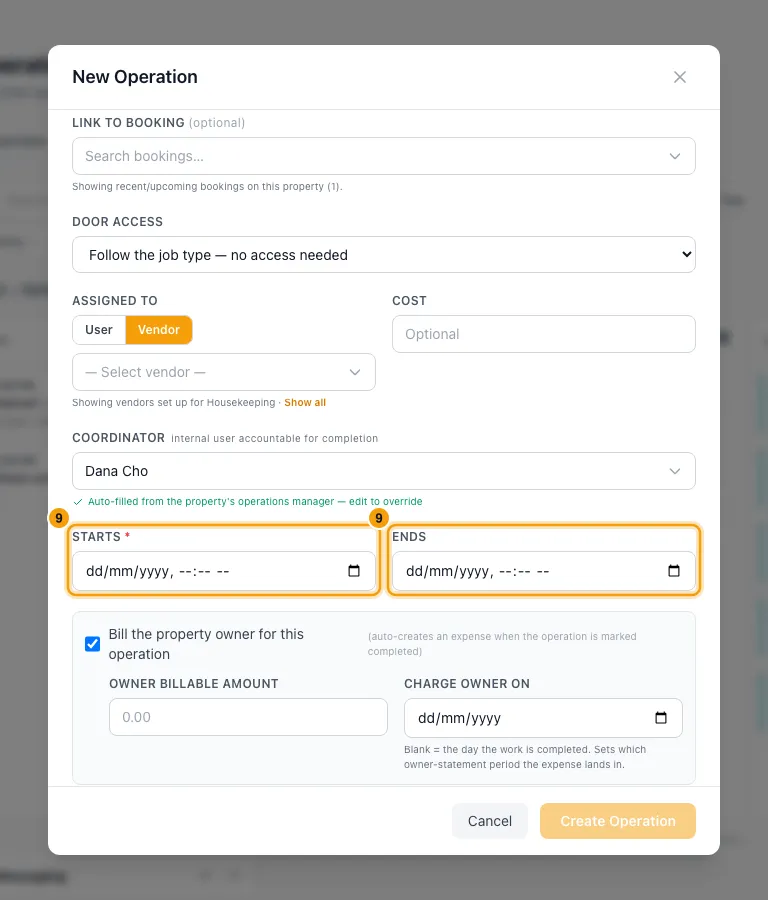
Keep Bill the property owner for this operation ticked if the owner pays. Check the Owner billable amount. Optionally set Charge owner on.
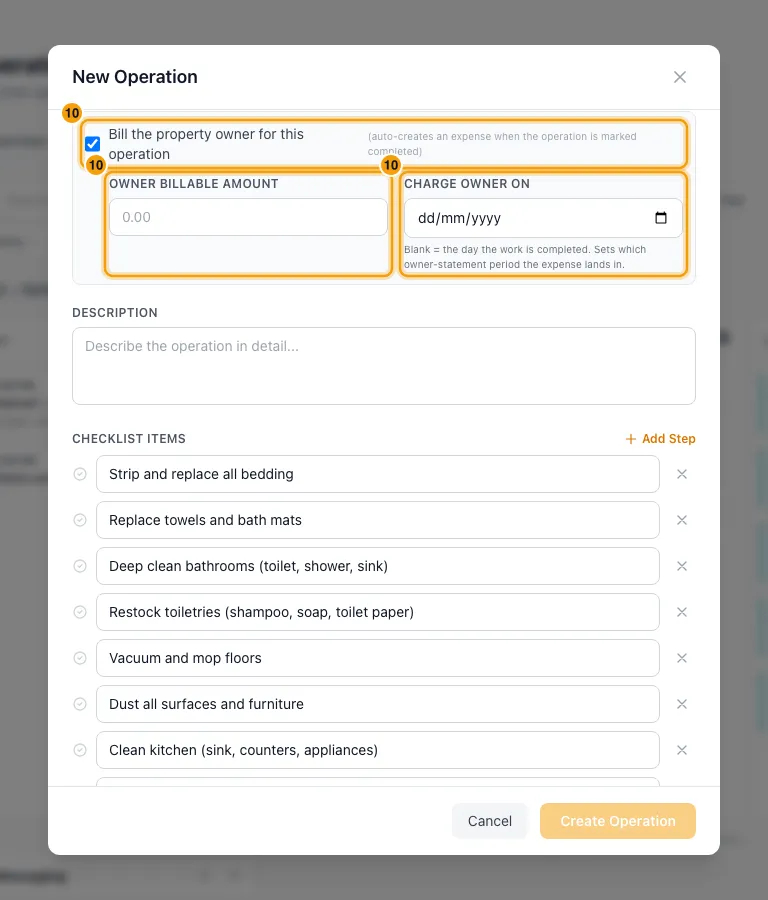
Add a Description. Add or edit steps under Checklist Items with Add Step. Add Tags if you use them.
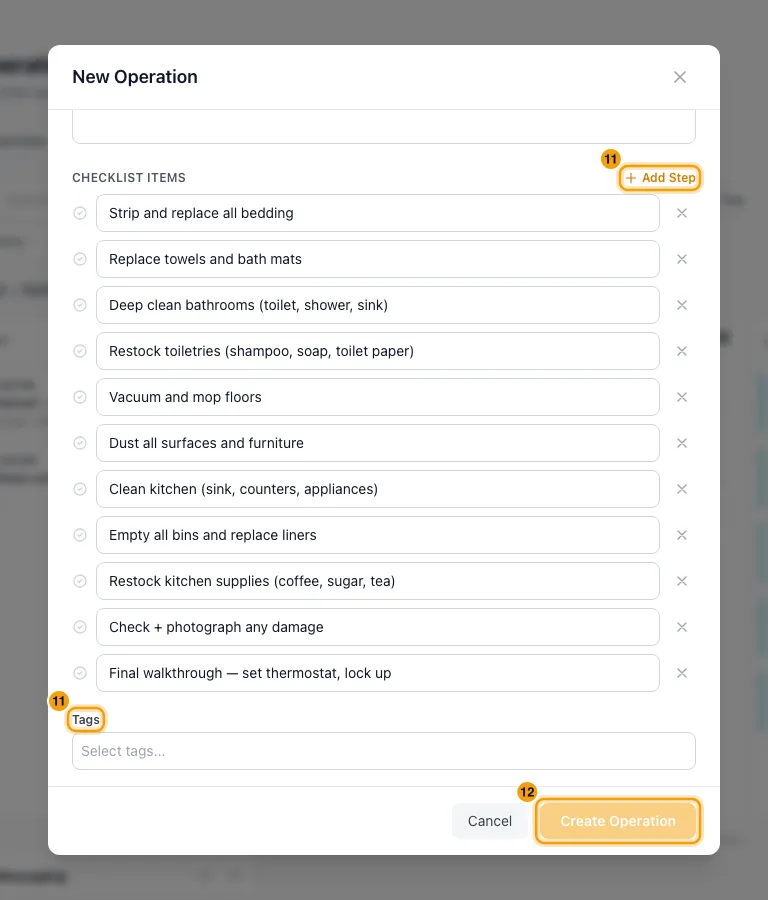
Click Create Operation.
Good to know
- Create Operation stays greyed out until Category, Property and Starts are filled in. Description is optional.
- Checklist: if the category or type has a checklist template, its steps fill in when the checklist is still empty. A type's template wins over the category's.
- Ends: if you change it by hand, it stays as you set it. Clear it to go back to the type's usual duration.
- Vendors: the Vendor list shows only vendors set up for that category. Click Show all to see every vendor.
- Coordinator: it fills in from the property's operations manager. If the property has none, pick someone yourself.
- Cost: with a vendor and a type picked, the cost fills in from the vendor's price list. The line under it says which price rule was used. With an hourly rate, the cost stays blank and the line shows the rate and minimum hours: work out the total and type it in. Type your own cost to stop it changing.
- Owner billing:
- The tick and the amount start from the category's defaults. The amount is the cost plus the category's markup.
- Change the amount by hand and it stops following the cost.
- Leave Charge owner on blank to charge the owner on the day the work is completed. The date decides which owner statement the charge goes on.
- You can change it later without reopening this form: open the job and click the date under Charge owner on on its Financial tab.
- When it's completed: a billable operation posts an owner expense automatically. On a property with several owners, each owner gets their own line. See Complete an operation.
- Utility bills: with the Utility Bills category, a Utility account picker lists the property's company-paid accounts. Picking one also picks the matching type.
- Who is told: the assigned team member or vendor gets the job in the Ops Portal. Whether they also get a push, WhatsApp or email depends on their own Ops Portal settings.
- On the booking: every operation linked to a booking is listed on that booking's Operations tab, whatever its date. That includes ones you linked with Link to booking and ones an automation made for the booking. Click one to open it on the Operations page. Operations at the property that aren't linked to the booking don't appear there.
- Linking an incident only works when you create the operation. Later, use Link incident in the operation's details.
- Notes: you can't add notes while creating. Open the operation afterwards and use its Notes tab.
- To change a job: open it and click Edit Operation, then Save Changes. Editing never changes its status.
- If an automation made the job, moving its dates by hand pins it: later booking changes no longer move it. Click Resume auto-sync in its details to undo this.
- Permission: creating and editing need Operations set to Edit.
- To find and manage jobs once they exist, see Plan and review operations on the Operations page.
Rentibly AI can help
- Ask it to schedule a job, or a Check-Out Clean for a specific booking.
- It can also change a job's details, such as its date, assignee, cost or priority.
Still stuck?
Open Support from your profile menu in Rentibly, or email hello@rentibly.com — we answer fast.