Set up pricing rules — fees, taxes and discounts
Updated 13 October 2026
Pricing rules is your list of fees, taxes and discounts. You set each one up once, then attach it to properties by hand or let it apply automatically to every property that matches.
Steps
Click your name at the bottom of the sidebar, then Settings. Under Property Settings, open Pricing rules.
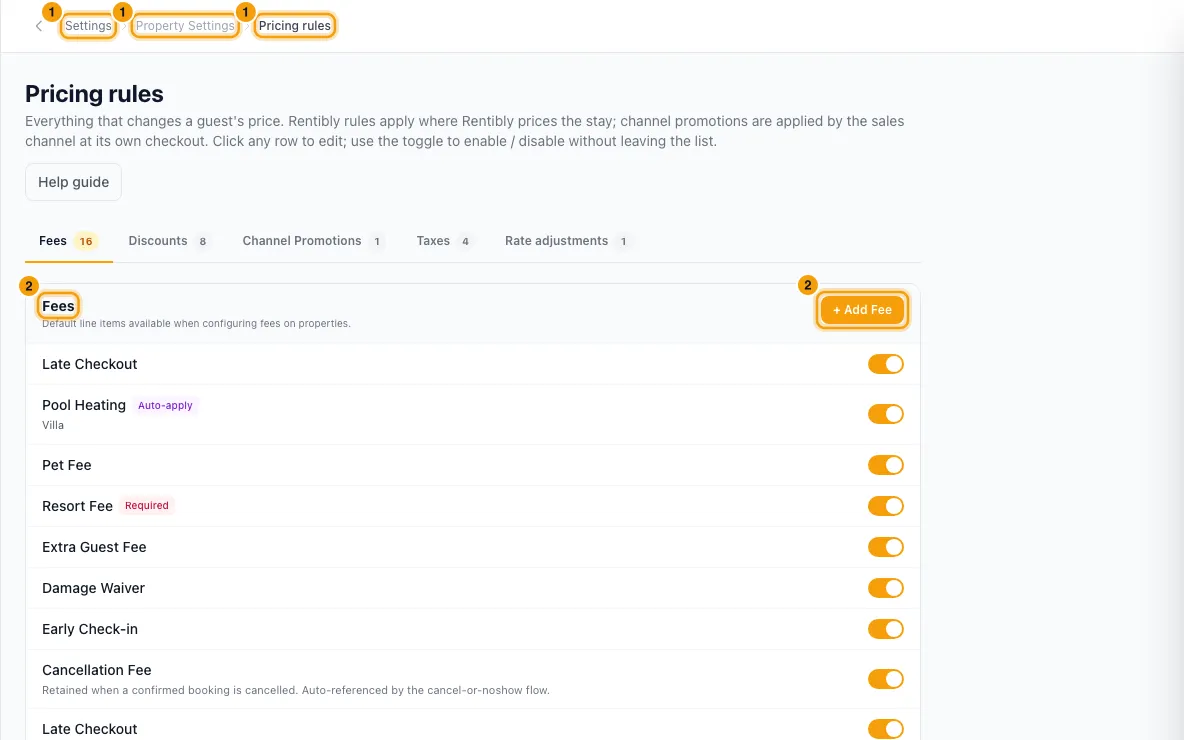
Open the Fees, Discounts or Taxes tab, and click + Add Fee, + Add Discount or + Add Tax. To change one, click its row.
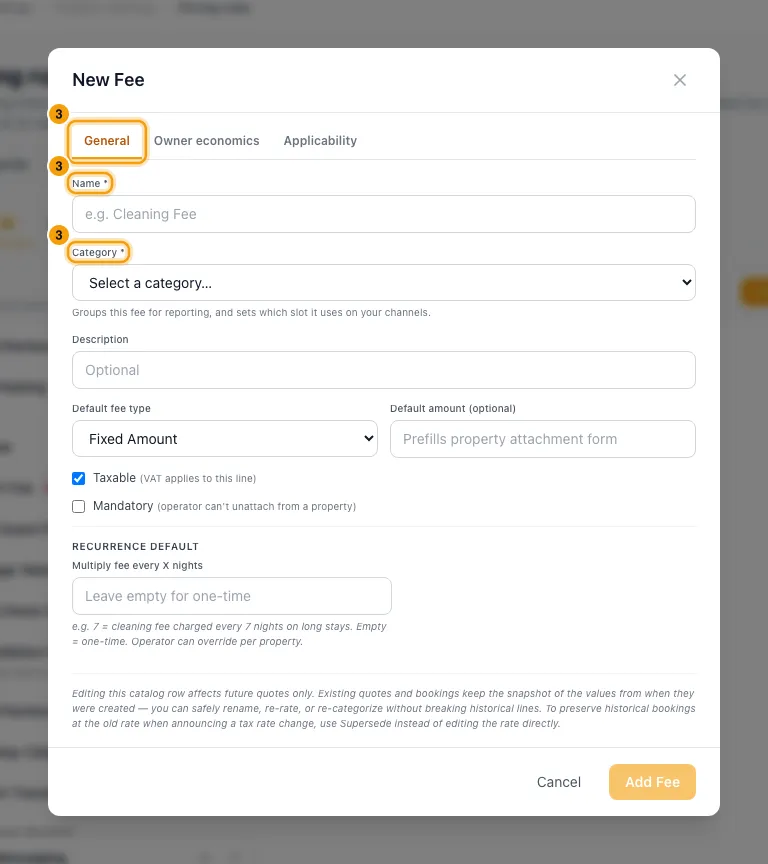
On the General tab:
- Enter a Name.
- For fees and taxes, choose a Category. It groups the item in reports and decides how it is sent to channels.
- Choose the Default fee type: Fixed Amount, Per Night, Per Guest, Per Guest/Night or Percentage.
- For fees and discounts, enter the Default amount. For a percentage discount, choose what it is a share of under Default applies to.
- Tick Taxable if VAT applies to the line, and Mandatory if it can't be taken off a property.
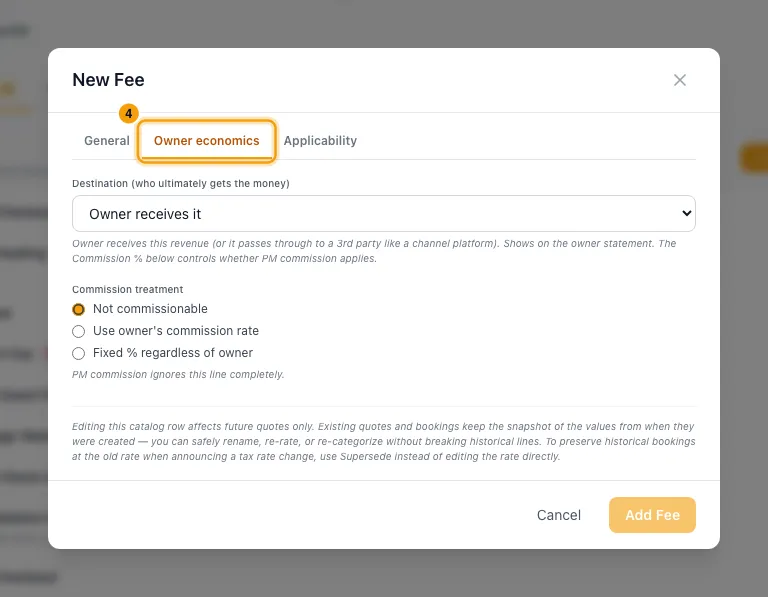
On the Owner economics tab, choose the Destination (who ends up with the money) and the Commission treatment.
For a tax, open Effectivity and enter the Rate, Effective from and, if it ends, Effective to.
On the Applicability tab, choose the Scope:
- Manual — pick per property: you attach it on each property.
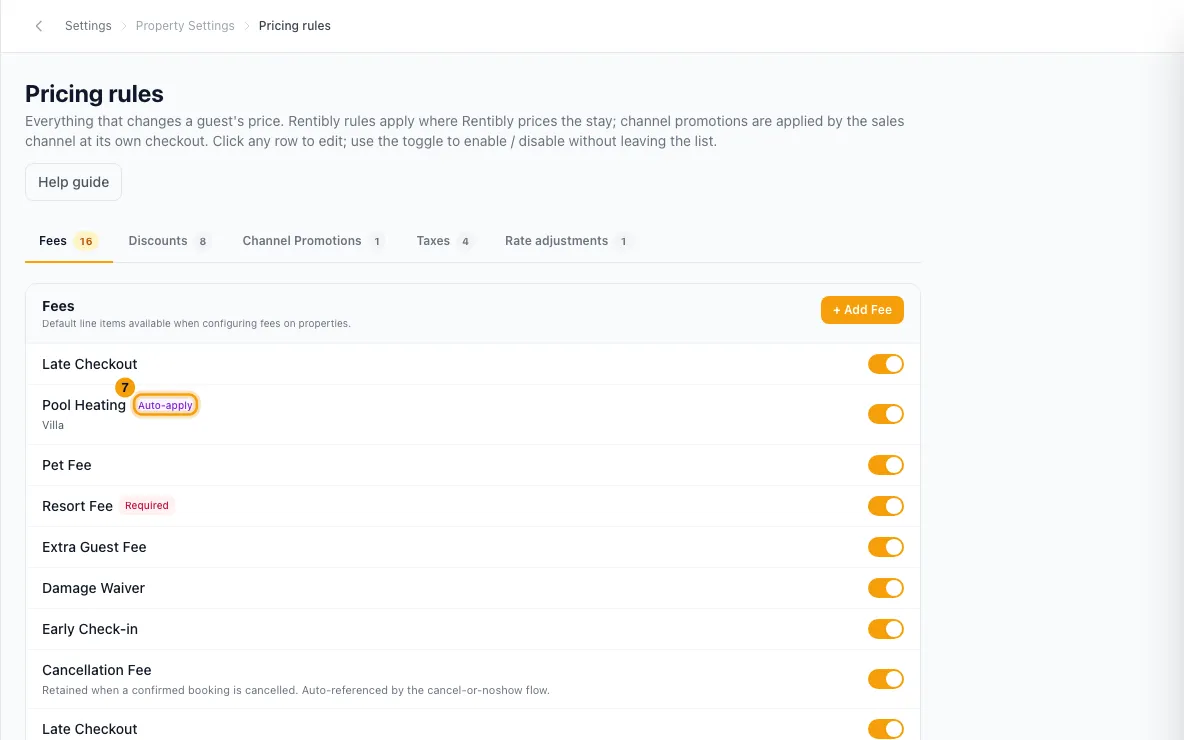
- Auto-apply to all matching properties: it applies on its own to every property that meets the Conditions.
Click + Add condition to limit where or when it applies, for example Area, Property type, Bedrooms, Booking source or Season. With no conditions it applies everywhere.
For a discount, open Auto-apply and choose the Discount kind, then its trigger, such as Min nights for Long-stay. Choose Manual (offered on the quote, never auto-applied) if your team should add it by hand.
Click Add Fee, Add Discount or Add Tax (or Save changes).
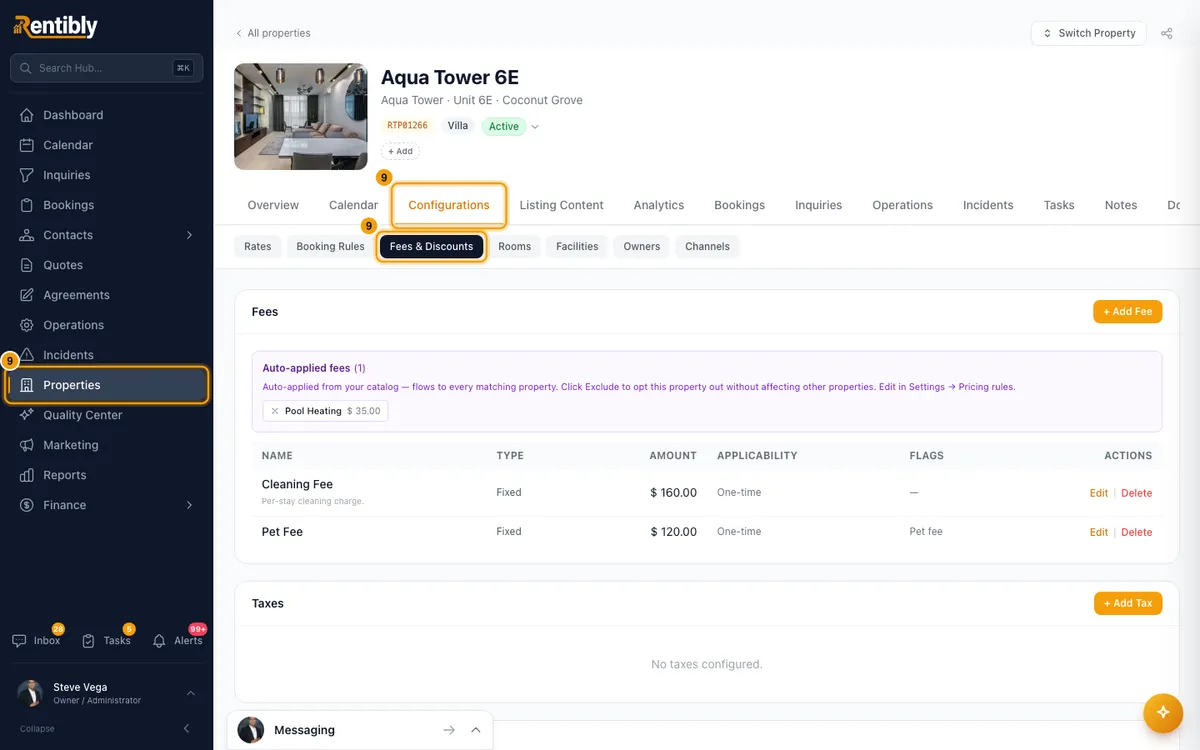
To attach a manual item to a property: open the property from Properties, go to Configurations → Fees & Discounts, click + Add Fee, + Add Tax or + Add Discount, and pick it from — Select from catalog —.
Good to know
- Auto-apply needs an amount. An auto-applied fee or discount needs a Default amount, and an auto-applied tax needs a Rate, or it can't be saved.
- Conditions all have to be true for the item to apply. Area includes sub-areas.
- Stop an auto-applied item on one property: edit it and open the Properties tab, then switch that property off (it shows as Excluded). You can also do this from the property's Fees & Discounts tab. The same tab lists where the item is Manually attached.
- Turn an item off with the switch on its row. It stops being offered on new quotes and bookings, and past lines keep their names.
- Delete is in the item's window. It is refused while anything uses the item (bookings, quotes, statements, property attachments, promo codes and so on), and you're offered Archive instead. Archiving a discount that promo codes use stops those codes working.
- Two fees are built in: Cancellation Fee and Damage Fee. You can rename them and change their amount, but not turn them off, delete them or change their category.
- Changes affect future quotes only. Quotes and bookings already made keep the amounts they were made with.
- Change a tax rate with Supersede, not by editing the rate. Click Supersede on the tax's row (or Open Supersede dialog → on its Effectivity tab), enter the New rate and New rate effective from, then click Supersede rate. The old rate ends the day before. Bookings made before that date keep the old rate; bookings and charges added from that date get the new one. The start date must be after the current rate's start date.
- Channels:
- Saving, changing or deleting an item re-sends fees (or, for discounts, prices) to every property connected to a channel.
- A category marked "— not sent to channels" stays on quotes, invoices and reports only.
- A row tagged Not sent to channels or Charged differently on channels has a setting a channel can't carry. Open it to see which channel and why.
- Length of stay, Booked in advance and Number of guests conditions are never sent to channels. They only apply to your own bookings.
- An optional fee is only advertised on channels unless you tick Sync to channels on its Applicability tab. Then channels include it in the price.
- Discounts and channels: your discounts apply to direct and website reservations. A booking made on a channel is priced by that channel, so to discount there you use Channel Promotions (see Run a promotion on a booking channel). One exception, which the Discounts tab also states: for a property whose prices are sent as Stay-length pricing (a channel's property list → ⋯ → Sync settings… → How prices are sent), an active length-of-stay discount (such as Long-stay) is built into the stay-length prices sent for it, unless it is limited to certain booking sources or has other booking conditions.
- Extra-guest fees: on a Per Guest or Per Guest/Night fee, tick Charge only guests above the rate plan's included guests. It only works when the property's rate plan sets "Price includes N guests".
- Pet fees are set up here with the Pet category. See Set up a pet fee. On a property that doesn't allow pets, its Fees list marks each pet fee as never charged.
- To add one of these items to a single booking, see Add a fee, tax or discount to a booking. For account-wide price changes on chosen dates, see Change prices across properties for chosen dates.
- Click Help guide at the top of the page for the in-app guide.
- You need the Settings permission to change pricing rules.
Rentibly AI can help
- It can list the fees set up on a property, and compare fees across your properties to spot unusual ones. It can't create or change pricing rules yet.
Still stuck?
Open Support from your profile menu in Rentibly, or email hello@rentibly.com — we answer fast.