The ops portal — Rentibly How-to
How-to: Operations · Part 6 of 6 · 2:08 · 6 chapters · Watch on YouTube
Chapters
Read the transcript
Hey, and welcome to this Rentibly how-to: the ops portal. Let's pick up a cleaner's phone, and follow one job from start to finish. Here's what we'll cover — the chapter times are right here, and in your player. Let's get started.
Your cleaners, maintenance crews and vendors get their own app: the ops portal, at ops dot rentibly dot app. They sign in with the email you have for them, and a six-digit code. It works in any phone browser, and there's an app too. They only ever see the jobs you've given them.
Their day starts here: My jobs. Overdue, today, upcoming and done. Today there's one new job waiting — a deep clean at Juniper Lofts, with the time window. They can accept or decline right from the list. Let's open it.
Everything they need to get in and get going: the address, the unit and floor, the layout, and the Wi-Fi. Your notes for the job, and the checklist — locked until they accept. Accept.
On site, Start job — and the clock starts. They tick each step off as they go; the ones marked Required have to be done before the job can be finished. Then the proof: under Completion evidence, Upload, and a photo of each room. It's saved to the job straight away, for your team to check — owners don't see it unless you share it. With every required step ticked, Mark complete sends it back to your team, with how long the job took and any note. And on your side, in the Hub, you see each step land as it happens.
Thanks so much for watching! If you're already on Rentibly, open Settings, Operations and Tasks, Ops Portal, and give your cleaners and vendors access. And if you're not on Rentibly yet, book a demo call, and we'll show you all of this, live.
A cleaner's day on their phone: today's jobs, everything they need to get in, the checklist, photo proof, and marking the job complete. Shown live on a real Rentibly workspace.
More in Operations
 2:25
2:25How-to · Part 1
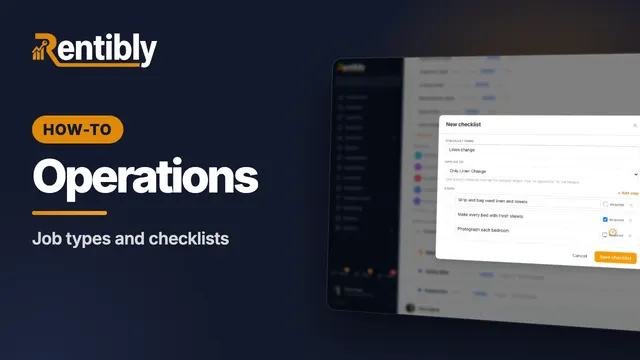
Categories, job types and checklists
Set up the categories and job types your team works with, give a job type its own checklist with required steps, and see what each category controls. Shown live on a real Rentibly workspace.
 2:23
2:23How-to · Part 2
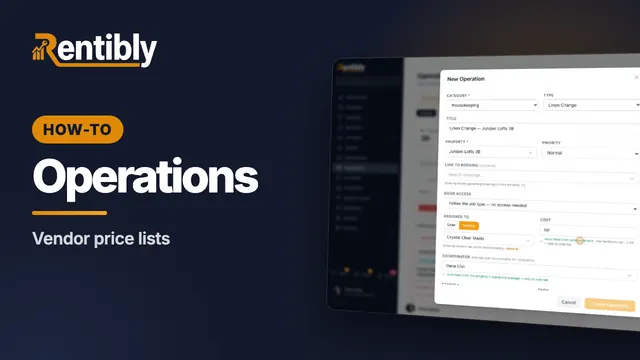
Vendor price lists
Record what each vendor charges — flat, per bedroom or hourly — and watch job costs fill themselves in when you assign the work. Shown live on a real Rentibly workspace.
 2:14
2:14How-to · Part 3
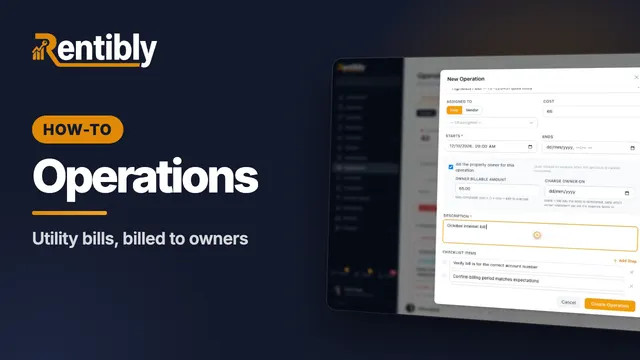
Utility bills
Record a home's utility accounts, set a monthly reminder, and log each bill as an operation that bills the owner when it's paid. Shown live on a real Rentibly workspace.
 2:22
2:22How-to · Part 4
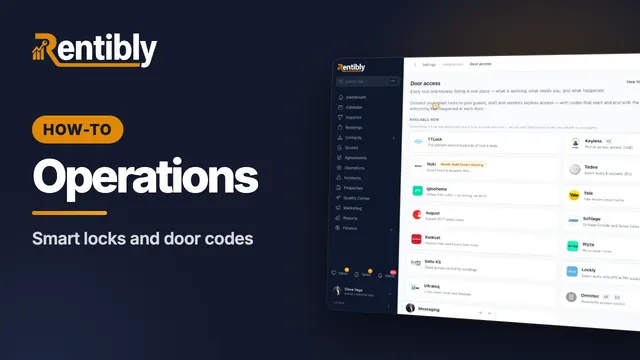
Smart locks and door codes
Connect your smart-lock account so guests, cleaners and contractors get codes that start and stop with their booking or job. Shown live on a real Rentibly workspace.
 3:00
3:00How-to · Part 5
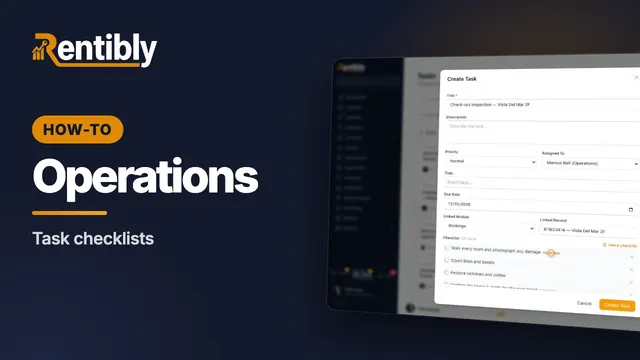
Task checklists
Write a repeating job's steps once, drop them into any task, and have automations attach them for you. Shown live on a real Rentibly workspace.
Count your subscriptions. Then count ours.
A 30-minute demo on your numbers — every tool you pay for today, mapped to its native Rentibly module.
Book a demo