Adding a new property — Rentibly How-to
How-to: Setting Up a Property · Part 1 of 10 · 3:24 · 8 chapters · Watch on YouTube
Chapters
Read the transcript
Hey, and welcome to this Rentibly how-to: adding a new property. We'll add a two-bedroom loft in Denver, from the first form to its own page — ready for the rest of its setup. Here's what we'll cover — the chapter times are right here, and in your player. Let's get started.
Every home you manage lives on the Properties page. Live homes sit under Active, and new ones start under Onboarding while you set them up. The other tabs flag permits that are expiring or have expired, homes leaving your management, and the archive.
Let's add one. Add Property. See this banner at the top? If the home is already listed on Airbnb, it brings the details and photos across for you. Ours is brand new, so we'll type it in. A name for the home: Juniper Lofts 3B. The building it's in. The unit number. Its area — start typing, and pick Highlands. The country, and the floor. What kind of home it is — an apartment — and how it's furnished. Two bedrooms, two bathrooms, room for four guests, and its size in square feet.
The permit number can wait — you can add it later, from the property's page. But Assigned team is worth a look. If an automation hands out work the moment a home is added, it goes to whoever is in these slots right then. So: Alex Morgan as property manager, and Dana Cho running operations. Notice it's created as Onboarding — it isn't live until you say so. Create Property, and we're straight onto its page.
Here's our new home. It has its own reference number, it's marked Onboarding, and the summary holds everything we just typed — with the team we picked, over on the right. A few details are still blank. Edit the summary: the state, the city, and the zip code. Further down, the permit and insurance dates, the views from the home — and its full address. Then Save.
Now pin it on the map. Set location, then Find from address — it looks the address up for you. Drag the pin if it needs nudging, and Save. The booking sites need these coordinates before they'll publish the listing.
Everything else is set up from these tabs. Configurations holds the prices, booking rules, rooms, owners and channels. Listing Content is what guests read: descriptions, photos, amenities, and the house guide. And Documents keeps the home's files. We'll take each of them in the next films. And when it's ready, open the status menu. Active puts it live, alongside your other homes. Archived retires it, and Mark as exiting sets the day it leaves your management. For now, we'll leave it in Onboarding.
Thanks so much for watching! If you're already on Rentibly, open Properties, press Add Property, and your next home is a minute away. And if you're not on Rentibly yet, book a demo call, and we'll show you all of this, live.
Add a home from scratch: the Add Property form, the team who looks after it, the details on its page, the map pin, and taking it live. Shown live on a real Rentibly workspace.
More in Setting Up a Property
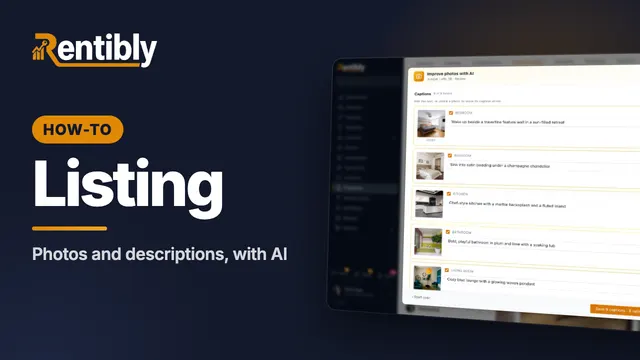 3:45
3:45How-to · Part 2
Photos and descriptions
Upload a home's photos, let AI caption, rate and order them, then write the website description with AI and copy it to the booking sites. Shown live on a real Rentibly workspace.
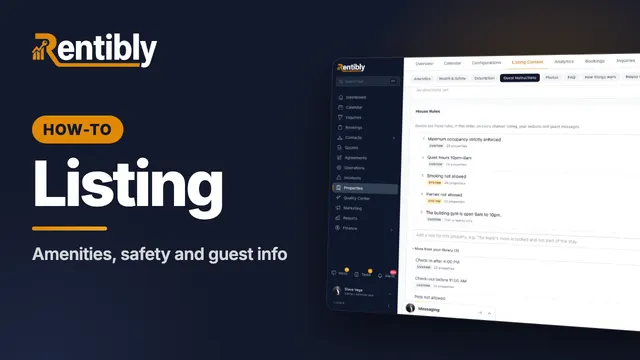 3:40
3:40How-to · Part 3
Amenities, safety and guest info
Tick a home's amenities and safety features, set its check-in details, WiFi and house rules, and answer the questions guests always ask. Shown live on a real Rentibly workspace.
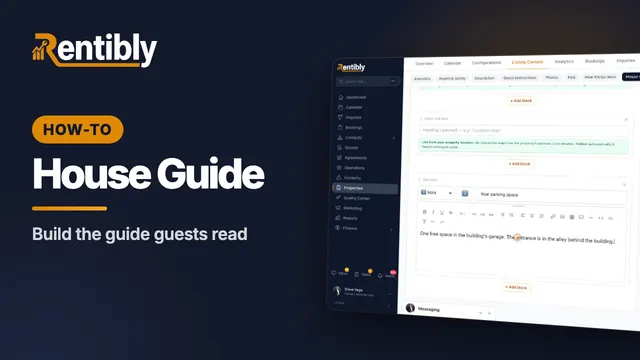 2:44
2:44How-to · Part 4
The house guide
Write the how-tos guests look up mid-stay, then build the house guide they read during their stay — with blocks that keep themselves up to date. Shown live on a real Rentibly workspace.
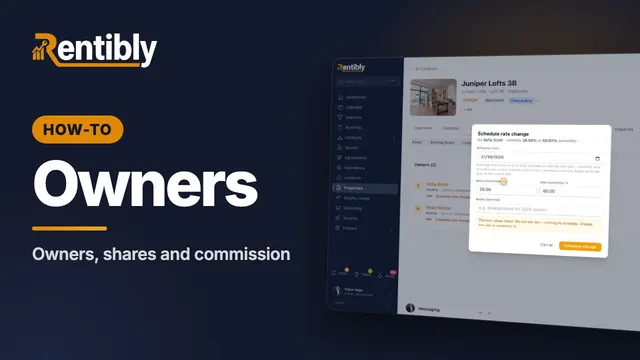 2:01
2:01How-to · Part 5
Owners and commission
Link a home to its owners: shares for co-owners, your commission, payout frequency, owner-paid taxes, and changing the rate from a future date. Shown live on a real Rentibly workspace.
 3:45
3:45How-to · Part 6
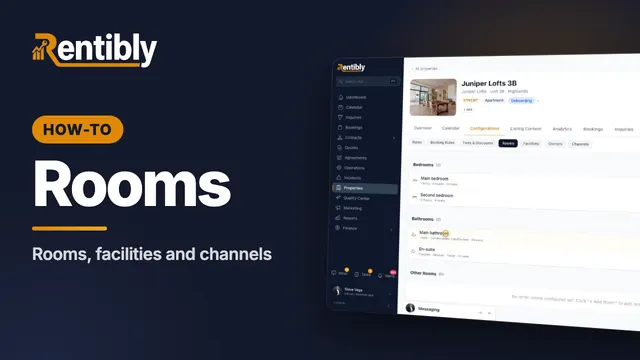
Rooms, facilities and channels
Describe each bedroom and bathroom, record access codes, utility accounts, building contacts and building info, and see where a home is listed. Shown live on a real Rentibly workspace.
 2:27
2:27How-to · Part 7
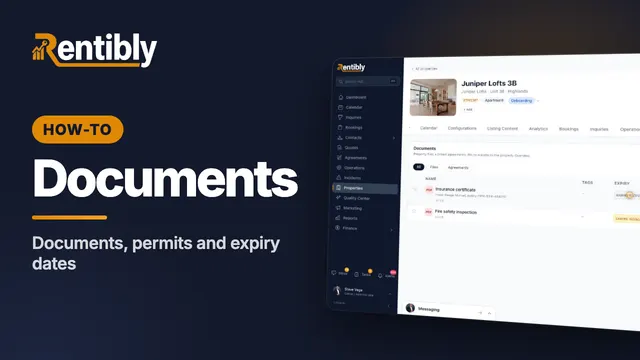
Documents and permits
Record a home's permit and insurance dates, upload its documents with expiry dates, and pin and share the ones that matter. Shown live on a real Rentibly workspace.
Count your subscriptions. Then count ours.
A 30-minute demo on your numbers — every tool you pay for today, mapped to its native Rentibly module.
Book a demo