Send a marketing campaign by email or WhatsApp
Updated 12 October 2026
A campaign is a one-off email or WhatsApp message to a group of contacts, such as past guests. Only contacts who have opted in for that channel receive it.
Steps
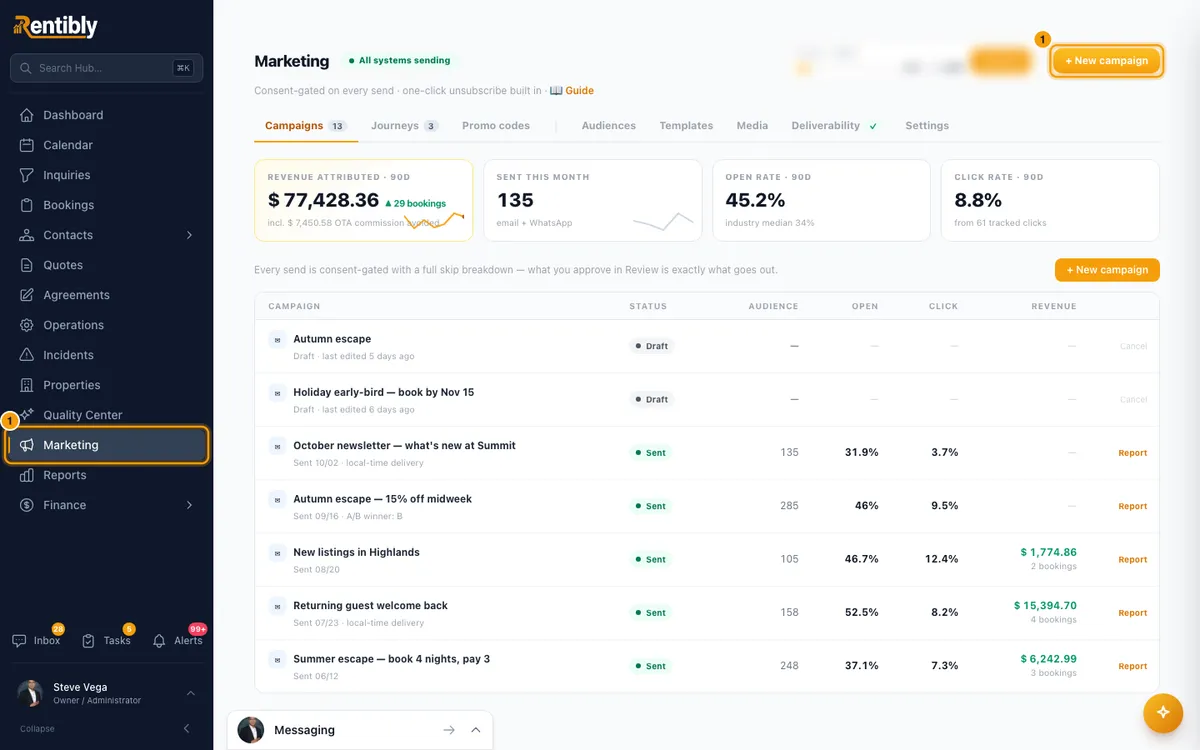
Click Marketing in the sidebar, then + New campaign (top right).
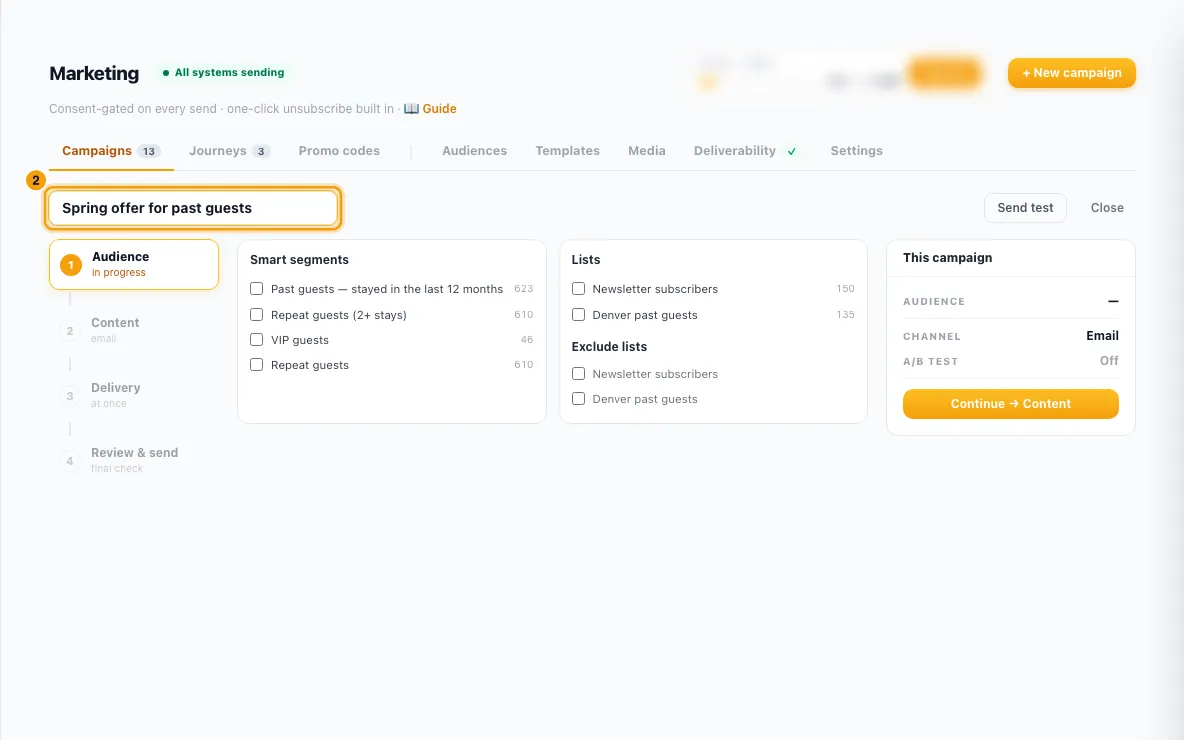
Type a Campaign name at the top.
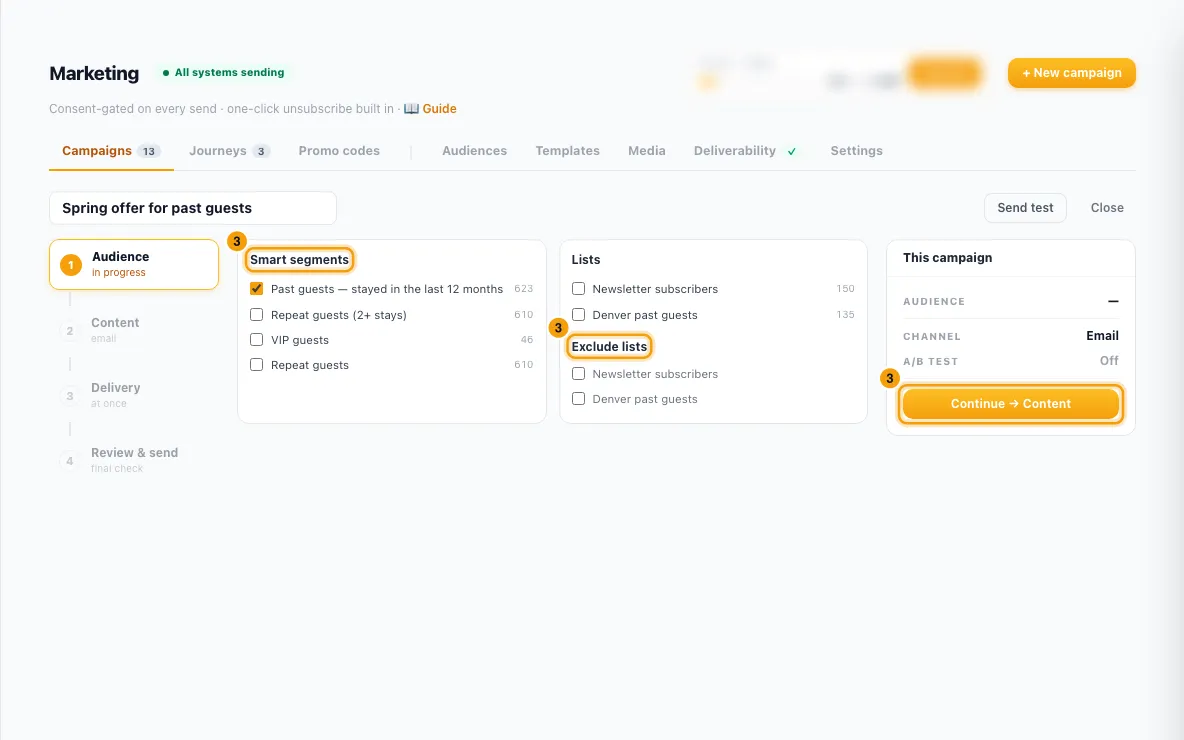
Audience: tick one or more Smart segments or Lists. Tick any Exclude lists to leave those people out. Click Continue → Content.
Content: pick the channel: Email, WhatsApp, or Both. Both sends on every channel the contact is reachable on — someone opted in to both gets a WhatsApp message and an email, which is two messages and two charges.
For email, pick an Email template. A Subject override is optional; leave it empty to use the template's subject. To test two subjects, tick A/B test the subject line, write Subject B, and choose Test sample, Winner by (Open rate or Click rate) and Decide after.
For WhatsApp, pick Send from and an Approved marketing template. Map every
{{1}},{{2}}under Variable mapping (first name, last name, full name, preference-center link, or Custom text…). If the template has a link button, fill in Button link (click-to-book). Click Continue → Schedule.Delivery: under When, choose Send when I confirm the review or Schedule for a date and time. Under Delivery timing, choose Send at once, Drip over ~2 hours, Each guest's local morning (10:00) or Each guest's local evening (18:00). Click Continue → Review.
Review & send: check Audience after gating and the Pre-flight checks. Click → Will receive this campaign or → Skipped to open the list of those contacts with their email and phone number, so you can check names before sending. For WhatsApp, check Estimated WhatsApp cost against your Wallet balance.
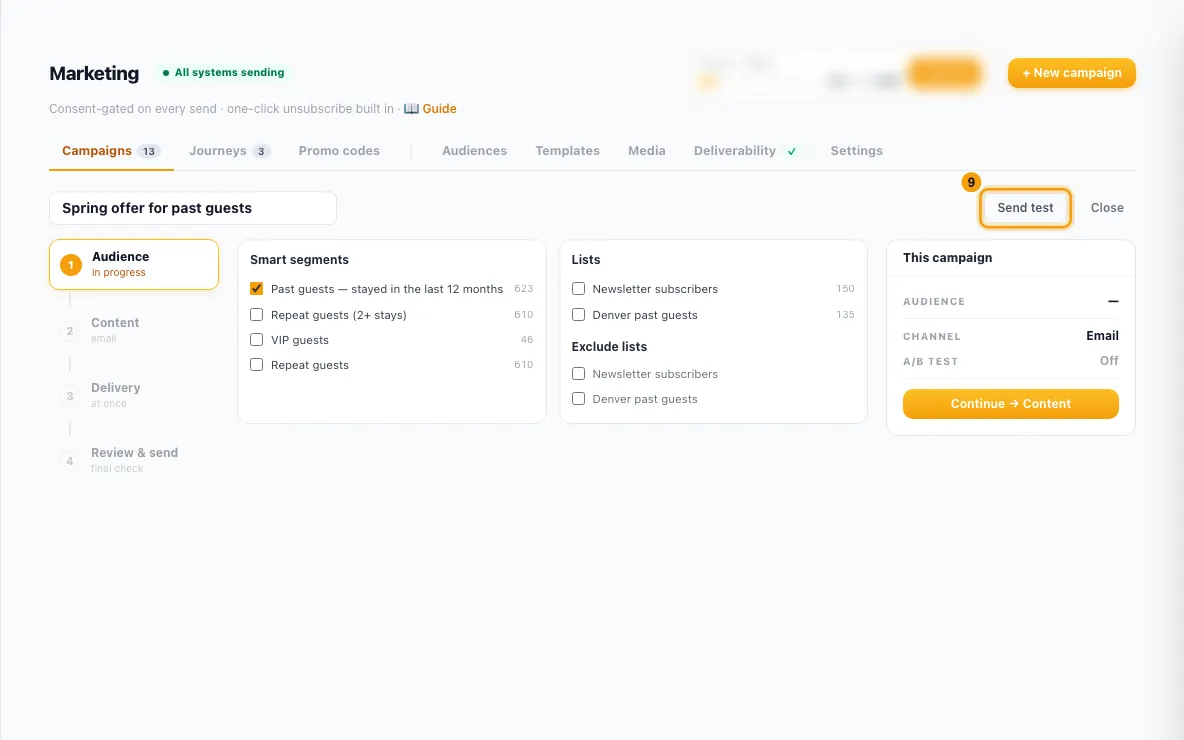
Optional: click Send test at the top and type an email address.
Click Send now (or Schedule send if you picked a date).
Good to know
- Who is skipped: a contact is left out when they are marked do-not-contact, have no address for the channel, have not opted in for that channel ("unknown" is not consent), or their address is suppressed. The review shows each reason with a count, and clicking the row lists the contacts. A contact reachable on one channel is not skipped. Send now stays disabled when nobody passes.
- Contacts vs messages with Both: Will receive this campaign counts people; the line under it counts messages. They differ when contacts are opted in to both channels. The messages number is what you pay for — email against your monthly plan allowance, WhatsApp per message from your wallet.
- WhatsApp and US numbers: WhatsApp marketing is never sent to US (+1) numbers. With Both, those people still get the email if they can receive it — they are not counted as skipped.
- WhatsApp templates must be approved by Meta, in the marketing category, and of the Campaign type. If you have no WhatsApp Business account connected, the WhatsApp and Both options are greyed out.
- What is checked before it sends: a template and a subject for email; subject B when A/B is on; a WhatsApp template, number and every variable mapped; merge tags a campaign can fill (stay, quote and owner tags are refused); and an audience. A/B testing and local-time delivery can't be combined.
- Your own mail server can't send campaigns. The From address in Settings must be a Rentibly-delivered address. See "Set up marketing sending and deliverability".
- Plan limit: the emails you've sent this month plus this campaign's emails must fit your Marketing plan's monthly ceiling. If they don't, the campaign is refused with an "Upgrade your Marketing plan" message and the plan window opens so you can upgrade. WhatsApp messages don't count toward the ceiling (they are paid from your wallet). Big sends are also spread out: the daily allowance is one seventh of the monthly ceiling.
- Quiet hours: when switched on in Marketing Settings, sends only go out inside that window, in the recipient's local time.
- A/B test: the sample is split evenly between A and B. After the decision window, the rest of the audience gets the winner. Ties go to A.
- Every email gets a one-click unsubscribe and a preference-center link automatically.
- Test sends go only to the address you type, use sample data, and the subject starts with "[Test]".
- After sending: in the campaign list, Pause a scheduled or sending campaign and Resume it later. Cancel works on a draft, scheduled or paused campaign; a campaign that is sending or sent can't be cancelled. Click a sent campaign (or Report) to see the delivery funnel, bounces and complaints, the A/B result and the revenue it earned (bookings within 14 days of a click or a delivered WhatsApp, last touch).
- Create segments and lists on the Audiences tab ("Build audiences: segments, lists and consent"). Design emails on the Templates tab; create WhatsApp templates with Templates → + WhatsApp.
- You need the Marketing permission at Edit to create and send campaigns. View lets you see them.
See exactly what happened to each recipient
Open a sent campaign to see its report. Under the delivery funnel, Recipients lists every message with:
- the contact, and the email address or number it went to
- the status — sent, delivered, opened (shown as read for WhatsApp), clicked, bounced, failed, complained, unsubscribed or skipped
- the reason where there is one — the skip reason, or the provider's error code for a failure
- the timing of each stage, so you can see how long delivery and opens took
Use the chips to filter by status or channel, and the search box to find a contact by name, email or number. The counts on the chips are for the whole campaign, so they do not move as you filter.
Rentibly AI can help
- It can check how many people a segment reaches, save a segment, draft a campaign with its email or WhatsApp content, send or schedule it with the same checks as the page, and report results. Pausing and cancelling are done on the page.
Still stuck?
Open Support from your profile menu in Rentibly, or email hello@rentibly.com — we answer fast.