Build an automated journey
Updated 13 October 2026
A journey sends messages automatically over days or weeks. Something starts it, such as a guest checking out or someone joining a list. Its steps then wait, check a goal, send, or update your records. Start from a ready-made playbook or build your own.
Steps
Click Marketing in the sidebar and open the Journeys tab.
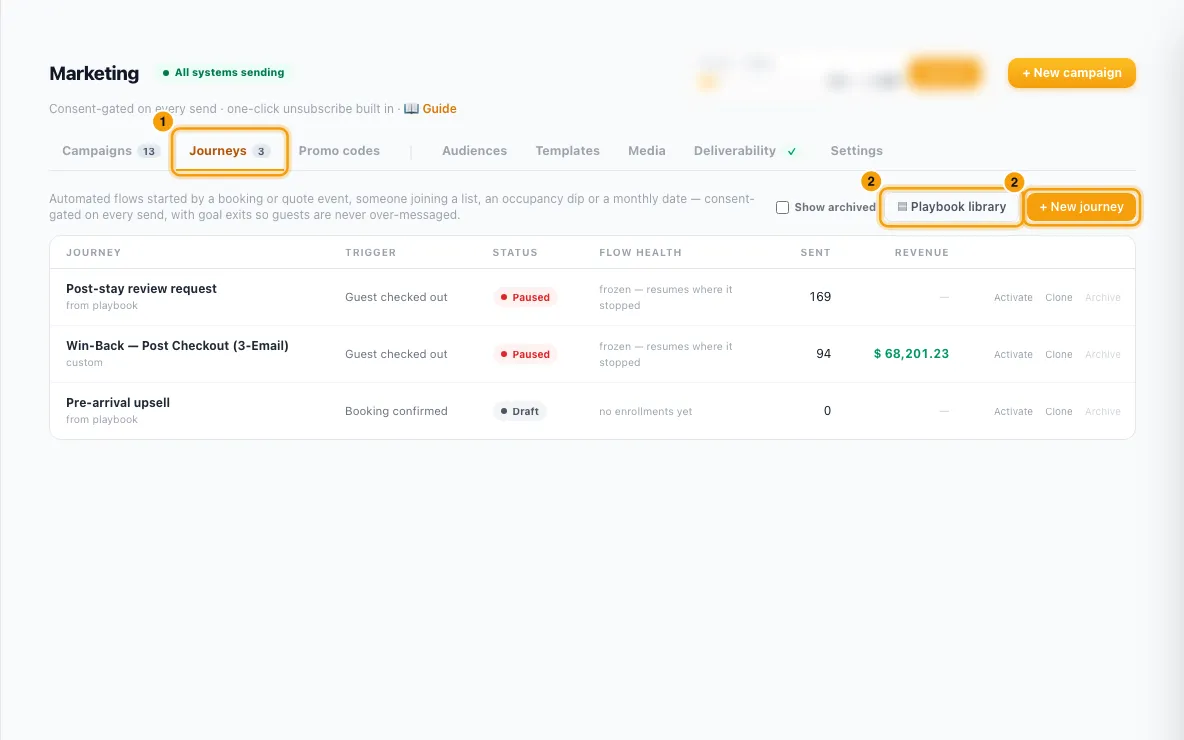
Click ▤ Playbook library and pick a playbook (+ Use playbook →), or click + New journey to start from scratch. Either way, a draft opens. A playbook you already use opens that journey instead.
Rename it in the box at the top.
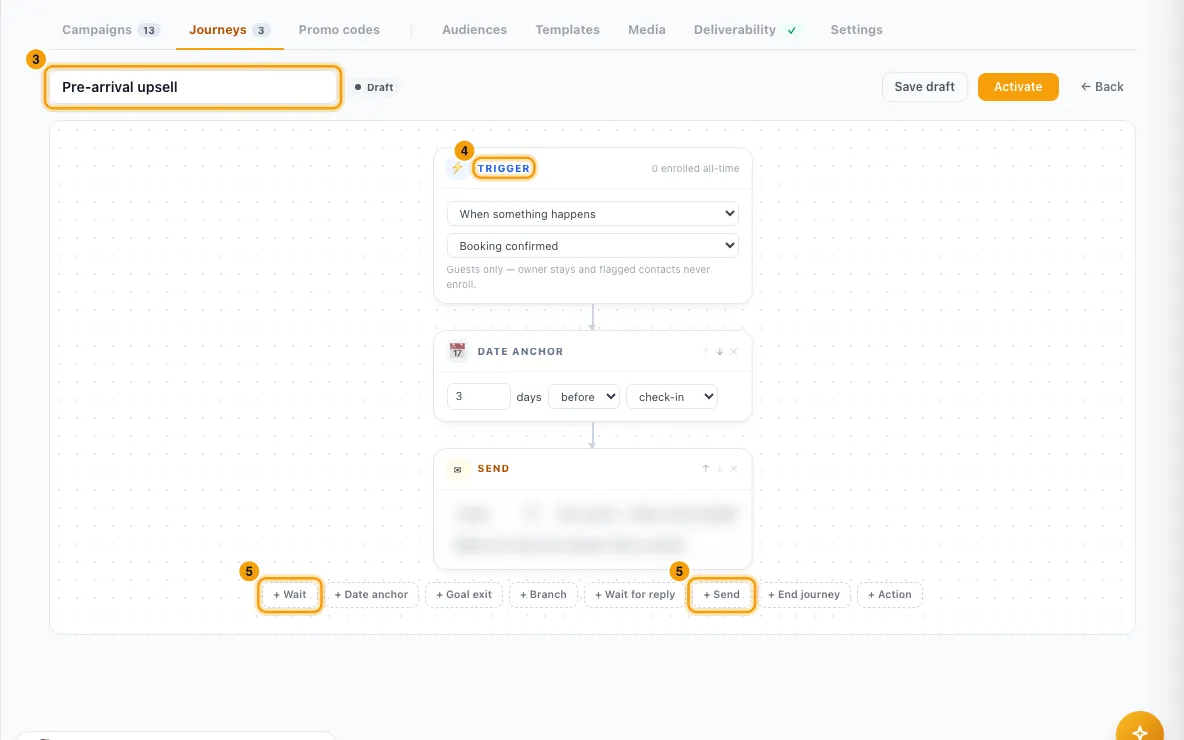
In the Trigger box, pick what starts it:
- When something happens: Guest checked out, Booking confirmed, Booking cancelled or Quote sent.
- When someone joins a list: pick the list.
- When occupancy drops: set the days ahead, the occupancy %, the segment that gets the offer, and At most once every N days.
- On a schedule: the day of the month (1 to 28). This emails your property owners.
Add steps with the buttons under the flow: + Wait, + Date anchor, + Goal exit, + Branch, + Wait for reply, + Send, + End journey and + Action. Use ↑ and ↓ to reorder and ✕ to remove.
In each Send step, choose Email and pick a template (an optional subject override), or WhatsApp and pick a template, the number to Send from…, and map its variables.
Click Save draft to keep working later.
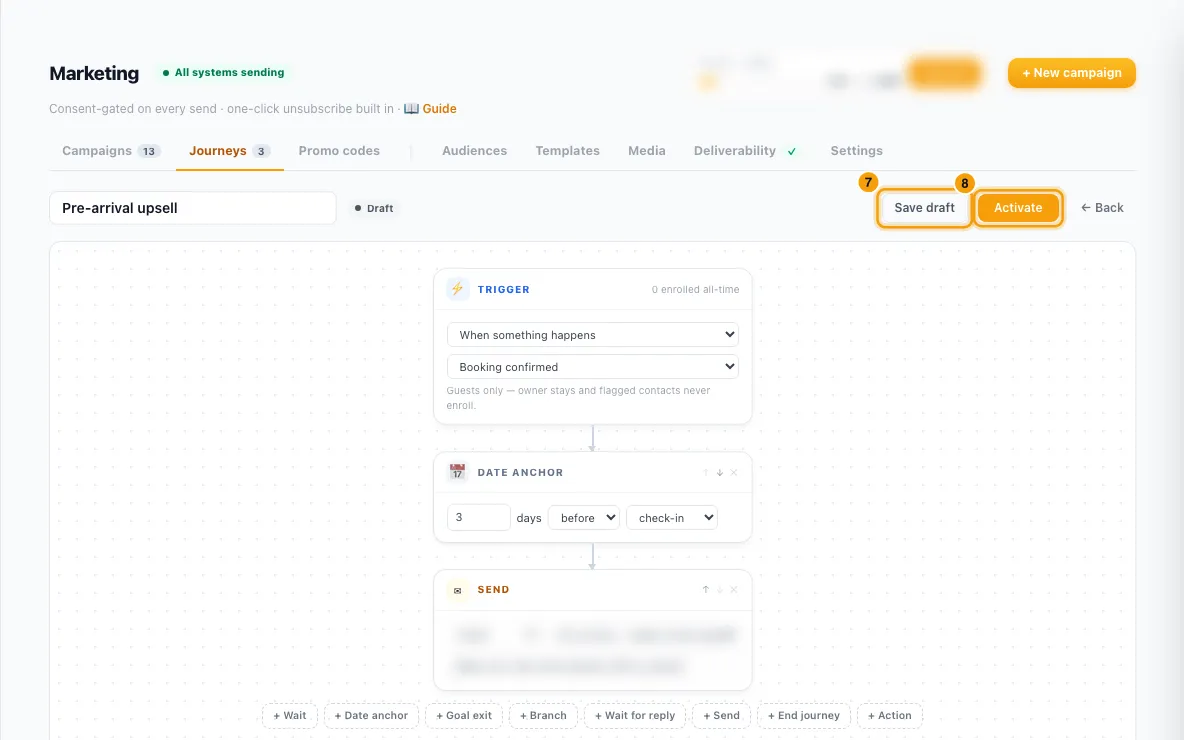
Click Activate. If something is missing, a message says what to fix.
To stop it, click Pause (in the journey or in its row). Paused contacts wait where they are and continue when you activate it again.
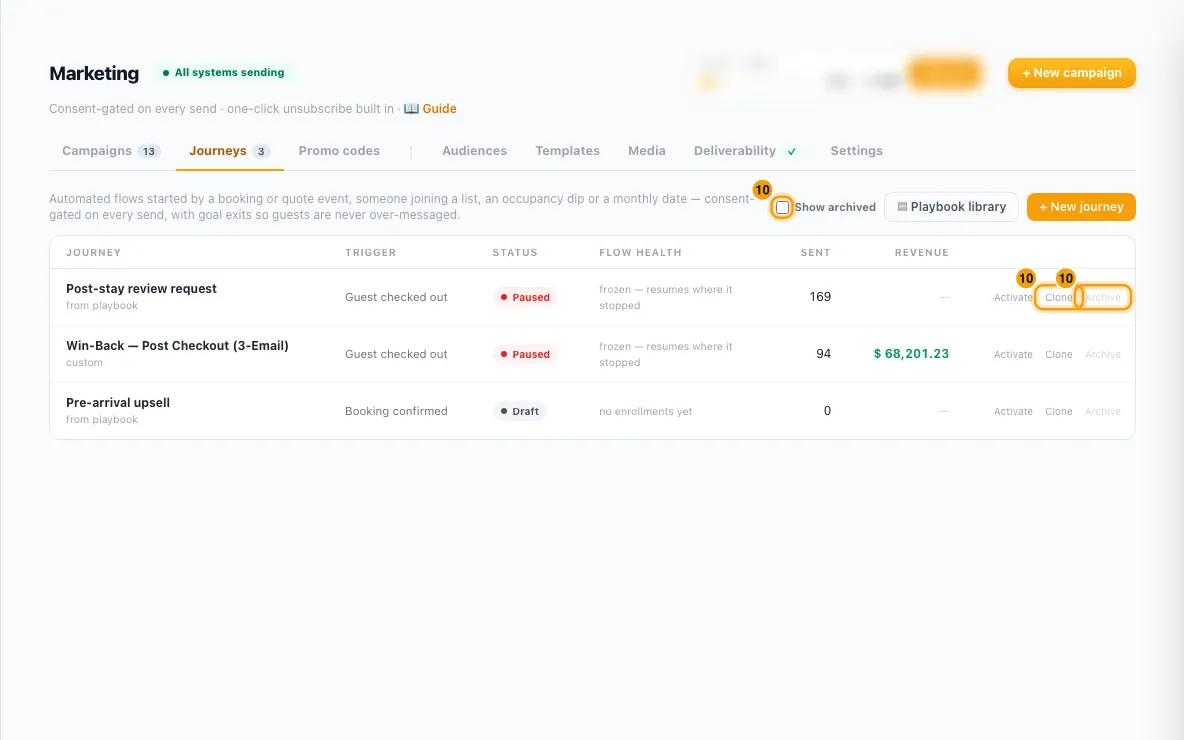
In the list, Clone makes a draft copy, and Archive pauses and hides a journey. To bring one back, tick Show archived and click Restore.
Good to know
- Steps:
- Wait: 1 to 90 days.
- Date anchor: N days before or after check-in or check-out (up to 60). Booking-triggered journeys only.
- Goal exit: leaves the journey if the goal is met: Review already received?, Guest booked again? or, on quote journeys, Quote accepted / closed?.
- Branch: the same checks, with Yes → and No → going to a later step or End the journey.
- Wait for reply: up to 720 hours; sends people to the Replied → or No reply → step. + Route a button (up to 5) routes a WhatsApp button tap by its exact button text. An email reply always takes Replied. Also show the reply in the inbox is on by default.
- End journey: stops anyone who reaches it.
- Action: Create an inquiry for my team (source Marketing; who gets it is decided by Settings → Users & Access → Inquiry Routing), Tag the contact (the tag must exist in Settings → Tags), Make them a lead, Add them to a marketing list (which can start another journey) or, on quote journeys, Move the quote's inquiry to a stage. Owner (schedule) journeys have no actions.
- Limits: at most 12 steps, with at least one send or action step. Branches and reply routes can only point to later steps.
- Activation checks: every send step needs a real template; WhatsApp templates must be approved, marketing category and of the Campaign type; an occupancy trigger needs a segment and a list trigger needs a list; tags, lists and stages must still exist; merge tags must be ones this trigger can fill; the marketing From address must be Rentibly-delivered; and a journey that waits for an email reply needs a reply-to Rentibly can read (see "Set up marketing sending and deliverability").
- A plain WhatsApp message (Message instead of Template) is only allowed straight after a Replied path, because WhatsApp only allows free text within 24 hours of the contact writing to you.
- An active journey can't be edited. Pause it first, edit, then activate again.
- Who enters:
- Booking triggers enroll the booking's guest once per booking; owner stays never enroll. Quote sent enrolls the quote's guest once per quote.
- A list trigger enrolls someone when they newly join the list through a CSV import, a web form, Rentibly AI or another journey's Add them to a marketing list step. People already on the list are not enrolled.
- Occupancy is checked hourly across your active properties.
- Only journeys that are active when the trigger happens enroll anyone.
- Every send is checked at the moment it goes out: do-not-contact, flagged contacts, an address for the channel, consent for that channel, suppressions, and no WhatsApp to US numbers. A skipped send doesn't stop the journey. Quiet hours apply.
- Abandoned quote follow-up and Owner monthly digest are service messages: email only, with no marketing opt-in needed, but unsubscribes and do-not-contact still apply. Clones keep this.
- Plan limits: journey emails count toward your Marketing plan. At the monthly ceiling, email steps wait (checked daily) until you upgrade or the month resets. WhatsApp steps don't count and don't wait — they are paid from your wallet.
- The list shows each journey's Flow health (done, goal exits, still in the flow), Sent and Revenue. Inside a journey, each step shows how many people are waiting there, and send steps show sent and open %.
- You need the Marketing permission at Edit to build, activate or pause journeys.
Rentibly AI can help
- It can list your journeys and their results, draft a journey with its emails from a description, and activate or pause one with the same checks as the page.
Still stuck?
Open Support from your profile menu in Rentibly, or email hello@rentibly.com — we answer fast.