Create a promo code for guests
Updated 12 October 2026
A promo code gives guests one of your catalog discounts when they enter it on their quote, or when they arrive through a ?promo=CODE link. The discount itself (its amount and who funds it) comes from a discount you set up in Settings → Pricing rules.
Steps
Make sure the discount exists in Settings → Pricing rules, with its amount and who absorbs it (see "Set up pricing rules — fees, taxes and discounts").
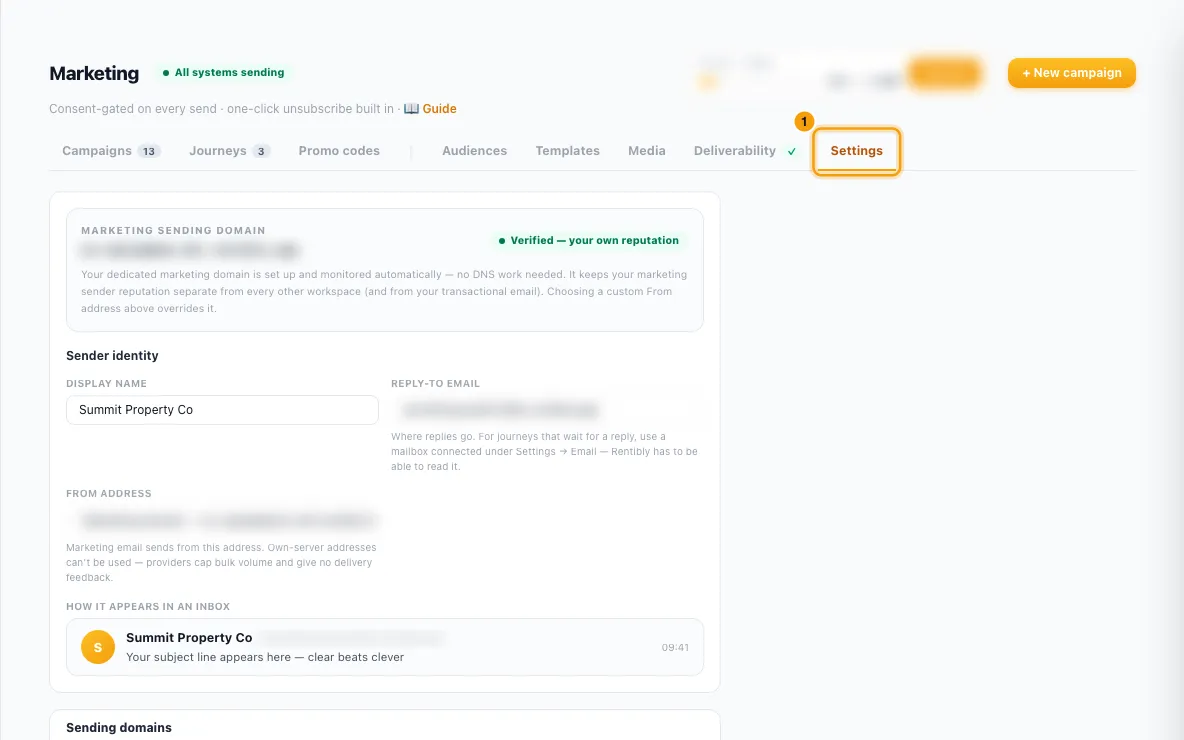
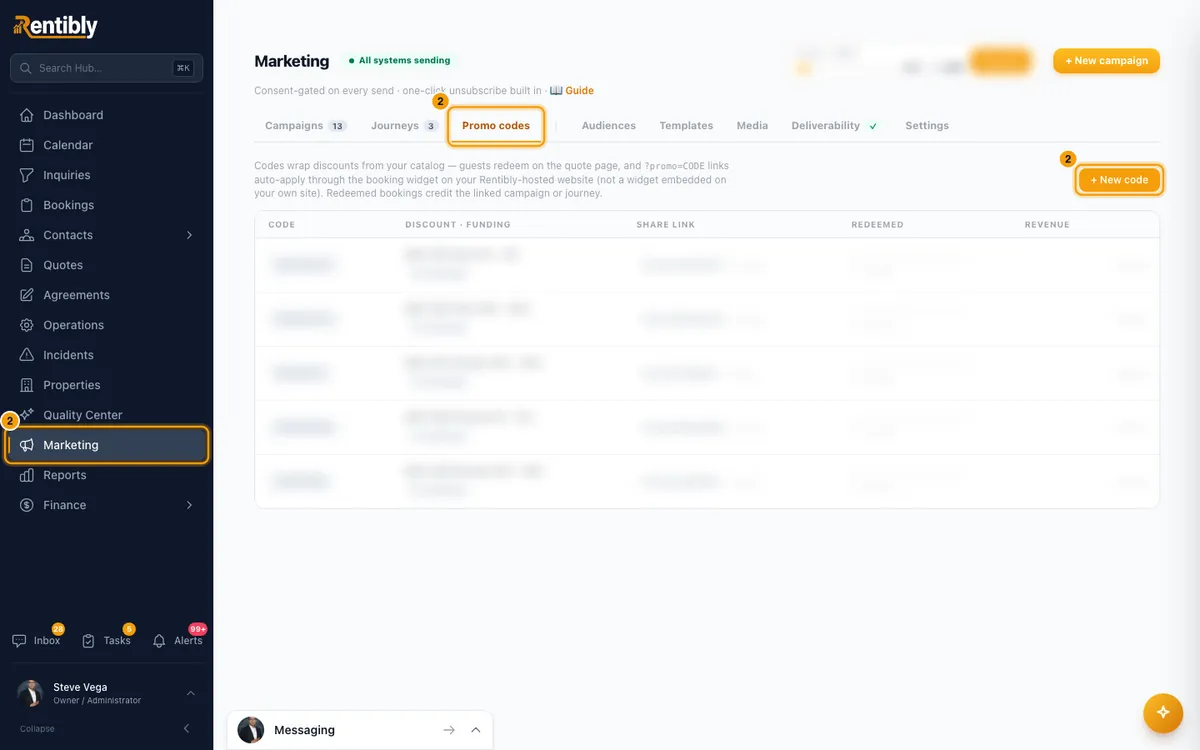
Click Marketing in the sidebar and open the Promo codes tab. Click + New code.
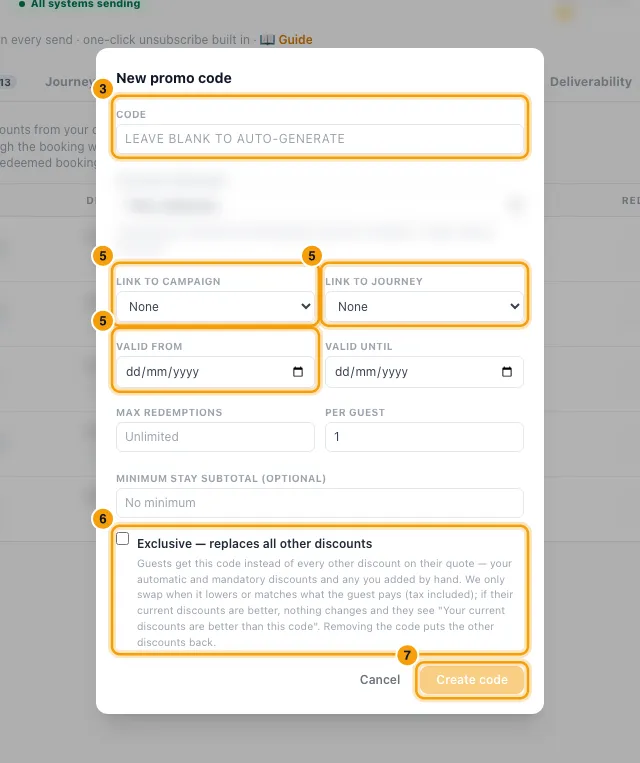
Type a Code, or leave it blank to have one generated.
Pick the Catalog discount it gives. The banner under it says who funds it: You fund this discount, Reduces your revenue line or Owner-affecting.
Optionally fill in Link to campaign or Link to journey (one or the other), Valid from, Valid until, Max redemptions, Per guest and Minimum stay subtotal (optional).
Tick Exclusive — replaces all other discounts if guests should get this code instead of the quote's other discounts, rather than on top of them.
Click Create code.
Share it: click the code in the list to copy it, or click ⧉ copy next to
?promo=CODEunder Share link.
Good to know
- Codes: 3 to 30 characters, letters, numbers and dashes, saved in capitals. Each code must be unique. A generated code is 8 characters.
- Where guests use it:
- On their quote page, under Have a promo code?. One code per quote: a new code replaces the previous one.
- Through a link: add
?promo=CODEto a quote link, and the code is applied when the page opens (only while the quote is still open). On your Rentibly website, the booking box remembers a?promo=CODEfrom the visit and applies it when the guest books. The Website Widgets you embed on another site do not read?promo=; guests coming that way can still enter the code on the quote page.
- When a code is refused, the guest sees why: not valid, not active yet, expired, fully redeemed (Max redemptions reached), already used by them (Per guest, default 1), below the minimum stay, or unavailable (its catalog discount is archived, inactive or zero).
- Max redemptions and Per guest count confirmed bookings only. The Redeemed column shows confirmed uses and any still pending on open quotes.
- Normal codes stack. The code's discount is added to whatever discounts the quote already has. If the catalog discount can also apply automatically, the banner warns that the two could stack.
- Exclusive codes replace. Every other discount on the quote comes off (automatic and mandatory discounts, and any added by hand) and only the code applies. Taxes are worked out again.
- The guest never pays more. An exclusive code is only applied when the guest's total, tax included, is lower than or the same as with their current discounts. Otherwise nothing changes, the code isn't used up, and they see "Your current discounts are better than this code".
- Removing an exclusive code puts back the discounts it replaced, exactly as they were.
- Minimum stay subtotal: for a normal code it is checked against the quote before any promo; for an exclusive code, against the stay before any discount (accommodation plus fees).
- Who funds it: the discount follows its catalog setting through quotes, bookings and owner statements, like any discount you add yourself. An exclusive code can change who funds the stay's discount: if it replaces an owner-funded discount with one you fund, the owner's rent goes up.
- Change a code later: use Make exclusive or Allow stacking in its row. Quotes that already have the code keep it as it was applied. Archive stops the code working; Restore brings it back. Codes are never deleted.
- Revenue shows bookings that used the code and are not cancelled. A code linked to a campaign or journey credits that campaign or journey.
- You need the Marketing permission at Edit to create or change codes. Creating the catalog discount needs the Settings permission set to Access.
Rentibly AI can help
- Rentibly AI can't create or change promo codes yet. It can explain how they work.
Still stuck?
Open Support from your profile menu in Rentibly, or email hello@rentibly.com — we answer fast.