Add live chat and a WhatsApp button to your Rentibly website
Updated 13 October 2026
Your Rentibly website can show two contact widgets: a Website Chat bubble, where visitors chat with your team in real time, and a WhatsApp button that opens a WhatsApp chat with your number. You can turn on either or both, and choose which pages they appear on.
Steps
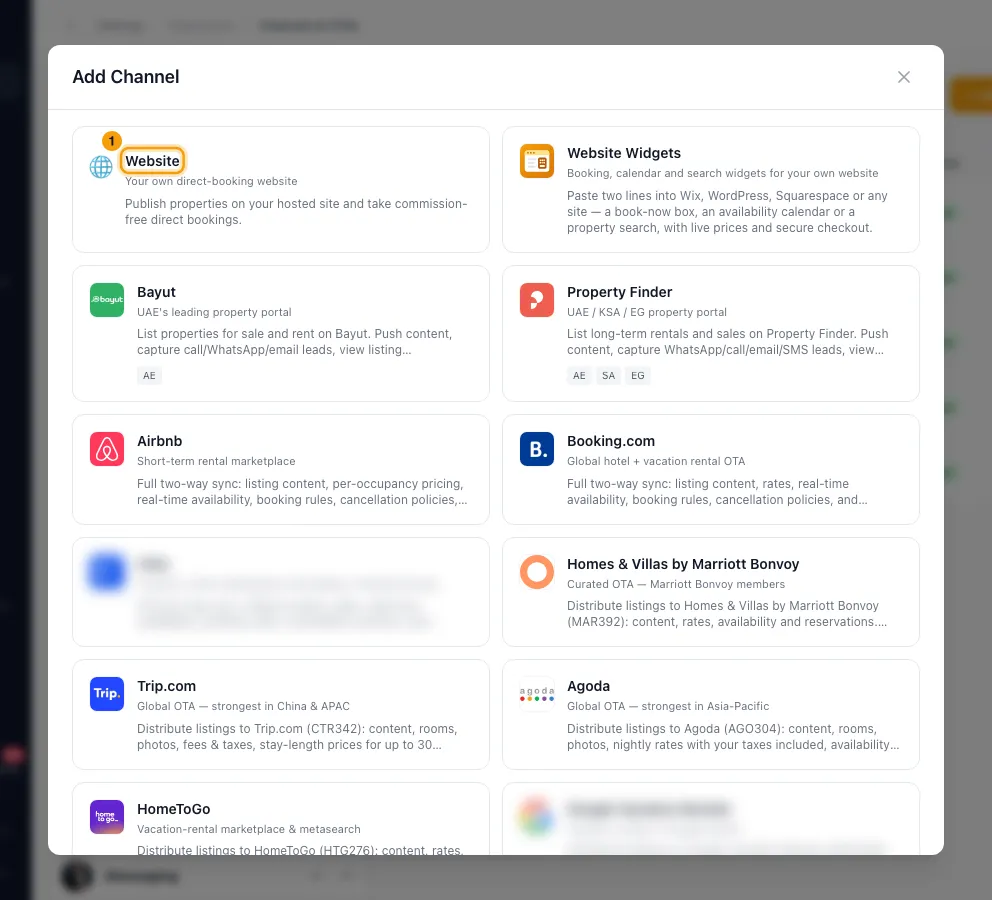
Click your name at the bottom of the sidebar, then Settings. Under Integrations, open Channels & OTAs and click Website.
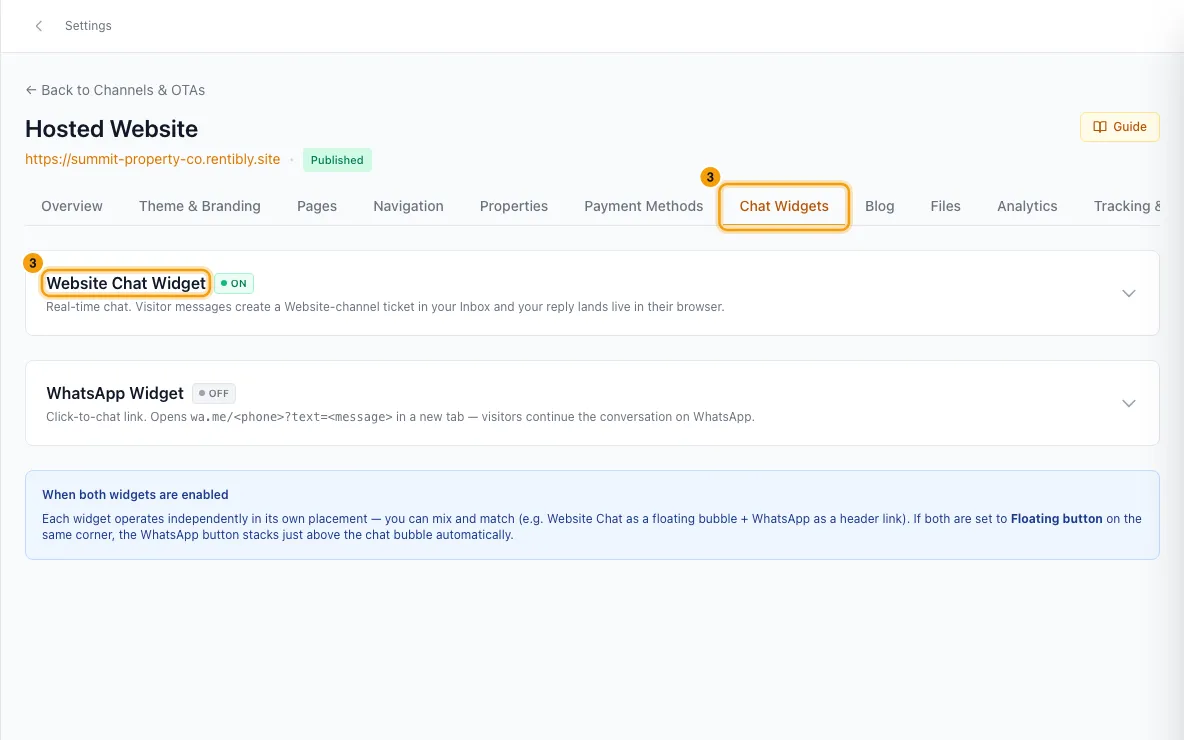
Open the Chat Widgets tab.
Click Website Chat Widget to open its settings.
Switch Enable on.
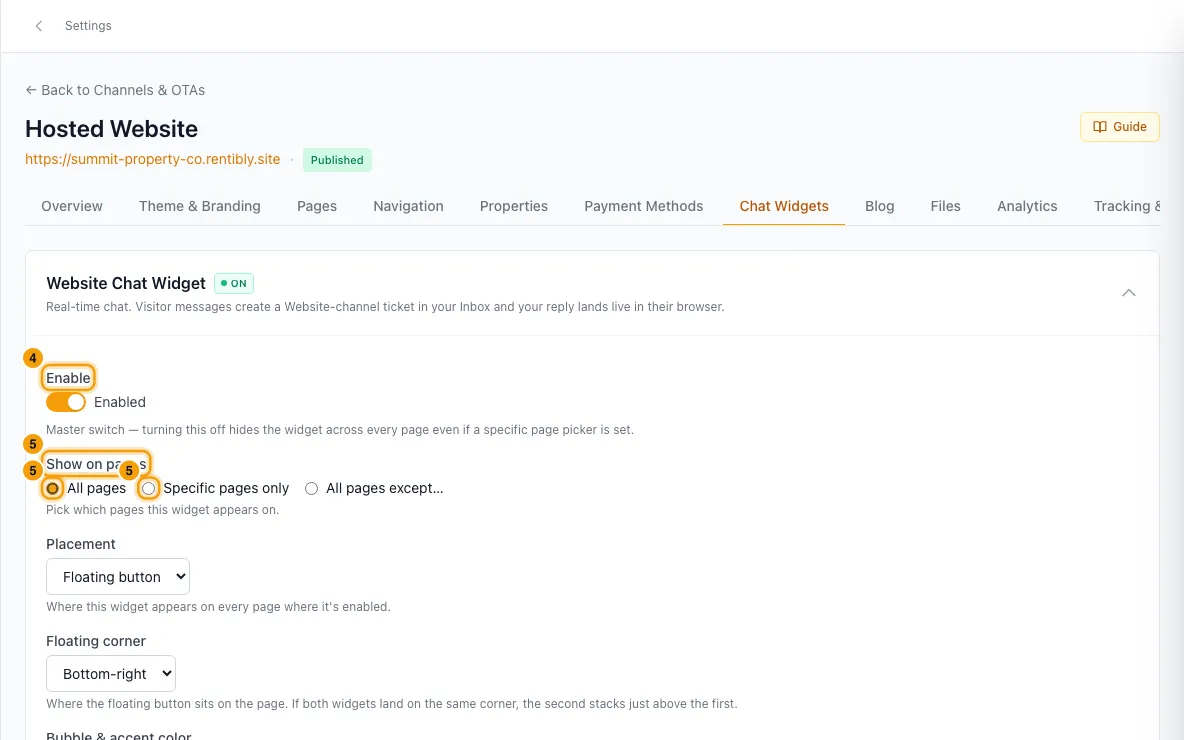
Under Show on pages, choose All pages, Specific pages only or All pages except…. For the last two, tick the pages.
Choose a Placement: Floating button, Link in header, Link in footer or Side drawer. Then set the Floating corner, Drawer side or Link label it asks for.
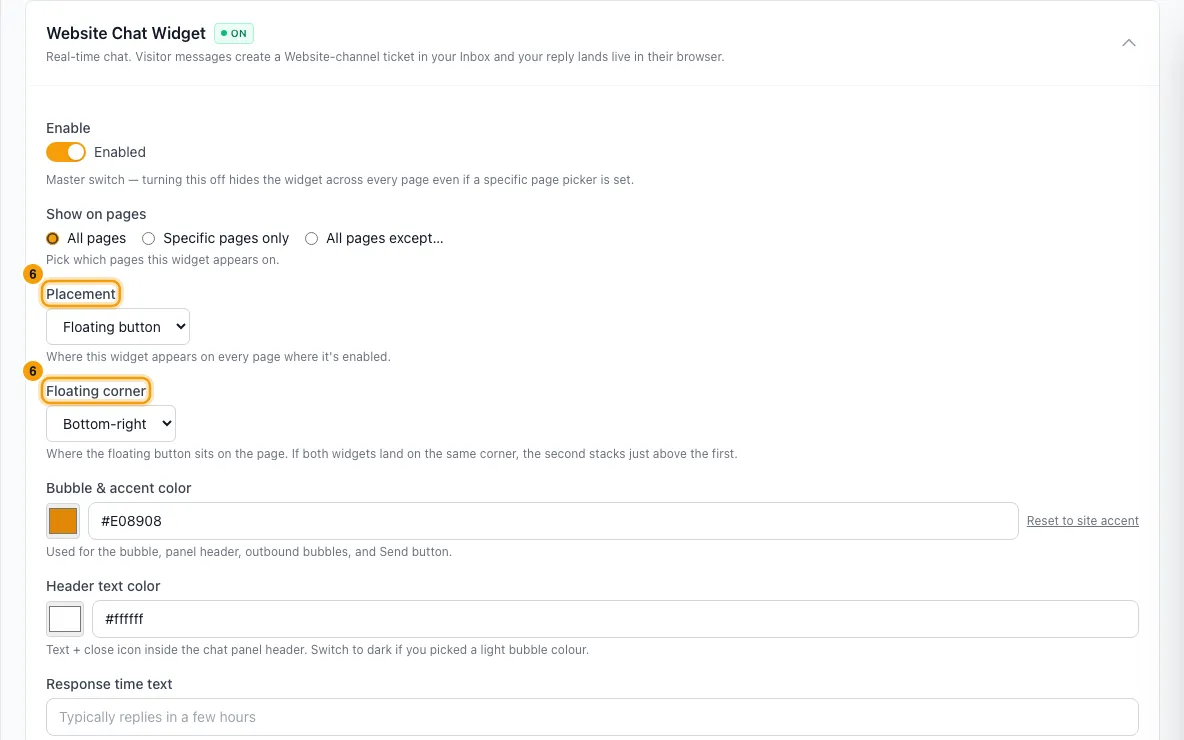
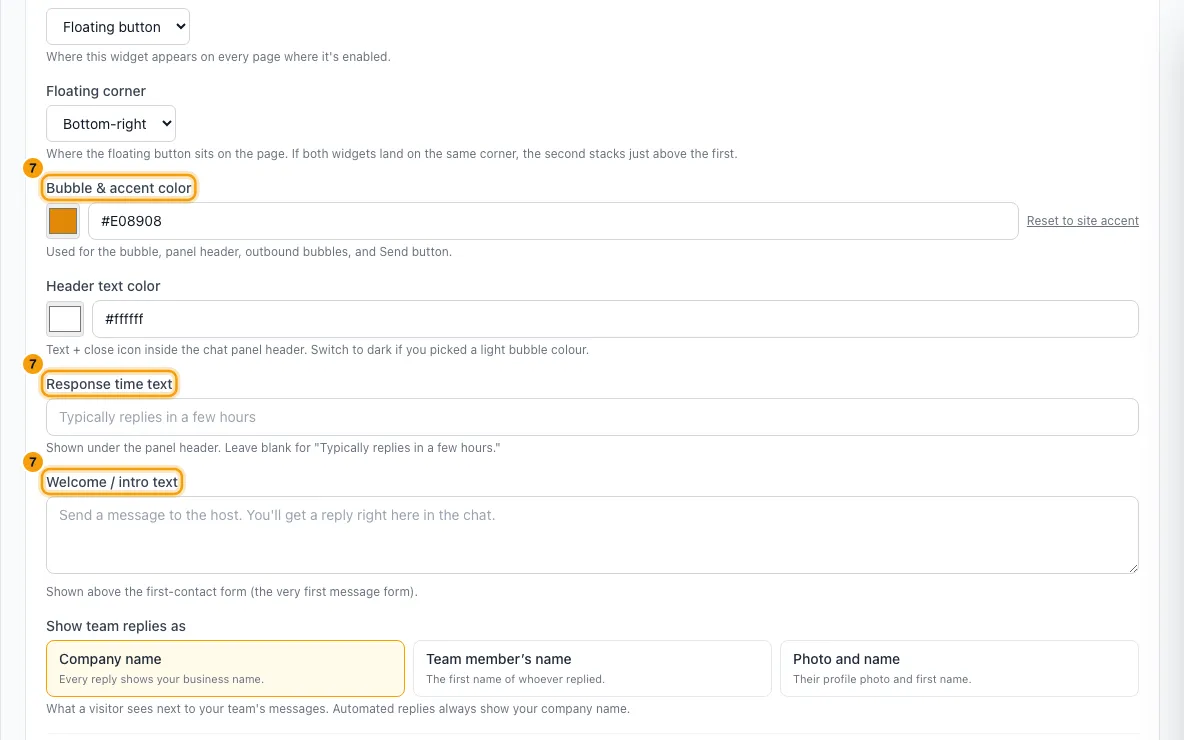
Optionally set the Bubble & accent color, Header text color, Response time text, Welcome / intro text and Show team replies as.
Optionally turn on Attachments, Automatic first reply and Chat availability schedule, and fill in what each one shows.
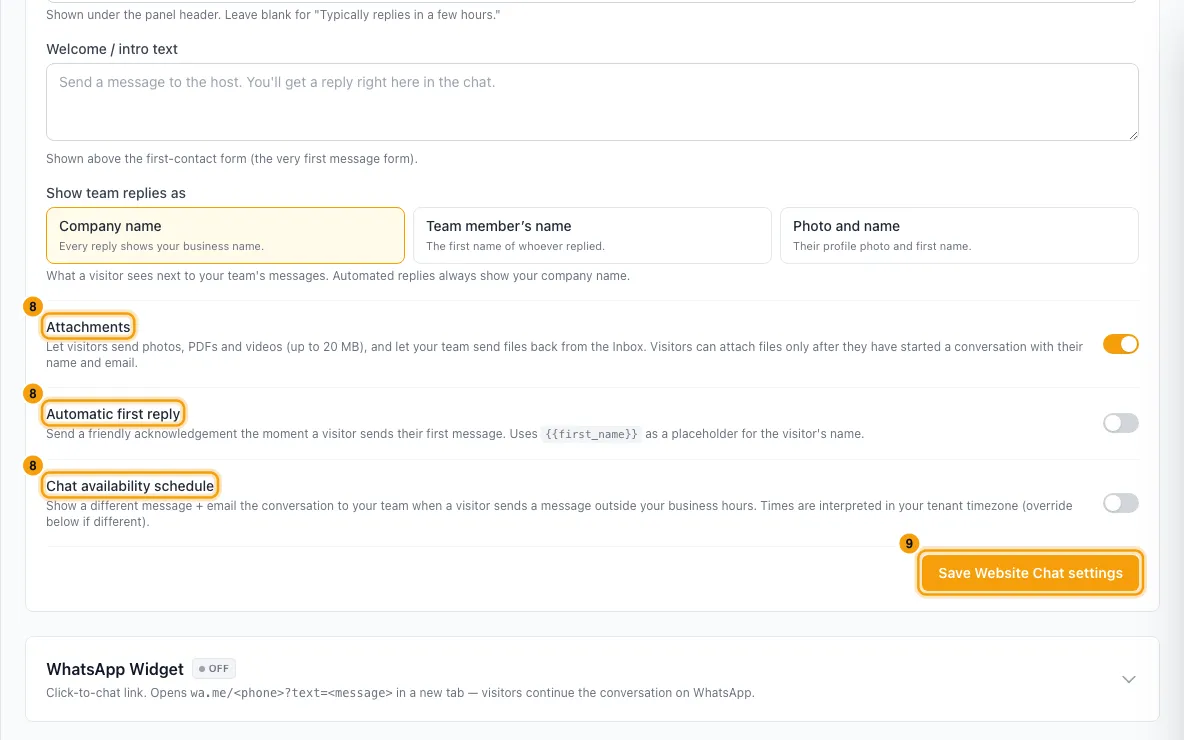
Click Save Website Chat settings.
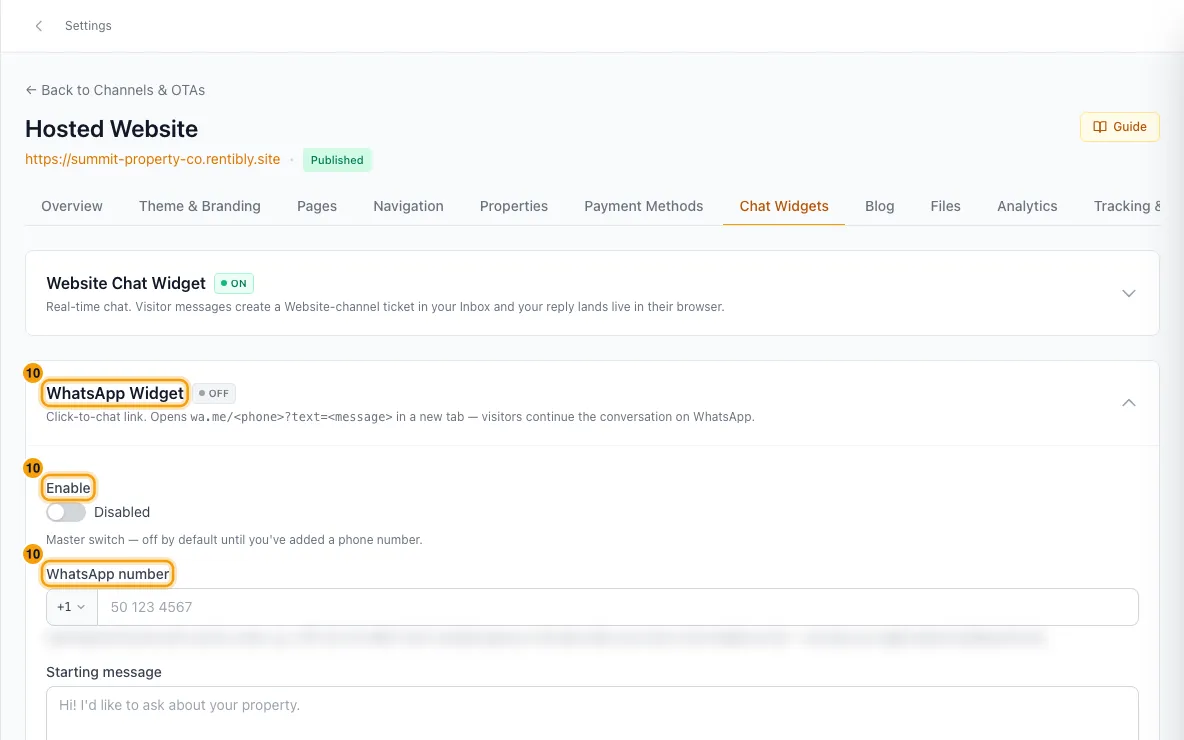
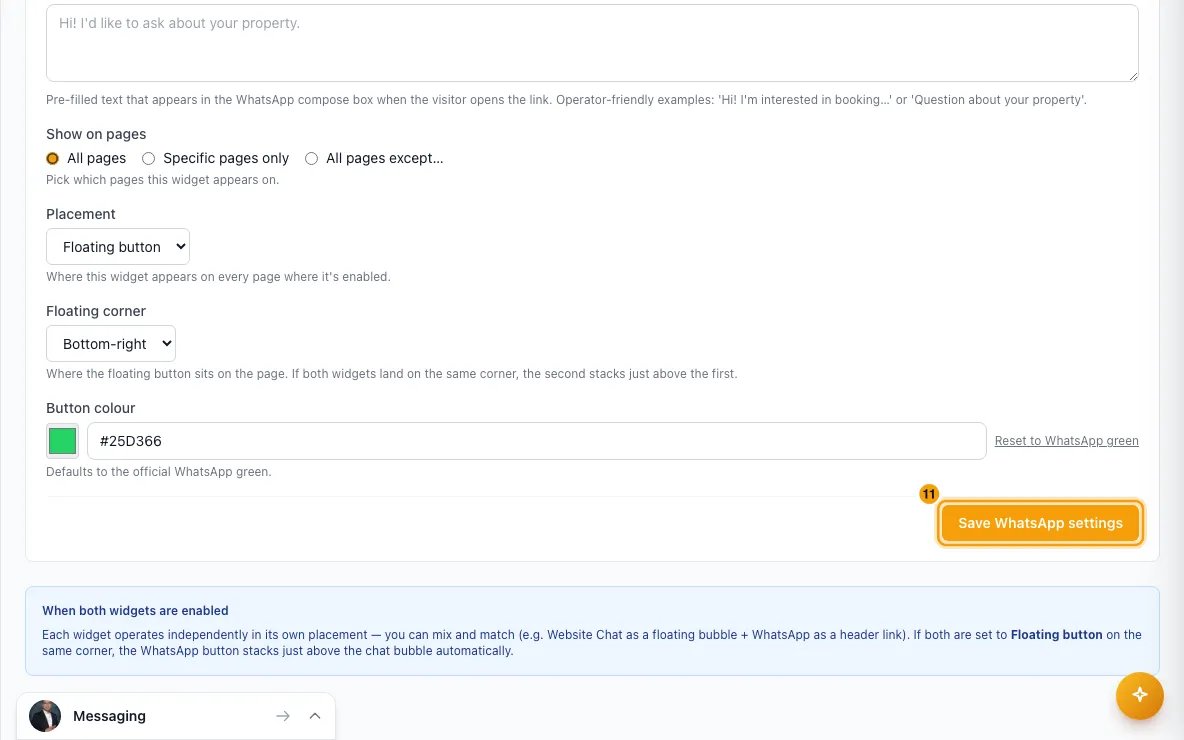
For WhatsApp, click WhatsApp Widget. Switch Enable on and type your WhatsApp number. Optionally add a Starting message, then set Show on pages, Placement and Button colour.
Click Save WhatsApp settings.
Good to know
- Where chats go: each new chat becomes a Website conversation in your Inbox. Like conversations from your other channels, it gets the Assignment, First Response and Resolution deadlines from the Normal card in Settings → Inbox → SLAs (see Set response-time targets (SLAs) and inbox alerts). Your reply appears in the visitor's chat right away. The chat does not email the visitor; replies reach them only in the chat. A chat started on a property's page also creates a booking inquiry for that property (unless the visitor already has an open one for it from the last 30 days); who it is assigned to is decided by Settings → Users & Access → Inquiry Routing.
- Welcome / intro text: shown above the form the visitor fills in to start a chat. Left blank, it says "Send a message to the host. You'll get a reply right here in the chat."
- Phone country code: the chat form's optional Phone field starts on the country code of where the visitor is browsing from, so a visitor in the US sees +1 and one in the UAE sees +971. When their location is unknown (for example on your own custom domain), it starts on your workspace's country code. The visitor can pick another country from the list.
- Show on pages:
- Specific pages only shows the widget only on the pages you tick. Untick the last one and it goes back to All pages.
- All pages except… shows it everywhere except the pages you tick.
- Property pages, search and blog pages are not in the list. They show the widget under All pages and All pages except…, and hide it under Specific pages only.
- Enable off hides the chat bubble and stops new chats. A visitor already in a chat can keep going.
- Automatic first reply is sent once, after the visitor's first message.
{{first_name}}(or{{name}}) becomes the visitor's first name, or "there" if there is none. The preview uses the sample name "Alex". - Chat availability schedule: outside the hours you set, the Offline auto-reply message is sent instead of the automatic first reply. If you add an Offline email destination, your team gets an email about the chat, with Reply-To set to the visitor. Messages within 3 minutes are combined into one email.
- Attachments: visitors can send photos, PDFs and videos up to 20 MB, after they have started a chat. Your team can send files back from the Inbox.
- Deleting a chat: when you delete a website chat in the Inbox, the visitor's chat ends too. Their next message starts a new conversation, and nothing more is added to the deleted one.
- WhatsApp opens a WhatsApp chat with your number in a new tab, with your Starting message already typed. You can't enable it without a number.
- If both widgets are floating buttons in the same corner, the WhatsApp button sits just above the chat bubble.
- You need the Settings permission set to Access to change these settings.
Rentibly AI can help
- Rentibly AI can't change your website's chat or WhatsApp settings yet. It can explain how they work.
Still stuck?
Open Support from your profile menu in Rentibly, or email hello@rentibly.com — we answer fast.