Create a web form for your website
Updated 13 October 2026
A web form collects enquiries, owner leads or newsletter sign-ups on any website, or through a link you share. Each submission creates a contact, and a booking or owner inquiry if you choose.
Steps
Click your name at the bottom of the sidebar, then Settings. Under Data Management, open Web Forms.
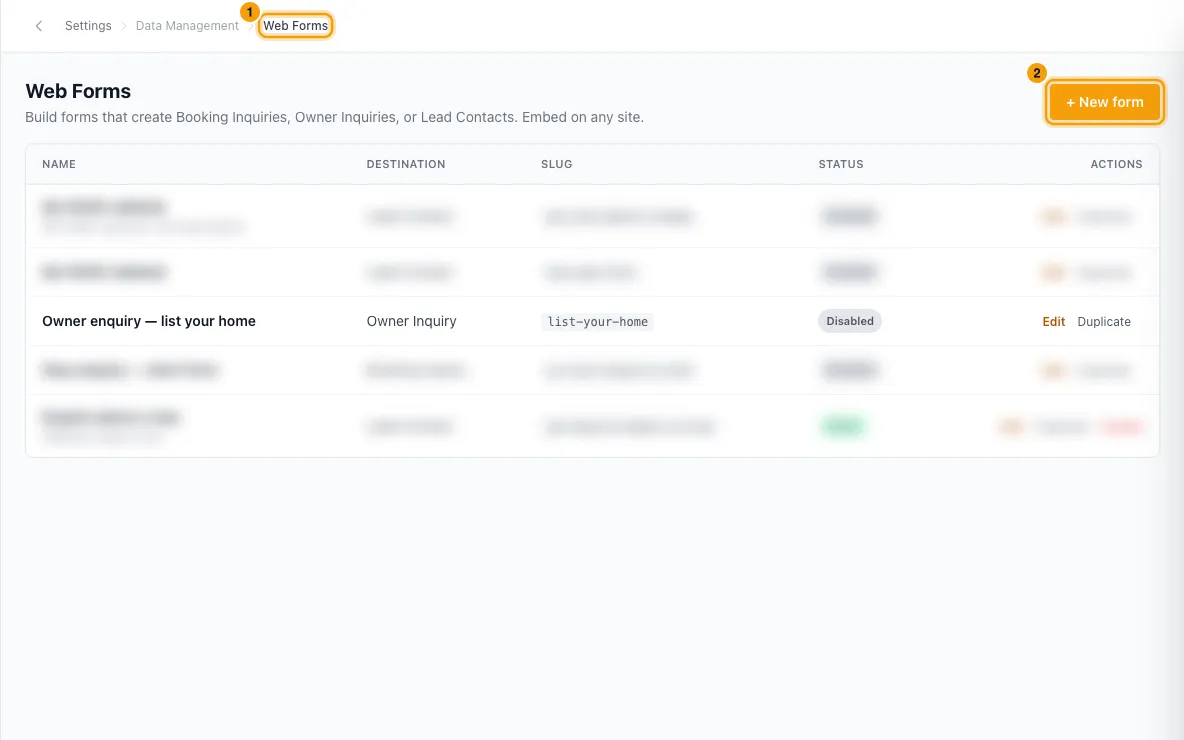
Click + New form. A form called "New web form" opens, switched off, with Your name, Email, Phone and Message fields already added. Your name, Email and Phone fill the contact's name, email and phone. Message is not mapped.
Type the form's name at the top. Optionally change the URL slug and add a description. Only you see the description; it is never shown on the form.
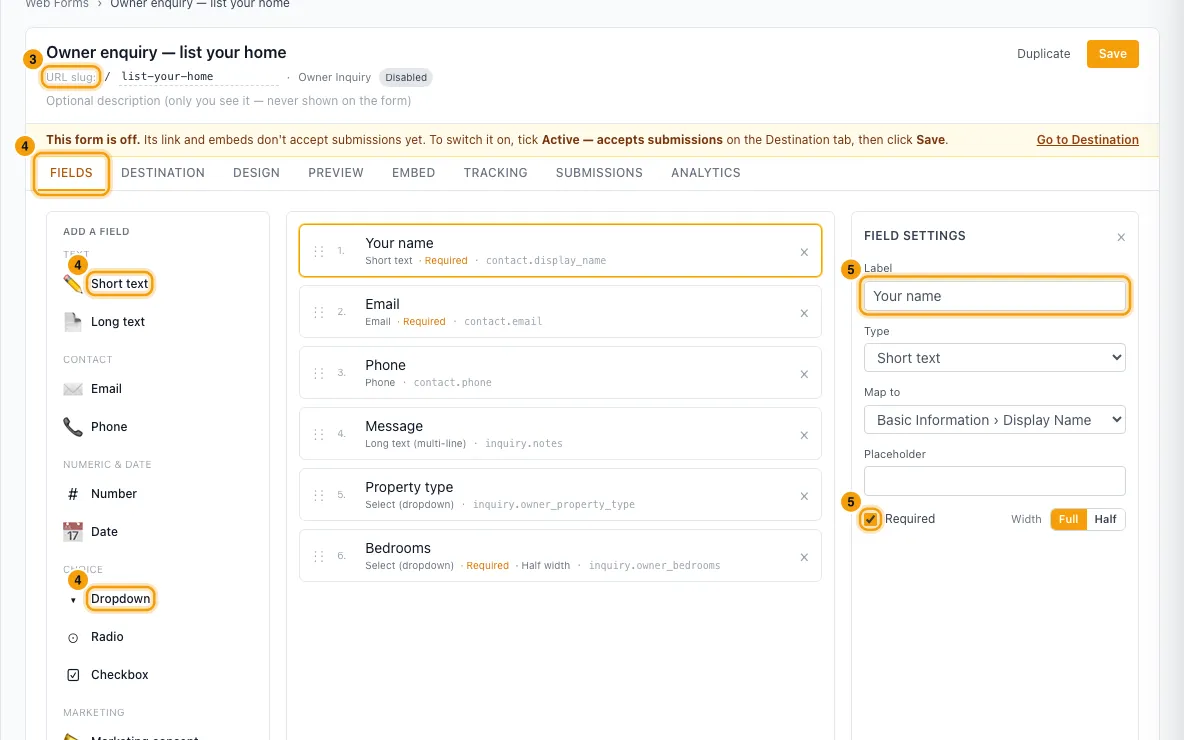
On the Fields tab, click a field on the left to add it (Short text, Long text, Email, Phone, Number, Date, Dropdown, Radio, Checkbox, Marketing consent). Drag ⋮⋮ to reorder, × to remove.
Click a field to set its Label, Type, Map to (which contact or inquiry field it fills), Placeholder, Required and Width (Full or Half).
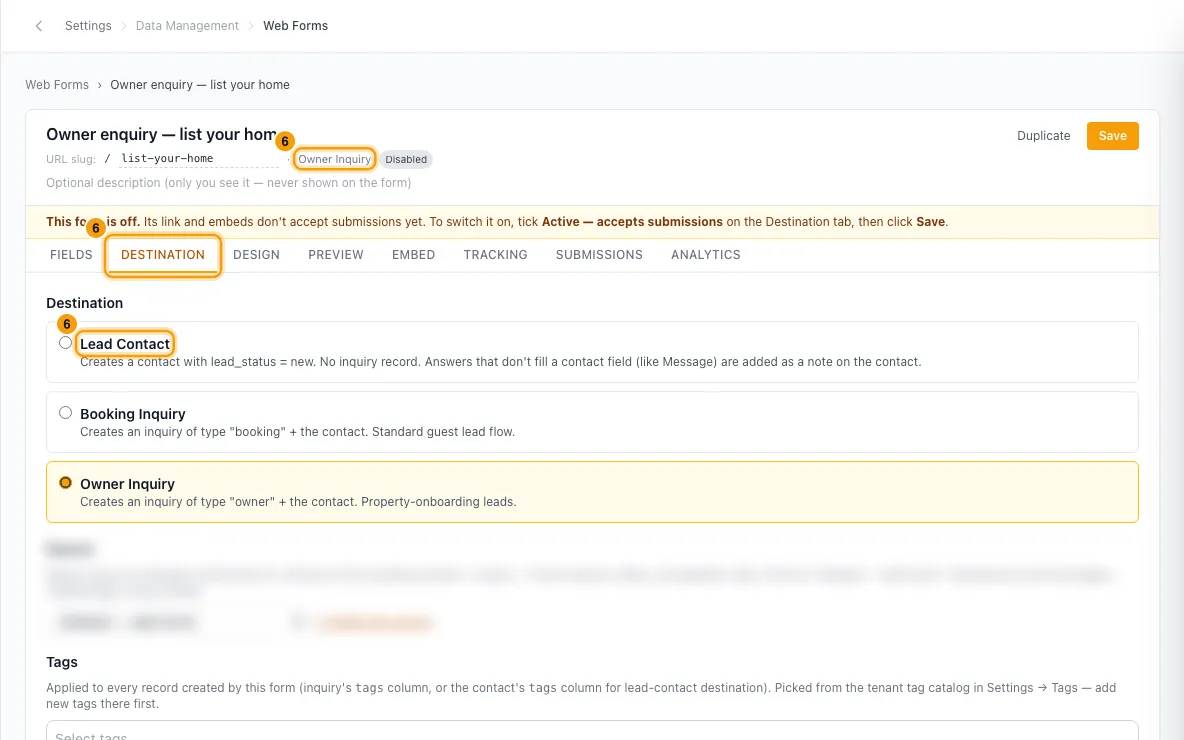
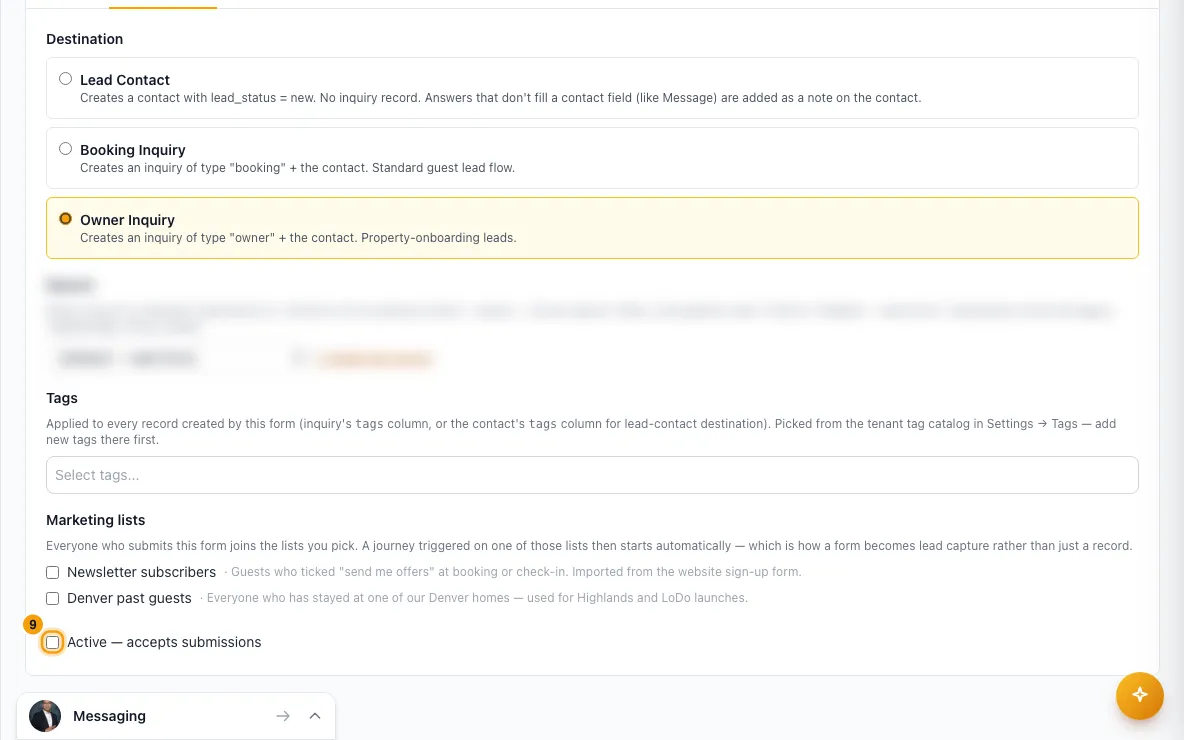
On the Destination tab, choose what each submission creates: Lead Contact, Booking Inquiry or Owner Inquiry. Optionally pick a Source, Tags and Marketing lists.
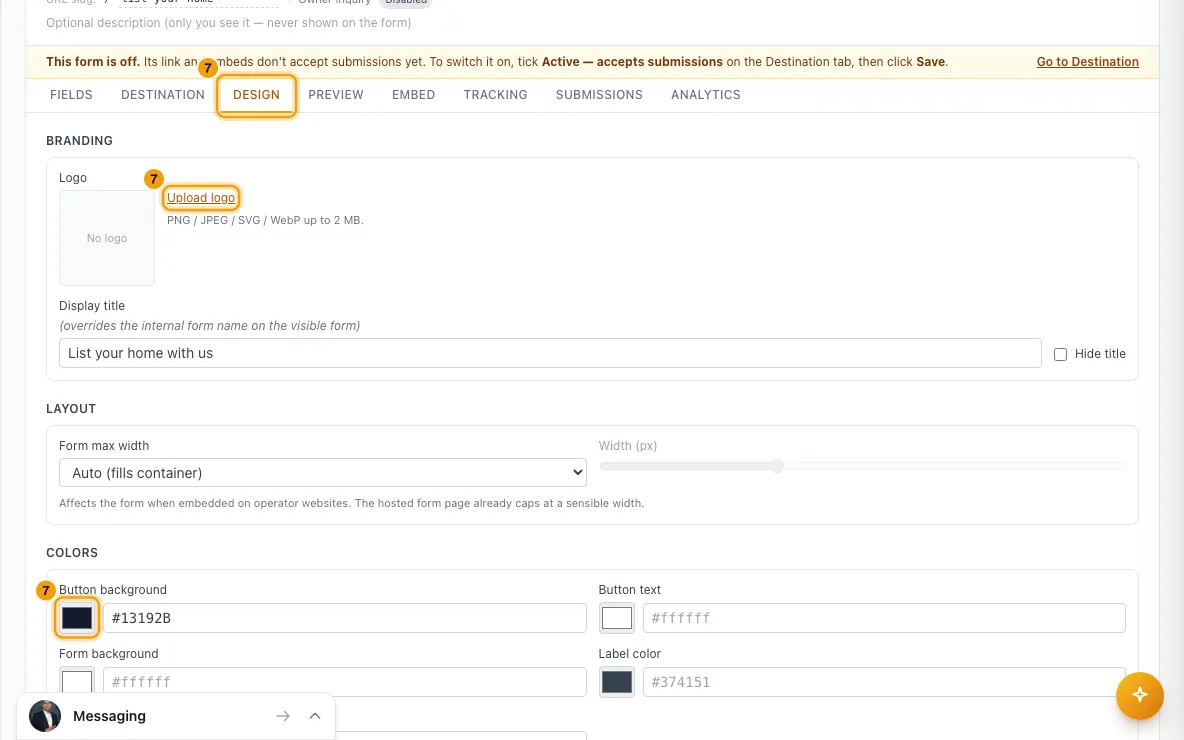
On the Design tab, set the logo, Display title, colors, Button label, Success message, an optional Redirect URL, and Spam protection (CAPTCHA).
Check the Preview tab, then click Save.
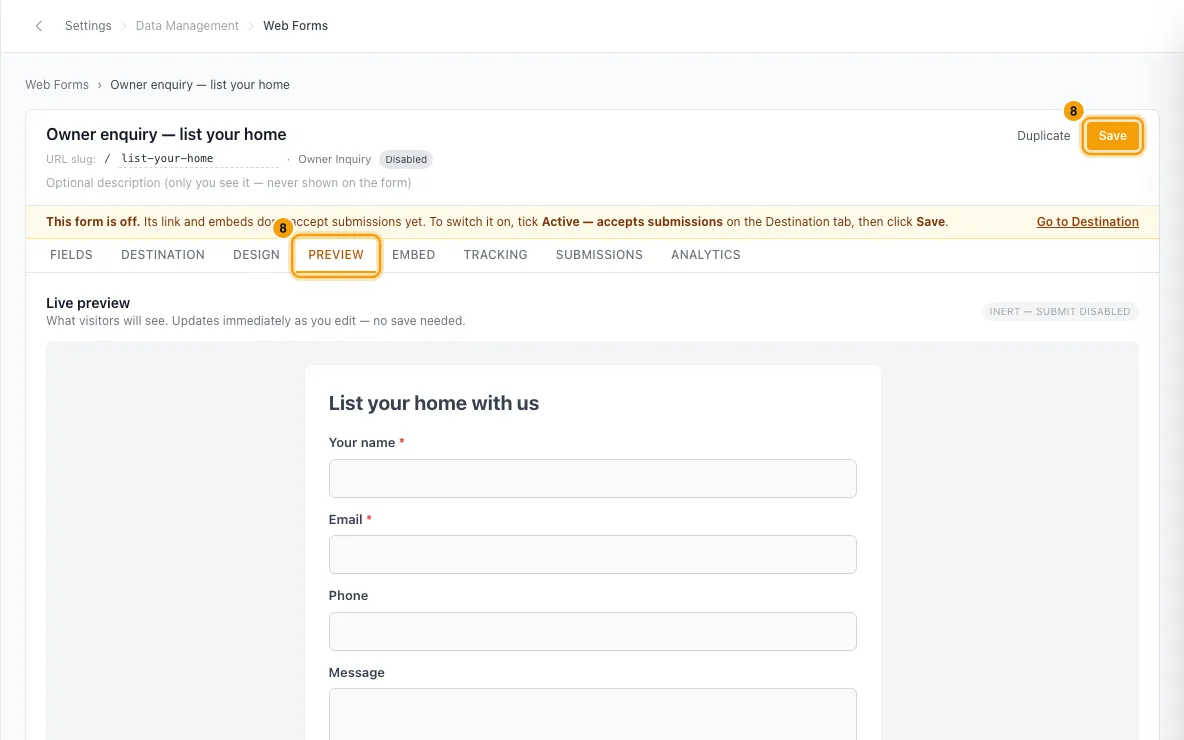
Switch the form on: on the Destination tab, tick Active — accepts submissions, then click Save. Until you do, a yellow bar says This form is off. and visitors can't submit it.
On the Embed tab, click Copy snippet under Inline embed and paste it into your website. Use Iframe embed (fallback) if your site blocks the script, or Copy URL under Hosted URL to share a link.
Good to know
- What a submission does:
- It finds the contact by email or phone, or creates a new lead contact. For an existing contact, only empty fields are filled in; nothing they already have is overwritten.
- A phone number typed without a country code is read with your workspace's country code (for a US workspace,
512 555 0100is saved as+15125550100). A number that still can't be read is refused, and the form asks the visitor to include the country code. - Booking Inquiry and Owner Inquiry also create an inquiry in the first stage of that pipeline. Answers not mapped to a field are added to the inquiry notes. Who the inquiry is assigned to is decided by Settings → Users & Access → Inquiry Routing.
- Lead Contact creates no inquiry. Answers that don't fill a contact field (like Message, or a field mapped to an inquiry field) are added as a note on the contact. The note is on the contact's Notes tab, from "Web form: " plus the form's name.
- It fires the usual "new inquiry" (or "new contact") event, so your notification rules for those apply.
- Every submission is kept on the Submissions tab.
- Map to decides where an answer goes. The list shows contact fields, plus booking or owner inquiry fields for those destinations. Some fields fix the type and the choices you can offer. A field saved with a target the destination can't use says so in the list ("not used by this destination — kept in the notes").
- Source: submissions are recorded under the source you pick (+ Create new source adds one). With (Default — web form), they are recorded as
web-form:plus the slug. - Tags come from your tag catalog (Settings → Tags). Tags that no longer exist are dropped.
- Marketing lists: everyone who submits joins the lists you tick, and a journey triggered on one of those lists starts for people who newly join. Joining a list is not consent: add a Marketing consent field, or marketing sends to these contacts are skipped. A ticked consent box records an opt-in for email and WhatsApp, for whichever of those the contact has an address for.
- Required consent field: if you mark Marketing consent as required, the box must be ticked to submit.
- Spam protection (CAPTCHA) is on by default. Turn it off only if real visitors can't submit.
- Tracking: on the Tracking tab, tick Enable tracking for this form to send a conversion event (default name
Lead) to the Meta, Google Analytics or Google Tag Manager tag already on the page. Rentibly doesn't install those tags. - Analytics shows impressions, starts, submissions, abandoned forms and conversion %, for 7 days to 12 months or a custom range.
- Rotate URL (on Embed) makes a new link. Every snippet and link using the old one stops working, so paste the new snippet everywhere.
- The link and snippets use a random token, so they don't contain your workspace's name or slug. Older snippets that use your workspace slug keep working.
- The hosted page's browser tab shows the form's name and your company name.
- New forms start switched off. So does a duplicate. A form that is off shows Disabled in the list, and its link shows "Form not found".
- Disable stops new submissions but keeps past ones. Turn it back on with Active — accepts submissions on the Destination tab (then Save), or click the status in the list. Forms are never deleted.
- Duplicate copies everything — name, description, destination, fields, tags, design, Source, Marketing lists and Tracking — with a new link. The copy starts switched off.
- The logo can be PNG, JPEG, SVG or WebP, up to 2 MB.
- Once a form is on, changes are live as soon as you click Save; you don't need to paste the code again.
- To put a form on your Rentibly website, add a Custom HTML section to a page and paste the inline snippet.
- You need the Settings permission set to Access to create or change web forms.
Rentibly AI can help
- It can list your forms with their links and recent submissions, create one from a description, or change one, including switching it on or off.
- A form it creates starts switched off too. Ask it to switch the form on, or tick Active — accepts submissions yourself.
Still stuck?
Open Support from your profile menu in Rentibly, or email hello@rentibly.com — we answer fast.