Rooms, facilities and channels — Rentibly How-to
How-to: Setting Up a Property · Part 6 of 10 · 3:45 · 9 chapters · Watch on YouTube
Chapters
Read the transcript
Hey, and welcome to this Rentibly how-to: rooms, facilities and channels. We'll set up the beds and bathrooms in our Denver loft, and the practical details your team will need. Here's what we'll cover — the chapter times are right here, and in your player. Let's get started.
Rooms is where you describe each bedroom and bathroom. The booking sites use it to show what kind of beds a guest will sleep in. One thing to know: the number of bedrooms and guests comes from the property summary — not from this list.
Add Bedroom. Call it Main bedroom. It's private, and it has its own bathroom — so Ensuite is Yes. Then the Configuration tab, and Add Bed. There's a list of sixteen bed types; this one's one king. Add Bedroom. The second bedroom works the same way. Give it a name, open Configuration, and Add Bed. This room has two beds, so make it two — and pick Twin from the list. Add Bedroom.
Bathrooms work the same way. The main bathroom is a full one. On its Configuration tab, tick what's in it: a toilet, and a tub with a shower. Add Bathroom. Then the en-suite. Name it, and set the type to Ensuite. On its Configuration tab: a toilet and a shower. And see the Accessibility tab? That's for things like step-free access, wide doorways and grab rails — and Airbnb asks for photos of those. Add Bathroom. Each room shows its beds at a glance. The booking sites get every bedroom with its beds, and how many bathrooms there are. To put a photo in a room, use the Room menu on the Photos tab.
Facilities holds the practical details your team needs. A smart lock, first: once one's connected in Settings, it shows here — and door codes can be created for each booking automatically. Then access codes. Edit: the building door, the parking bay, and the mailbox. Save.
Codes stay inside Rentibly. The booking sites only learn that guests get a code — never the code itself. Next, utility accounts. Edit, Add Row — this one's the internet: the provider, the account number, and the day the bill arrives each month. There's room for the portal login, too. The company pays this one, not the owner. Save.
See Automate? It opens Automations with a monthly rule for this bill, ready for you to set up. Then property contacts — the building's front desk, security, or reception. Add: building management, the front desk, and their number. Save. And building info. Be careful with this one: it's added to your listing on the booking sites, so write it for guests. Save.
Last, Channels — where this home is listed. Juniper Lofts isn't on any channel yet. You connect a home from that channel's own page in Settings — our Channels film walks through it.
Thanks so much for watching! If you're already on Rentibly, open a home's Rooms tab, and make sure every bedroom has its beds. And if you're not on Rentibly yet, book a demo call, and we'll show you all of this, live.
Describe each bedroom and bathroom, record access codes, utility accounts, building contacts and building info, and see where a home is listed. Shown live on a real Rentibly workspace.
More in Setting Up a Property
 2:27
2:27How-to · Part 7
Documents and permits
Record a home's permit and insurance dates, upload its documents with expiry dates, and pin and share the ones that matter. Shown live on a real Rentibly workspace.
 3:24
3:24How-to · Part 1
Adding a new property
Add a home from scratch: the Add Property form, the team who looks after it, the details on its page, the map pin, and taking it live. Shown live on a real Rentibly workspace.
 3:45
3:45How-to · Part 2
Photos and descriptions
Upload a home's photos, let AI caption, rate and order them, then write the website description with AI and copy it to the booking sites. Shown live on a real Rentibly workspace.
 3:40
3:40How-to · Part 3
Amenities, safety and guest info
Tick a home's amenities and safety features, set its check-in details, WiFi and house rules, and answer the questions guests always ask. Shown live on a real Rentibly workspace.
 2:44
2:44How-to · Part 4
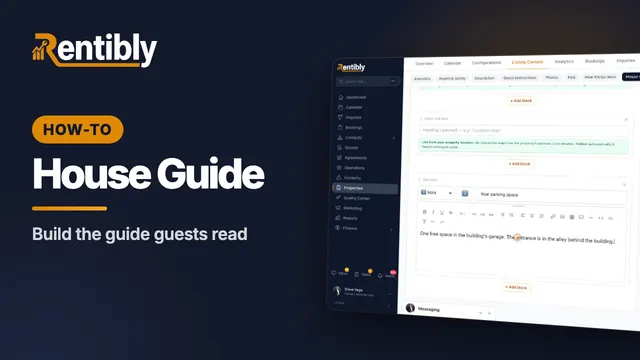
The house guide
Write the how-tos guests look up mid-stay, then build the house guide they read during their stay — with blocks that keep themselves up to date. Shown live on a real Rentibly workspace.
 2:01
2:01How-to · Part 5
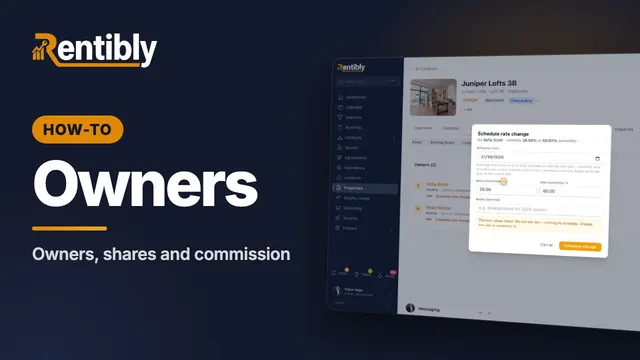
Owners and commission
Link a home to its owners: shares for co-owners, your commission, payout frequency, owner-paid taxes, and changing the rate from a future date. Shown live on a real Rentibly workspace.
Count your subscriptions. Then count ours.
A 30-minute demo on your numbers — every tool you pay for today, mapped to its native Rentibly module.
Book a demo