Set up job titles
Updated 13 October 2026
A job title is the name people see next to a colleague, such as "Reservations Manager". It is only a label: it doesn't change what anyone can do. Access comes from their role.
Steps
Click your name at the bottom of the sidebar, then Settings. Under Users & Access, open Job Titles.
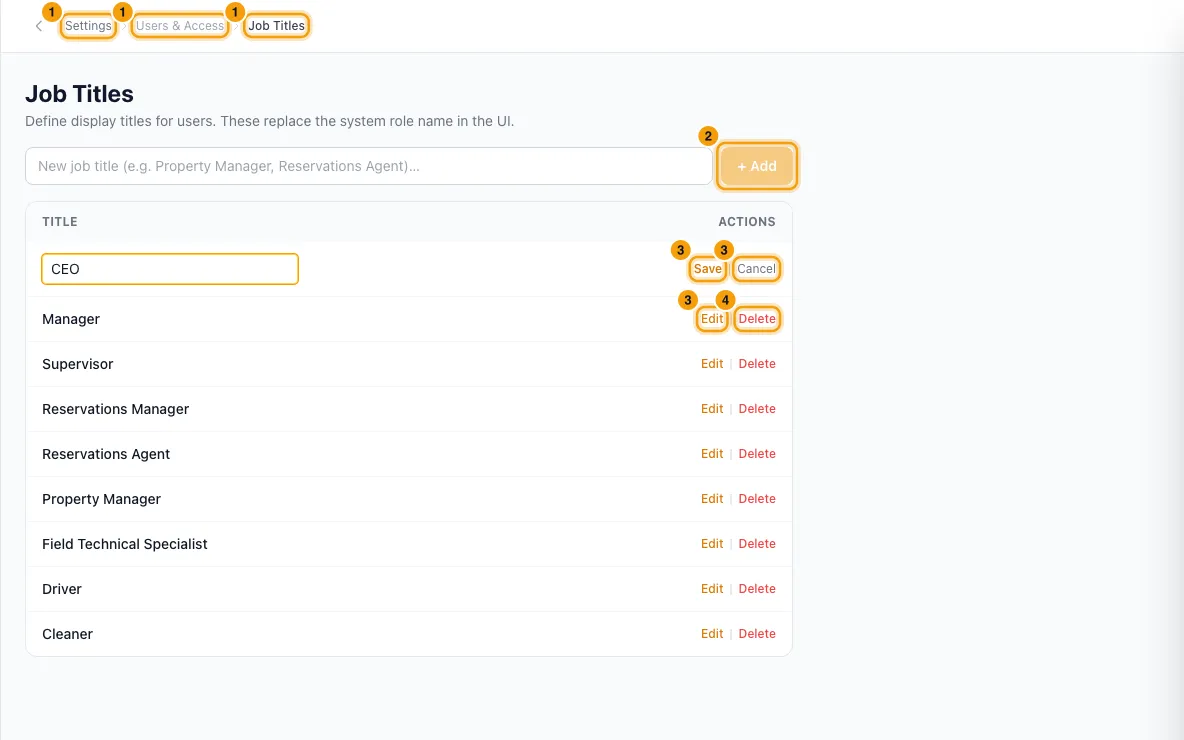
Type the title in the box at the top and click + Add (or press Enter).
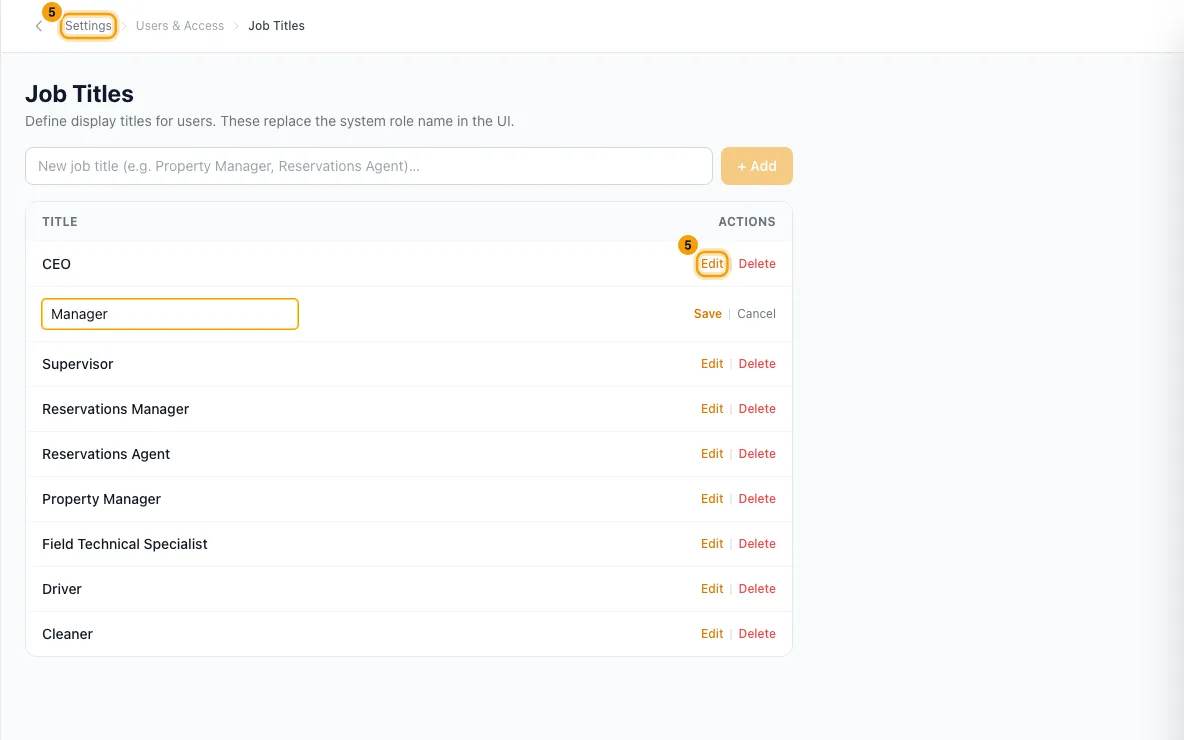
To rename a title, click Edit on its row, change it and click Save (or press Enter). Click Cancel to stop.
To remove a title, click Delete and confirm.
To give someone a title, go to Settings → Users, open the menu on their row, choose Edit, pick the Job Title and click Save Changes.
Good to know
- New accounts start with a set of titles, such as CEO, Manager, Supervisor and Reservations Manager. Change or delete them as you like.
- Each title can only be added once.
- Where a person has a job title, Rentibly shows it instead of their role name: on the Users list, on people's cards across the Hub, and in Rentibly Connect. People without a title show their role name.
- The title can go in inbox email signatures with the Job title variable.
- Renaming a title renames it for everyone who has it. A message says how many people were updated. You can't rename a title to one that already exists.
- Deleting a title clears it from everyone who had it.
- To change what someone can do, change their role instead. See Create and manage roles and permissions.
- You need Access on Settings in your role to manage job titles.
Rentibly AI can help
- It can set or clear one person's job title. Adding, renaming or deleting titles in the list can only be done on the Job Titles page.
Still stuck?
Open Support from your profile menu in Rentibly, or email hello@rentibly.com — we answer fast.