Mention a teammate in a note or comment
Updated 13 October 2026
Type @ in a note or comment and pick a teammate to tell them about it. They get an alert in the bell (and a push, if they turned push on). Clicking the alert opens the record at the note and highlights it.
Steps
Open the record and go to where its notes are:
- Bookings, Contacts, Properties, Operations and Inquiries: the Notes tab.
- Quotes: the notes at the bottom of the quote.
- Tasks: Comments in the task.
- Incidents: Add a note — type @ to mention a teammate under Activity.
- Inbox: Add internal note (or Note on an email conversation) under the message box.
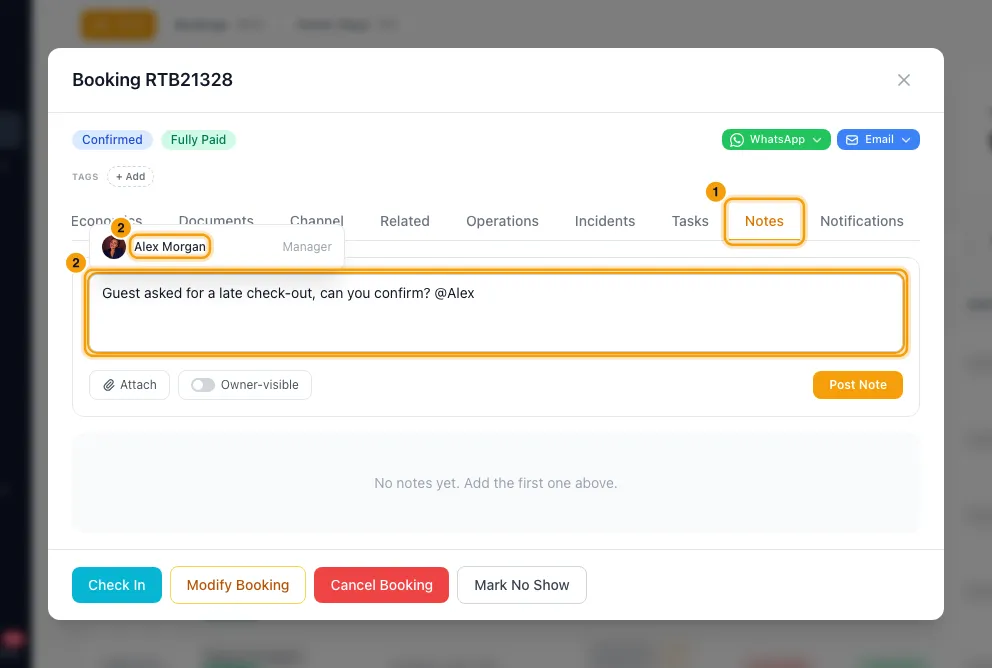
Type @ and the start of a name.
Pick the person from the list. Their full name is added as "@First Last".
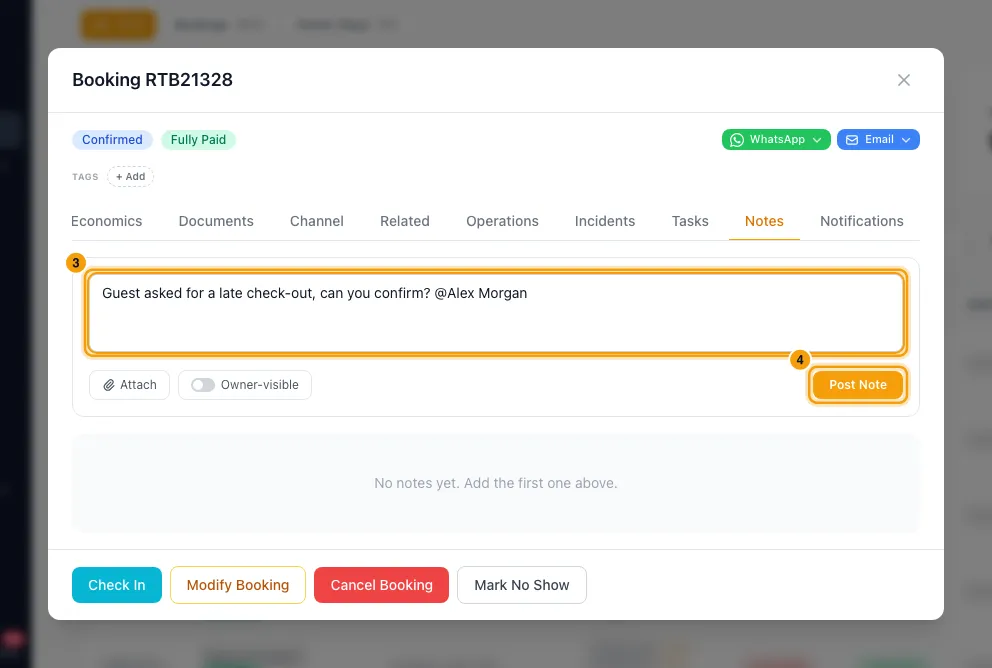
Finish the note and save it: Post Note (Notes tab), Post (task comments), Add Note (inquiries and Inbox) or Add (incidents).
When you are mentioned
- An alert appears in the bell: "Name mentioned you on reference" (the booking, quote, inquiry or ticket number, the task title or the property or contact name).
- Click it. The record opens on its notes, and the note you were mentioned in is scrolled into view and highlighted.
- For an Inbox note, the conversation opens on the Mentioned tab, under New, In Progress or Resolved, whichever holds your mention.
Good to know
- Pick the name from the list. Picked names always notify the right person. If you type "@Name" without picking, Rentibly matches it to an active teammate's full name, or to a first name only one active teammate has. An ambiguous first name notifies nobody.
- Mentioning yourself notifies nobody.
- Replies in an Inbox mention thread notify everyone in the thread: "Name replied to a note on ticket". Someone you @mention for the first time in a reply gets "Name mentioned you on ticket".
- Your switch: in Notification preferences (the gear in the bell), When @mentioned controls the push, pop-up and sound for every mention: notes, comments and Inbox notes. Hub alerts does not.
- For the whole account: an admin can turn note and comment mentions off or change their channels under Settings → Notifications → Hub tab → Mentions → You were mentioned in a note. Who receives them can't be changed. Inbox note mentions are set under Settings → Inbox → Notifications.
- Inbox mentions push to the Inbox app and to the Hub in your browser, wherever you turned push on. That covers being mentioned, a reply on a note you're in, and a guest reply on a conversation you were mentioned in. If push is on in both apps on one computer, you see it in each.
- Do not disturb (your status in Rentibly Connect) quiets Inbox mention pushes only if you turn off Let @mentions ring through. Mentions in notes and comments are not affected by Do not disturb.
- In the Inbox or Connect app, clicking a note-mention pop-up opens the record in the Hub.
- If the note was deleted after you were mentioned, the link still opens the record on its notes.
Rentibly AI can help
- Ask Rentibly AI to add a note and mention someone, for example "Note on RTB21328: @Sara Ali please call the guest". After you confirm, the note is saved where that record's notes show (an inquiry's Notes, an incident's Activity, an Inbox conversation's internal notes, an owner's contact), and the person you mentioned gets the same alert as a note you typed ( or for the same note on several records).
Still stuck?
Open Support from your profile menu in Rentibly, or email hello@rentibly.com — we answer fast.