Organise people into teams
Updated 13 October 2026
A team is a named group of colleagues, such as "Housekeeping" or "Reservations". Use teams to send notifications to a whole group at once, and to share reports with them.
Steps
Click your name at the bottom of the sidebar, then Settings. Under Users & Access, open Teams.
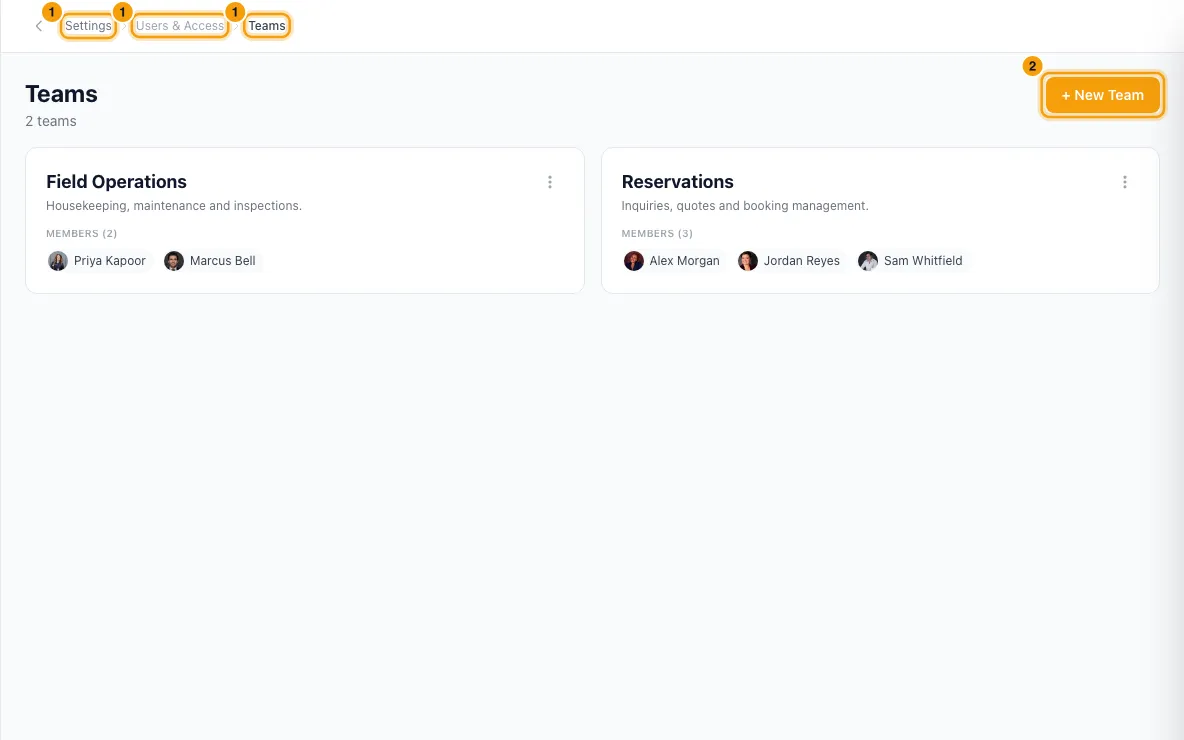
Click + New Team.
Type a Name and, if you like, a Description.
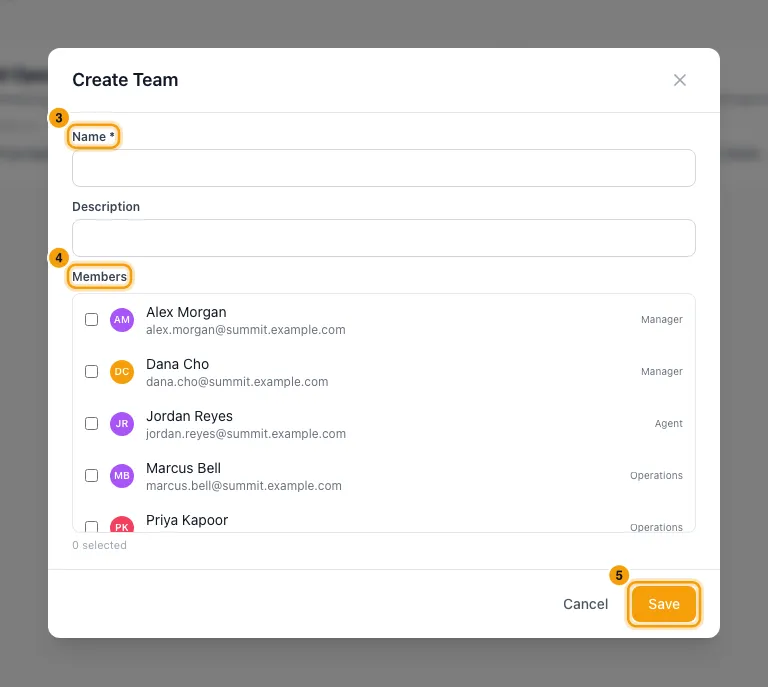
Under Members, tick each person in the team.
Click Save.
To change a team, open the menu on its card and choose Edit. To remove it, choose Delete and confirm.
Good to know
- Where teams are used:
- Notification rules: under Settings → Notifications, a rule can be sent to a Specific Team (on the Rules tab) or Specific team (on the Hub tab). Everyone on the team at the time it is sent gets it. See Set up a notification rule (e.g. email the guest before check-in).
- Report Builder: a saved report can be shared with a team. Sharing with teams, roles or everyone needs the Share reports with the whole team permission.
- Teams don't change what anyone can do. Access comes from each person's role. See Create and manage roles and permissions.
- A team has no lead. Everyone ticked under Members is treated the same.
- Only active users can be picked. A person can be in several teams.
- Deactivating or deleting a user takes them out of every team.
- Deleting a team doesn't delete its members. Any notification rule that sent to it no longer reaches anyone through that line.
- You need Access on Settings in your role to manage teams.
Rentibly AI can help
- Rentibly AI can't create or change teams yet. Use the Teams page.
Still stuck?
Open Support from your profile menu in Rentibly, or email hello@rentibly.com — we answer fast.