Add a team member and set their role
Updated 13 October 2026
Give a colleague their own login and choose their role. The role decides what they can see and do.
Steps
Click your name at the bottom of the sidebar, then Settings. Under Users & Access, open Users.
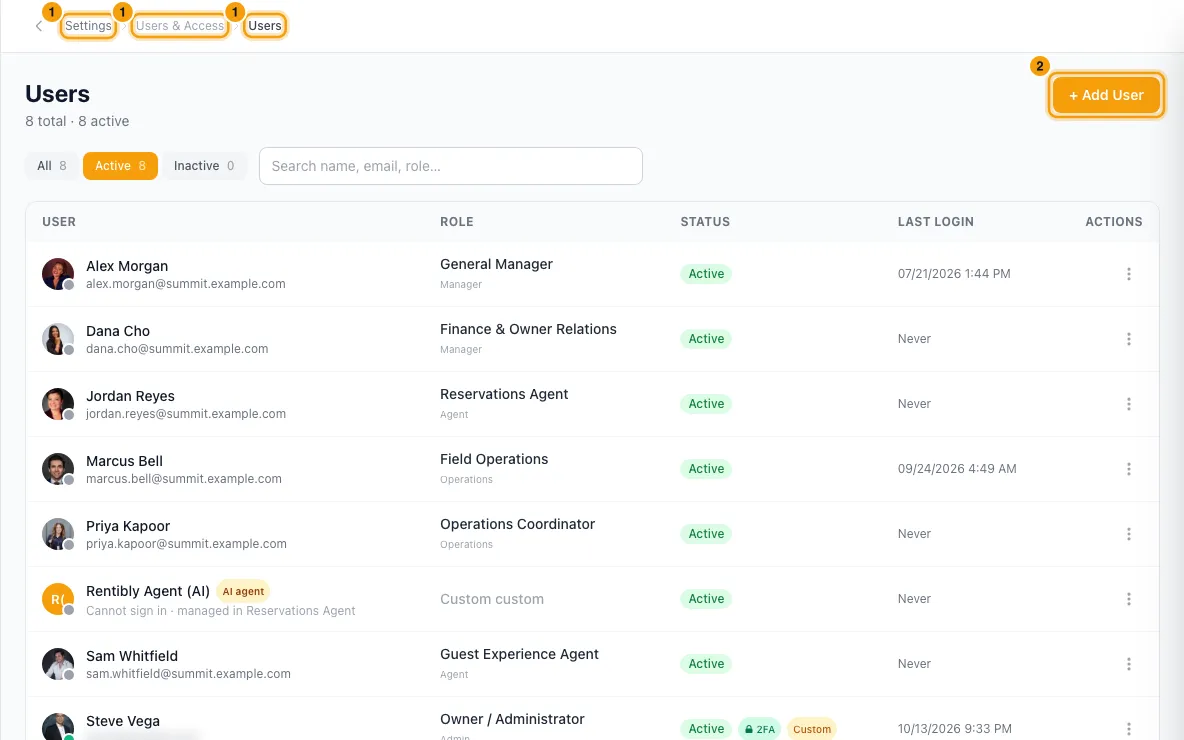
Click + Add User.
Fill in First Name, Last Name and Email. Phone is optional.
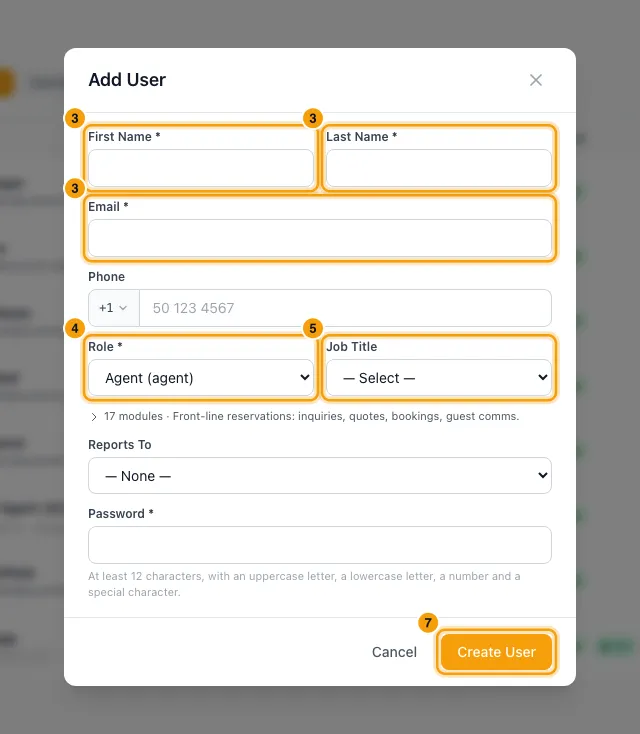
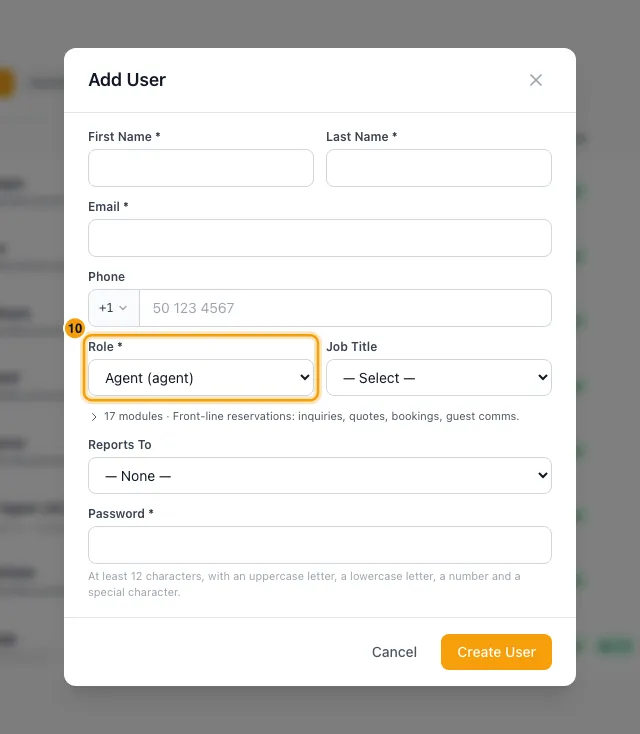
Pick a Role. A short summary of what that role can open appears below it.
If you like, pick a Job Title and who they Reports To.
Type a temporary Password. It must have at least 12 characters, with an uppercase letter, a lowercase letter, a number and a special character.
Click Create User.
Send them their email address and temporary password yourself.
When they first sign in, they must choose a new password. Then they must set up two-factor authentication before they can use Rentibly.
To change someone's role later, open the menu on their row and choose Edit. Pick the new Role and click Save Changes.
Good to know
- Rentibly does not send an invitation email. You give them their login details yourself.
- Password rules: at least 12 characters, with an uppercase letter, a lowercase letter, a number and a special character. Very common passwords are refused too. The form checks this before it saves and lists what is missing. The same rules apply when you reset someone's password.
- Each email address can only be used once. You can't change a user's email after the account is created.
- The role is their access. A new person follows their role completely, so when someone edits the role, their access changes too. A role change reaches them straight away, without signing out.
- Only the account owner can create a user on a role with Full access, or move someone onto one.
- To give one person different access from their role, see Create and manage roles and permissions. It explains Edit Permissions and why copying a role is usually better.
- Job Title comes from the list under Settings → Job Titles. See Set up job titles.
- To add a profile photo, open Edit and click the photo.
- The row menu also has:
- Edit Permissions: per-person access (see Create and manage roles and permissions).
- Reset Password: sets a new password. The same password rules apply. They are signed out on every device.
- Reset MFA: removes their two-factor setup. They are signed out everywhere and must set it up again at their next sign-in. If they never set it up, this item reads Clear MFA prompt.
- Regenerate Backup Codes (only when they use two-factor): issues 10 new codes and cancels the old ones. The codes are shown once, so copy them before you close the window.
- Unlock account (only when locked): a person is locked after too many failed sign-ins. This lets them sign in again straight away.
- Deactivate: they can no longer sign in. They are also taken out of every team, anyone who reported to them no longer has a manager set, and their devices stop getting push notifications. Find them under Inactive and choose Reactivate to undo.
- Click the date under Last Login to see their sign-in history, including failed attempts.
- A user marked AI agent is the Reservations Agent. It is managed under Settings → Reservations Agent, not here.
- You need Access on Settings in your role to manage users.
Rentibly AI can help
- It can list your team and roles.
- It can move someone to another role. It can't give a Full access role unless you are the account owner, and it can't change your own role.
- It can set someone's job title or manager.
- Creating, deactivating and per-person permissions can only be done on the Users page.
Still stuck?
Open Support from your profile menu in Rentibly, or email hello@rentibly.com — we answer fast.