Give an owner access to the owner portal
Updated 13 October 2026
The owner portal lets an owner sign in to see their properties, bookings, released statements and payouts. Access is off for every owner until you switch it on, one owner at a time.
Steps
Make sure the owner's contact has an email address. Owners sign in with it.
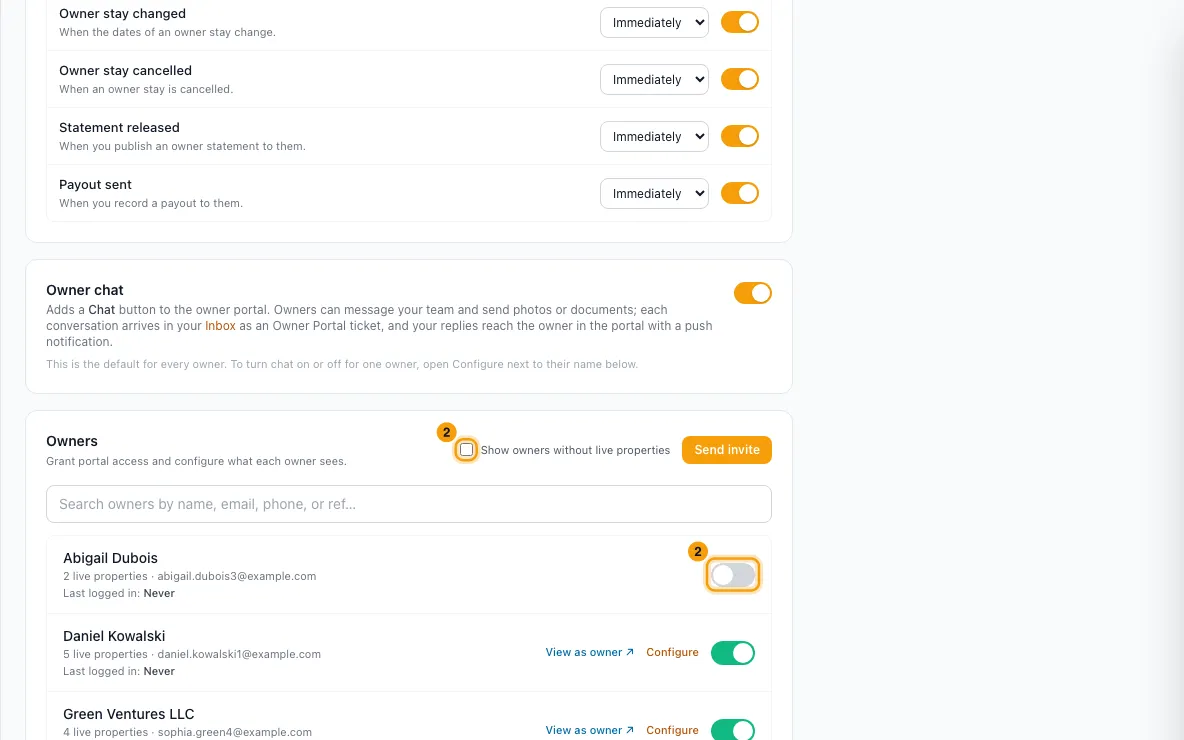
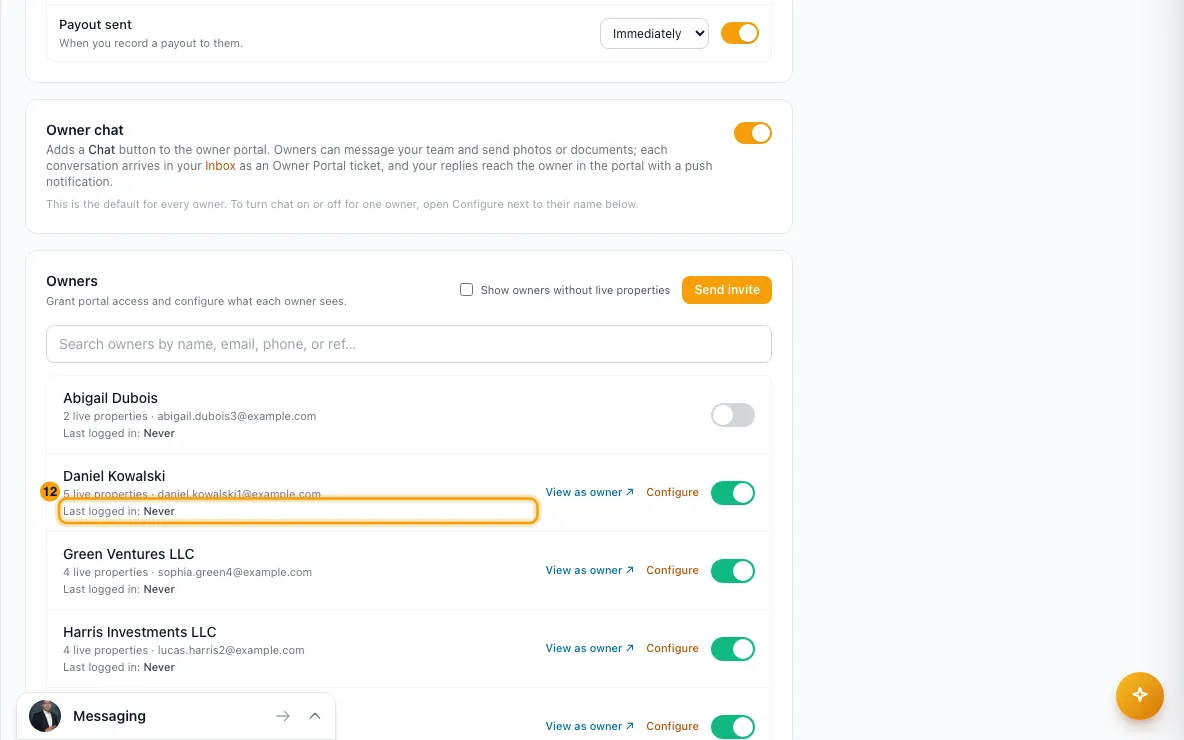
Go to Settings → Owners → Owner Portal. In the Owners list, find the owner and click the switch on the right. The list only shows owners with live properties; tick Show owners without live properties to see the rest.
- Or go to Contacts → Owners, open the owner, and on the Owner Overview tab click the switch on the Owner Portal Access card.
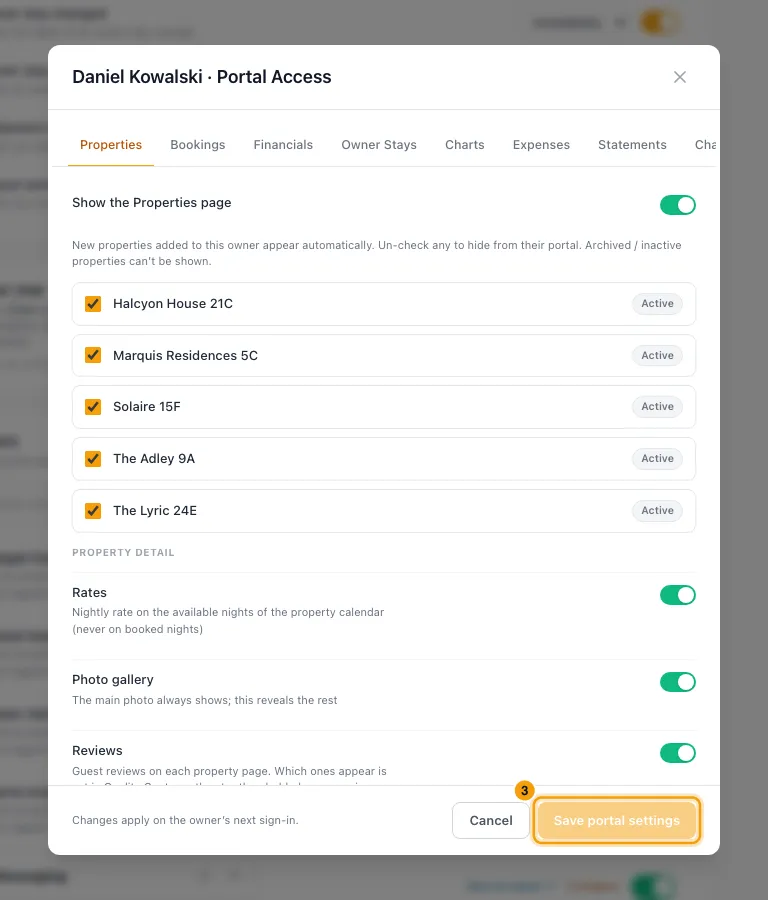
Switching access on in Settings opens the Portal Access window. Choose what this owner sees, then click Save portal settings. From the contact, click Configure in Settings ↗ to reach the same window. See Choose what an owner sees in the owner portal for every option.
Click View as owner ↗ to preview their portal.
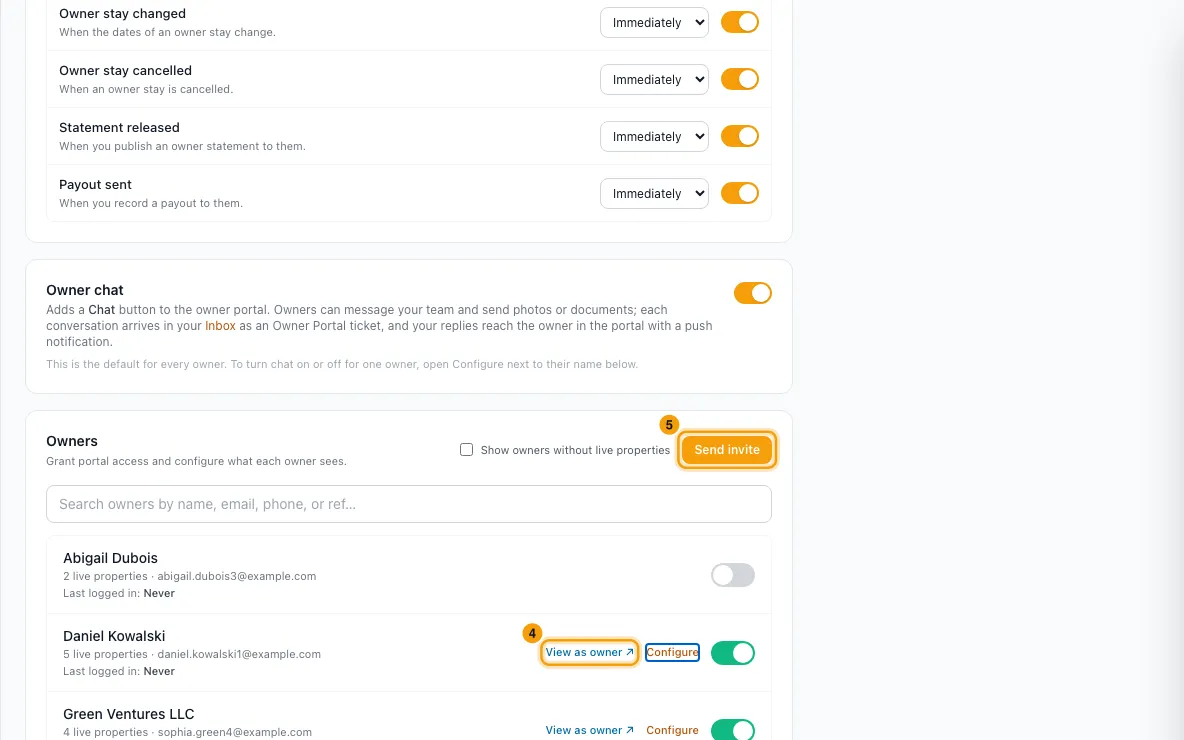
To send an invitation, click Send invite above the Owners list.
In the Send Owner Portal invite window, tick the owners to invite. Only owners with portal access are listed. Search and Select all help with long lists.
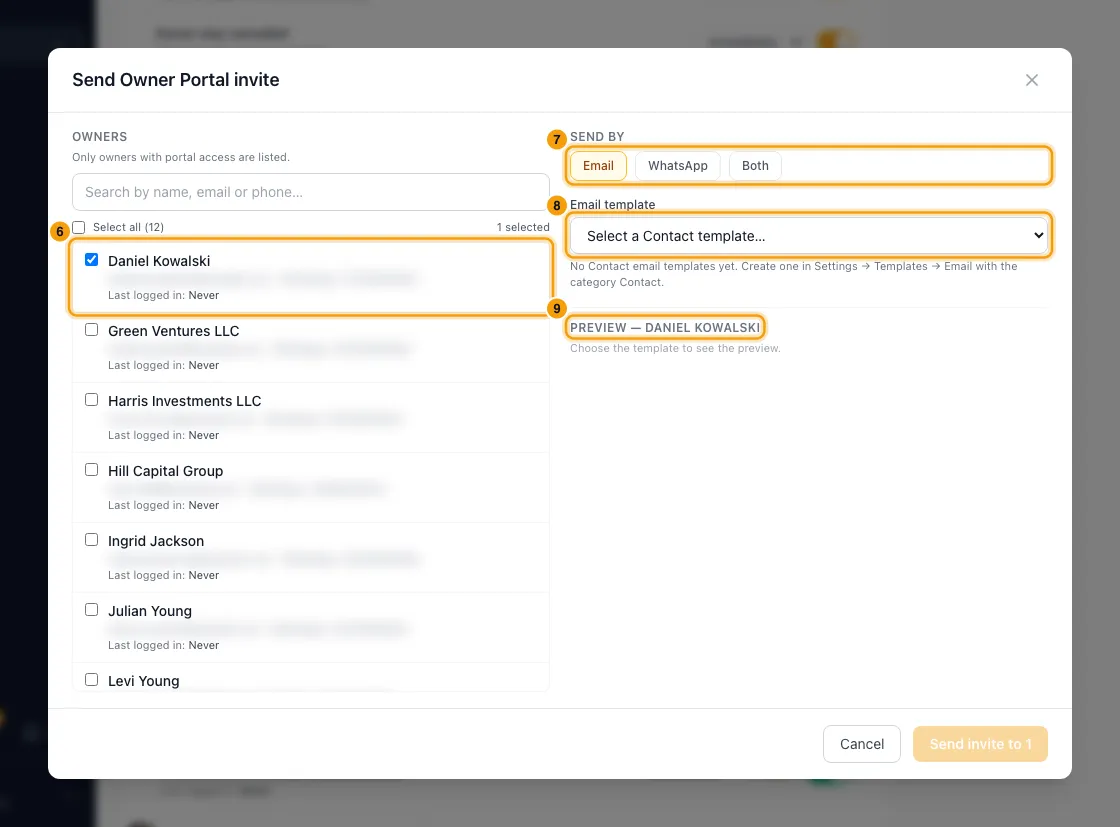
Under Send by, choose Email, WhatsApp or Both.
Pick the Email template (your Contact email templates only) and/or the WhatsApp template (approved templates only). For a WhatsApp template, choose what each
{{1}},{{2}}slot says. Pick Owner Portal Link (under Computed) for the slot that should carry the sign-in address.Check the Preview of the first selected owner's message.
Click Send invite to …, then Send invite in the confirmation.
Read the results: each owner shows Sent, Skipped or Failed for email and WhatsApp, with the reason. Click Done.
To see whether an owner has signed in, look at Last logged in under their name, in the Owners list or on their Owner Portal Access card. It shows the date and time, or Never.
Good to know
- Switching access on sends nothing. Use Send invite, or tell the owner to go to owners.rentibly.app (or your custom domain), enter their email, and type in the 6-digit code they receive. The code works for 10 minutes.
- Code requests are limited. An email can ask for 5 codes in 5 minutes, and at most 3 of them from the same device or network. After that the sign-in page shows "Too many requests — try again in …" with a countdown, never longer than 5 minutes. Signing in with a code resets the count. Every email gets the same limit, whether or not it belongs to an owner, so the limit doesn't reveal who your owners are.
- The Owner Portal Link variable links to your owner portal custom domain once it is verified. Otherwise it links to owners.rentibly.app. It is never empty. Add it to your Contact email templates.
- Invites are sent from your Inbox. Each one appears in that owner's email or WhatsApp conversation.
- Nothing is sent if a template is wrong. For example, a template with numbered placeholders in an email, a WhatsApp template with a media header or a link button with a variable, or a slot with no value chosen. You see the reason, and no owner gets anything.
- An owner is skipped, with the reason, when:
- they have no email address, or no WhatsApp number;
- WhatsApp is not connected;
- a value the template uses is empty for them (for example their first name);
- the message would still contain a
{{ }}placeholder.
- Long lists go 20 owners at a time. The button shows progress, for example "Sending 21–40 of 57…".
- If sending stops partway, nothing is re-sent automatically.
- Send again to the … not attempted invites only the owners nothing was sent to.
- Owners listed as Not confirmed may already have the invite. Check their conversation in the Inbox before sending again.
- After an invite goes out on at least one channel, the owner shows Invited with the date and time. Sending again updates it.
- Last logged in counts only the owner's own sign-ins. Your View as owner previews don't count.
- View as owner opens a read-only preview at owners.rentibly.app. Nothing can be changed from it.
- Owners only see statements you have released. Drafts and approved but unreleased statements stay hidden.
- Once access is on, a Statement view picker appears on the Owner Overview tab. It sets how this owner's statements look in the portal. Default uses your default statement view.
- An owner who has portal access with more than one property manager picks which account to open after signing in at owners.rentibly.app. On your own custom domain they can only sign in to your account.
- Signing in by WhatsApp or SMS. On the sign-in page the owner can also tap Send via WhatsApp or Send via SMS (when available). The code goes to the mobile number on their owner contact. WhatsApp uses the contact's WhatsApp number first, SMS uses the phone number first, and each falls back to the other.
- A code only ever goes to an owner who can sign in: portal access on, not deleted, not Inactive. Other contacts with the same email never receive one.
- A WhatsApp or SMS code opens only the accounts whose owner contact has that same number. An owner with several property managers who wants every account should use the email code. On your own custom domain, the code goes to the number on your contact for them.
- Switching between property managers after signing in only reaches the accounts the sign-in code opened. After an email code, that is every account with that email. After a WhatsApp or SMS code, it is only the accounts with that number. To reach the others, the owner signs out and signs in with the email code.
- Changing an owner's email signs them out of the portal. Their next click asks them to sign in, and they sign in with the new email. Changing only capital letters or spaces doesn't.
- Changing an owner's number signs them out if they signed in with it. An owner who signed in with a WhatsApp or SMS code is signed out on their next click when the number that code went to is no longer their phone number or WhatsApp number. Putting the number back doesn't bring that sign-in back; they sign in again. Owners who signed in by email aren't affected.
- An inactive owner can't use the portal, even with access on. Marking an owner Inactive on their contact signs them out on their next click, View as owner is refused, and Send invite skips them with "This owner is inactive and cannot sign in to the portal". Mark them Active again to restore it.
- If your Rentibly account is suspended or cancelled, your owners can't use the portal either. They get no sign-in code, and an owner who is already signed in is asked to sign in on their next click. Their sign-in isn't ended: when your account is active again, it works again. An owner who also has portal access with another property manager can still sign in to that one. A trial, a past-due account or read-only mode doesn't affect the portal.
- Switching access off signs the owner out straight away: their next click in the portal asks them to sign in, and they can't. Switching it back on later doesn't revive the old sign-in; they sign in again. The same happens if the owner's contact is deleted.
- The same Settings page also holds your portal's Custom domain, Portal branding (logos, app icon and app name), Owner notifications (push alerts to owners who installed the portal) and Owner chat. To turn an alert off for one owner only, or to check whether an owner has notifications on, use the Notifications tab of their Portal Access window.
- Custom domain: after you add the A records it shows, click Check DNS. When the records are found, the domain shows Verified and the SSL certificate is issued for you (Issuing SSL…, then SSL active). If they are not found yet, it shows Not detected. You can click Check DNS again, and Rentibly also re-checks every domain once a day, so it is verified even if you don't click again. Certificates renew automatically.
- Permissions:
- Set up the owner portal is needed for the switch on the Settings page, Configure and View as owner ↗.
- Send invite needs Set up the owner portal plus access to the Inbox.
- The switch on the contact's Owner Portal Access card, and the Portal Access box when you edit an owner's details, also need Set up the owner portal. Without it they are greyed out. Editing the owner's other details only needs edit access to Contacts.
- Importing contacts or vendors from a CSV file with portal access switched on, or with a portal configuration, also needs Set up the owner portal. Without it the import lists those rows and imports nothing.
Rentibly AI can help
- Rentibly AI can find an owner (searchContacts) and add or fix their email address (updateContactProfile), so they can sign in.
- It can't switch portal access on or off, change portal settings, or send portal invites yet. Do those on the pages above.
Still stuck?
Open Support from your profile menu in Rentibly, or email hello@rentibly.com — we answer fast.