Record an owner payout
Updated 12 October 2026
Record money you sent to an owner and apply it to their finalized statements. This is how a statement goes from Open to Settled.
Steps
Go to Finance → Owner Payouts and click Record payout. You can also open the owner's contact, go to the Payouts tab and click + Record Payout.
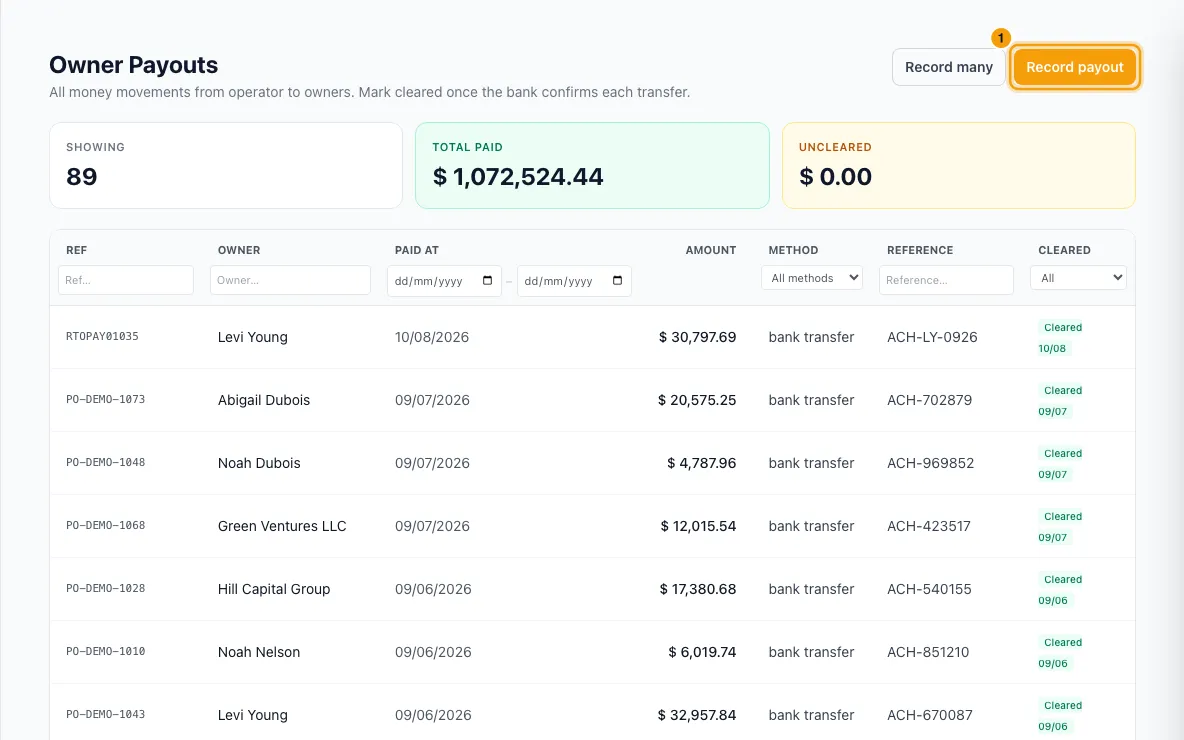
On the Finance page, choose the owner in Select an owner…. Their open statements appear under Apply to unsettled statements.
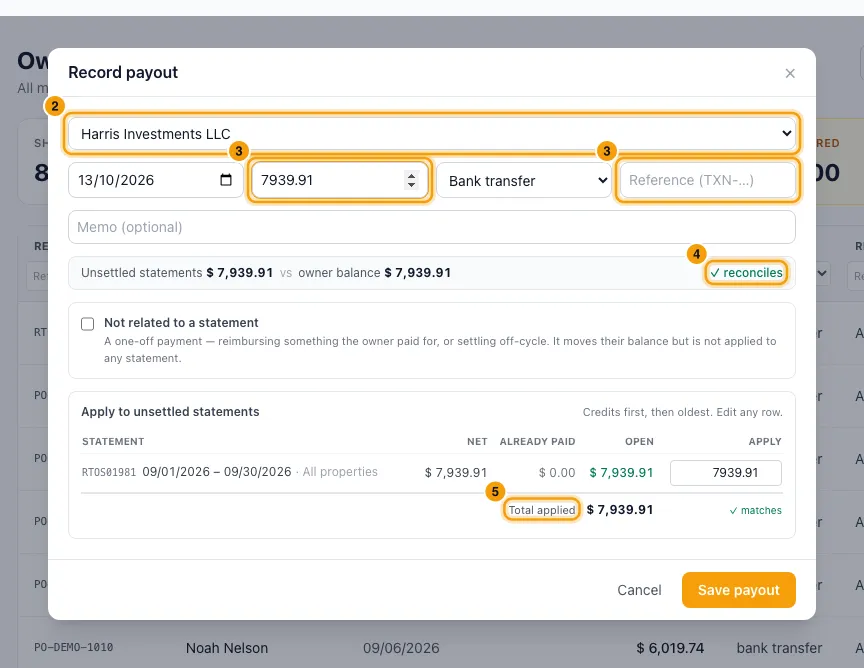
Enter the payment date, the Amount, the method (Bank transfer, Cheque, Cash, Online or Other) and the Reference (TXN-…). Add a Memo (optional) if you like.
Check the line that compares Unsettled statements with the owner balance. It should say ✓ reconciles. Each statement is listed by its reference and period.
Check the Apply column. It fills in by itself: credits first, then the oldest statements. You can change any row. Total applied must show ✓ matches.
Click Save payout.
Once the bank confirms the transfer, click Mark cleared on the payout's row.
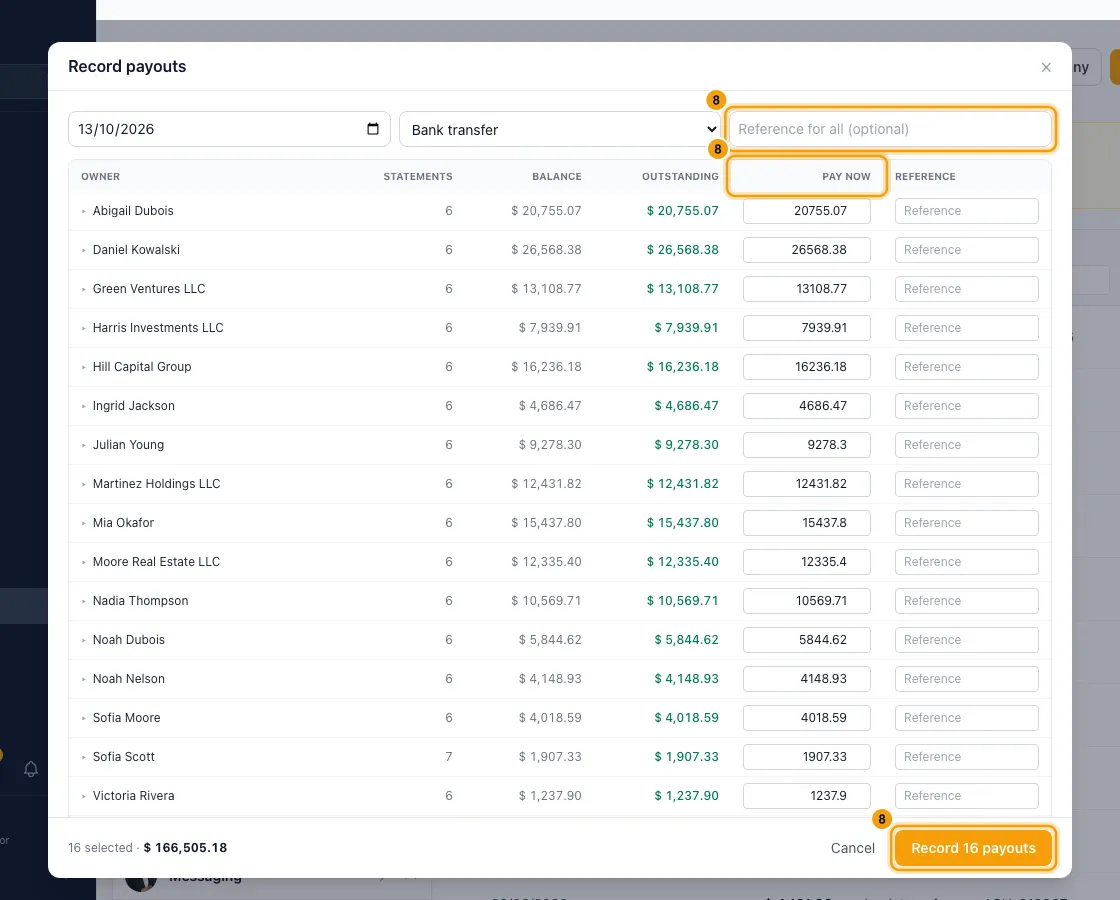
To record payouts for many owners at once, click Record many on Finance payouts:
- Set the date, the method and, if you like, a Reference for all (optional).
- Each owner who is owed money is filled in with their full Outstanding amount under Pay now. Change or clear any amount, and add a Reference per owner if each transfer has its own.
- Click ▸ next to an owner to see the statements behind their figure.
- Click Record … payouts.
Good to know
- Only finalized statements can be paid. If the owner has none open, the window says Nothing unsettled. Approve a statement first, then record a payout against it.
- Payment status: a statement's Open, Partial or Settled status comes from the payouts applied to it. Drafts have no payment status. A statement whose total for the owner is 0 shows Settled straight away, because there is nothing to pay.
- The amount must be more than 0. A credit statement (marked credit, where the owner owes you money back) is settled by netting it against a statement you owe, in the same payout.
- Not related to a statement: tick this to pay something not tied to a statement, such as paying an owner back for a repair they paid for. You must then fill in What was this payment for?. The payout still lowers the owner's balance, but it isn't applied to any statement.
- Off by … — investigate before paying means the owner's statements and their balance don't agree. Look into it before you pay.
- Some things are in the balance but not in any finalized statement, and are allowed for: an opening balance and payouts made outside a statement. The line names each one it adds or takes away.
- Drafts are not in the balance at all. If the owner has any, the line shows Drafts not yet approved with their total, marked as not counted until approved. A draft is never offered for payment until it is approved.
- In Record many:
- Owners in credit are listed but can't be paid. Their credit is carried to next statement.
- Owners with nothing to pay are grouped under … owners with nothing pending.
- Each payout is applied for you, credits first and then oldest first. A payout larger than what the owner is owed is refused.
- If some fail, the results list them. The failed ones were not recorded, so retry those owners one by one.
- What recording a payout does:
- It gets its own reference number and lowers the owner's balance.
- It triggers any notification rule on Owner payout sent, and the owner portal's Payout sent push if that is on. The push doesn't show the amount. It says which statement the payout is for, for example "Your payout is on its way (statement dated 30 Sep 2026)", or "not part of a statement" for a payout made outside the statement cycle. To stop that push for one owner only, set Payout sent to Off on the Notifications tab of their Portal Access window.
- Bookings that are now fully paid out are locked against money changes. To change one later, unlock it from the booking.
- Fixing a mistake: a payout's amount, method and owner can't be edited. Delete it from the owner's Payouts tab (Delete) and record it again. Deleting adds a reversing entry to the owner's balance and frees the statements it was applied to. The Finance page has no delete.
- Payout details: click a payout on Finance payouts to see it. Applied to … statements lists each statement by its reference and period, with the amount applied.
- Totals: Total paid and Uncleared at the top of Finance payouts cover every payout that matches your filters, not just the page you're on.
- Permissions:
- Recording, clearing or deleting a payout needs Edit on Owners.
- Seeing the payouts list needs View on Owners.
- The owner's Payouts tab also needs Edit owner bank details and payout settings. Loading their statements into the window needs View on Owners.
Rentibly AI can help
- It can show payouts and who is still owed what.
- It never records, clears or deletes payouts.
Still stuck?
Open Support from your profile menu in Rentibly, or email hello@rentibly.com — we answer fast.