See what you owe each owner (Owner Balances)
Updated 12 October 2026
Owner Balances shows, for every owner, how much you owe them right now, or how much they owe you. Each figure is the running total of that owner's money entries: approved statements, payouts and any opening balance. Draft statements are not counted.
Steps
Go to Finance → Owner Balances.
Read the three cards at the top: Owners shown, Total owed to owners and Owners owing PM. They add up only the owners listed below, so they change with your search and filters.
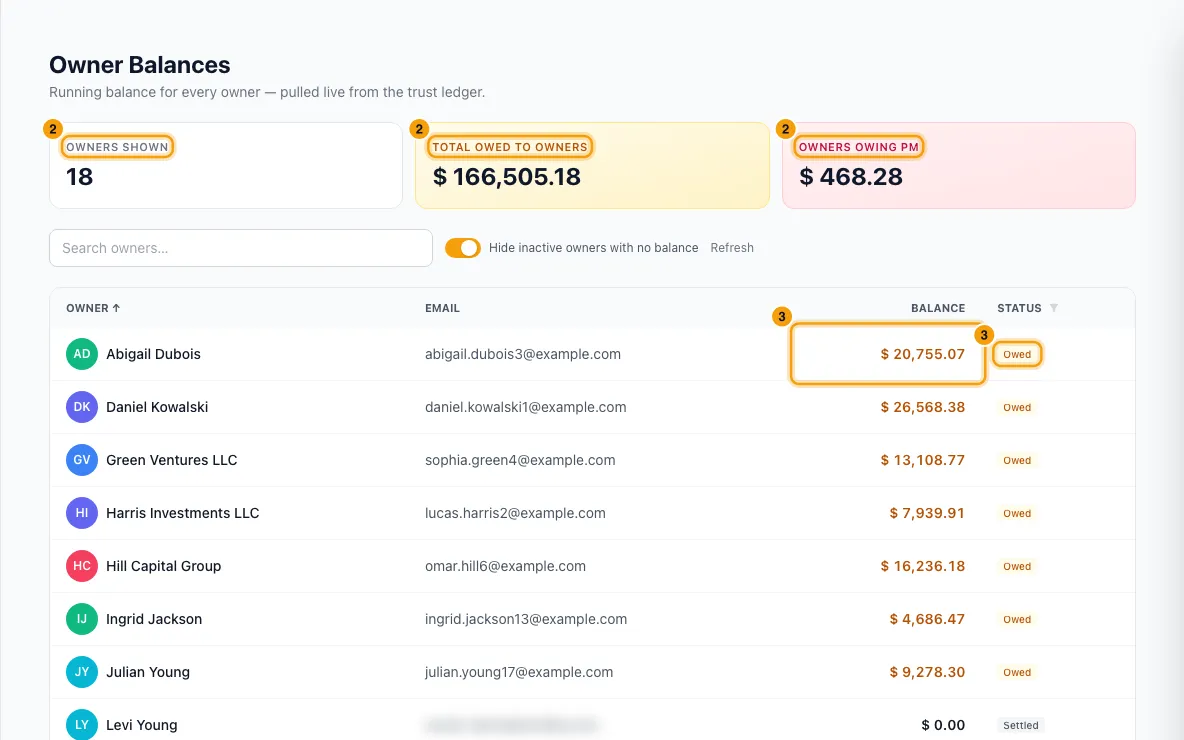
Read each owner's Balance and Status:
- Owed: a positive balance. You owe the owner this amount.
- Overpaid: a negative balance. The owner owes you this amount.
- Settled: exactly zero.
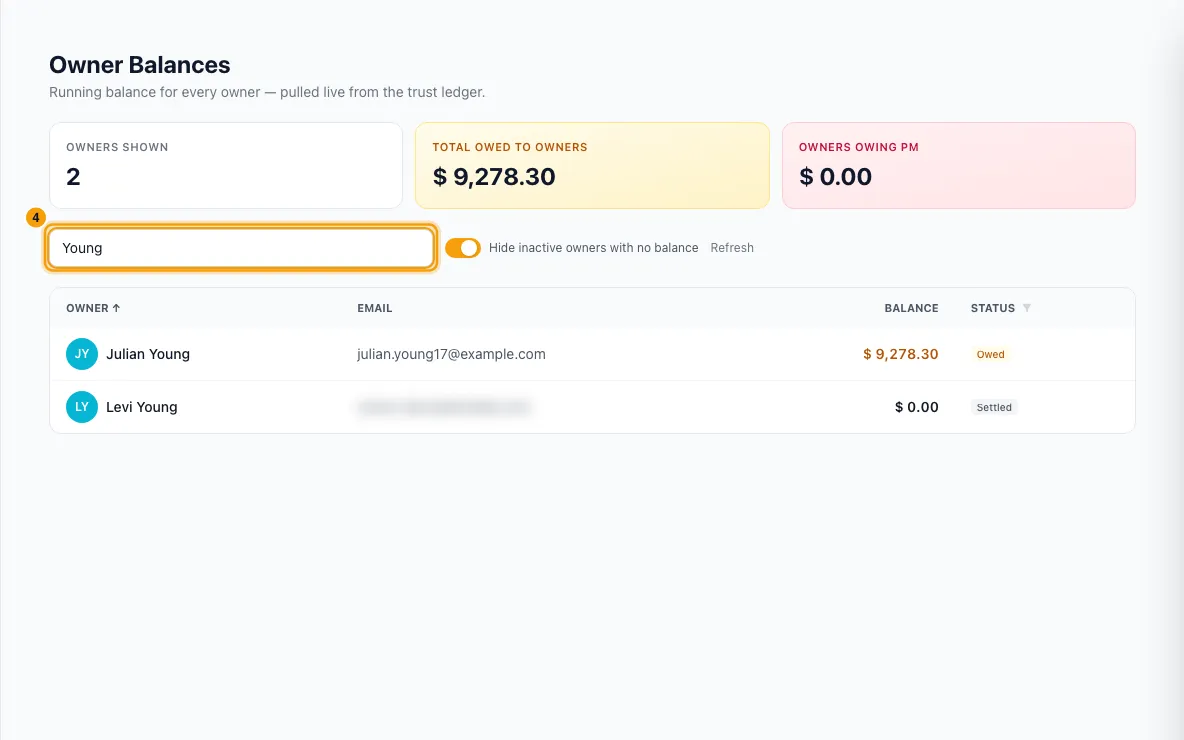
To find someone, type in Search owners…. It matches the owner's name, email or phone.
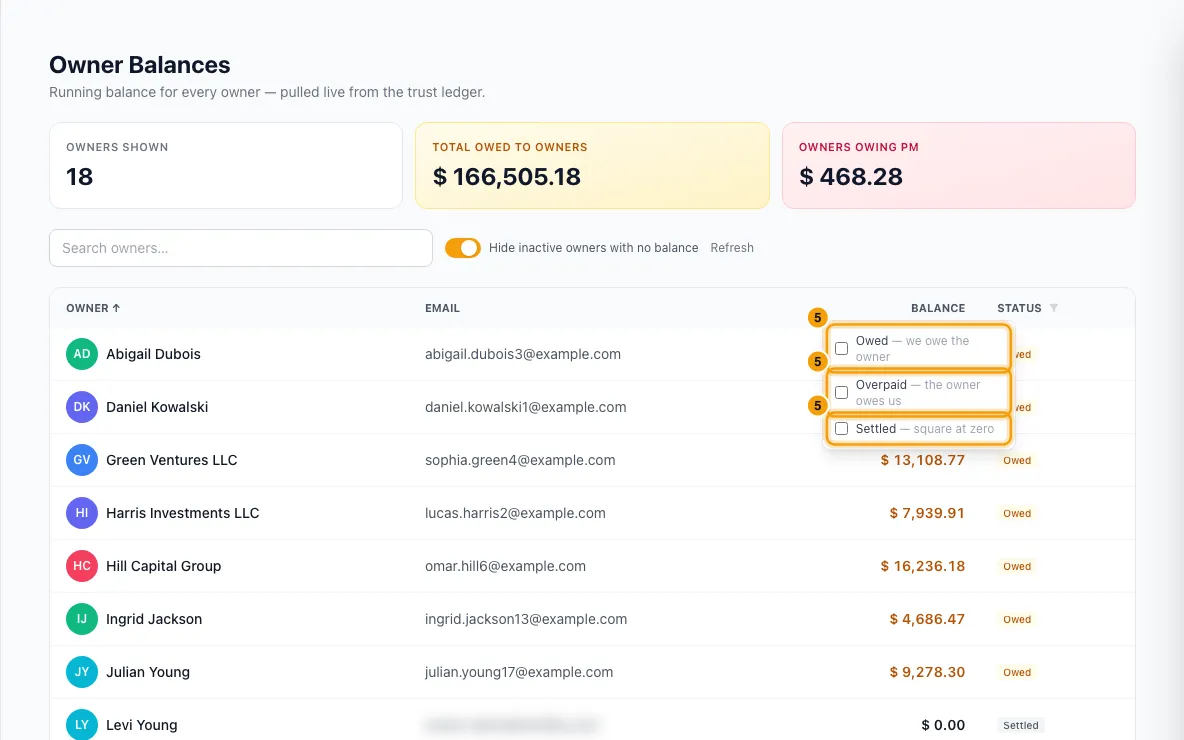
To see only one kind of balance, open the Status column filter and tick Owed, Overpaid or Settled. Click Clear status filter to show all again.
Click the Owner or Balance column header to sort. Balance sorts biggest first on the first click.
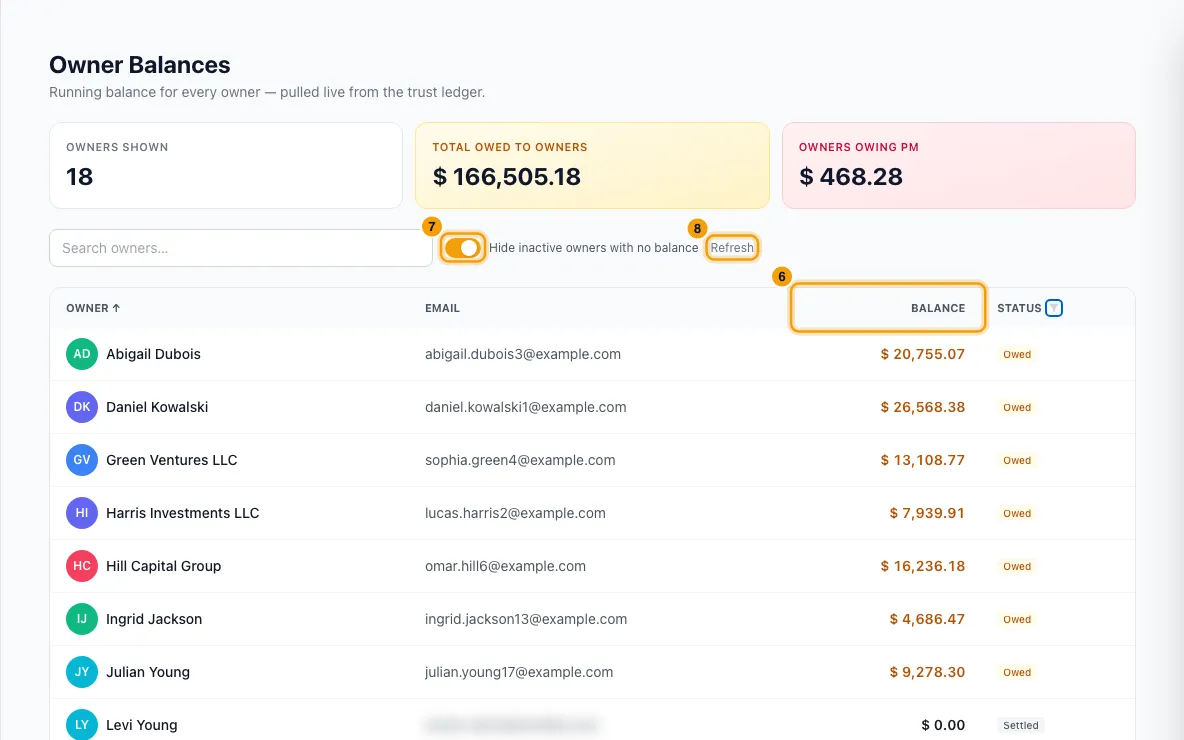
To see owners who are currently hidden, turn off Hide inactive owners with no balance.
Click Refresh to load the latest figures.
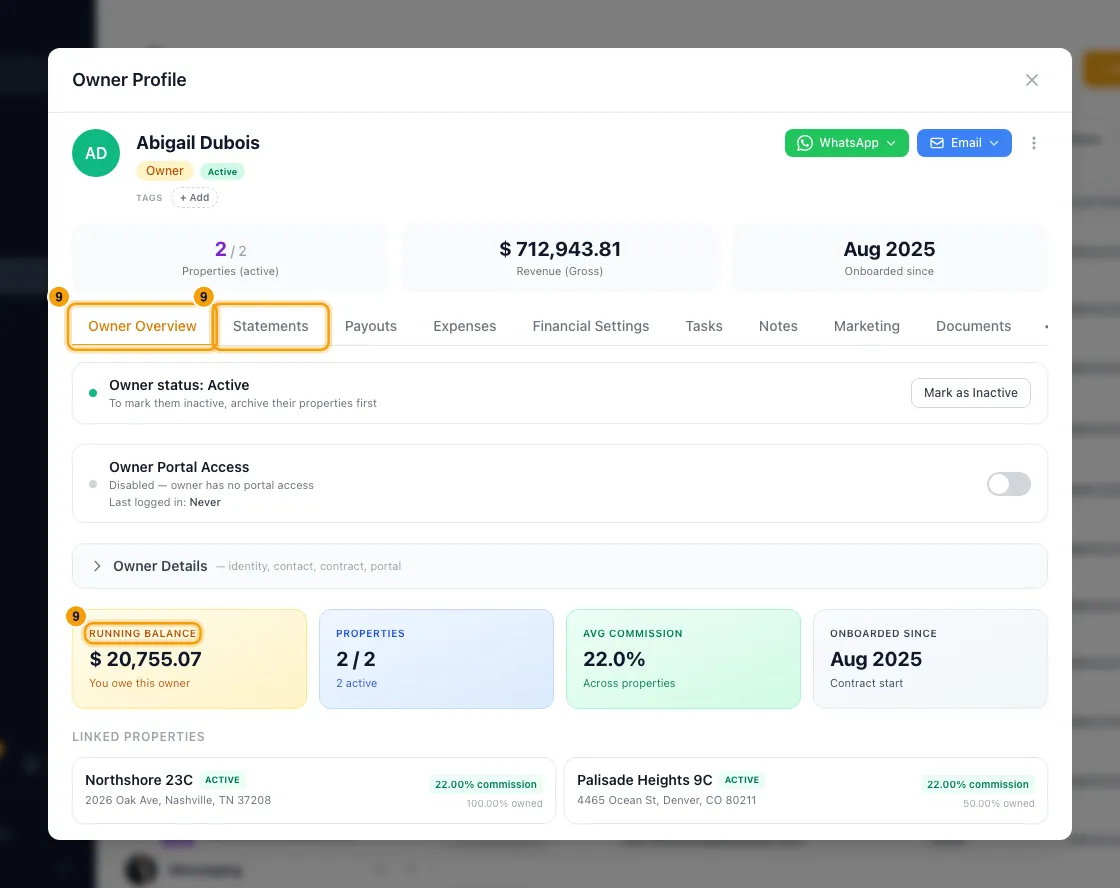
To see what makes up one owner's balance, open the owner from Contacts → Owners. Their Owner Overview tab shows the same figure as Running Balance. The Statements and Payouts tabs list what went into it.
Good to know
- What raises or lowers a balance:
- Approving an owner statement adds its lines: revenue up, commission and owner-paid expenses down, adjustments either way. A statement that is still a Draft does not count, because it can still be changed or deleted. This includes drafts created automatically. Deleting a draft does not change the balance.
- An imported statement (from your previous system) adds one entry: its net minus what you had already paid on it.
- Recording a payout lowers the balance by the payout amount, dated the day it was paid. Deleting a payout adds the amount back, dated today.
- An Opening Balance (what you owed the owner, or they owed you, when they moved to Rentibly) counts too. Set it under Opening Balance on the owner's Financial Settings tab, then click Update. Positive means you owe them; negative means they owe you. That tab needs the Edit owner bank details and payout settings permission, and saving needs Edit on Owners.
- What does not change it by itself: logging an expense or taking a booking. Those reach the balance only when a statement includes them.
- An owner with no entries at all shows 0.00 and Settled.
- Hide inactive owners with no balance is on by default. It hides an owner only when their balance is exactly zero and they are marked Inactive on their contact (see Add an owner contact). An owner who still owes or is owed money is always listed, with that badge next to their name.
- The page is read-only. To pay an owner, use Finance → Owner Payouts and Record payout. To correct amounts, regenerate or adjust the owner's statement.
- Figures update right after any statement, payout or opening-balance change. The server may keep a copy for up to 60 seconds.
- The page lists every owner, however many you have.
- The balance is not the same as "outstanding on finalized statements". Opening balances and payouts made outside a statement count here, but not in that figure. Draft statements count in neither.
- You need at least View on Owners to see the balances, and View on Contacts to load the owner list. Without both, the page shows No owners yet.
Rentibly AI can help
- Ask "who do we still need to pay?" or "how much do we owe <owner>?" and it answers with. Its figure is what is still unpaid on finalized statements, owner by owner. It lists draft statements separately as not owed yet, and it does not include opening balances or payouts made outside a statement. So it can differ from the Balance on this page.
- It can't change a balance. Statements, payouts and opening balances are changed on their own pages.
Still stuck?
Open Support from your profile menu in Rentibly, or email hello@rentibly.com — we answer fast.