Find and merge duplicate contacts
Updated 13 October 2026
Potential Duplicates lists contacts that share an email address or a phone or WhatsApp number, so you can merge them into one. The Merge Log tab shows every merge, and lets you undo one within 30 days.
Steps
Review and merge
Go to Settings → Data Management → Potential Duplicates.
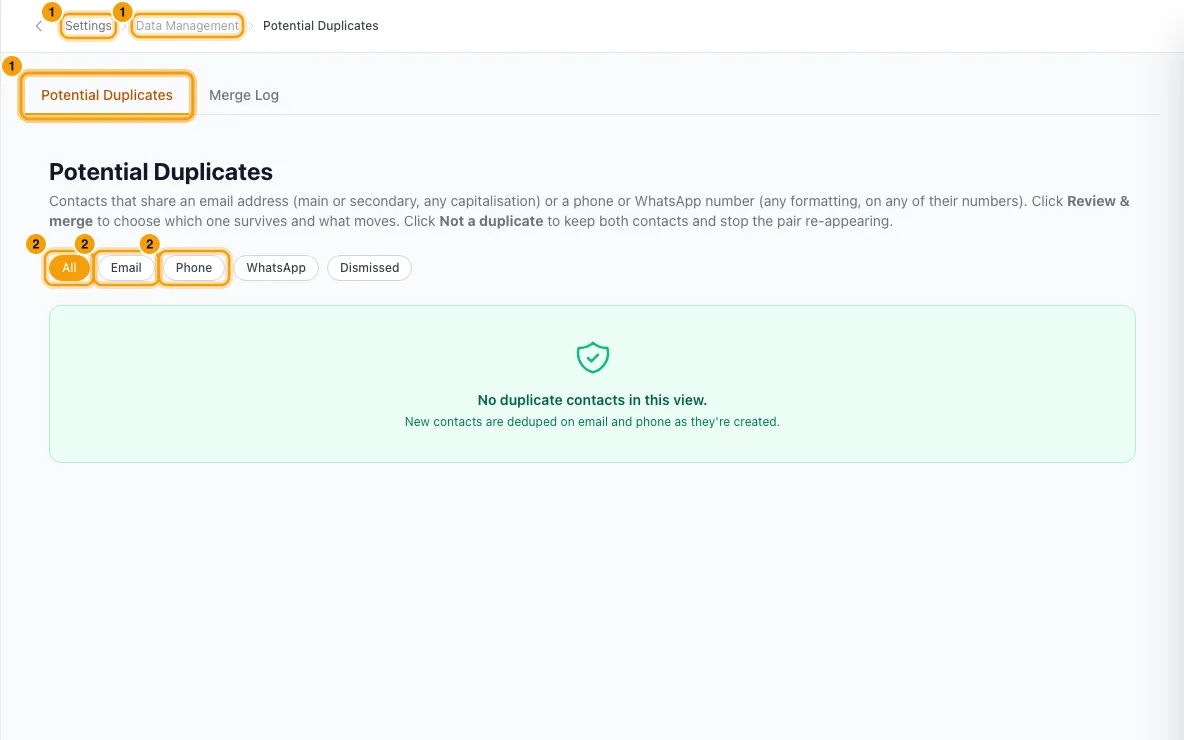
To narrow the list, click All, Email, Phone or WhatsApp.
Look at each group. Each contact shows its counts of bookings (B), inquiries (I), quotes (Q) and tickets (T). Click a name to open the contact in a new tab.
Click Review & merge. The Merge duplicate contacts window opens with both contacts filled in: the group's newest contact at the top, and its oldest below. To merge a different contact instead, click Change and search for them.
Under Which contact should be kept as primary?, click the contact to keep.
Read the Preview: what Will be added to the primary, what Will be moved to the primary, and any warnings.
Under Conflicts — choose which value to keep, click Primary or Other for each field that differs.
Click Merge contacts.
Mark a pair as not a duplicate
On a group of two contacts, click Not a duplicate.
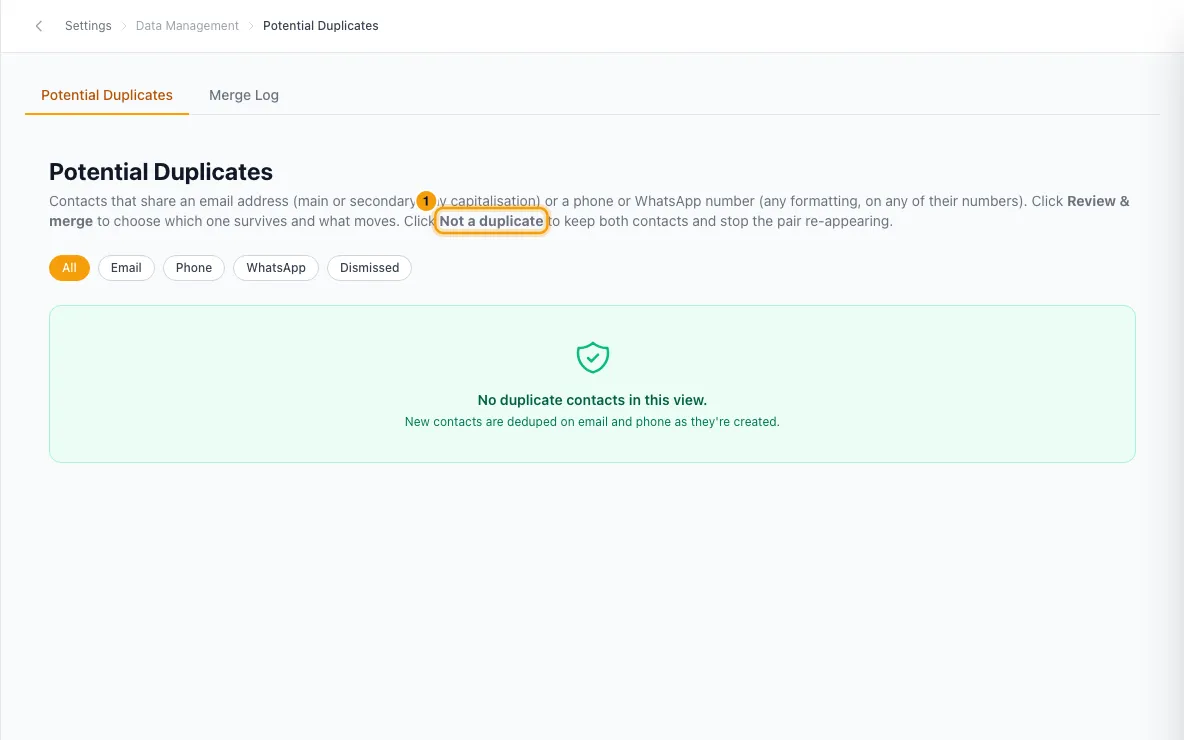
Click Not a duplicate again to confirm. The pair leaves the list.
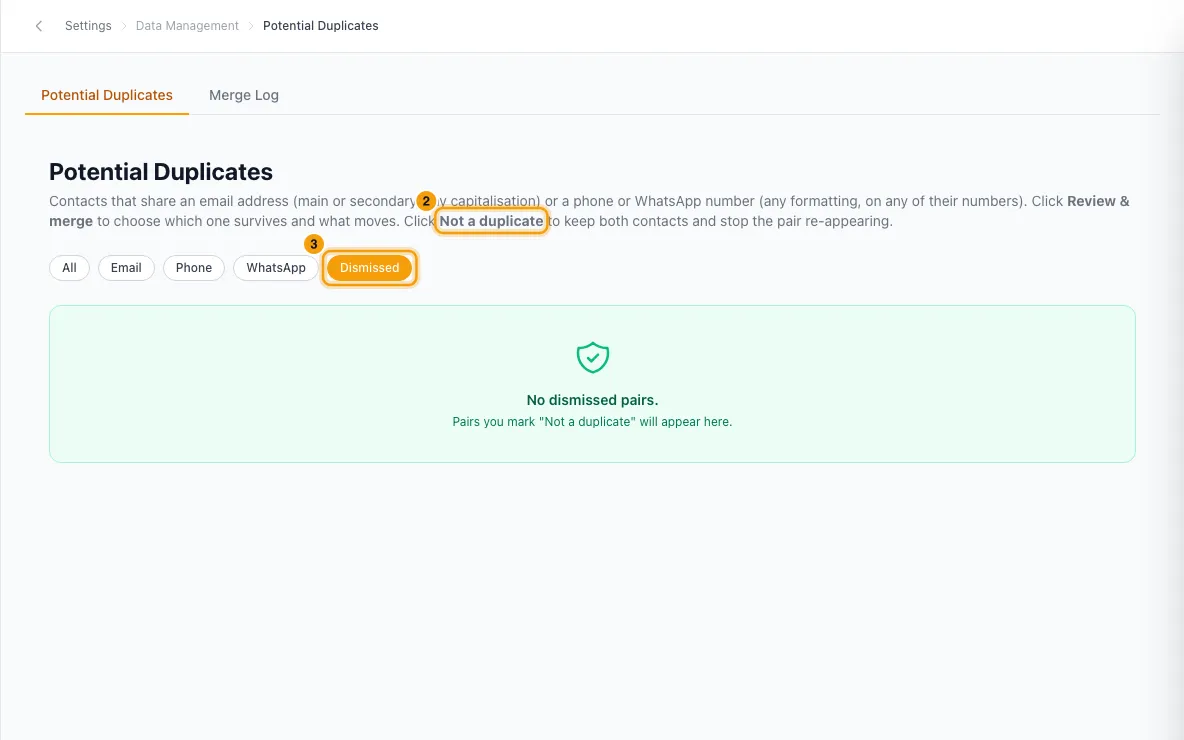
To bring a pair back, click Dismissed, then Restore on the pair.
Undo a merge
Click the Merge Log tab.
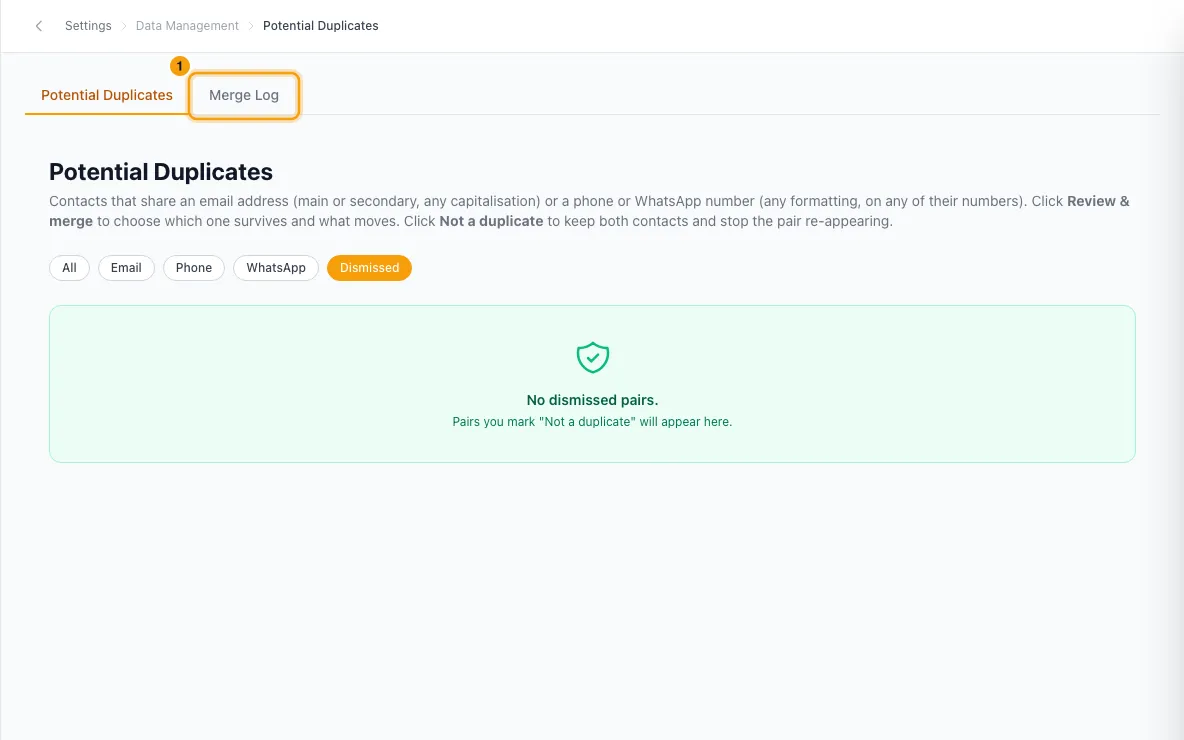
Find the merge. The Status shows Active · expires in … while it can still be undone.
Click Undo, then Undo merge to confirm.
Good to know
- What counts as a duplicate: two or more contacts that share:
- an email address, as either one's main or secondary email. Capitals and spaces are ignored.
- a phone number, on any of their numbers (phone, second phone, WhatsApp, or any other number saved on the contact). Spaces, dashes and the + are ignored, so
+971 50 123 4567matches971501234567. A group is labelled Same WhatsApp number when the number is a WhatsApp number on every contact in it; otherwise Same phone.
- Deleted contacts are not included. Names alone never make a duplicate.
- The page shows up to 2,000 groups, largest first. If there are more, a note says so; merge or dismiss some to see the rest.
- What a merge does: the other contact's bookings, inquiries, quotes, conversations, payments, documents, saved cards, credits, owned properties and other linked records move to the primary. Its phone numbers and emails are added to the primary. The other contact is then archived.
- Phone numbers on a merge: the primary keeps its main phone. The other contact's numbers are added to it as extra numbers; a number both already have is not added twice. Contacts can have only one WhatsApp number, so if the other contact has a WhatsApp number, it becomes the primary's WhatsApp number. Undo puts the primary's numbers back as they were.
- On conflicts, the primary's value is kept unless you click Other.
- If the two contacts have different flag levels, the merged contact keeps the stricter flag. If both have a default saved card, the primary's stays the default.
- Merges that are refused: two owners with different commission rates, or with different bank details. Make them match first. Two owners who both have an owner statement with the same statement date can't be merged either, because an owner can have only one statement per date: the message lists the dates. Delete or reconcile one statement for each date first.
- The merged contact's old reference number is kept as an alias of the primary.
- Undo is possible for 30 days. It brings the other contact back and moves its records back to it. It also puts back what the merge changed on the primary: its contact type, secondary email, owner details, flag, the conflict values you picked, its phone tags (such as which number is WhatsApp) and which saved card is the default.
- Edits made after the merge are kept. If you changed one of those fields on the primary after merging, undo leaves your edit and lists the field in a note above the Merge Log.
- Older merges, made before mid-October 2026, didn't record the primary's earlier values. Undoing one brings the other contact back, but leaves the primary as it is; the note says so. Check the primary by hand.
- After 30 days, Rentibly permanently deletes the merged-away contact and the merge shows Archived. It can't be undone after that.
- A merged-away contact also appears in the Recycle Bin for those 30 days. To reverse a merge, use Undo here, not Restore there. Restore only brings the contact back; its records stay on the primary.
- Merge Log filters: Active (still live merges), Undone (only undone ones) and Archived (only those past 30 days). It shows 50 per page; use ← Previous and Next → for the rest.
- A merged-away contact also sits in the Recycle Bin, but Restore there refuses it. Use Undo here instead, which moves its bookings and messages back too.
- Not a duplicate is only offered on groups of exactly two contacts.
- You can also merge from a contact's menu, or from an Inbox conversation, with Link to existing contact…. There you search for the other contact yourself.
- Editing can't create a duplicate email. Saving a contact with an email (main or secondary) that another contact already uses, in any capitals, is refused with a message naming that contact. Emails are saved in lower case.
- Editing can't give two contacts the same main phone or the same WhatsApp number. The save is refused with a message naming the other contact, and nothing is changed. This includes a WhatsApp number on a contact with no phone: a contact's first number is also its main phone, so it can't be a number another contact already has as its phone (the message says "… is already the phone number of another contact"). Give the contact its own phone first. A WhatsApp number that is another contact's phone is then allowed, and the two contacts show up here as a duplicate.
- Adding a second number or a WhatsApp number to a contact that already has a phone keeps that phone as its main phone. The same is true when the number comes from a guest's quote details, from a WhatsApp message sent from a new number, or from Rentibly AI.
- Booking requests from your website, a Booking Widget or the Open API are matched to a contact by email (in any capitals), then by phone. A new contact's email is saved in lower case. If the matched contact has no phone, the phone the guest typed is added to it, unless another contact already has that number as its main phone. Then the contact stays without a phone, the booking request still goes through, and the inquiry keeps the number the guest typed.
- Rentibly AI follows the same rules. When it adds or changes a contact's phone or WhatsApp number, a number another contact already has is refused on its card, with the same message, before you confirm.
- If the preview can't count one kind of record, it says Could not count: …. Those records still move with the merge. If the preview fails completely, the message ends with a reference (for example
mrg_…); give it to support. - Permissions: you need the Settings permission set to Access to open these pages. Seeing duplicates needs View on Contacts. Merging, undoing and dismissing need Edit on Contacts.
Rentibly AI can help
- Ask "do I have duplicate contacts?" and it lists the groups, matched the same way as this page. It skips pairs you marked Not a duplicate.
- It can merge two contacts you pick. It shows the same preview, conflicts and blockers on a confirm card first.
- It can't undo a merge. Use Undo on the Merge Log tab.
Still stuck?
Open Support from your profile menu in Rentibly, or email hello@rentibly.com — we answer fast.