Connect other apps with API keys, webhooks and Zapier
Updated 13 October 2026
The Developer page connects Rentibly to other software. An API key lets your own software read and change your Rentibly data. A webhook makes Rentibly tell your software the moment something happens. Zapier connects Rentibly to other apps without any code.
Steps
Create an API key
Go to Settings → System → Developer.
Click New API key.
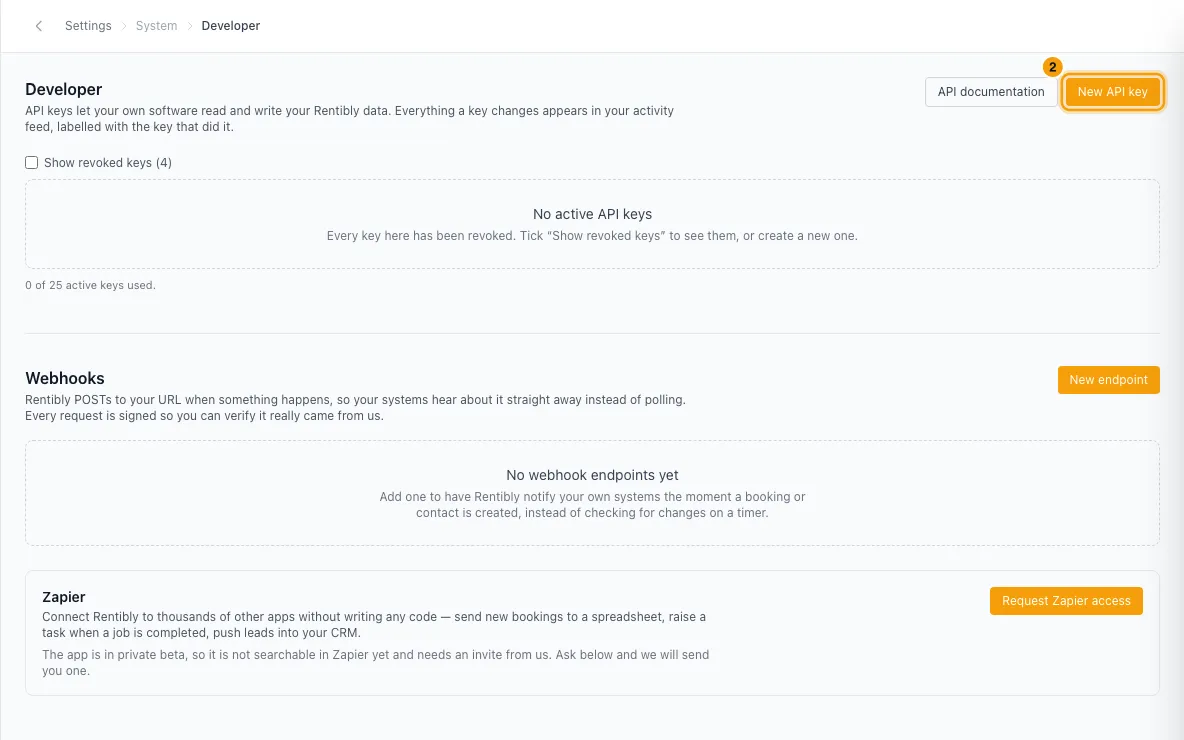
Type a Name, for example "Zapier production". It shows in the Activity Log whenever this key changes something.
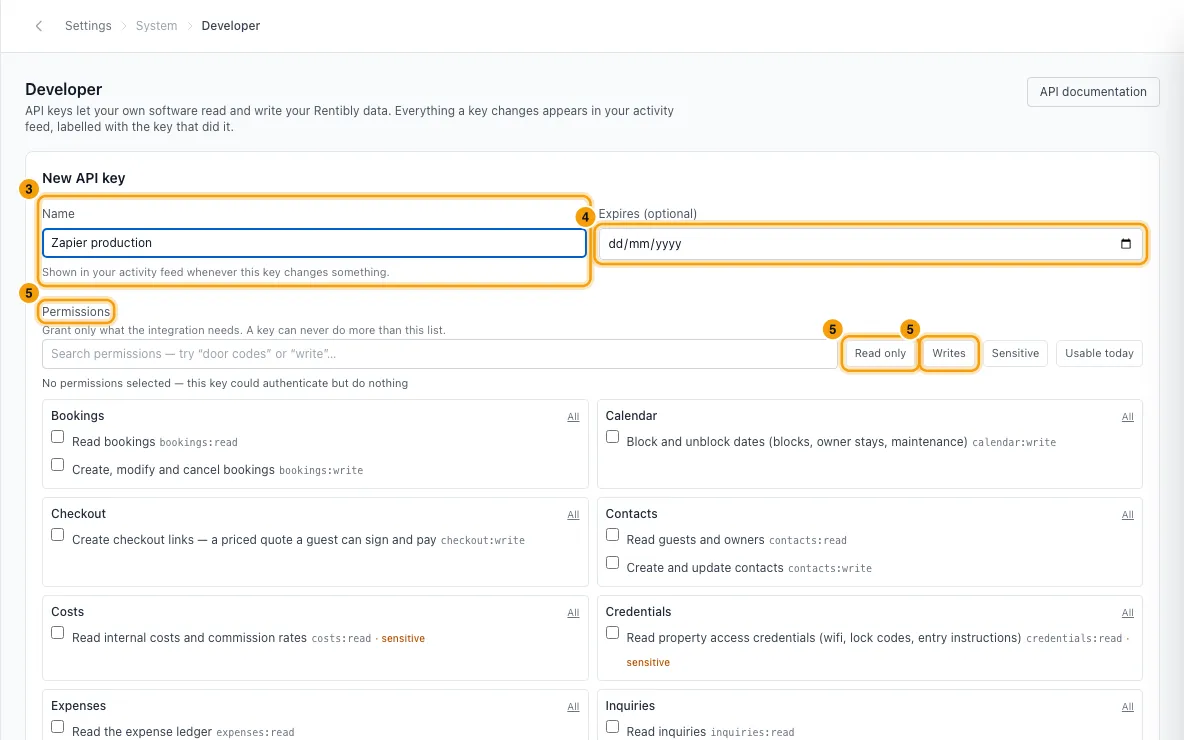
Optionally pick an Expires (optional) date.
Under Permissions, tick only what the integration needs. Use the search box, or the Read only, Writes, Sensitive and Usable today filters.
Optionally list addresses under Restrict to IP addresses (optional), one per line.
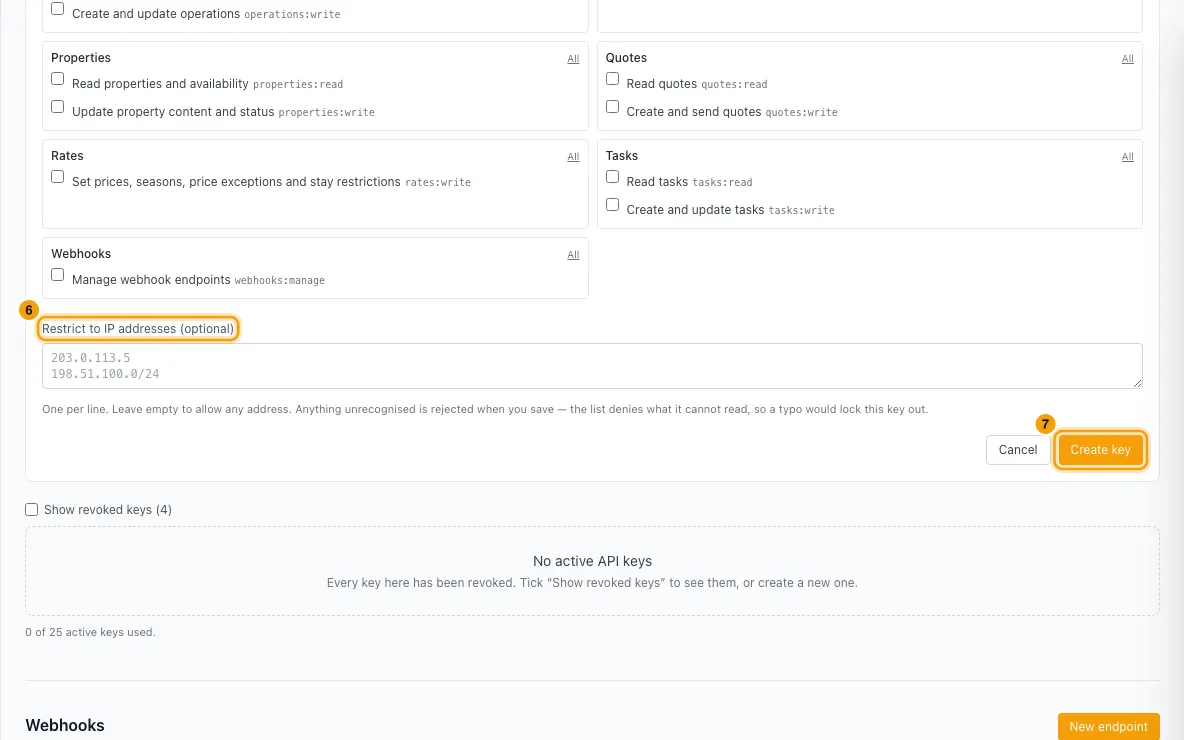
Click Create key.
In Copy your API key now, click Copy to clipboard and store the key somewhere safe.
Tick I have saved this key somewhere safe. and click Done.
Revoke an API key
In the key list, click Revoke on the key.
Confirm. A message tells you once it has stopped working.
Add a webhook
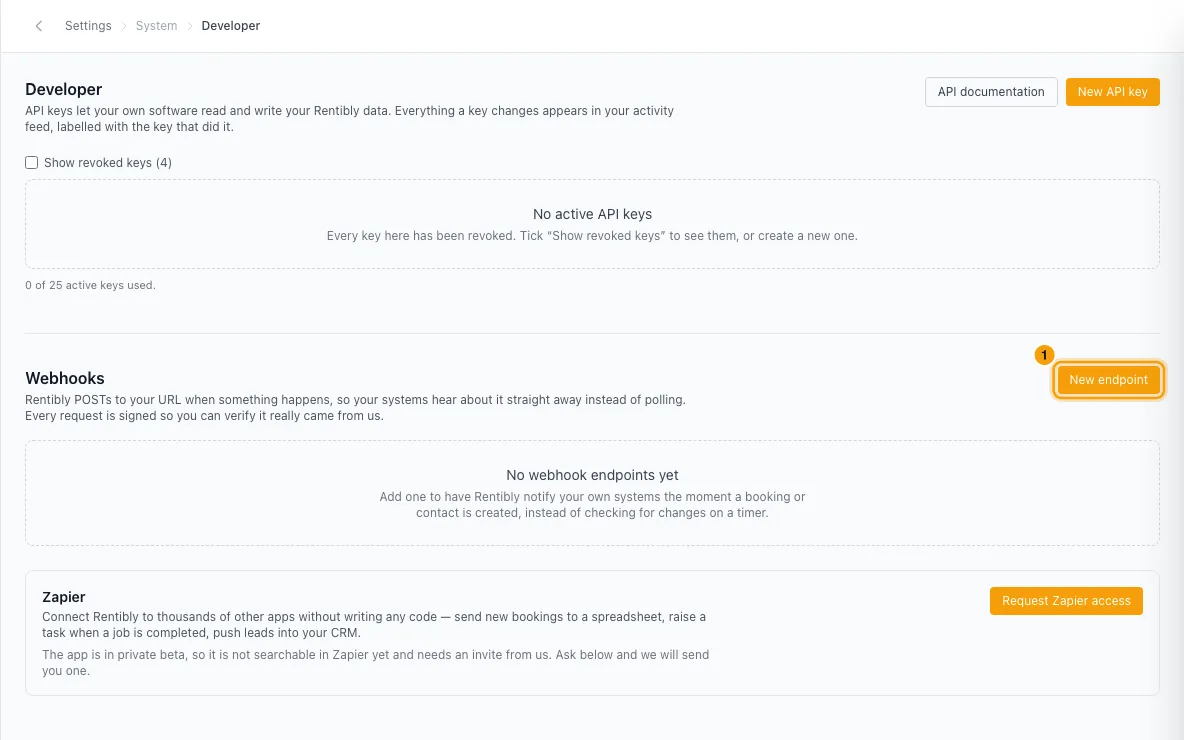
Under Webhooks, click New endpoint.
Enter the Endpoint URL and, optionally, a Description (optional).
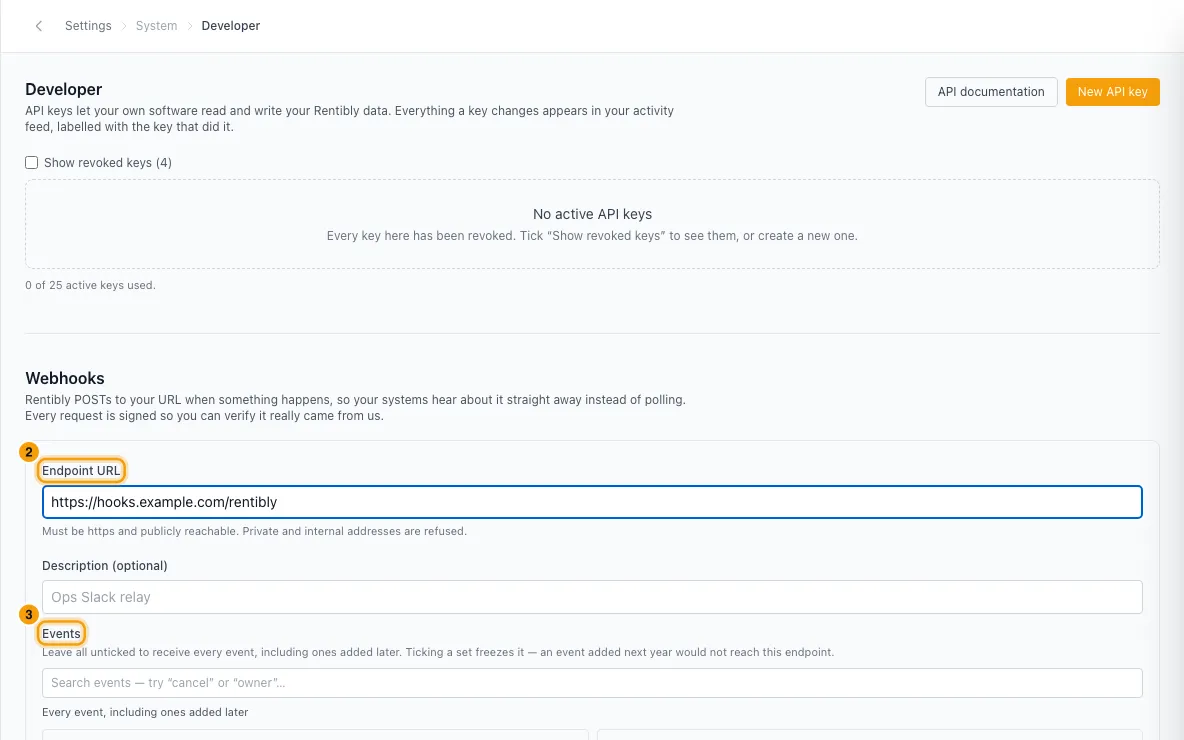
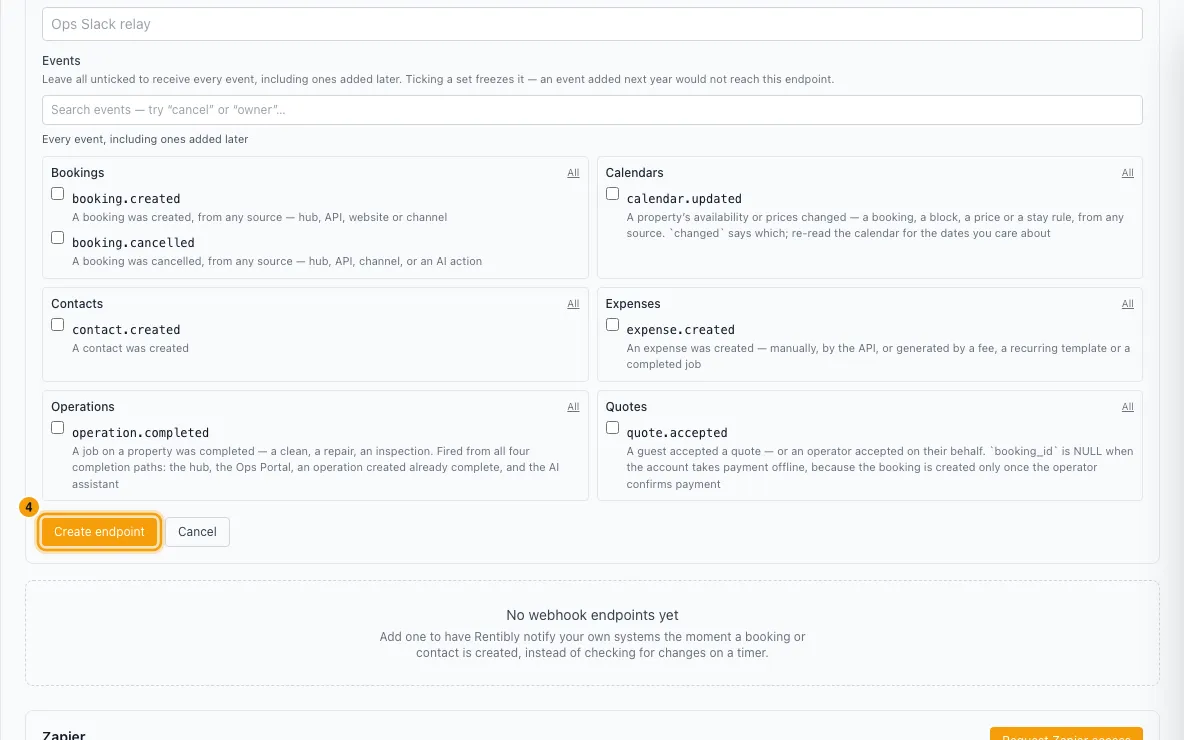
Under Events, tick the events to send, or leave them all unticked to receive every event.
Click Create endpoint.
In Copy your signing secret now, click Copy. Your receiving system needs it to check that requests really came from Rentibly.
Tick I have stored it somewhere safe and click Done.
Manage a webhook
Click Deliveries to see the 25 most recent deliveries: When, Event, Result and Detail (the error your system sent back).
Click Pause to stop sending, or Switch on to start again.
Click Rotate secret to get a new signing secret. Update your receiving system first.
Click Delete to remove the endpoint.
Get Zapier
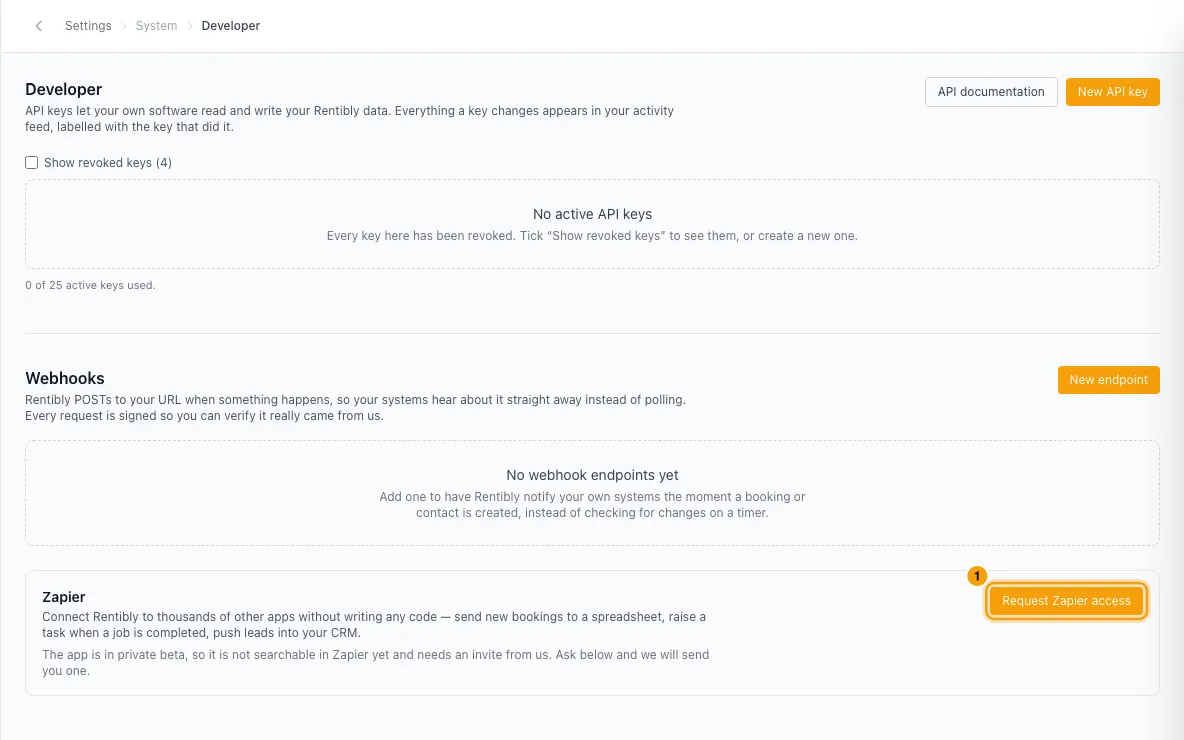
Under Zapier, click Request Zapier access.
The Support page opens with a request already written. Add the apps you want to connect and what you want to automate.
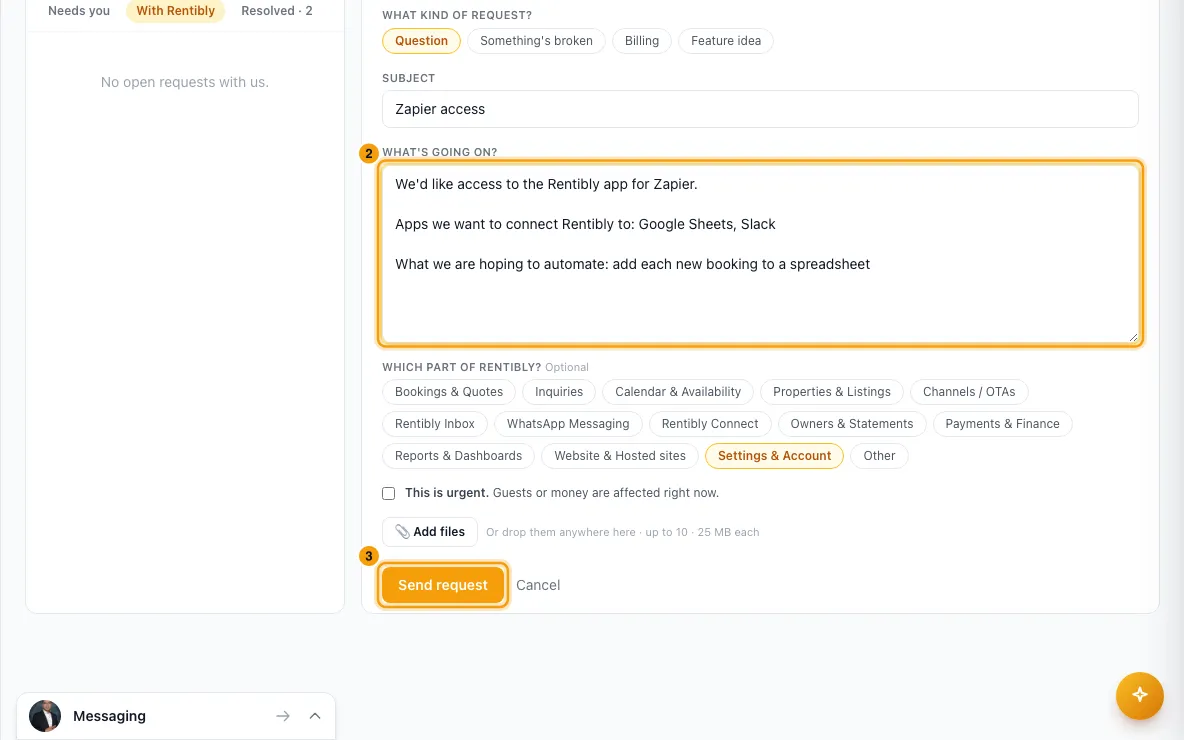
Click Send request. Rentibly replies with an invite.
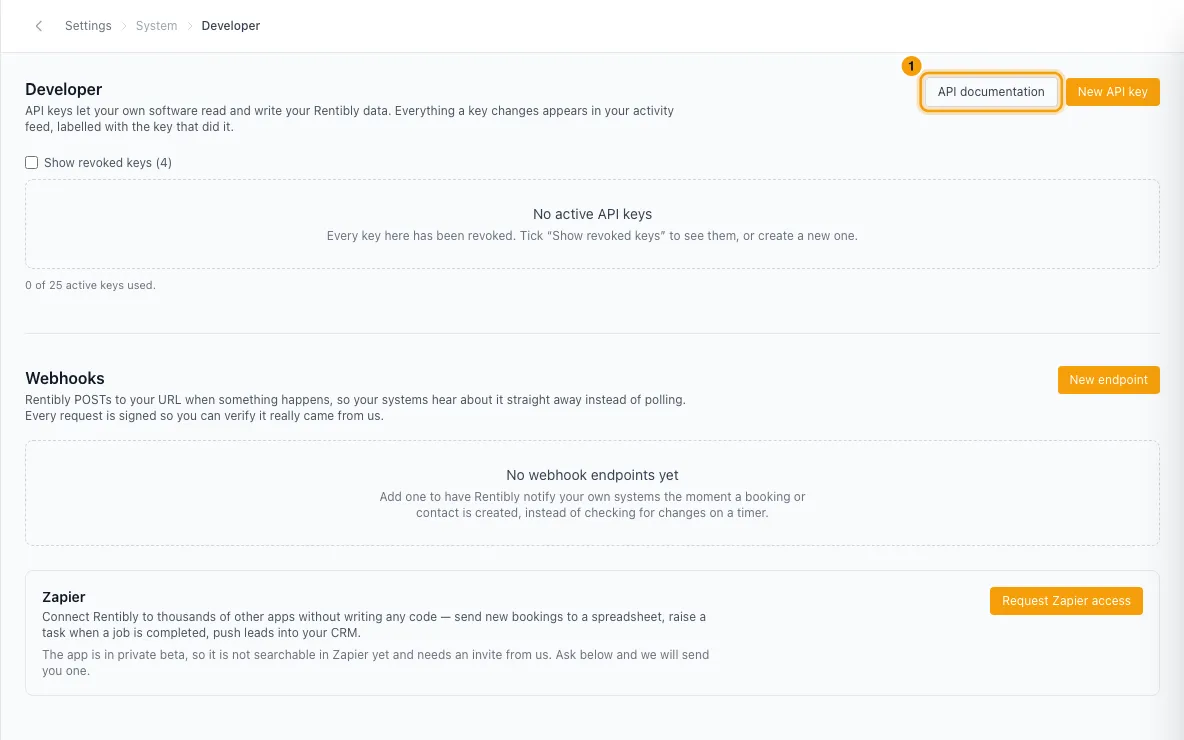
Read the API documentation
Click API documentation at the top of the page. It lists every endpoint, with examples.
Good to know
- The key and the signing secret are shown only once. Rentibly can't show them again. If you lose a key, revoke it and create a new one. If you lose a signing secret, rotate it.
- Permissions: a key can never do more than the permissions you tick. With none ticked, it can sign in but do nothing. Two are marked sensitive: reading door codes and entry instructions for every property, and reading your own costs and commission rates.
- You can have up to 25 active keys. Revoked keys don't count.
- The expiry date must be in the future. An expired key shows Expired and stops working.
- IP addresses: use IPv4 addresses or ranges such as
198.51.100.0/24. Anything Rentibly can't read is refused when you save, so a typo can't lock the key out by accident. Leave it empty to allow any address. - Revoked keys are hidden from the list. They are kept for your records. Tick Show revoked keys (N) above the list to see them again; the box only appears once you have revoked a key.
- Revoking is final. Any integration using the key stops working, usually at once, at most within 60 seconds. You can't switch a revoked key back on.
- Every key works on your live data. There is no test mode.
- Everything a key changes appears under User activity in the Activity Log, with the key's name as the user.
- Webhook URLs must start with
https://and be reachable from the internet. Private and internal addresses are refused. - Events you can send: a booking created, a booking cancelled, availability or prices changed, a contact created, an expense created, an operation completed, and a quote accepted.
- All or some events: leaving every event unticked also sends events Rentibly adds later. Ticking some sends only those, for good.
- Retries: if your system doesn't answer within 10 seconds, or returns an error, Rentibly tries again over about 6 hours. It does not retry most 4xx answers, because your system rejected the request.
- Failing and switched off: a delivery counts as failed only once all its retries are used up. The endpoint then shows Failing with a count such as 3/20. After 20 failed deliveries in a row it is switched off and shows Switched off with the reason. One successful delivery resets the count, and Switch on clears it. An endpoint you paused yourself shows Paused.
- Rotate secret takes effect at once. The next delivery is signed with the new secret.
- Delete also removes the endpoint's delivery history and can't be undone.
- Zapier is in private beta. You can't find the Rentibly app by searching in Zapier yet, so you need an invite.
- You need the Settings permission set to Access to manage keys and webhooks.
Rentibly AI can help
- Rentibly AI can't create or revoke keys or webhooks. Ask it to request Zapier access for you and it opens a support request with.
Still stuck?
Open Support from your profile menu in Rentibly, or email hello@rentibly.com — we answer fast.