Rentibly Contacts — Overview
8:59 · 16 chapters · Watch on YouTube
Chapters
Read the transcript
Hey, and welcome to this overview of Rentibly Contacts! I'll show you how to find anyone in seconds, open their whole history — guests, owners and vendors — and add a brand-new lead from start to finish. Here's everything we'll cover. Every chapter's start time is right here, and in your player — so if you're after something specific, jump straight to it. Let's dive in.
So — this is Contacts. Everyone your business deals with lives right here, in one list: your guests, your leads, your owners and your vendors. And see the Type column? One person can be more than one thing — a guest this year, an owner the next.
Looking for someone? Search by name, email or phone number. Ryan Young — and there's the match, with the phone number, the email, and when we last heard from Ryan. Filters narrow the list down — by where they came from, their country, VIP, whether you have a phone number, or a flag, like a guest you've marked as caution. Let's pick VIP only… and there are your best guests, each with a gold star by their name. Every column sorts and filters, too. Last Activity has quick ranges — today, the last week, last year — or a custom range of your own. And Columns lets you choose what the list shows, and drag them into the order you like.
Now, the sidebar splits contacts by type. Hover Contacts, and there they are — leads, guests, owners and vendors. Let's open Guests. Each type gets the columns that matter for it. For guests, that's how many times they've booked, what they've spent with you, and when they last stayed — so your regulars are easy to spot. For owners, it's their onboarding status and when their contract started. And for vendors — the company, the services they cover, and their rating, so you know who to call when the air conditioning breaks.
Click any contact, and their whole story opens. Ryan here has booked with us ten times — over thirty thousand dollars — and up top, the date of the latest stay. Overview holds the essentials — email, phone and WhatsApp number, country, the ID details you need at check-in, and any notes. And from up here, you can message Ryan on WhatsApp or by email without leaving the page. Bookings lists every stay Ryan's had with you — the property, the dates, the status, and what it was worth.
Credits is goodwill money — if something goes wrong on a stay, you can give a guest credit to spend on the next one, and it's all tracked right here. Preferences remembers what a guest likes — a quiet room, an early check-in. Your team can add them, or Rentibly AI picks them up from their conversations, and they show up in your briefings before the guest arrives. And Marketing shows whether Ryan's agreed to hear from you — by email, and on WhatsApp — so your campaigns only ever reach people who said yes.
Vendors get a profile of their own. AllTrade Repairs: what they do, their rating, and their recent jobs — how many they've taken on, and how many they've finished. Pricelist is what they charge for each kind of job — a check-out clean by the number of bedrooms, say. So when you assign them an operation, the cost fills itself in. And Team holds the people who work for them — each one a contact in their own right, with their own phone and their own history.
Owners get the fullest profile of all. Abigail has two properties with us, they've taken in over seven hundred thousand dollars, and Abigail's been with us since August twenty twenty-five. The running balance tells you where you stand — right now, we owe this owner about twenty thousand dollars. Then the average commission, and every property they own, with their share of each one. And this switch gives the owner their own login to the owner portal, to see bookings and statements for themselves.
Statements are the monthly reports — what the properties earned, your commission, and what's left for the owner — each one approved, released, and marked paid when the money goes out. Payouts is the money you've actually sent — the amount, how it was paid, the bank reference, and whether it's cleared. Expenses is everything charged against the owner's properties — your commission, occupancy tax, cleaning — each one tied to the booking it came from. And Financial Settings is how the owner gets paid — bank details, and the rules for how statements are worked out.
Now let's add someone new. A call's just come in from Maya Torres, asking about a spring getaway. Add Lead — first name, last name, an email and a phone number. That's all it takes to start — everything else can be filled in later, as you get to know them. Because I started from Leads, Maya's already marked as a lead — so I'll just jot down the request. A family of four, two bedrooms, close to the beach. Create Contact — and there's Maya, at the top of your leads. A lead's profile counts what matters before that first booking: the inquiries they've made, the quotes you've sent, and when you were last in touch. And everything we typed in is right here.
Notes are for your team. Mention a teammate with the at sign and they're notified — or just leave a reminder for whoever picks this up next. Post Note — and it's saved, with who wrote it and when. And the day Maya books, this same profile turns into a guest's: every stay, every payment, all in one place.
A few more things worth knowing. Say a guest has given you trouble — or a lead asks to pay outside the platform. Open the contact, and from the menu, Flag contact. Caution warns your team but still lets them book; Blocked is a hard stop. Add the reason, so whoever deals with them next knows why. Flag Contact — and the warning's on the profile, with the reason and the date. It follows them, too: on their inquiries, and beside their conversations in the Inbox. Here on Inquiries, Maya's inquiry carries the flag too — so whoever takes the next call is warned before they quote. Once it's sorted, the flag comes off just as easily.
Same person, two contacts? It happens — a guest books once by email and once by WhatsApp. Link to existing contact finds the other record, shows you exactly what moves across before anything happens, and you choose which one to keep. A merge can be undone for thirty days. Pick which record survives, and the other one's bookings, inquiries, messages, payments and documents all move across to it. These two are different people, so I won't merge them — Cancel.
Preferences remember what each guest likes. Ryan always asks for extra towels — so I'll note it once, and it shows up in the team's briefing before every stay. And if a stay goes wrong, you can make it right with a goodwill credit: an amount, when it expires, and why. The credit's held on the guest's profile, ready to use against a future stay. Every credit — issued, used, expired or voided — is kept on a ledger, with who gave it and why.
Finally, two tools in Settings. Potential Duplicates finds contacts that share an email or phone number, for you to review and merge. And Import and Export moves contacts in and out by spreadsheet — or prepares everything you hold on one person, when they ask.
Thanks so much for watching! If you're already on Rentibly, open Contacts and filter for VIP only — those are the guests worth looking after. And if you're not on Rentibly yet, book a demo call, and we'll show you all of this, live.
Find anyone in seconds, open a guest's, owner's or vendor's whole history, add a new lead, flag a contact, link duplicates, and track preferences and goodwill credits. Shown live on a real Rentibly workspace.
Up next
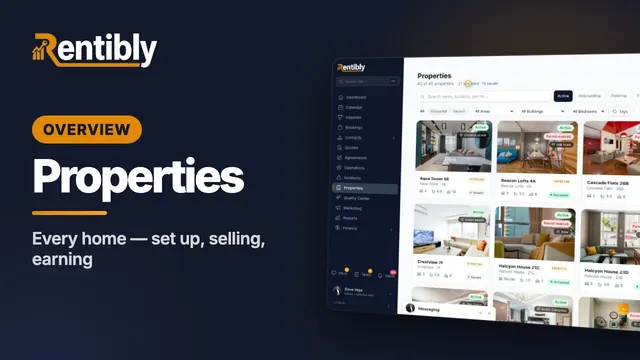 3:47
3:47Overview
Properties
Your whole portfolio at a glance — then inside one home: its calendar, rates and booking rules, fees, rooms, owners and channels, what guests see, and how it's earning. Shown live on a real Rentibly workspace.
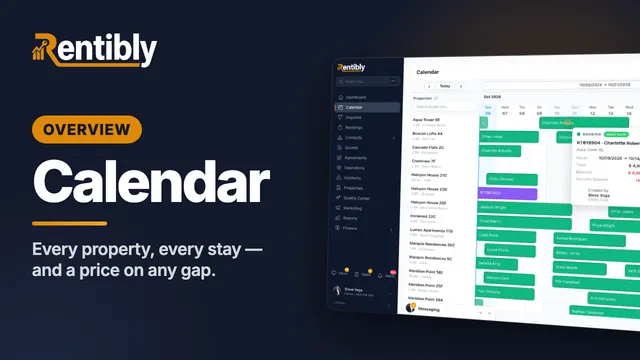 4:57
4:57Overview
Calendar
Read every property and every stay at a glance, get anywhere in the year in a couple of clicks, find exactly the right gap — and price it on the spot. Shown live on a real Rentibly workspace.
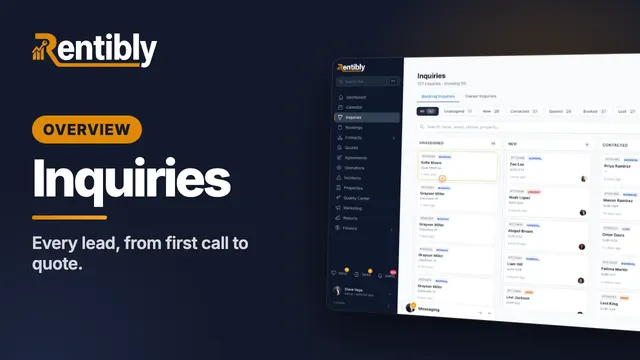 5:25
5:25Overview
Inquiries
Where every lead lands, how to find any of them in seconds — then one lead worked from the first phone call all the way to a quote: assigning, contacting, notes and @mentions, tasks, and what happens when a lead goes quiet. Shown live on a real Rentibly workspace.
Count your subscriptions. Then count ours.
A 30-minute demo on your numbers — every tool you pay for today, mapped to its native Rentibly module.
Book a demo