Add custom fields and tags
Updated 13 October 2026
Custom fields store extra information on your records, such as a VIP tier on a contact. Tags are coloured labels you put on records to group and filter them.
Steps
Add a custom field
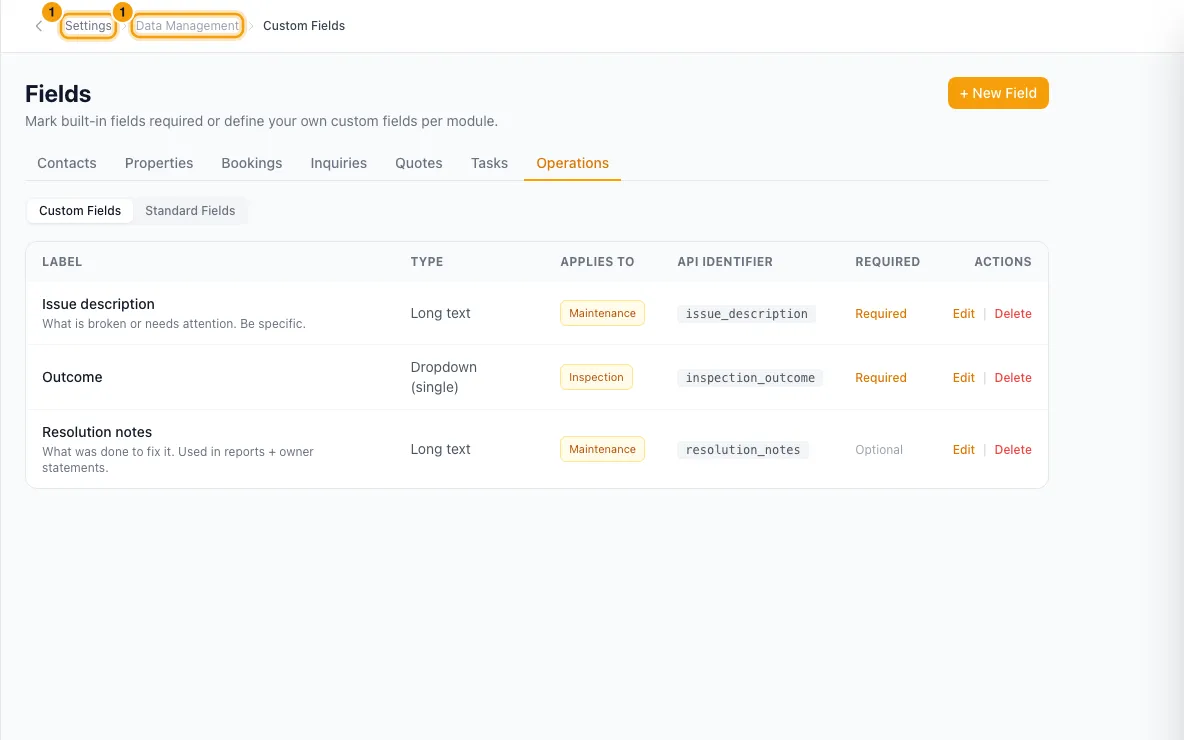
Go to Settings → Data Management → Custom Fields.
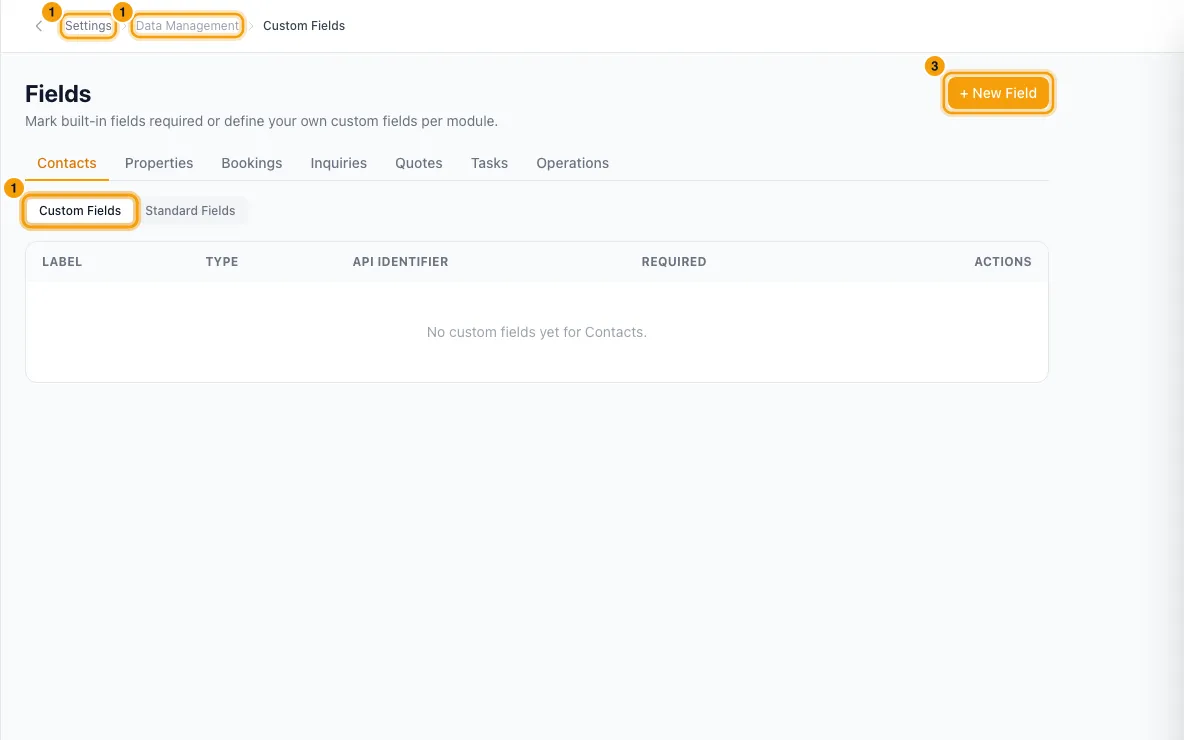
Pick the module tab: Contacts, Properties, Bookings, Inquiries, Quotes, Tasks or Operations.
Stay on Custom Fields and click + New Field.
Type a Label, for example "VIP Tier". The API identifier under it shows the name Rentibly will store it under (for example
cf_vip_tier).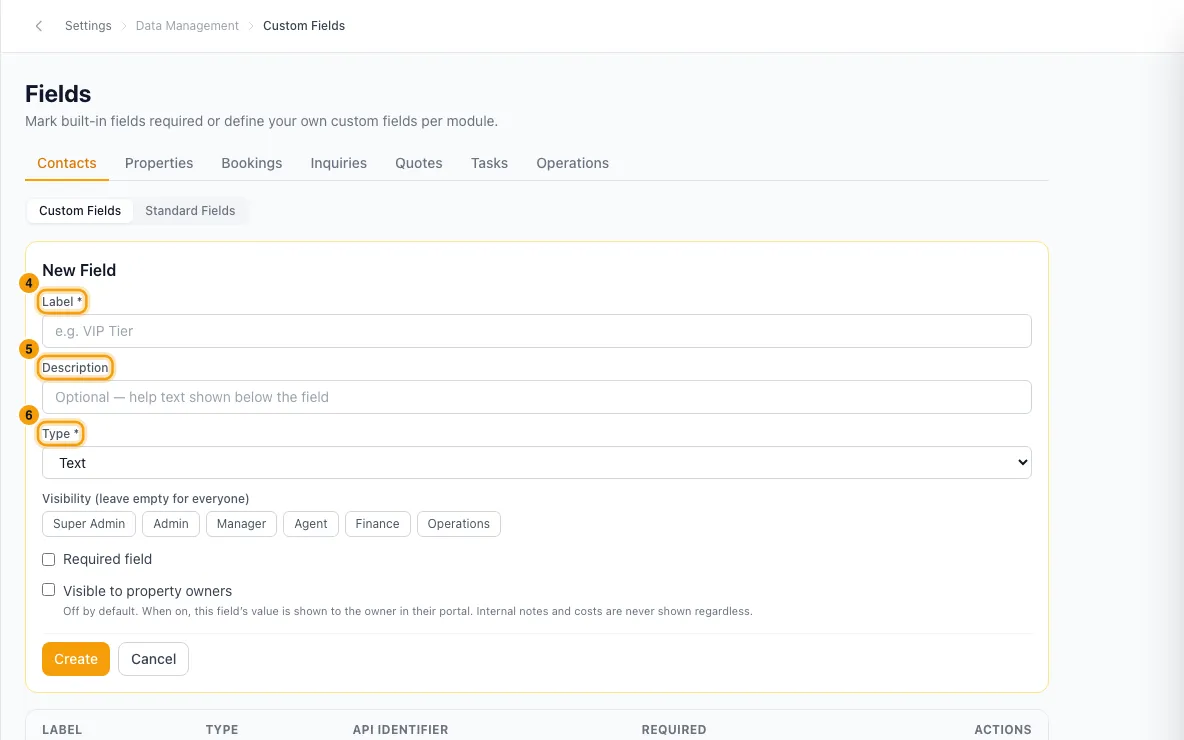
Optionally add a Description. It shows as help text under the field.
Pick a Type: Text, Long text, Number, Email, Phone, URL, Date, Date & Time, Dropdown (single), Dropdown (multiple) or Checkbox (yes/no).
For a dropdown, type the Options (one per line).
On Operations only, pick the categories under Applies to categories. Leave them all unpicked for every category.
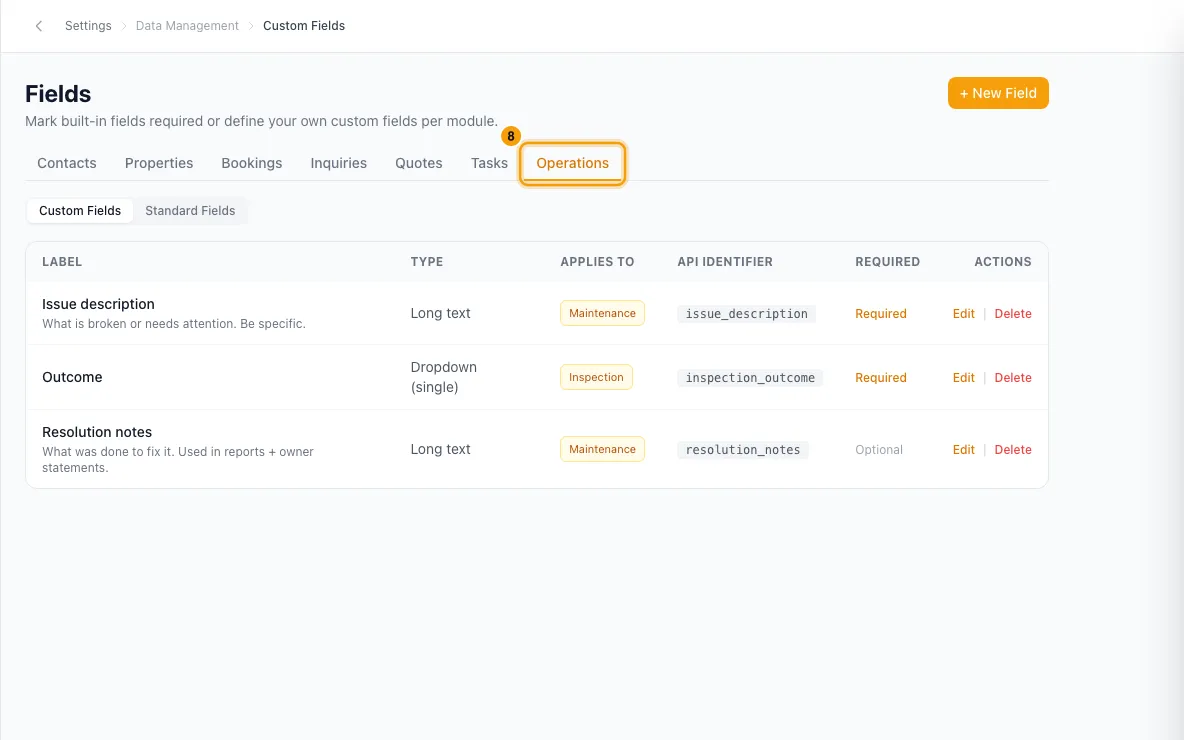
Tick Required field or Visible to property owners if you need them.
Click Create.
Change or remove a custom field
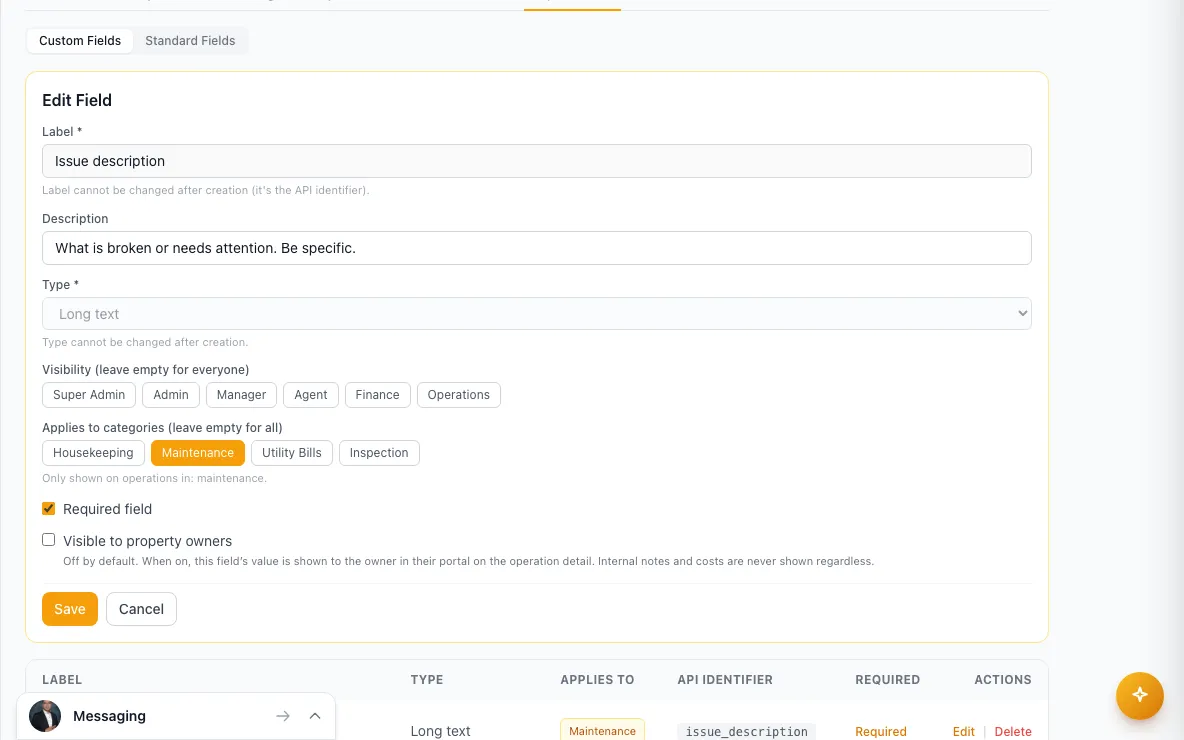
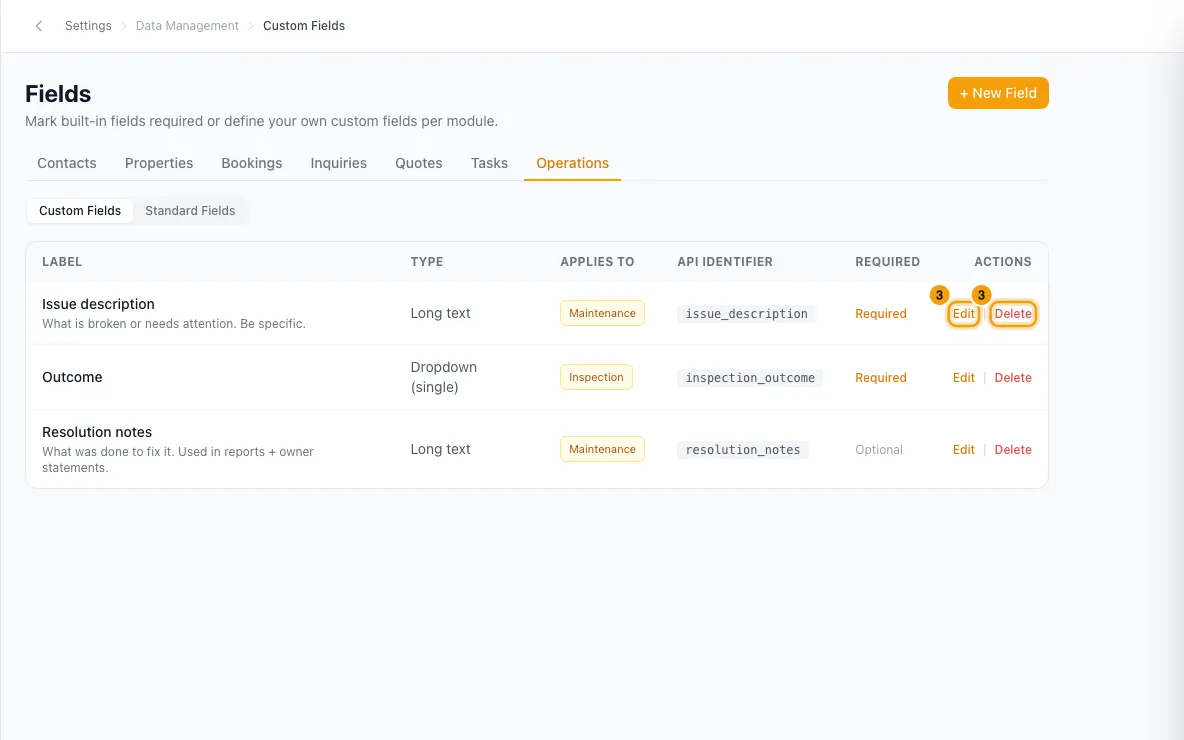
On the field's row, click Edit, change what you need, then click Save.
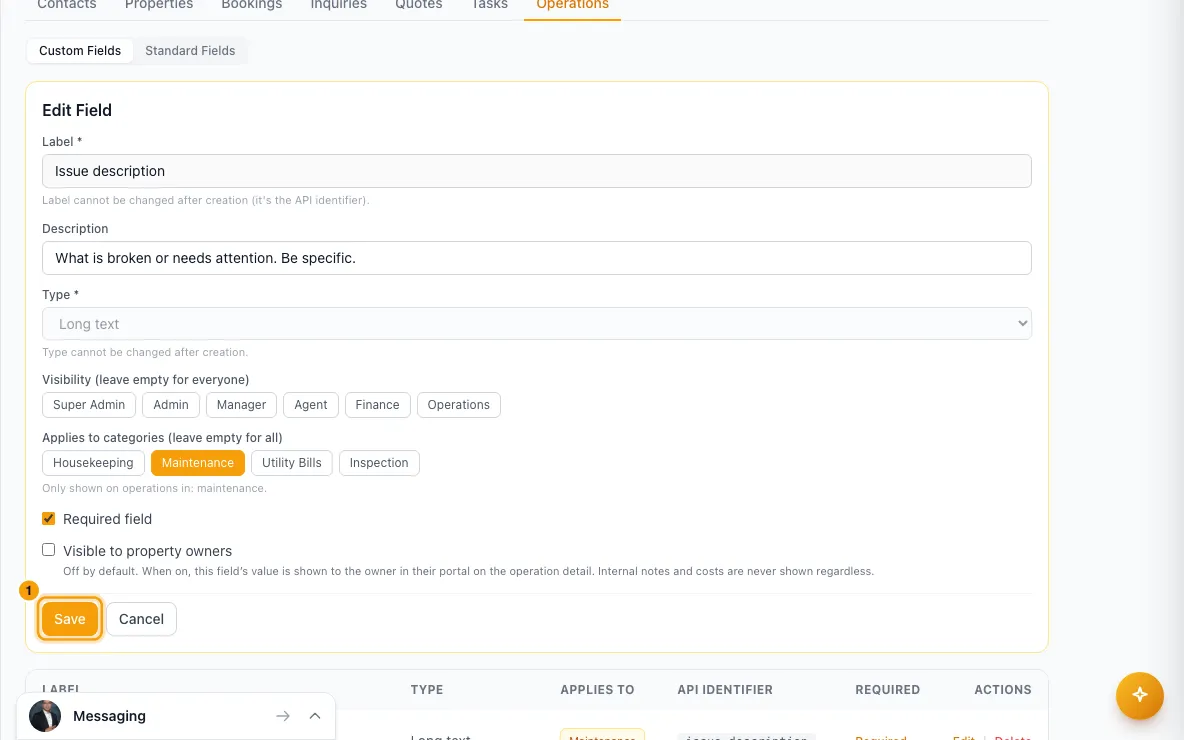
To remove it, click Delete, then Delete again to confirm.
Make a built-in field required
On Custom Fields, pick the module tab, then switch to Standard Fields.
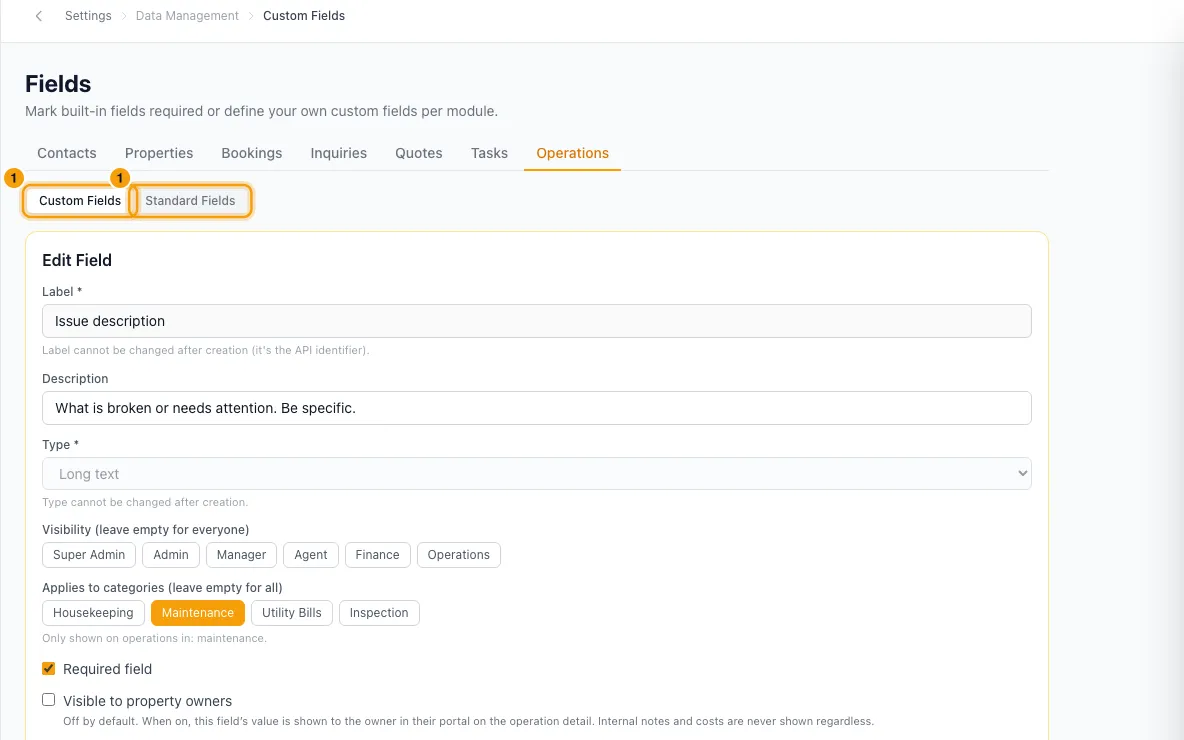
Tick the box in the Required column for the field. It saves straight away.
Add a tag
Go to Settings → Data Management → Reference Lists and open the Tags tab.
Click + Add Tag.
Enter a Name, then pick a Color and a Group (or No Group).
Under Modules (leave empty for all), tick where the tag can be used: Contacts, Inquiries, Bookings, Properties, Quotes, Agreements, Tasks, Operations, Incidents, Inbox tickets or Documents.
Optionally add a Description, then click Save.
Organise, merge or delete tags
To group tags, open the Groups tab, click + Add Group, enter a Name, Color and Description, then click Save. Then edit each tag and pick the group.
To combine two tags, open the menu on the tag you want to get rid of and click Merge into…. Pick the tag to keep under Merge into, then click Merge.
To change or remove a tag, open its menu and click Edit or Delete.
Good to know
Custom fields
- You can't change a field's Label or Type after you create it. The label is its API identifier. You can still change the description, options, visibility and the two tick boxes.
- If the identifier is already taken in that module, Rentibly adds a number, for example
cf_vip_tier_2. - A dropdown needs at least one option.
- Where you fill them in: fields for Contacts, Inquiries, Tasks and Operations appear on those records' forms. Fields for Properties, Bookings and Quotes don't have a box on those pages. They can be filled in by Rentibly AI. Fields for Contacts, Properties, Bookings, Inquiries and Quotes are also offered as placeholders in the template editor, under Custom fields for that category.
- Visible to property owners is off by default. Today the owner portal only shows it for Operations fields, on the operation's detail page, and only when the field has a value. Internal notes and costs are never shown.
- Visibility lets you pick roles (Super Admin, Admin, Manager, Agent, Finance, Operations). Rentibly saves your choice, but the code doesn't use it yet to hide the field from anyone.
- Deleting a field removes it from every form. The confirmation warns that the data in it will be lost.
- Standard Fields: some fields are always required and show Required (locked), for example a contact's First Name and Last Name. Fields marked — can't be made required. A required standard field is checked when someone creates a record by hand, and when Rentibly AI creates a contact for you. Automations and incoming messages can still create records without it. Changing an existing record only fails if someone clears that field.
Tags
- A tag can only be put on a record if it exists here and is allowed for that module. Rentibly drops a tag that isn't in this list.
- Used shows how many records carry the tag.
- Renaming a tag renames it on every record that has it. The Contacts and Properties lists show the new name straight away, and a list filtered by the old name no longer shows those records.
- Deleting a tag removes it from every record. The confirmation shows how many times it is used.
- Merge into… moves every record from one tag to the other, then deletes the first tag. A record that had both keeps the tag once. It can't be undone.
- Deleting a group doesn't delete its tags. They just become ungrouped.
- Use All Groups (including Ungrouped), All Modules and Search tags... above the list to find a tag.
Who can do this
- You need the Settings permission set to Access to change custom fields and tags. Everyone in your team can see and use them.
- The Reference Lists page also holds Sources and Lost Reasons. See "Manage sources and lost reasons".
Rentibly AI can help
- It can fill in or clear a custom field on a record. It checks the value against the field's type and options, including Dropdown (single) and Dropdown (multiple) fields. It can't fill in a file field.
- It can add or remove a tag on a record. A record can hold up to 20 tags this way.
- It never creates new fields or tags. Add them here first.
Still stuck?
Open Support from your profile menu in Rentibly, or email hello@rentibly.com — we answer fast.