Manage sources and lost reasons
Updated 13 October 2026
Sources are the list of places your leads and bookings come from, such as Airbnb or Google Ads. Lost Reasons are the reasons your team can pick when they mark an inquiry as lost. Both live on the Reference Lists page, next to Tags.
Steps
Add a source
Go to Settings → Data Management → Reference Lists. The Sources tab opens first.
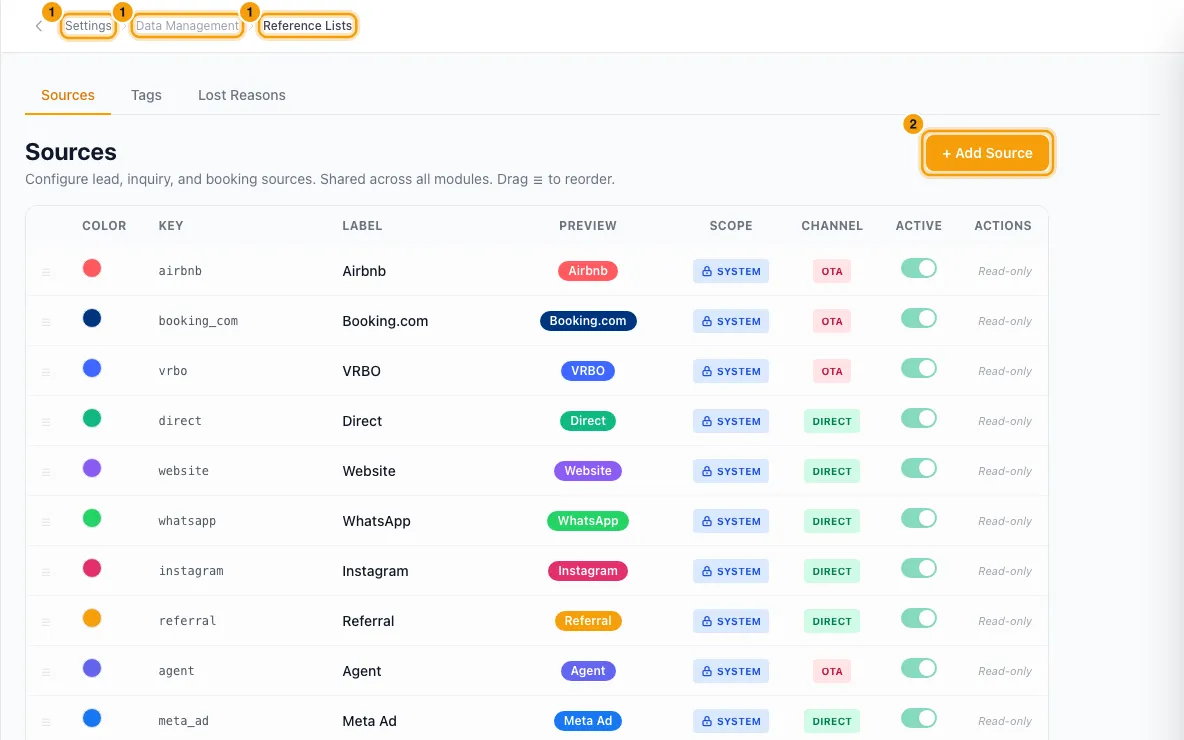
Click + Add Source.
Type a Key, for example
google_ads. Only lowercase letters, numbers and underscores are allowed.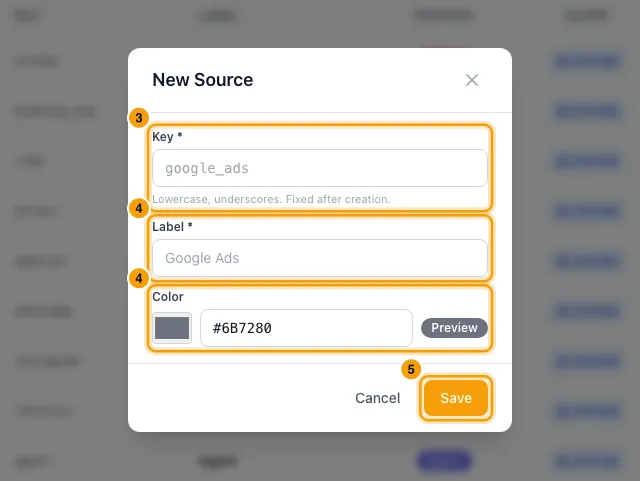
Type a Label, for example "Google Ads", and pick a Color.
Click Save.
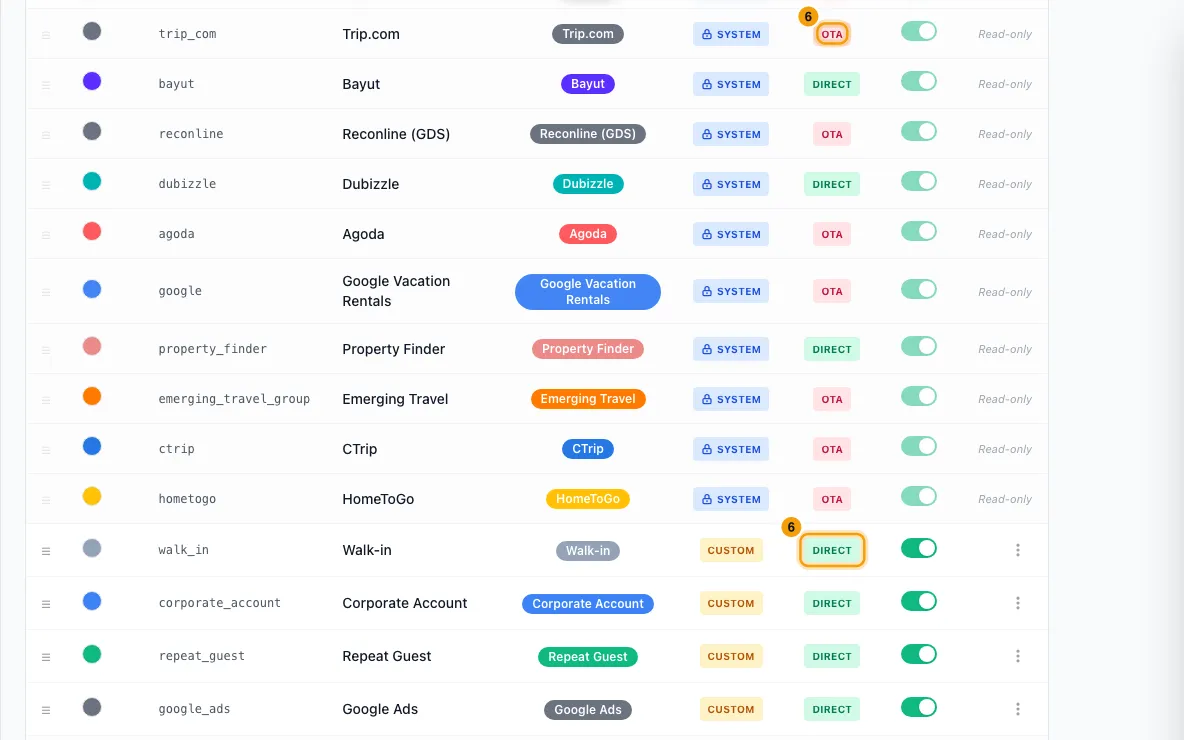
In the Channel column, click Direct or OTA to switch it. Pick OTA for a channel that takes a commission on each booking.
Change, hide or reorder a source
Open the source's menu and click Edit to change its Label or Color, then click Save.
Use the Active switch to hide a source from new records without deleting it.
Drag the ☰ handle to change the order.
To remove it, open its menu, click Delete, then confirm.
Add a lost reason
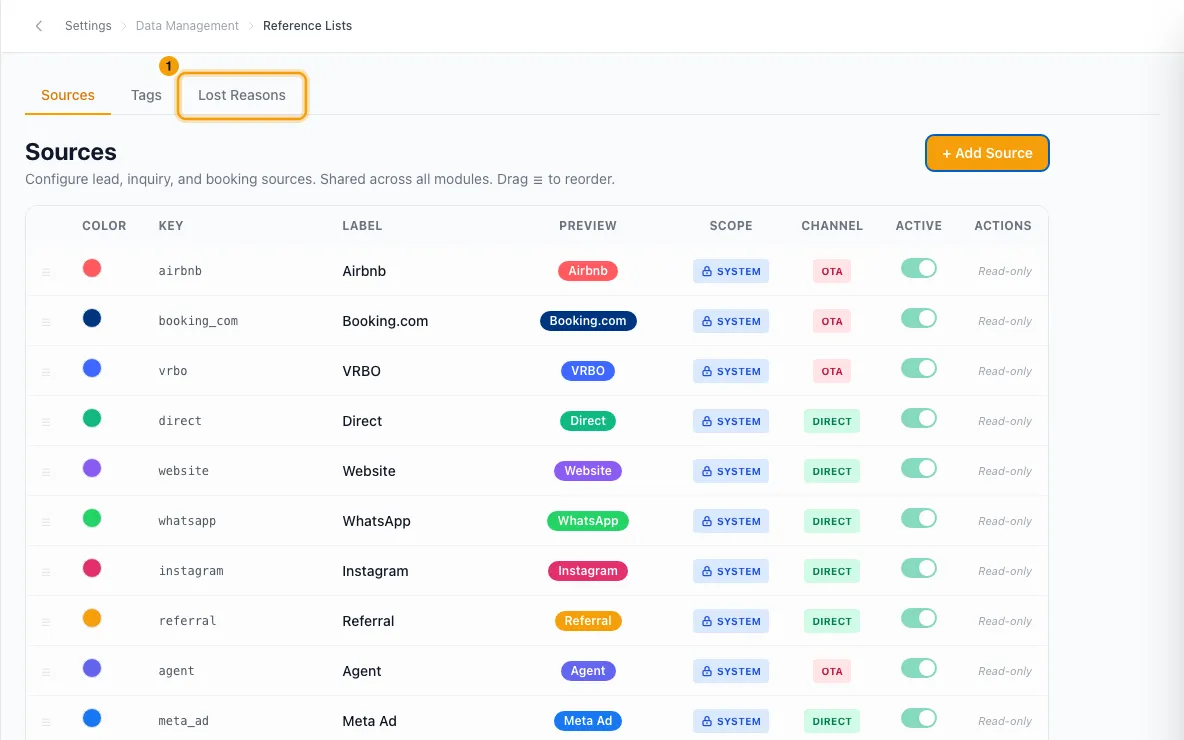
On Reference Lists, open the Lost Reasons tab.
Pick Booking Inquiries or Owner Inquiries. Each has its own list.
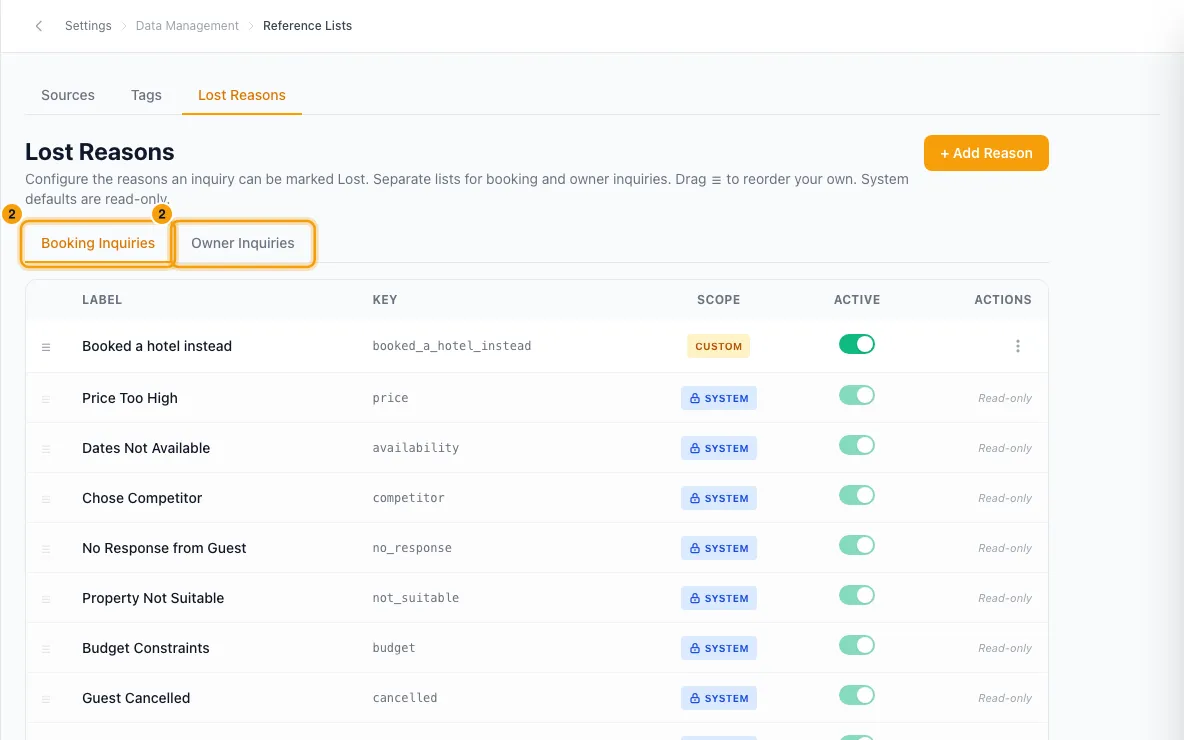
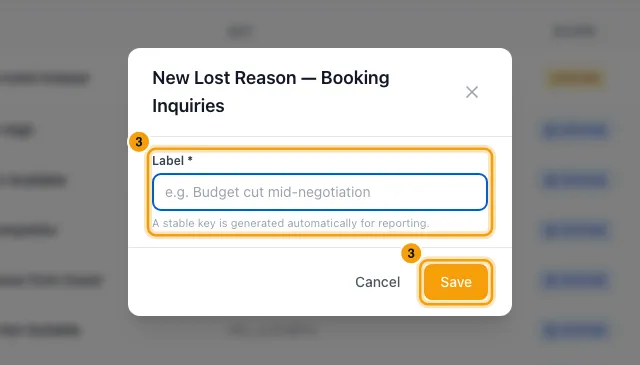
Click + Add Reason, type the Label, then click Save.
Use Edit, Delete, the Active switch and the ☰ handle the same way as for sources.
Good to know
- System rows are built in and shared by every Rentibly account. They show Read-only: you can't edit, hide, delete or move them. Your own rows show Custom.
- A source's Key can't be changed after you create it, and it must be different from every other source, including the built-in ones.
- For a lost reason, Rentibly makes the key from the label for you, so reports stay consistent.
- Turning Active off hides a source from the source pickers, and a lost reason from the Lost Reason list. Records that already use it keep it.
- Deleting a source or a lost reason doesn't change records that already use it. They keep the value.
- OTA or Direct feeds the dashboard's direct-versus-OTA revenue figures. Built-in sources have this set for you.
- Changes to sources may take a few minutes, or a page refresh, to show in pickers across the app.
- You need the Settings permission set to Access to change these lists. Everyone in your team can see and use them.
- For tags, see "Add custom fields and tags".
Rentibly AI can help
- It can change an inquiry's source. The source must be in this list and active.
- When it marks an inquiry as lost, it matches your words to a reason in this list. If nothing matches, it uses Other and keeps your words in a note.
- It can't add, edit or delete sources or lost reasons.
Still stuck?
Open Support from your profile menu in Rentibly, or email hello@rentibly.com — we answer fast.