See who did what (Activity Log)
Updated 13 October 2026
The Activity Log shows what people in your account changed, when, and what each record looked like before and after. It also lists what Rentibly's background jobs and connections did, and any alerts raised for your account.
Steps
Go to Settings → System → Activity Log.
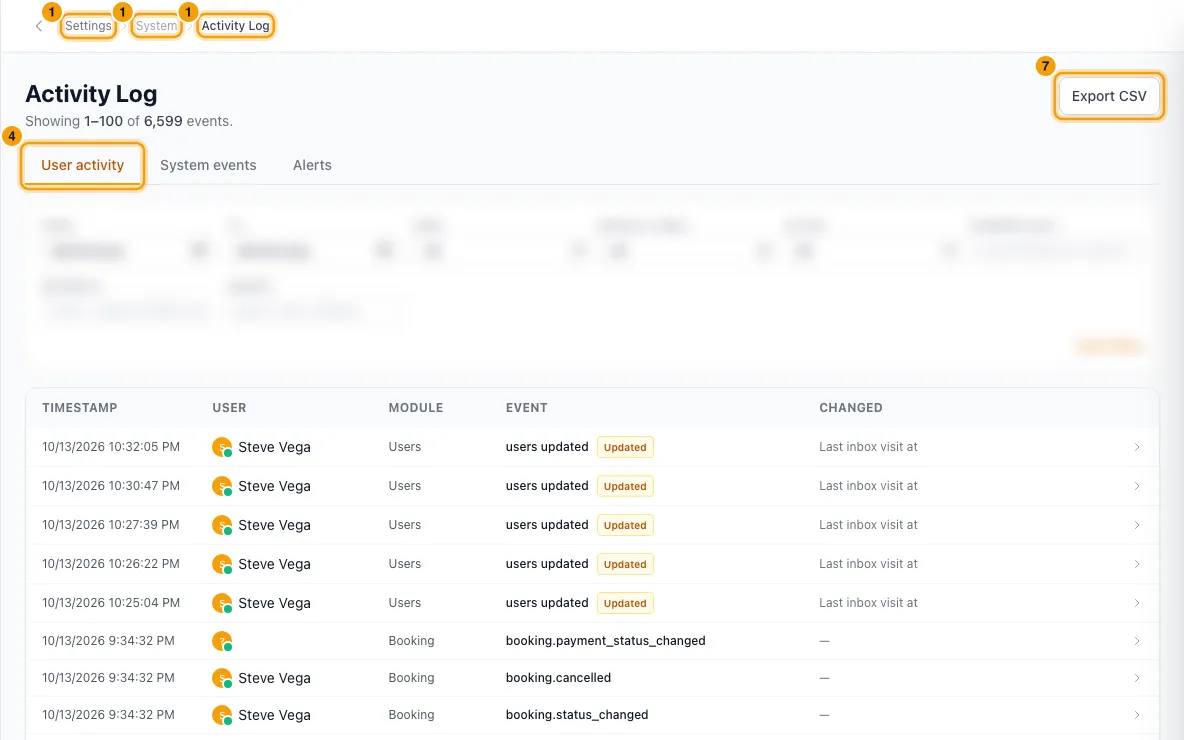
Pick a tab:
- User activity: changes made by your team, by guests (for example signing an agreement), by field staff in the Ops Portal, and by your API keys.
- System events: things done by background jobs, webhooks, channel sync and incoming email.
- Alerts: problems Rentibly flagged for your account, each marked Critical, Warning or Info.
Narrow the list with the filters: From, To, User (or Actor on System events, Severity on Alerts), Module / table, Action and Search. Click Clear filters to start again.
On User activity, you can also filter by Changed field (for example
archived_at) or paste a Record ID to follow one record.Click a row to open it. For a change, you see each field's Before and After value. For a new or deleted record, you see every field of the record. For other events, you see the details that were recorded with them.
To see everything that ever happened to that record, click Show full history for this record.
To download the list, click Export CSV (on User activity only).
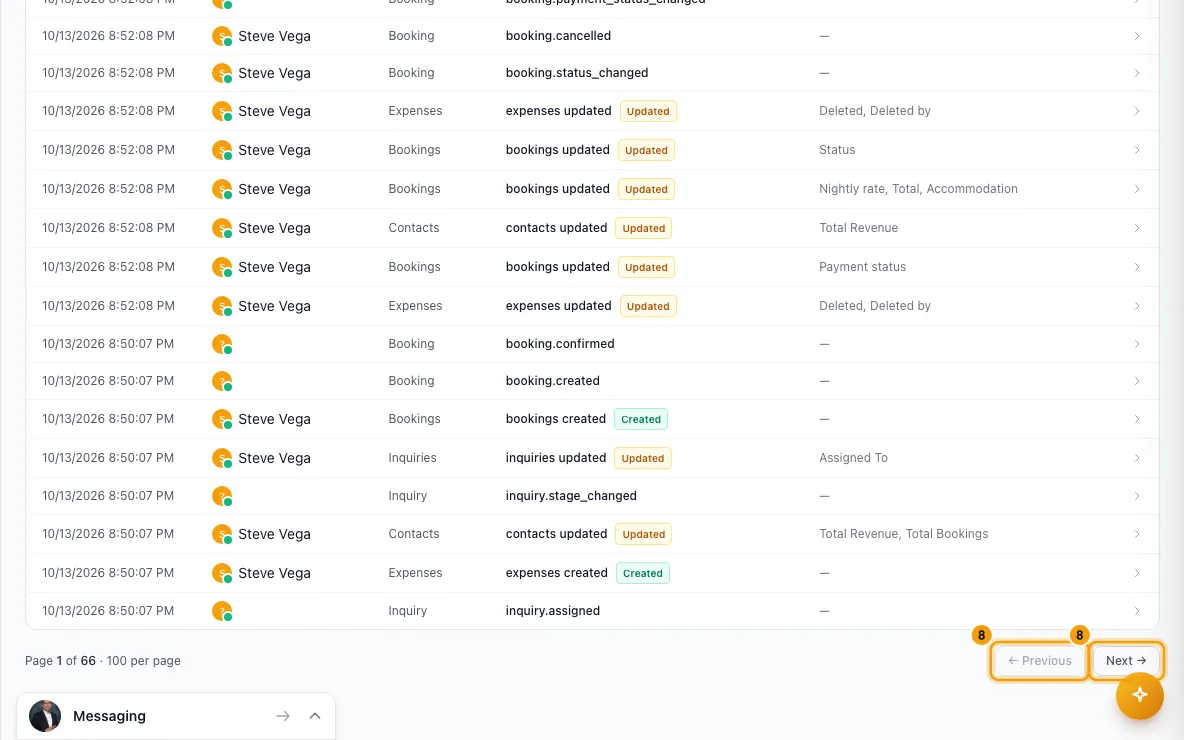
Use ← Previous and Next → at the bottom to page through.
Good to know
- What counts as user activity: actions by your team, guests, field staff and your API keys. A change made through an API key shows the key's name in the User column.
- Payments received, failed or refunded, chargebacks and security deposit captures always appear under User activity, even when a payment provider triggered them.
- Some areas keep their own history instead: inbox conversations, agreements, rate changes, Rentibly AI actions and door access. Look on those records' own pages.
- Modules, tables and fields are shown by name (for example Booking charges, Check-in). Hover over one to see the technical name, which is what Changed field and Record ID filter on.
- Passwords, keys and other secrets in a change are shown as
[REDACTED]. - How long it's kept: System events and Alerts are kept for 60 days. User activity has no automatic clean-up.
- To includes the whole of the day you pick.
- Export CSV uses the same filters as the list, including Search, Changed field and Record ID. It holds at most the 5,000 newest matching events, with the time, user, module, action, event, record ID and IP address.
- User activity shows 100 events per page; System events and Alerts show 50.
- On Alerts, the Severity filter applies to the whole list, so the totals and pages count only that severity.
- The log is read-only. Nothing here can be undone or edited. To restore a deleted record, use Settings → System → Recycle Bin.
- For emails, WhatsApp and push notifications, see Check whether a notification was sent (Notification Log).
- You need the Settings permission set to Access to open this page.
Rentibly AI can help
- Rentibly AI can't read the Activity Log yet.
Still stuck?
Open Support from your profile menu in Rentibly, or email hello@rentibly.com — we answer fast.