Send a payment link or charge a saved card
Updated 13 October 2026
Ask a guest to pay online with a secure payment link, or charge a card they have already saved with you. Both run through your Stripe account, and the payment lands on the booking by itself.
Steps
Send a payment link
Go to Bookings, open the booking and go to the Payments tab.
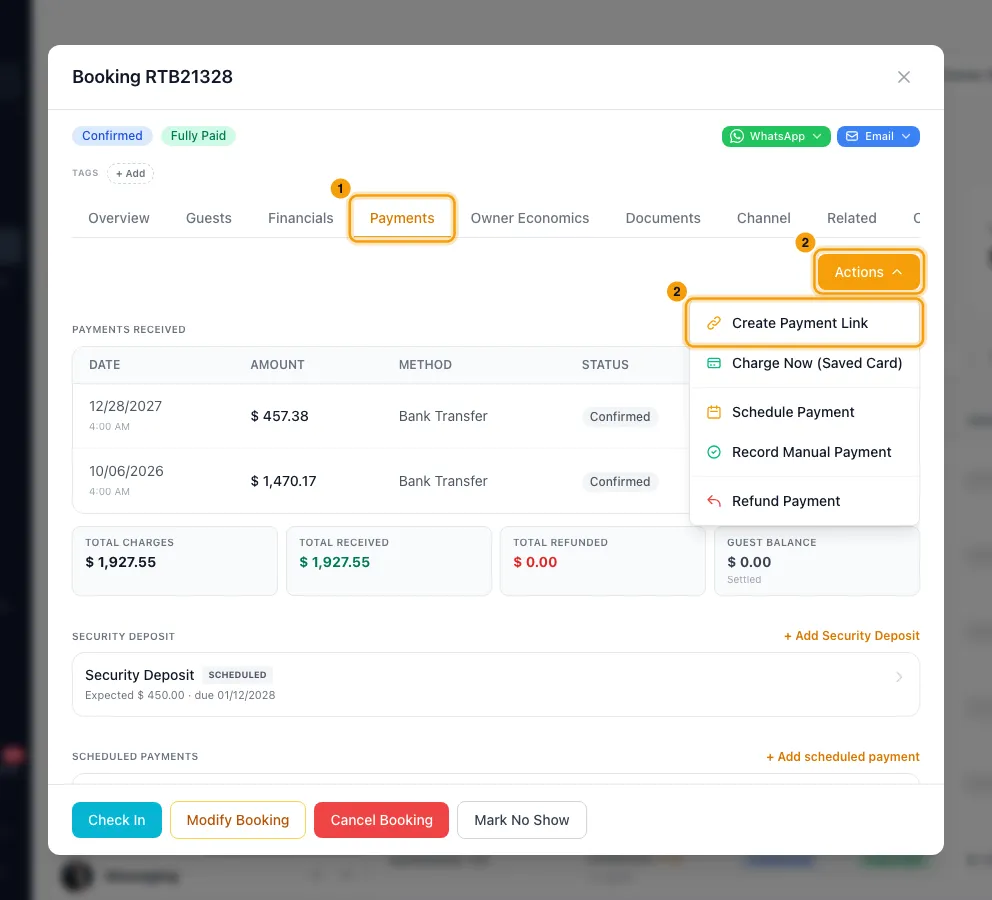
Click Actions → Create Payment Link.
If the booking has open installments, pick the one this link pays, or choose Not related — record at booking level.
Check the Amount. It starts at what the guest still owes.
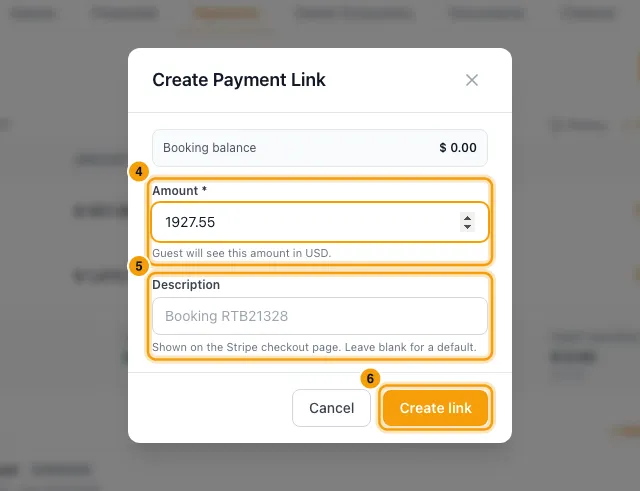
If you like, change the Description. The guest sees it on the payment page.
Click Create link.
Click Copy link and send it to the guest yourself, or use Send to guest:
- Email template: pick an email template, check the preview, then click Send.
- WhatsApp template: opens a new WhatsApp message in the Inbox with the link ready to use.
Click Done.
Charge a saved card
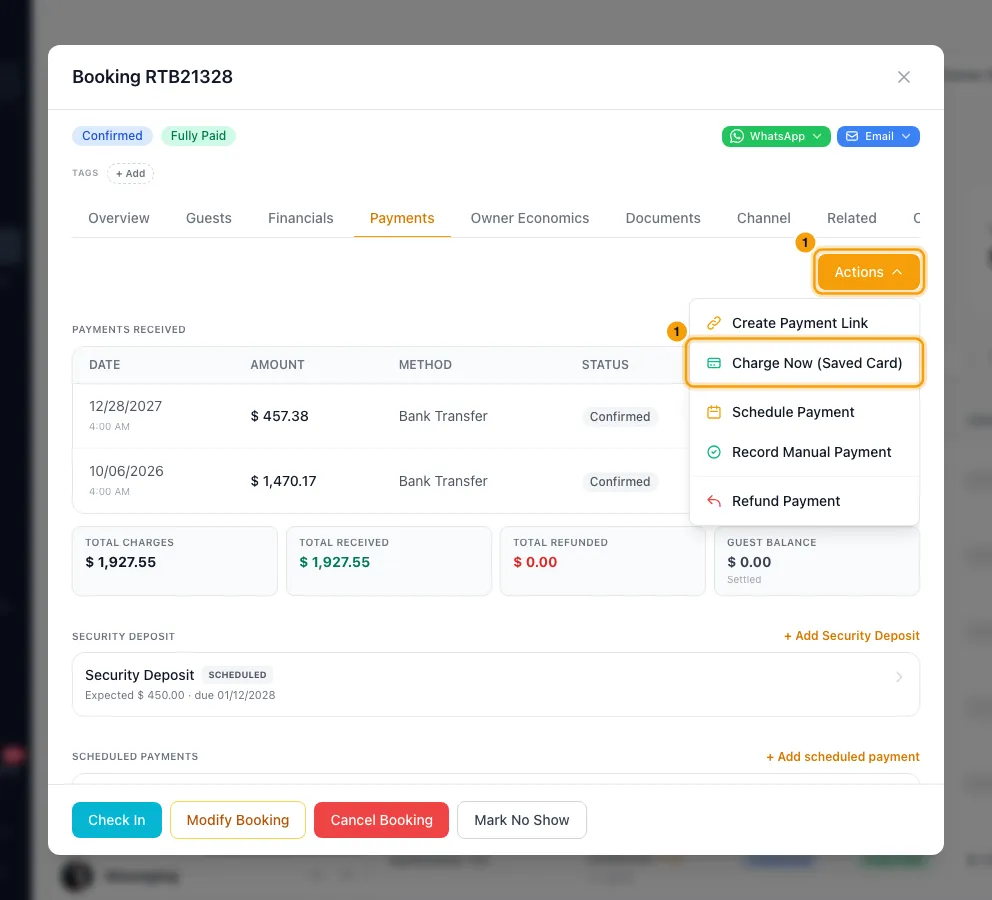
On the booking's Payments tab, click Actions → Charge Now (Saved Card).
Under Card to charge, pick the card.
Enter the Amount.
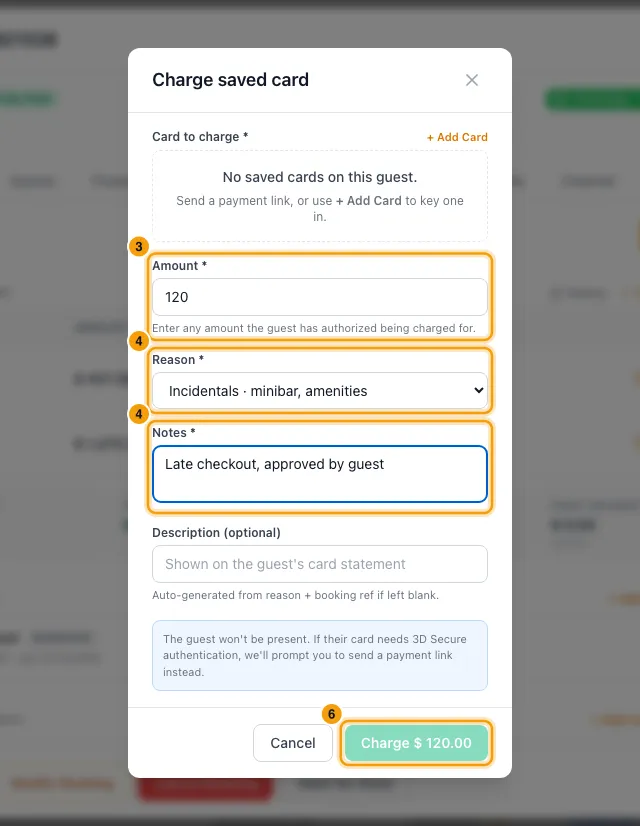
Choose a Reason and write Notes (at least 3 characters).
If you like, add a Description. It shows on the guest's card statement.
Click Charge and the amount.
Check, resend or cancel a link
On the Payments tab, click View Payment Links.
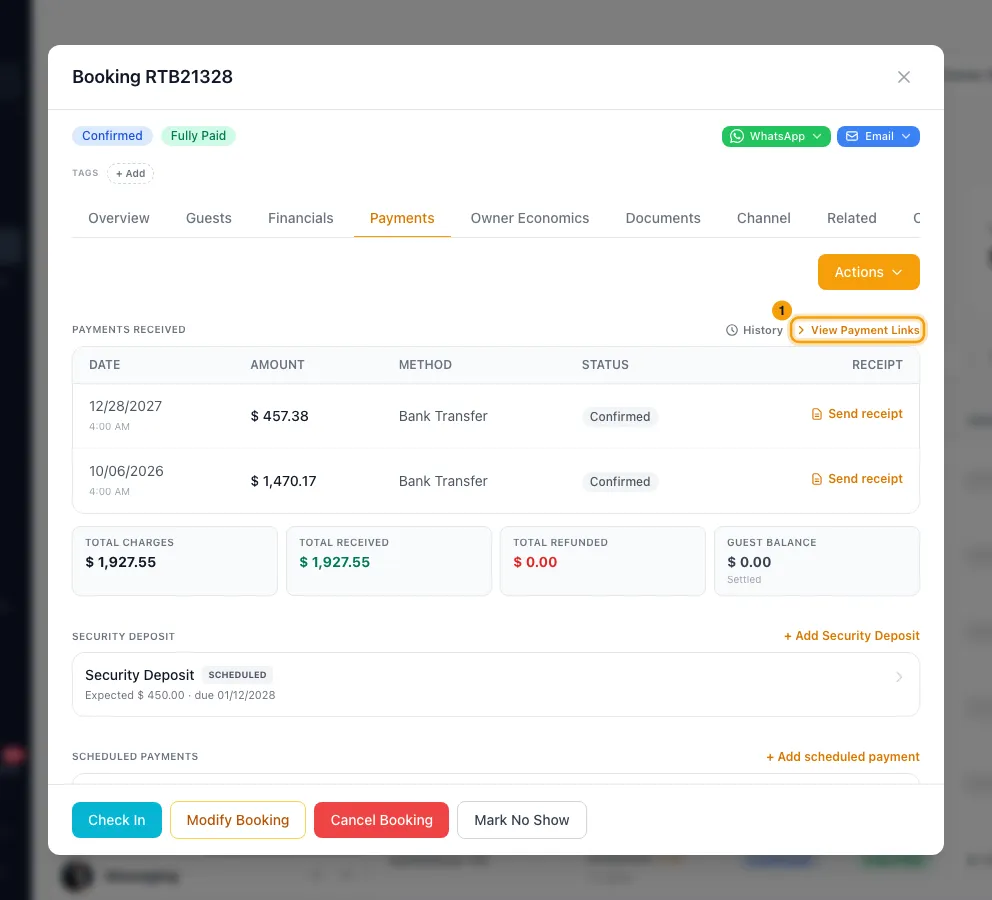
Click Copy on a row to copy its link again.
Click a row to open Payment link details: its status, why it failed, and its timeline.
To stop a link from being used, click Cancel link and confirm.
Send a receipt
Under Payments received, click Send receipt on the payment's row.
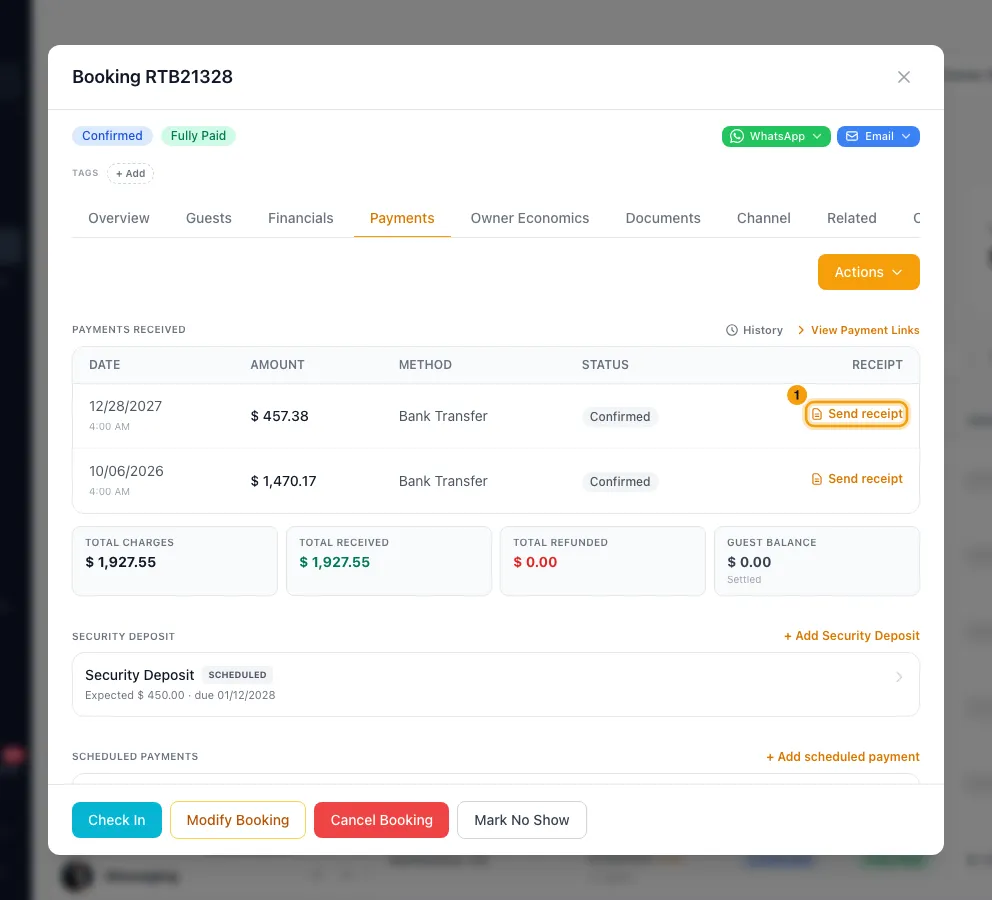
Pick a template, check the preview, and click Send. To change the wording first, click Edit email, then Send edited.
See the payment history
Click History next to Payments received.
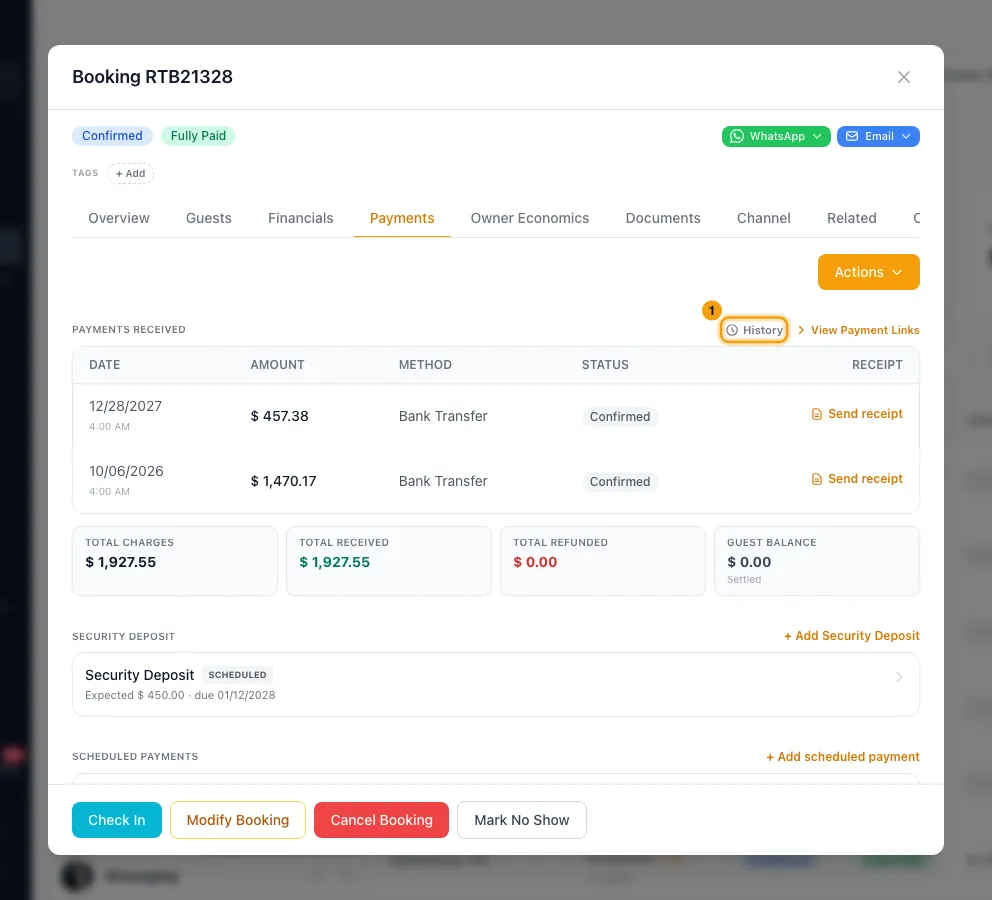
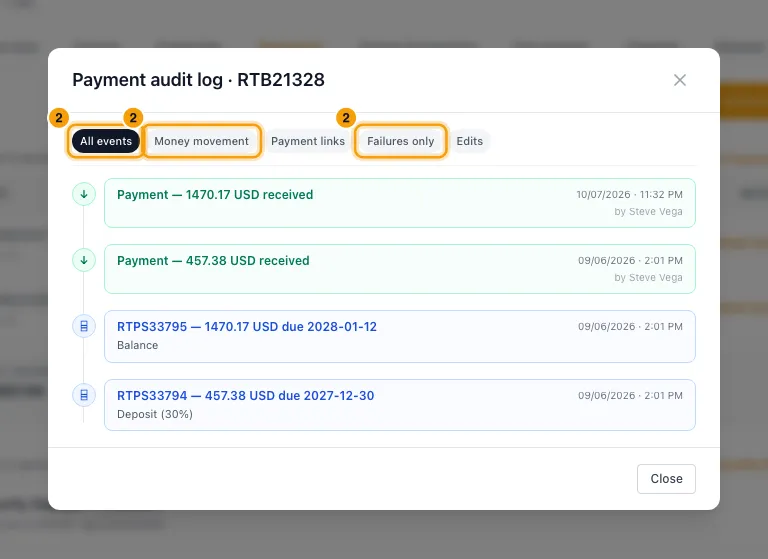
Filter by All events, Money movement, Payment links, Failures only or Edits.
Good to know
- A payment link uses your Default payment processor. If you have none, you see: "No default payment processor is configured." See Connect Stripe to take payments.
- A link expires after 30 days, or the day after check-out if that comes first. A link made after check-out lasts 7 days. The guest sees "This link has expired" after that.
- There is only one live link at a time for the same thing: the booking, one installment, or one deposit. If you create the same link again (same amount and description), you get the same one back, marked Reusing the active link. If you change the amount or description, the old link is cancelled and a new one is made.
- When the guest pays, the payment appears under Payments received by itself, usually within seconds. The guest gets the Guest — payment receipt email if that rule is on.
- If the guest's card is declined, the link is marked FAILED and can't be used again. Create a new one. Payment link details shows why it failed. The guest gets the Guest — payment issue email if that rule is on.
- When the booking has a guest contact, the payment page tells the guest their card will be saved for future charges on this booking. That saved card is what Charge Now and auto-collect use later.
- Email template only offers templates that contain the
{{ payment_link }}placeholder. Templates are in Settings → Templates. - Charge Now charges the card without the guest present. If the card's bank wants 3D Secure, the charge doesn't go through. Send a payment link instead, so the guest can confirm it.
- Charge Now needs a guest contact with a saved card. With no saved card, you see "No saved cards on this guest." To type in a card the guest gave you (for example over the phone, or a channel's virtual card), click + Add Card. See Ask Stripe to enable MOTO for typed-in cards.
- Reasons you can pick: Incidentals · minibar, amenities, Damage or loss, Late check-out fee, Early check-in fee, Additional cleaning, Additional guest / pet fee, Service add-on (concierge, transport, laundry), Booking modification (extra nights, rate change), Balance payment (outstanding), Security deposit top-up, Other. The reason and notes are kept with the charge.
- Charge Now isn't limited to the balance. Only charge what the guest has agreed to pay.
- On a cancelled or no-show booking, Charge Now warns you first: such charges are more often disputed, and a chargeback comes back to you. Click Charge anyway to go on. A payment link records the guest's own consent.
- A receipt only offers payment templates that fit that payment (money in, money out, or not yet paid). It is sent as an email to the guest from your Inbox.
- History lists payments, refunds, edits, payment links (created, paid, failed, cancelled, expired), changes to the booking total and new installments.
- To take a deposit or an installment, use its own row on the Payments tab: see Take, hold and return a security deposit and Schedule payments and installments on a booking. On an Authorization hold deposit, Collect Now (Run Card) places a hold on the card instead of charging it.
- You need the Bookings permission at Edit to create or cancel links, charge cards and send receipts. View is enough to see links and History.
Rentibly AI can help
- Rentibly AI can list payments that failed and installments that are past due, so you know who to chase.
- It can't create a payment link or charge a card.
Still stuck?
Open Support from your profile menu in Rentibly, or email hello@rentibly.com — we answer fast.