Schedule payments and installments on a booking
Updated 13 October 2026
Split what a guest owes into installments with due dates, for example a deposit now and the balance before arrival. Rentibly can charge the guest's saved card on the due date, or remind your team to collect it.
Steps
Add an installment
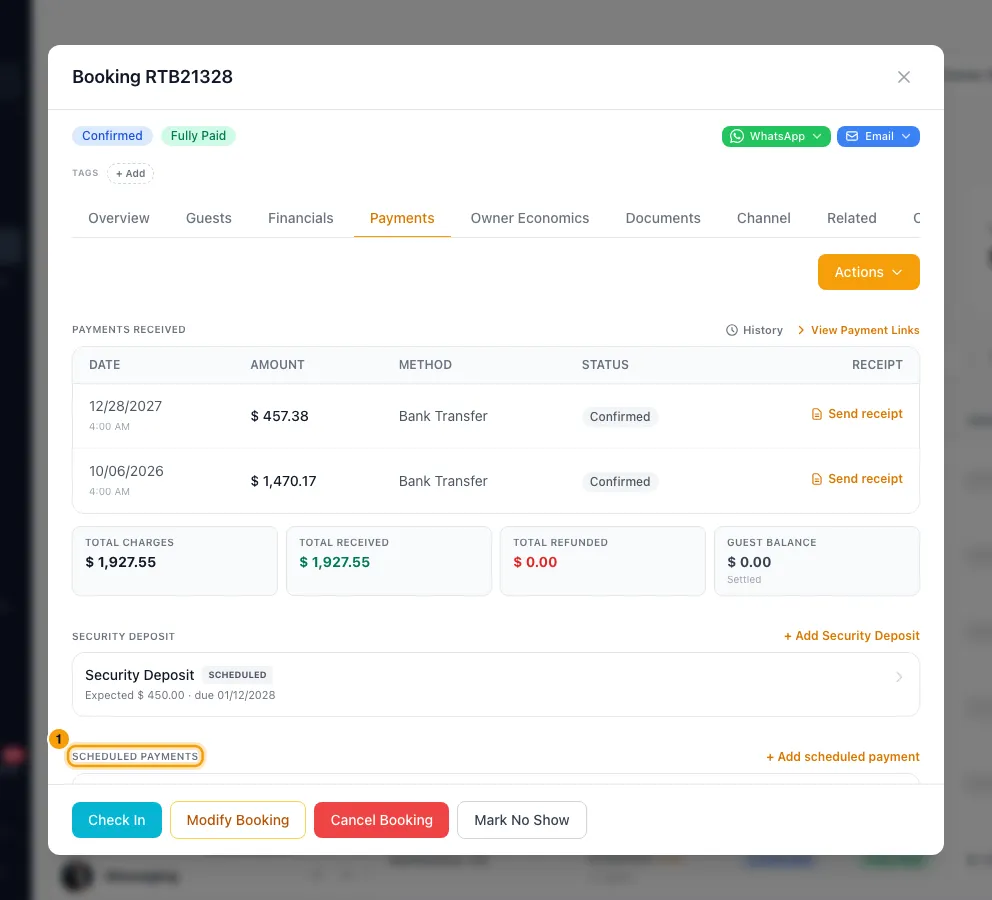
Go to Bookings, open the booking and go to the Payments tab.
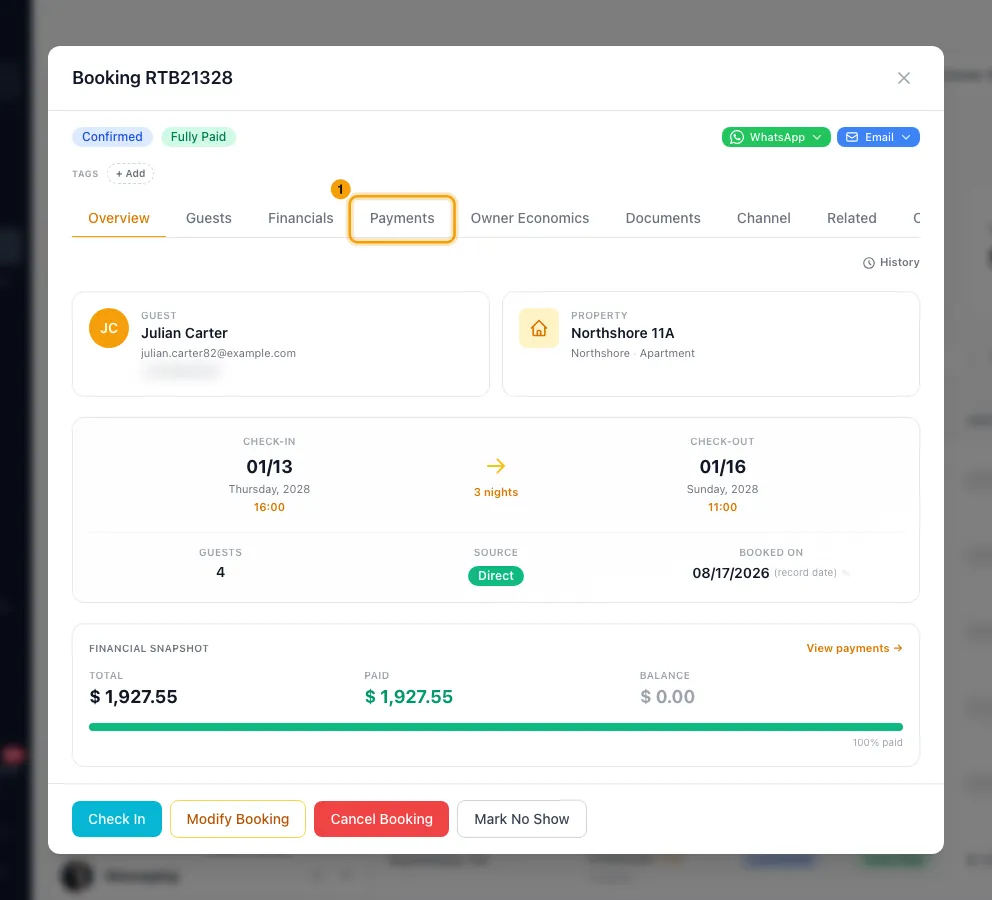
Click Actions → Schedule Payment. Or, under Scheduled payments, click + Add scheduled payment.
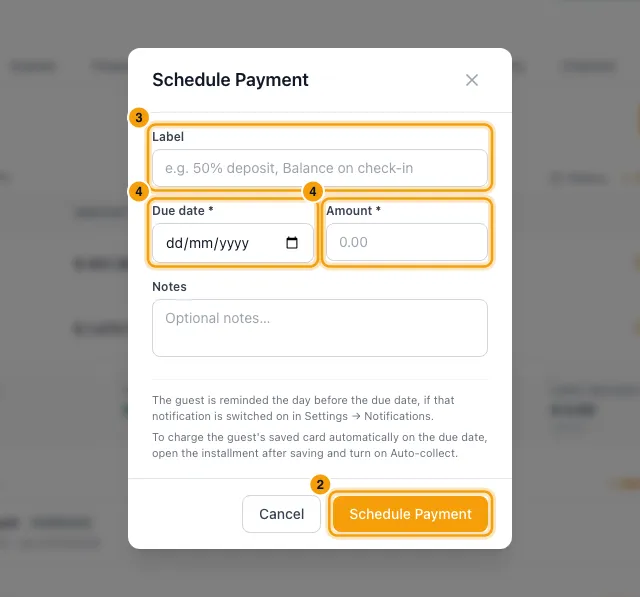
If you like, enter a Label, for example "50% deposit" or "Balance on check-in".
Pick the Due date and enter the Amount.
In the Schedule Payment window you can also add Notes.
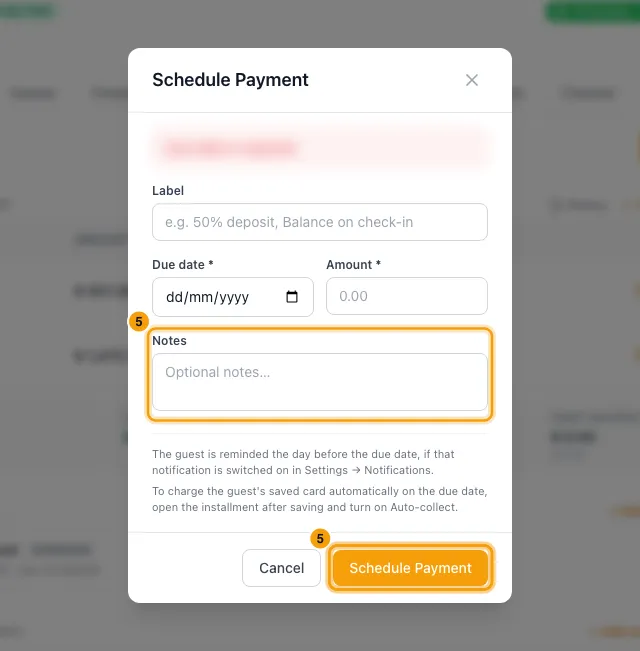
Click Schedule Payment (or Add scheduled payment).
Collect it automatically
Under Scheduled payments, click the installment.
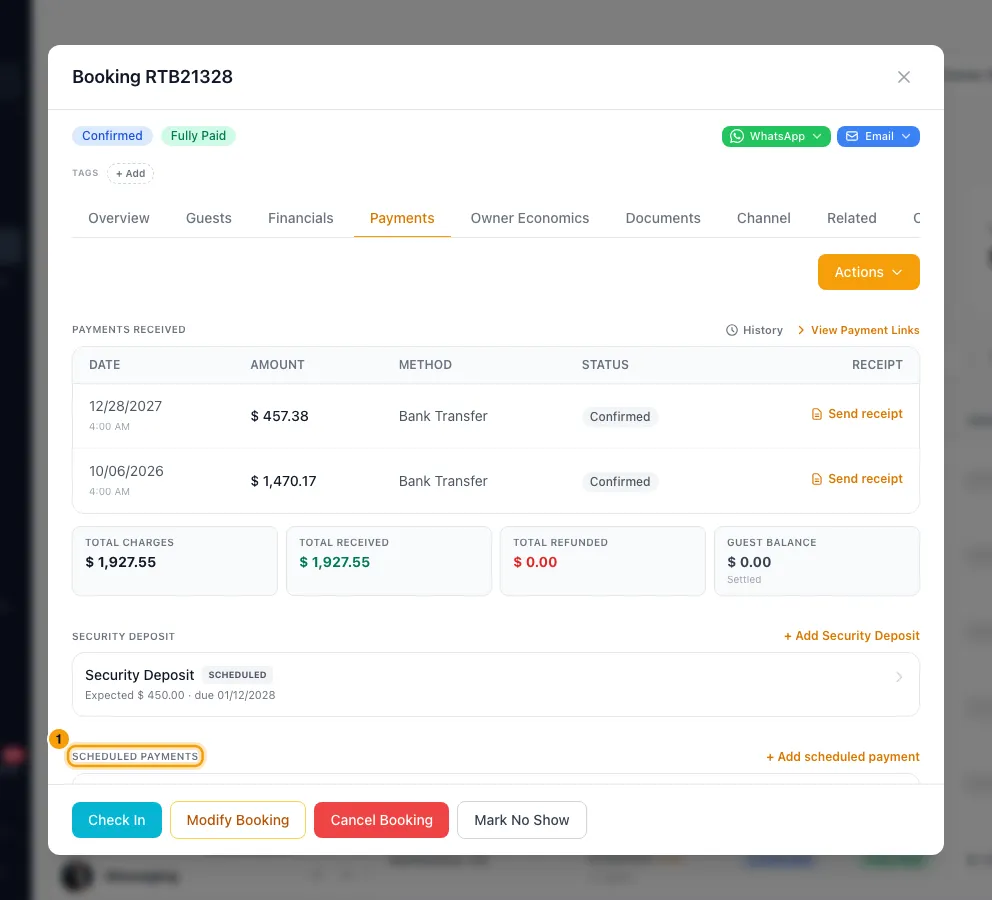
In the Scheduled Payment window, turn on Auto-collect.
Collect it now
Click the installment under Scheduled payments.
Click one of:
- Copy Payment Link: copies a link for what is still owed on it.
- Charge Now: charges the guest's saved card.
- Record Manual: records money you received another way. Pick the Date and Method, then click Record payment.
Change, cancel or delete it
Click the installment, then the ⋮ menu at the top.
Choose Edit details to change the label, due date, amount or notes, then click Save.
Or click Cancel installment to say the guest no longer needs to pay it. A cancelled one shows Reactivate installment.
Or choose Delete in the ⋮ menu to remove it completely.
Good to know
- Installments you add here start with Auto-collect off.
- With Auto-collect on, Rentibly charges the guest's default saved card on the due date. It does this after your Daily reminder time (Settings → Company Profile, Company, 09:00 unless you change it), in your account's timezone.
- If an automatic charge fails, Rentibly tries again once a day, up to 4 tries in all. Your team gets an Auto-collect failed alert after the first failure. The installment shows the attempt count, why it failed and when the next try is. Click Retry now to try again straight away, or Cancel future retries in the ⋮ menu to stop.
- If the guest has no saved card yet, nothing is charged and no try is counted. The installment waits, and is charged once the guest saves a card (for example by paying a payment link).
- With Auto-collect off, your team gets an Installment Due Today alert on the due date, and an Installment overdue alert once the date has passed.
- The day before the due date, the guest gets the Guest — payment due tomorrow email if that rule is on. It goes out with Auto-collect on or off, and its wording matches the installment:
- Auto-collect on, saved card on file: it says the payment will be charged automatically to their card (ending in its last 4 digits), so there is nothing for them to do.
- Auto-collect on, no saved card yet: it says no card is on file and asks them to reply so you can send a way to pay.
- Auto-collect off (or retries cancelled): it says the payment is collected manually and asks them to reply so you can send a way to pay.
- That sentence comes from the
{{ payment_collection_note }}placeholder in the template. If you rewrote that sentence in your own template, it stays as you wrote it, so check it still fits installments with Auto-collect on. - A channel's virtual card installment (labelled, for example, Booking.com virtual card) never sends the guest this email, because the channel pays it, not the guest. Your team still gets the reminder below.
- Your team gets the Scheduled payment due tomorrow alert for every installment due tomorrow. It says how each one is collected:
- Auto-collect on, saved card on file: it will be charged automatically to the guest's card (ending in its last 4 digits). Nothing to do unless the charge fails.
- Auto-collect on, no saved card: nothing will be charged. Chase the guest today.
- Auto-collect off (or retries cancelled): it is collected manually. Chase the guest today.
- Channel virtual card: the channel pays it. From the due date, charge the card with Charge Now on the installment.
- When two or more installments are due the same day, the push comes once as Payments due tomorrow (digest), with the split, for example "2 charged automatically, 1 to collect from the guest". To change who gets these alerts, see "Choose who gets the Hub's built-in alerts".
- An installment shows OVERDUE as soon as its due date passes without full payment.
- More than one payment can go toward one installment. It shows PARTIAL until it is fully paid. Record Manual also offers to Attach a payment already on the booking instead of recording a new one.
- Saving Edit details updates the installment's status straight away. Lower the amount to what has already been paid and it shows PAID. Raise the amount on a paid installment and it goes back to PARTIAL (or OVERDUE once the due date has passed). Rentibly AI's changes work the same way.
- Charge Now on an installment starts with what is still due on it (its amount less anything already paid against it) and the reason Balance payment (outstanding). When part is already paid, the window shows the installment, the paid part and what is still due.
- If the installments don't add up to the booking total, a warning shows how much isn't covered.
- Once an installment is paid through Stripe, its amount and due date are locked. You can still change the label and notes.
- An installment with a payment against it can't be deleted or cancelled. Refund the payment instead (see Refund a guest payment). Cancelling keeps the installment in the history and doesn't lower the booking total.
- When a booking is cancelled or marked no-show, automatic charges stop. An installment you add after the cancellation (for example an agreed cancellation fee) is still charged automatically. A checked-out booking keeps collecting.
- The Schedule Payment window has no automation options. To charge the card automatically, open the installment after saving and turn on Auto-collect.
- To see installments owed across all bookings, see See all guest payments and installments owed.
- You need the Bookings permission at Edit.
Rentibly AI can help
- Rentibly AI can change an installment's due date, amount, label or notes for you, for example "move the second payment on RTB-000123 to next Friday". It can't turn auto-collect on or off, cancel an installment or mark it paid.
- It can list installments that are past due.
Still stuck?
Open Support from your profile menu in Rentibly, or email hello@rentibly.com — we answer fast.