Manage message templates (email, WhatsApp and channel)
Updated 13 October 2026
All your message templates live on one page, with a tab for each kind: Email, WhatsApp (these need Meta's approval before use) and Channels (plain-text messages sent into a guest's Airbnb, Booking.com or Vrbo conversation). Notification rules, the Inbox and a booking's Send Template button all use them.
Steps
Click your name at the bottom of the sidebar, then Settings. Under Communication, open Templates.
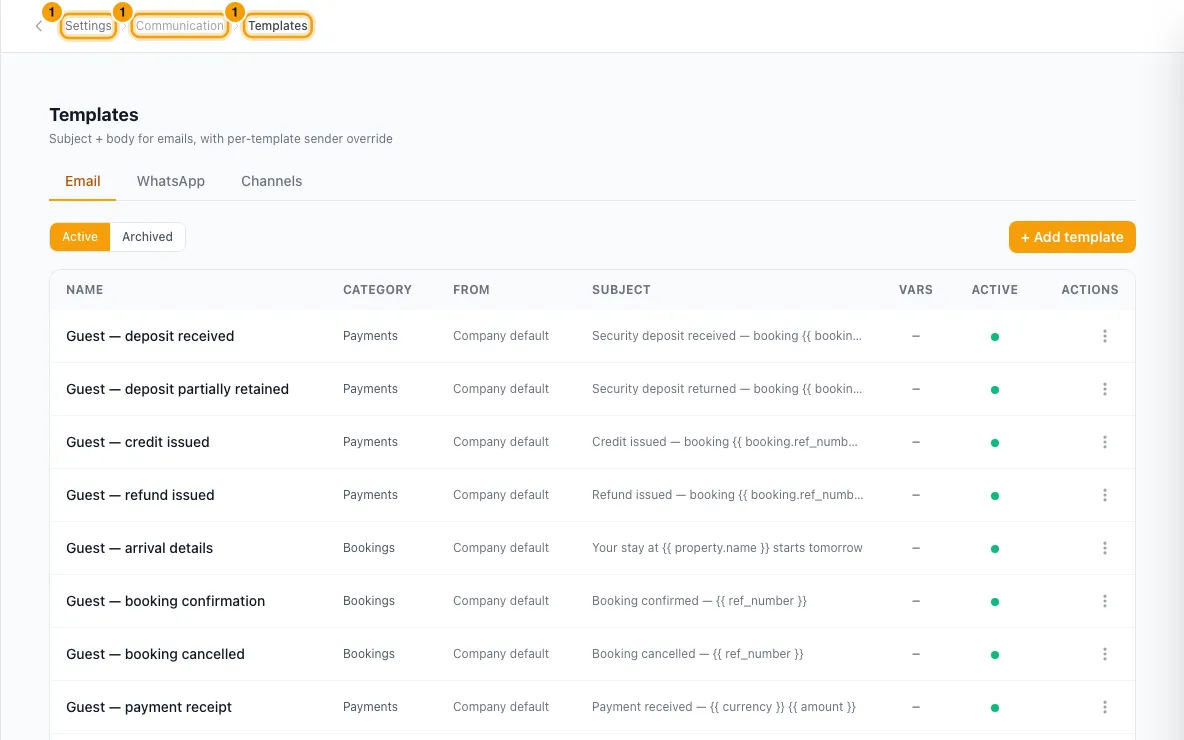
Email tab
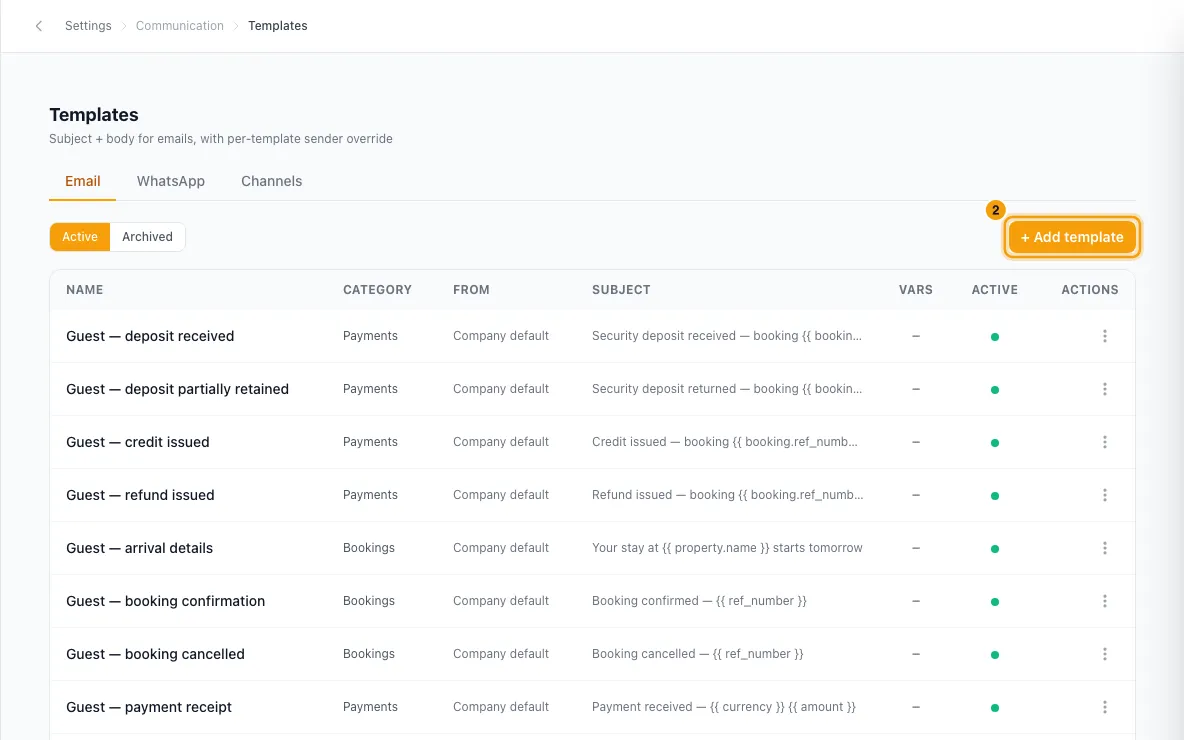
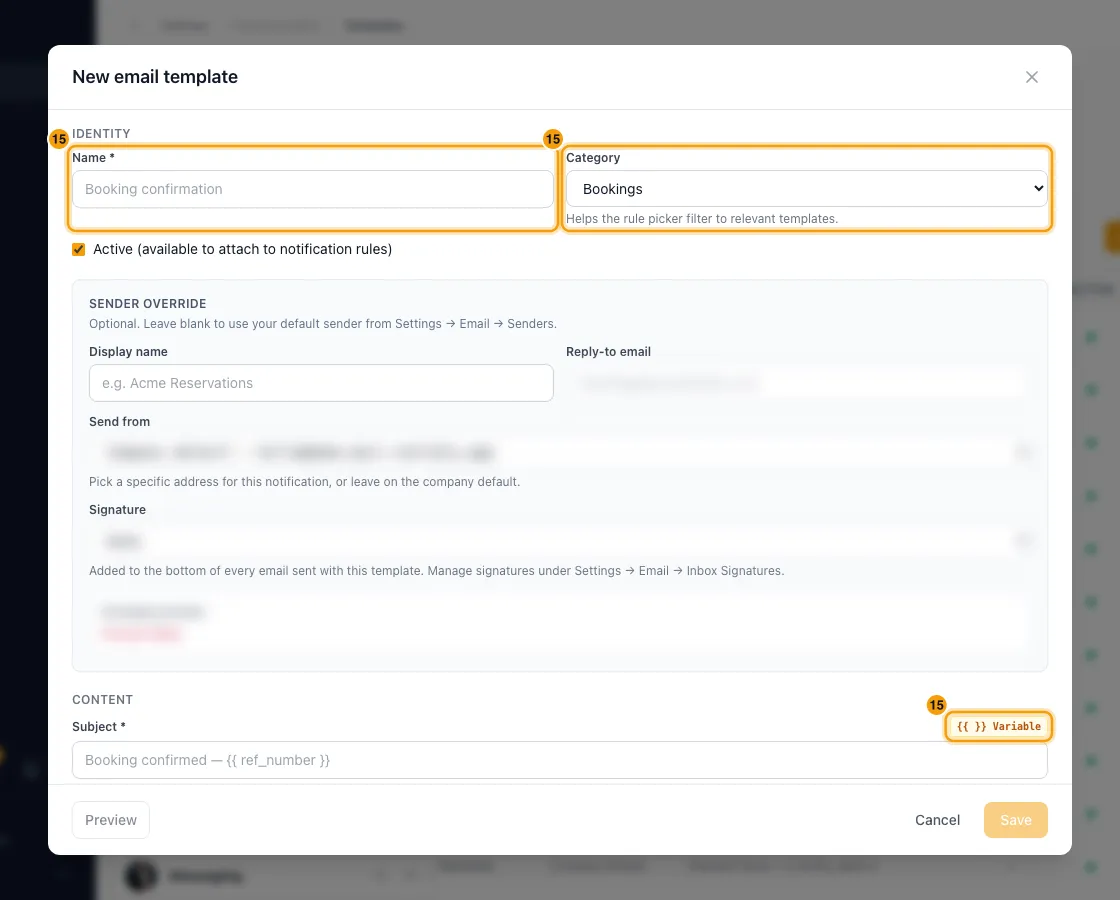
Click + Add template (or Edit in a template's ⋮ menu).
Enter a Name and pick a Category (Bookings, Inquiries, Quotes, Payments, Owner Statements, Agreements, Tasks, Contacts or General). The category decides which variables you can use. For a Payments template, you can also pick the situations under Send this for.
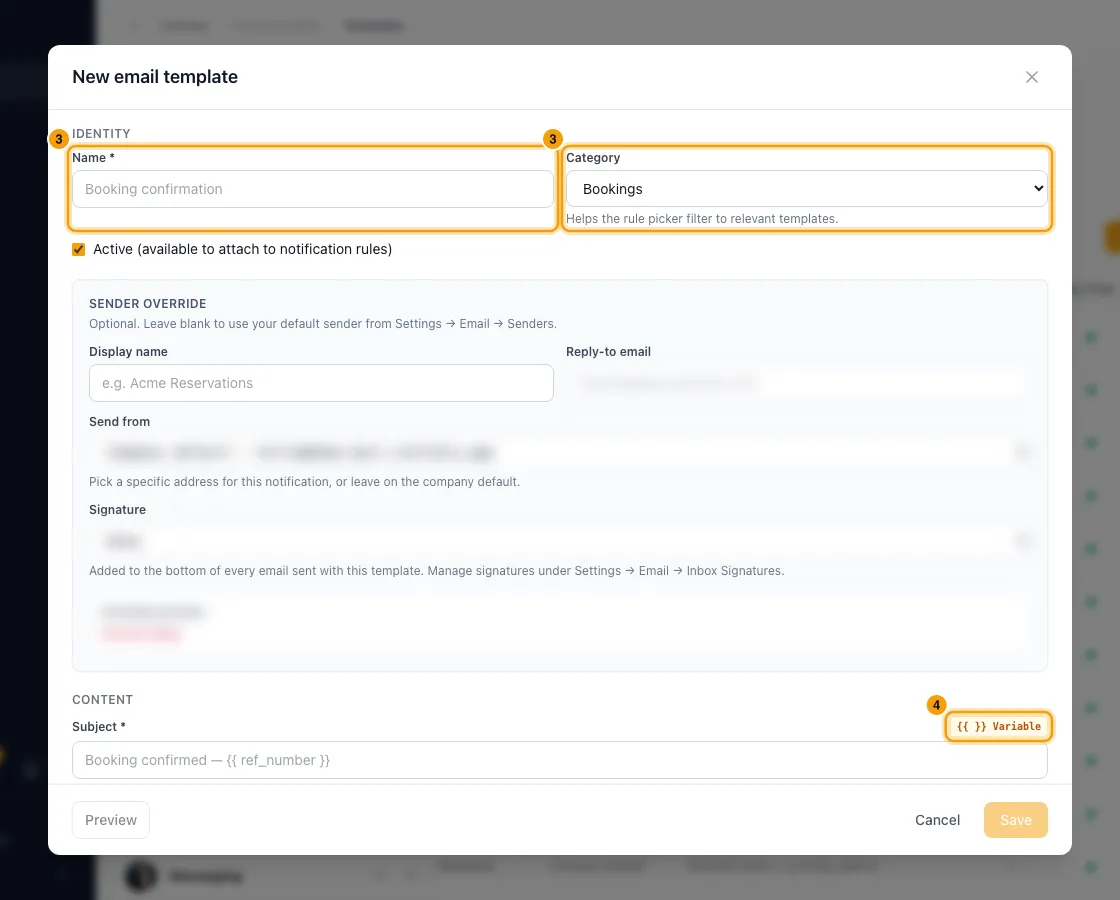
Write the Subject and the Body. To add a merge variable, click {{ }} Variable and pick a field. In the body you can also type {{ to search, or / on an empty line to add a table, image or divider.
Optional: under Sender override, set a Display name, Reply-to email or Send from address for this template only.
Click Preview. Under Preview with, pick a recent real record (or Sample data) to see the email exactly as it would send. For a General template, also choose Preview as.
Click Save.
WhatsApp tab
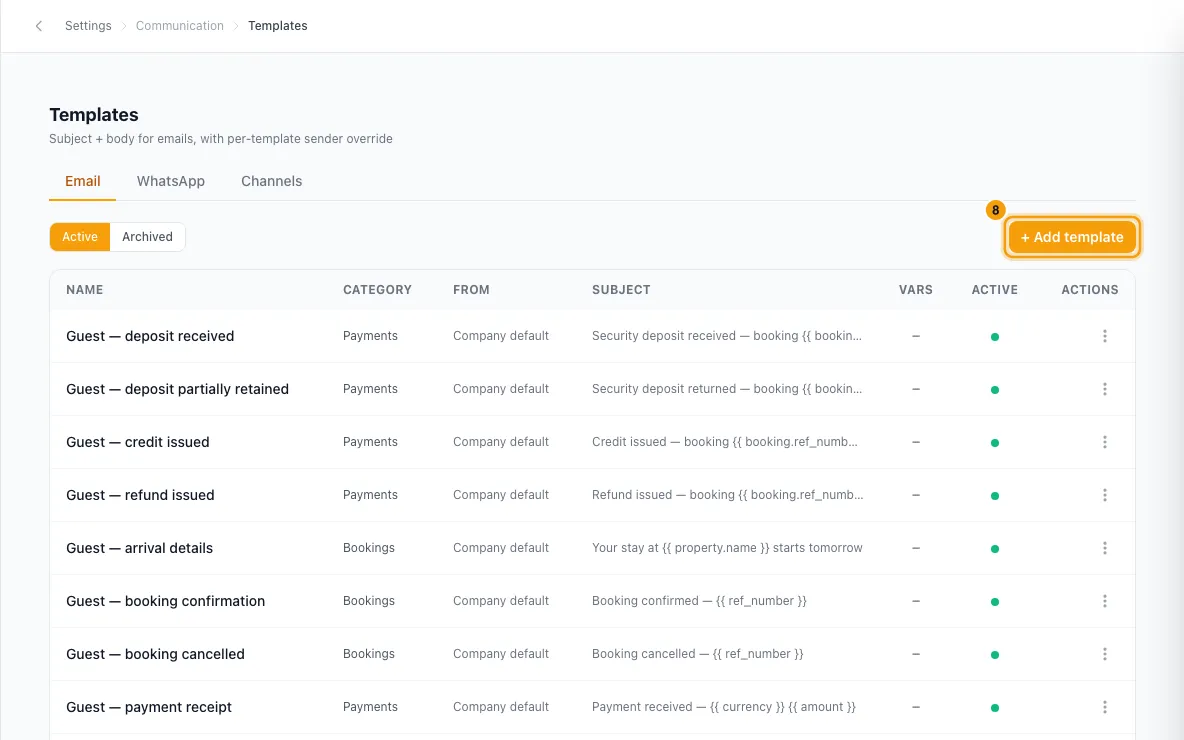
Click + Add Template.
Choose the Account (the WhatsApp number), a Name (lowercase letters, numbers and underscores only), the Template Type (Automation, Inbox or Campaign), the Related Module, the Meta Category (Marketing, Utility or Authentication) and the Language.
Write the Body using {{1}}, {{2}} for the parts that change. Add a Header, Footer and Buttons if you need them. The phone preview on the right updates as you type, and any problem is listed under the form.
Click Next →. Enter a realistic sample for each variable, and upload a sample file if the header is an image, video or document.
Click Submit to Meta. To finish later, click Save draft instead, and later choose Submit to Meta from the template's ⋮ menu.
Watch the Status column: draft, pending, approved, rejected or disabled. If Meta rejects it, the reason is shown under the status. Click Edit, fix the template, click Next → and then Re-submit to Meta.
To pull in templates already on your number, or to refresh their status, click Sync Templates. It syncs the number chosen in Number for sync & new templates above the list, or every number when that says All numbers.
Channels tab
Click + New template. Enter a Name, pick a Category (Bookings, Inquiries, Payments or Quotes) and write the Message. Click {{ }} Variable to add a merge variable.
Leave Active ticked and click Save template.
Good to know
- Where templates are used:
- Notification rules pick from them. The WhatsApp choice there lists only approved, active templates of type Automation (or no type).
- In the Inbox, only approved, active WhatsApp templates of type Inbox are offered.
- A booking's Email and channel buttons have Send Template, which offers email and channel templates in the Bookings category. Send receipt on a payment offers Payments templates.
- Variables such as {{ contact.first_name }} are filled in for each record when the message sends. An email template with a variable the category can't fill is refused on save, with a suggestion when there is a close match. Sample data covers only some variables, so preview against a real record to see every value.
- The template is the whole email. Nothing is added around it when it sends. To include your logo or contact details, insert them from the Company group of the variable picker.
- Sender override: leave it blank to use your default sender (see Send email from your own domain). Send from offers only addresses that can send.
- Signature: a template that already has a signature keeps it, and it is added to the bottom of each email. Its placeholders are filled in: with your details when you send the template yourself (for example from a booking), and left blank for the person on automatic emails, which still get your company's details. To choose one, pick it in the Signature list; each signature shows the email account it belongs to. You make signatures under Settings → Email → Inbox Signatures.
- In use by a notification rule: you can't delete, archive or switch off (untick Active) a template that any notification rule points at, even a rule that is off. The message names the rules. Point them at another template first.
- Archive hides a template without deleting it. Find it again with the Archived filter and click Restore. An archived WhatsApp template keeps its Meta approval.
- One WhatsApp list for every number. Templates belong to your WhatsApp Business Account, not to one phone number, so the list always shows them all. Number for sync & new templates does not filter the list: it only decides which number Sync Templates pulls from and which Account a new template starts with.
- WhatsApp review:
- You get a notification when Meta approves, rejects or disables a template you created, or changes its category. Rentibly also checks pending templates every 10 minutes.
- You can't edit a template while it is pending.
- Editing an approved template sends it back to pending for another review. Meta allows about 10 edits per template every 30 days, and one category change per 24 hours.
- Once submitted, Name and Language are locked. To change them, delete the template and create a new one.
- Deleting a WhatsApp template that was submitted also deletes it at Meta. It can't be undone: a new one must be approved again.
- WhatsApp limits (checked as you type): body up to 1,024 characters, can't end with a variable, and variables must be numbered in order; header and footer up to 60 characters; up to 10 buttons (at most 2 URL, 1 phone number, 1 copy code). Authentication templates must contain exactly {{1}} for the code. Marketing templates can be a carousel of cards.
- Templates Rentibly can't edit (for example some carousel or catalog templates synced from Meta) show Read-only: you can't edit or submit them here.
- Channel templates are plain text: no subject and no formatting.
- You need the Settings permission set to Access to create, change or delete templates.
Rentibly AI can help
- When it creates or edits a notification rule, it writes the rule's email and WhatsApp templates too, after checking the variables available. You confirm each change on a card.
- It can submit a draft WhatsApp template it made for a rule to Meta.
- For marketing campaigns, it can draft a WhatsApp template and submit it.
Still stuck?
Open Support from your profile menu in Rentibly, or email hello@rentibly.com — we answer fast.