Get push notifications on your phone or browser
Updated 13 October 2026
Push notifications pop up on your computer or phone even when the Hub isn't open. You turn them on once per browser. Everything you are notified about also lands in the bell (Alerts) in the sidebar.
Steps
In the sidebar, click Alerts (the bell).
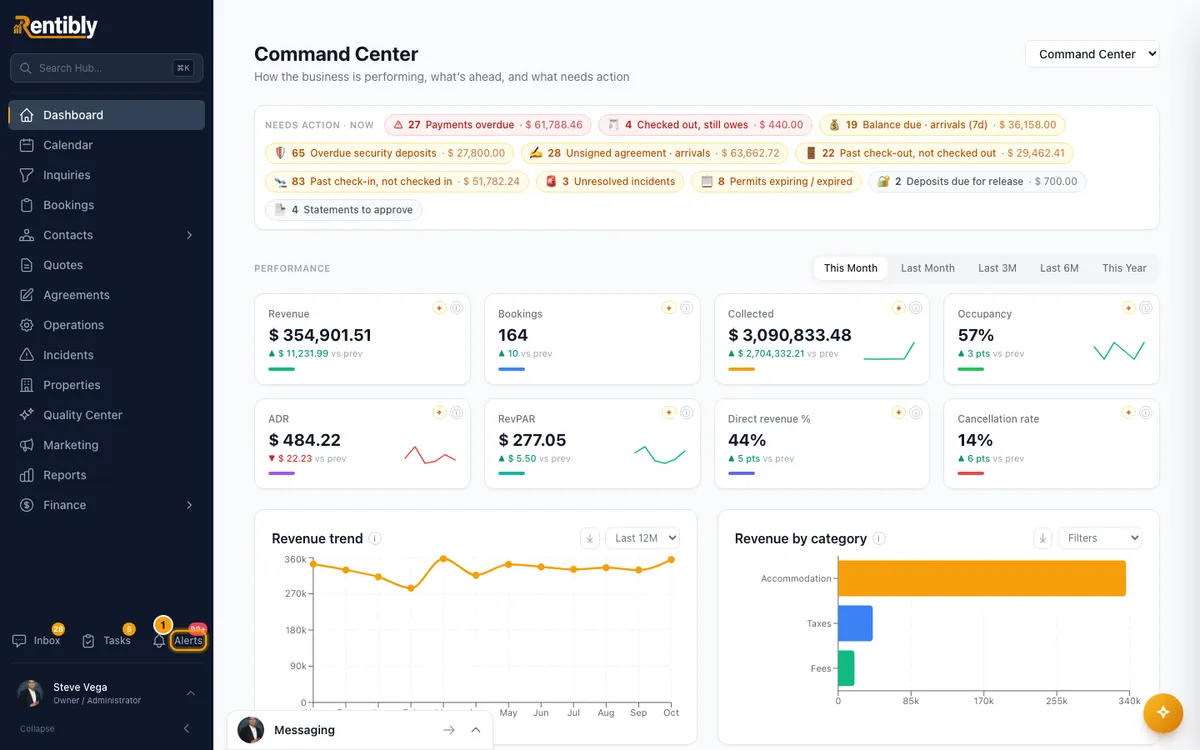
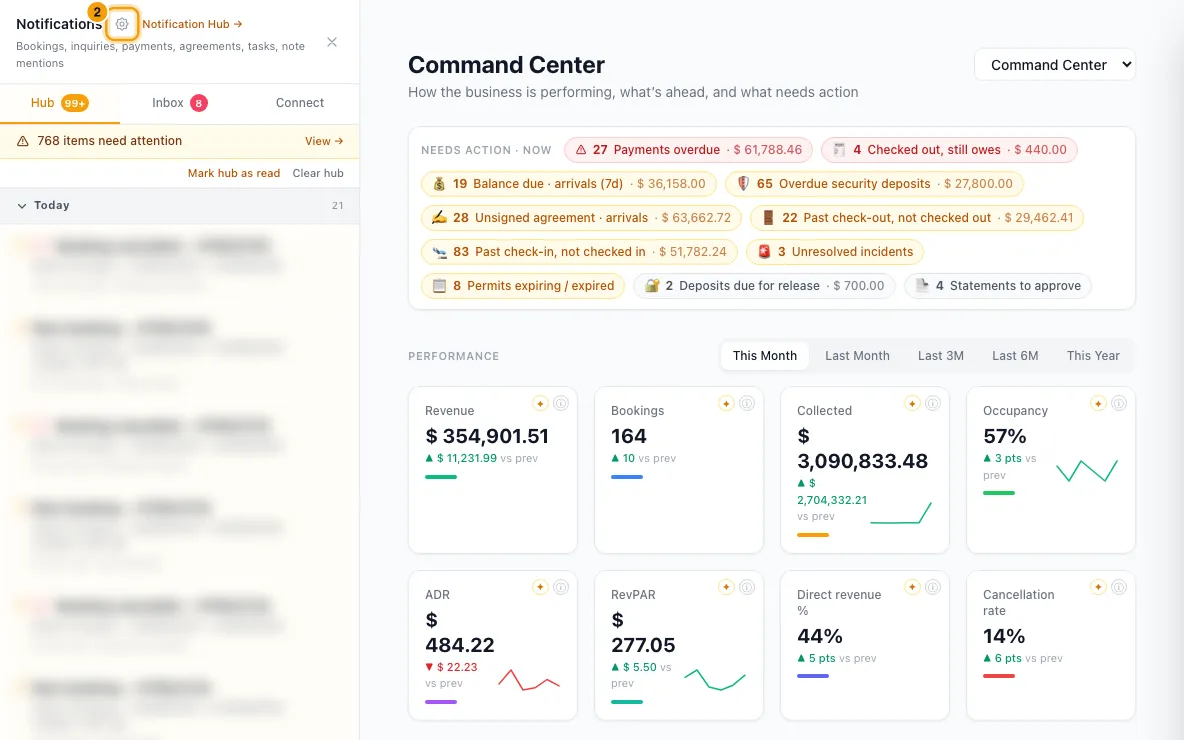
Next to Notifications at the top of the panel, click the gear (Notification preferences).
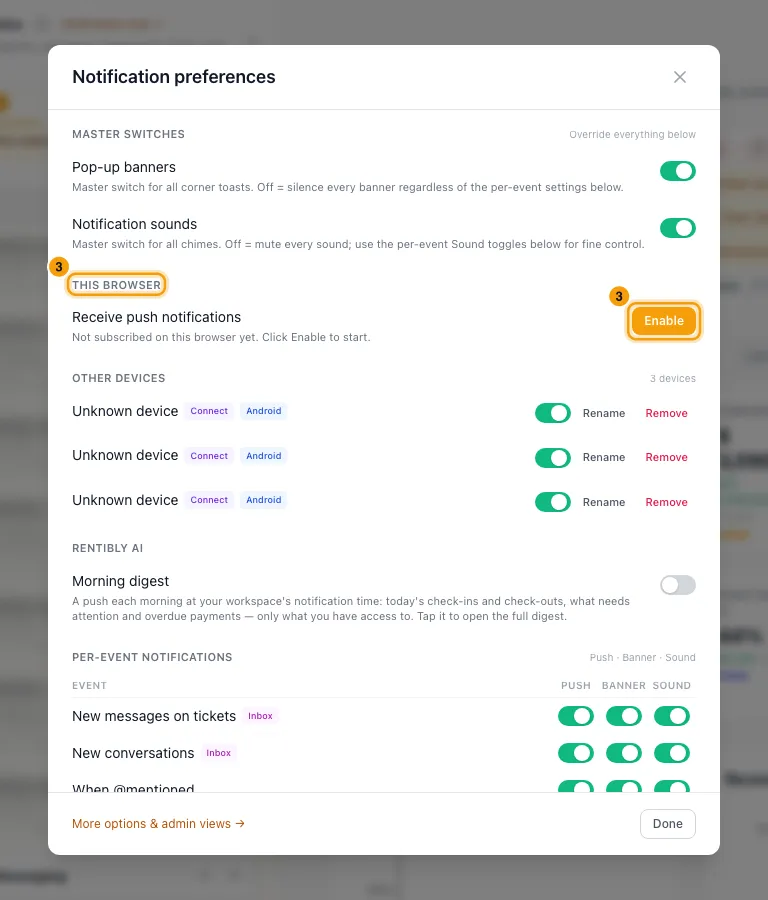
Under This browser, click Enable.
In Name this device, type a name such as "Office laptop" and click Save, or click Skip.
When your browser asks, allow notifications.
Click Test push. A test notification should appear within a few seconds.
On your phone, open the Hub in the phone's browser, sign in, and repeat steps 1 to 6.
You can also click Enable on the yellow bar at the top of the Hub: Enable push notifications to get alerts on this device.
Manage your devices
- Go to Settings → Notifications and choose the Devices tab.
- This browser shows whether this browser gets push. Click Enable on this browser, Send test push or Disable here.
- In the list, use the On/off switch to pause push to a device without removing it.
- Click Rename to change a device's label, then Save. Leave it blank to clear the label.
- Click Remove, then Remove again, to stop push to that device for good.
Use the bell and the Notifications page
- Click Alerts to open the panel. Choose Hub, Inbox or Connect.
- Click an alert to open the booking, inquiry or other record it is about. An alert about a held channel booking opens Channel bookings needing attention instead. It is marked read. A mention alert opens the record at the note you were mentioned in and highlights it (see "Mention a teammate in a note or comment").
- Hover over an alert to Mark handled without opening it, or to Dismiss it.
- Use Mark hub as read or Clear hub for the whole tab.
- Click Notification Hub → to open the full Notifications page. Use the All, Hub, Inbox and Connect tabs and the Unread and Today filters. Tick several alerts, then click Mark read or Dismiss.
- When urgent alerts are waiting, a bar says how many need attention. Click View → to show only those.
Good to know
- Push is per browser. Each browser and each phone needs its own Enable. A phone gets "[Mobile]" added to its label.
- The Hub's alerts only push to browsers where you enabled push in the Hub. Push turned on in the Inbox or Connect apps carries those apps' alerts. The Surface column on the Devices tab shows which is which. One exception: when you're @mentioned on an Inbox conversation, the push goes to the Inbox app and the Hub.
- The Rentibly mobile apps add themselves to the list when you sign in on them. They show as iOS app or Android app.
- Blocked — enable in browser settings means you refused notifications for the Hub before. Allow notifications in your browser's site settings, then reload the page. Push not supported in this browser means this browser can't receive push.
- Turning a device off pauses push without asking for permission again when you turn it back on. Remove unsubscribes it; enable again from that device to get it back.
- What you get pushed depends on the alerts your account has switched on and who they go to. An admin sets that on the Hub tab: see "Choose who gets the Hub's built-in alerts".
- Your own settings are in Notification preferences (the gear in the bell panel):
- Pop-up banners and Notification sounds switch all banners or all sounds on or off for you.
- Per-event notifications has a Push, Banner and Sound switch for each kind of alert.
- Morning digest (under Rentibly AI) sends a push each morning with today's check-ins, check-outs, what needs attention and overdue payments. It is off until you turn it on.
- Hub alerts have their own row: Hub alerts (bookings, payments, tasks…). Its Push switch turns push off for every Hub alert, for you only; its Banner and Sound switches do the same for the pop-up and the chime. New messages on tickets only covers conversation alerts.
- Mentions follow When @mentioned, not Hub alerts: being @mentioned in a note, a task comment or an Inbox note uses the When @mentioned row's switches.
- In the Inbox or Connect app, clicking a Hub alert's pop-up opens it in the Hub.
- A device that hasn't been used for 90 days is removed automatically. Alerts you've read are deleted after 90 days; unread ones stay.
- Anyone can turn on push and use the bell. The Devices tab is in Settings, so it needs the Settings permission. There, the account owner, people with Full access and people whose role is Admin see every device in the account (All devices in account or Only mine). They can click a person's name to change that person's preferences.
Rentibly AI can help
- Rentibly AI can't turn on push or change your notification preferences. You do this in your browser.
Still stuck?
Open Support from your profile menu in Rentibly, or email hello@rentibly.com — we answer fast.