Check storage usage
Updated 13 October 2026
Storage Usage shows how much space your uploaded files take up, which parts of Rentibly they belong to, and the latest uploads.
Steps
Go to Settings → System → Storage Usage.
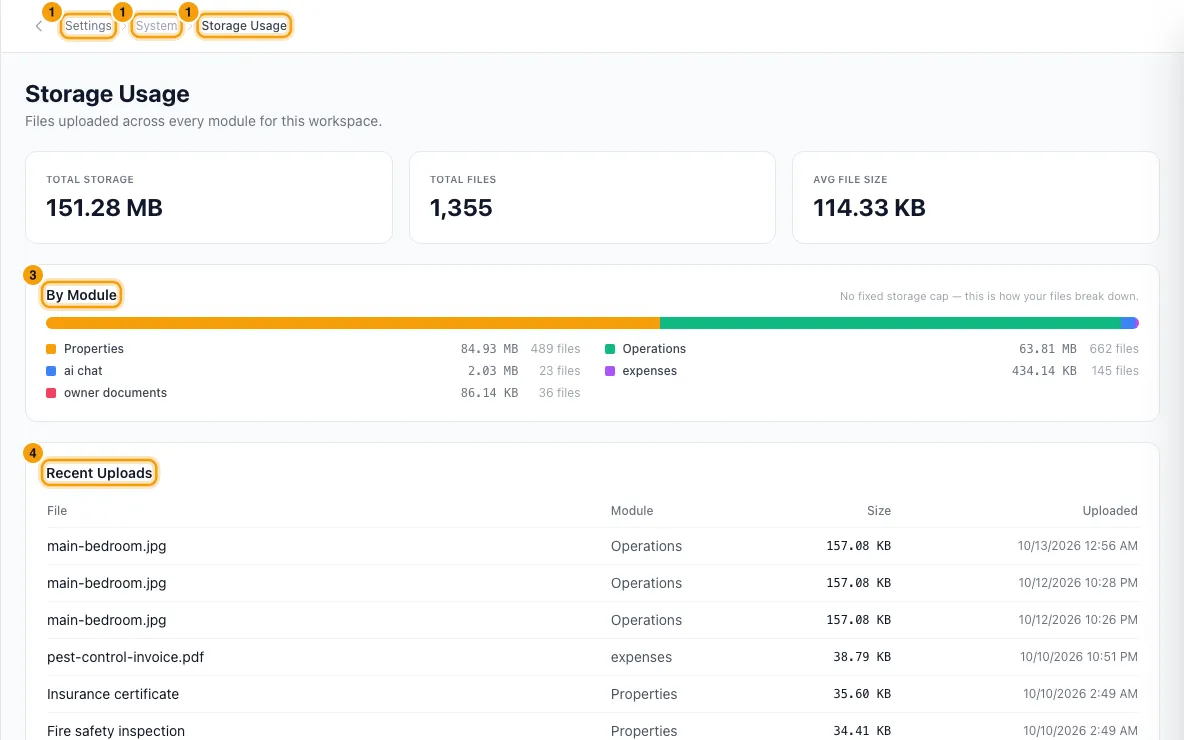
Read the three cards at the top: Total Storage, Total Files and Avg File Size.
Under By Module, see how your files split between modules, biggest first. Each line shows its size and number of files. Point at a part of the coloured bar to see its name and size.
Under Recent Uploads, see the 50 newest files, with their Module, Size and when they were Uploaded.
Good to know
- What is counted: files attached to records (bookings, properties, contacts, tasks and more), files on notes, email attachments in the Inbox, property photos, and operation photos.
- What is not counted: WhatsApp media, contact and user profile pictures, and some Inbox message media.
- Photos on deleted properties and deleted operations are not counted.
- There is no fixed storage cap. The page shows how your files break down, not how full you are.
- The page is read-only. To free space, delete the files on the records they belong to.
- If storage isn't available, the page shows Storage not configured.
- You need the Settings permission set to Access to open this page.
Rentibly AI can help
- Rentibly AI can't read storage usage yet.
Still stuck?
Open Support from your profile menu in Rentibly, or email hello@rentibly.com — we answer fast.