Brand your workspace (logos)
Updated 13 October 2026
Upload your logo once and Rentibly puts it on your guest and owner portals, quotes, payment pages, agreements, statements and emails. You can also show it in the Hub's own sidebar.
Steps
Click your name at the bottom of the sidebar, then Settings. Under General, open Branding.
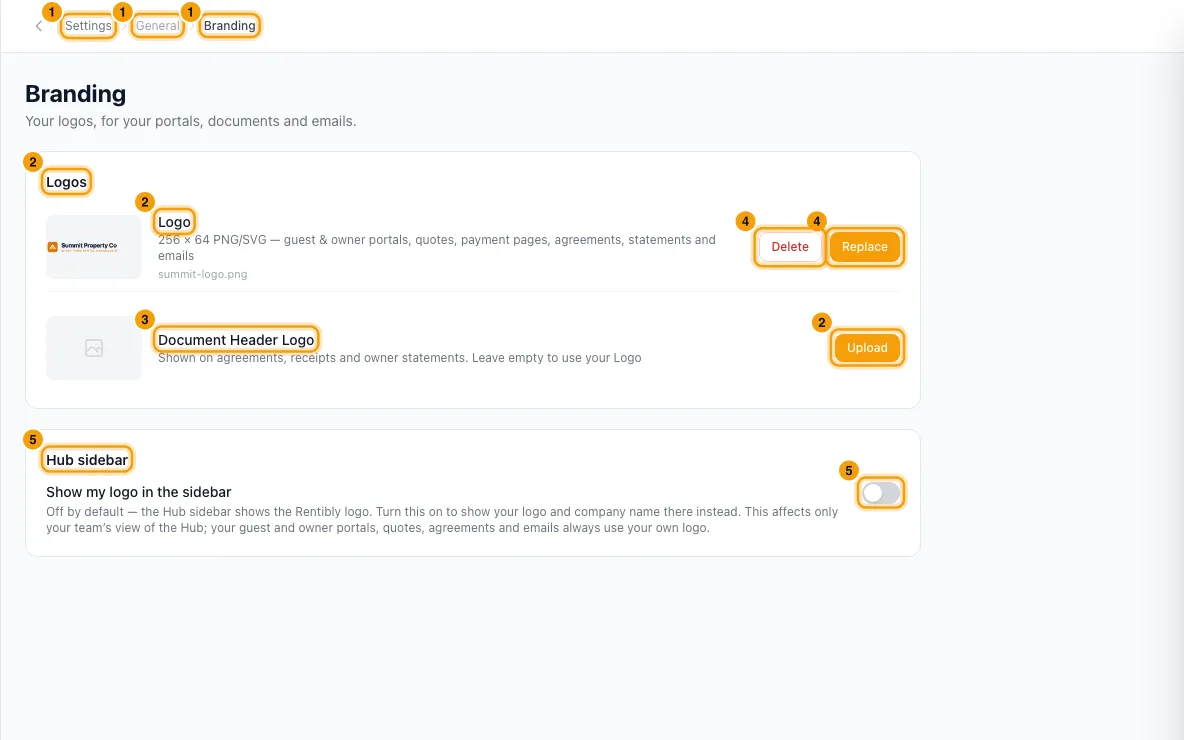
Under Logos, find Logo and click Upload. Choose your image file. It saves straight away.
If you want a different logo on printed documents, upload it under Document Header Logo.
To change a logo, click Replace. To remove it, click Delete and confirm.
To show your logo in the Hub's sidebar, turn on Show my logo in the sidebar under Hub sidebar.
Good to know
- Logo is your main mark. Rentibly uses it on the guest, owner and field-staff portals, online check-in, quotes, payment pages, agreements, owner statements, report PDF exports, inbox email signatures, and in email templates through the company logo variable. A 256 × 64 PNG or SVG works best.
- Document Header Logo is used on agreements (including a booking's rental agreement), receipts you share by link, and owner statements. If you don't upload one, they use your Logo.
- There is no dark mode logo or email header banner. Those slots were removed because nothing in Rentibly used them. Emails use your Logo.
- There is no favicon (browser tab icon) setting on this page. Your website's favicon is set on the website's Theme & Branding tab, and the owner portal's is its App icon (both below).
- Show my logo in the sidebar is off by default, so the Hub sidebar shows the Rentibly logo. Turned on, it shows your logo and company name instead. It only changes your team's view of the Hub. It needs a Logo uploaded first.
- Files must be images (PNG, JPG, GIF, WebP, AVIF, HEIC, ICO or SVG), up to 10 MB. Rentibly checks the file itself, not just its name.
- Replacing or deleting a logo removes the old file for good. You can upload a new one at any time.
- There are no brand colour settings. Rentibly's colours are fixed.
- Your owner portal has its own logos: Login page logo, Portal logo and App icon, under Settings → Owners → Owner Portal, in Portal branding. See Give an owner access to the owner portal.
- Your website has its own logo and favicon on the Theme & Branding tab of your website's settings.
- Your company name, address and signature are on Company Profile. See Change your company profile, timezone, date format and business hours.
- You need Access on Settings in your role to change branding.
Rentibly AI can help
- Rentibly AI can't upload or change logos yet. Use the Branding page.
Still stuck?
Open Support from your profile menu in Rentibly, or email hello@rentibly.com — we answer fast.