Choose who gets the Hub's built-in alerts
Updated 13 October 2026
The Hub alerts your team about key events on its own: new bookings and inquiries, payments, quotes, agreements, tasks, door locks and more. They are all on from the start. On the Hub tab you choose, for each alert, whether it is on, which channels it uses and who gets it.
Steps
Click your name at the bottom of the sidebar, then Settings. Under Communication, open Notifications and choose the Hub tab.
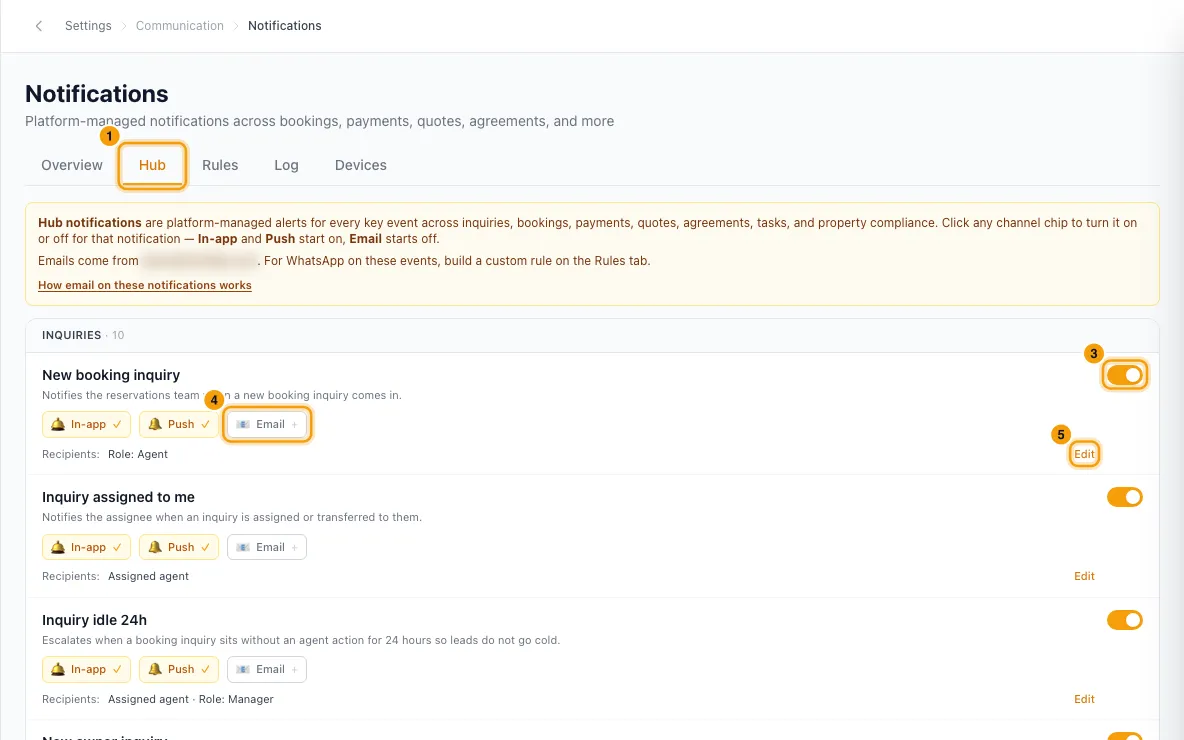
Find the alert. They are grouped under Inquiries, Bookings, Payments, Quotes, Agreements, Tasks & Operations, Property, Door access, Mentions and System.
To stop an alert for everyone, turn off the switch on the right of its row. Turn it on again the same way.
To change how it arrives, click its channel chips: In-app, Push and Email. A chip with ✓ is on; a chip with + is off.
To change who gets it, click Edit next to Recipients:.
Click + Add recipient and pick Specific role(s), Specific user(s), Specific team, Assigned agent, Record creator, Property owner, Property manager or Operations manager. For roles and users, tick the names in the list. Click × to remove a recipient.
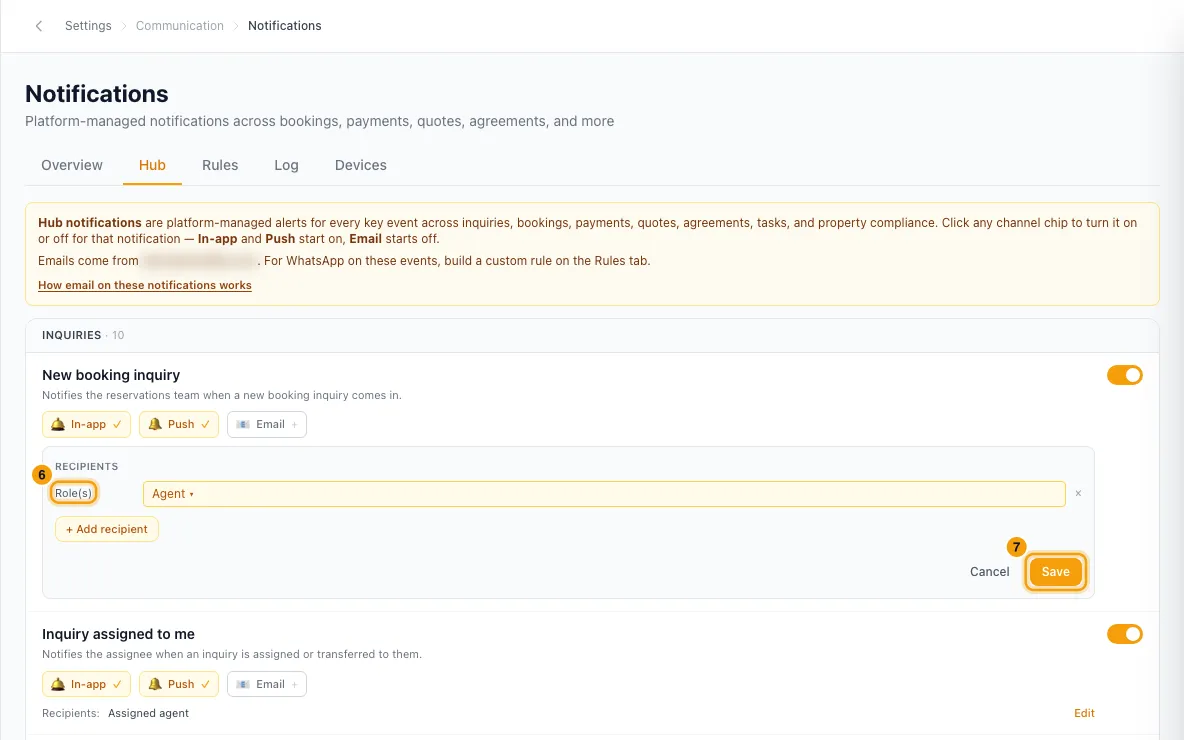
Click Save.
Good to know
- What is on by default: every alert, with In-app and Push on and Email off. A few urgent alerts start with Email on too: Channel double-booking conflict, Channel booking held — dates blocked, Channel date change held — dates blocked, Channel booking for an unconnected property, All recipients signed, Awaiting your countersignature, Agreement fully executed, Agreement revoked, Guest signed the rental agreement and Guest completed digital check-in. Request to book withdrawn is in-app only.
- Who gets them by default depends on the alert. Some examples:
- New booking, New channel booking, Guest signed the rental agreement and Guest completed digital check-in: the Admin, Manager and Agent roles.
- Booking cancelled and Channel booking cancelled: the Admin, Manager and Agent roles.
- New booking inquiry and Check-in tomorrow: the Agent role.
- Inquiry assigned to me, Operation assigned to me and Task assigned to me: the person it's assigned to.
- Payment received and Payment failed: the Admin, Manager and Agent roles.
- Quote viewed by guest: whoever created the quote, plus the Admin and Manager roles.
- Door code or key failed: the property's manager and operations manager, plus the Admin and Manager roles.
- Personal tasks stay private. An alert about a personal task only goes to its creator and its assignee. Other recipients on the row (for example the Manager role on Task overdue) are skipped.
- Your changes are for the whole account, not just for you. To mute push, banners or sounds only for yourself, use the Hub alerts (bookings, payments, tasks…) row in Notification preferences (the gear in the bell): see "Get push notifications on your phone or browser". Switching off New messages on tickets there does not affect Hub alerts.
- You can't change the wording. Rentibly writes it and keeps it up to date. Your choices of channels and recipients are kept when it does.
- The last channel on a row can't be switched off. Use the row's switch to stop the alert completely. When an alert is off, its chips are greyed out and its recipients are hidden.
- Email comes from alerts@rentibly.com. Each person on the row gets their own email, so a role with five people means five emails. Email · unavailable means Rentibly hasn't released email for that alert yet. Click How email on these notifications works for a summary.
- WhatsApp isn't offered here. To get an event on WhatsApp, build a rule on the Rules tab: see "Set up a notification rule (e.g. email the guest before check-in)".
- In-app and push only reach team members who log in. A Property owner recipient is a contact, not a team member, so they never see in-app alerts. Deactivated users get nothing.
- Busy days are grouped. When two or more of the same dated alert happen at once (for example five check-ins tomorrow), each one still appears in the bell. The push, and the email if it's on, comes once as a summary from the matching (digest) row, such as Check-ins tomorrow (digest). Turning off a (digest) row stops only that summary.
- Mentions: You were mentioned in a note always goes to whoever was @mentioned. Its recipients can't be edited. Each person mutes it for themselves with When @mentioned in Notification preferences, not with Hub alerts. See "Mention a teammate in a note or comment".
- Up to 5 recipient lines per alert.
- Alerts about Inbox conversations (new messages, mentions, SLA breaches) are set under Settings → Inbox → Notifications.
- If you also built a rule for the same event on the Rules tab, both run. One person won't get the same push twice for the same event.
- You need the Settings permission to change these.
Rentibly AI can help
- Rentibly AI can't change the Hub's built-in alerts yet. It can list, build and change your own rules on the Rules tab.
Still stuck?
Open Support from your profile menu in Rentibly, or email hello@rentibly.com — we answer fast.