Duplicates and merging — Rentibly How-to
How-to: Data & Reports · Part 2 of 6 · 1:57 · 6 chapters · Watch on YouTube
Chapters
Read the transcript
Hey, and welcome to this Rentibly how-to: duplicates and merging. Let's turn two copies of the same guest into one clean record. Here's what we'll cover — the chapter times are right here, and in your player. Let's get started.
When the same guest ends up in Rentibly twice, it's flagged in Settings, Data Management, Potential Duplicates. Contacts are matched on email, phone and WhatsApp number — here, two Mia Calloways with the same email address.
Each card shows what's attached to them, and when they were created. If they really are two different people, Not a duplicate keeps both, and the pair stops coming back. These are the same guest, so: Review and merge. It opens on the newer contact. Find the other one, then choose which to keep as the primary — the older record.
The preview shows exactly what will happen: what moves across to the primary — nothing yet, they're both brand new — and anything that conflicts: here, the city. We'll keep the primary's, Denver. The other record is archived. Link contacts.
Every merge is kept in the Merge Log: who was kept, who was merged in, who did it — and for thirty days, it can be undone. Undo merge, and both contacts are back, each with their own records.
Thanks so much for watching! If you're already on Rentibly, open Settings, Data Management, Potential Duplicates, and see whether any guests are in there twice. And if you're not on Rentibly yet, book a demo call, and we'll show you all of this, live.
Find guests who are in Rentibly twice, merge them into one record, and undo a merge if you need to. Shown live on a real Rentibly workspace.
More in Data & Reports
 2:13
2:13How-to · Part 3
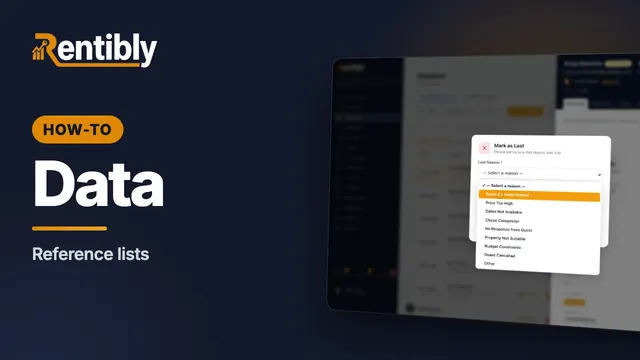
Reference lists
Sources, tags and lost reasons: the lists behind your reports — and how to add your own. Shown live on a real Rentibly workspace.
 2:08
2:08How-to · Part 1
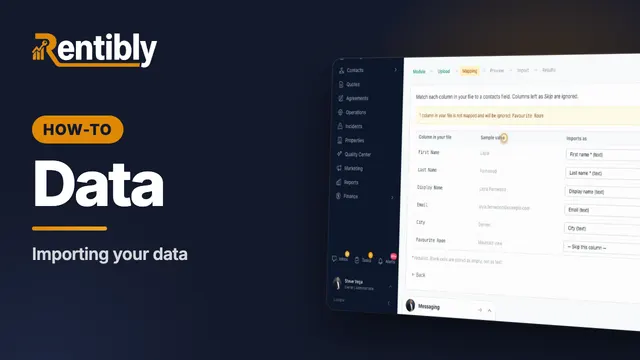
Importing your data
Bring a spreadsheet of contacts into Rentibly, export your data, and answer a guest's request for their personal data. Shown live on a real Rentibly workspace.
 2:02
2:02How-to · Part 4
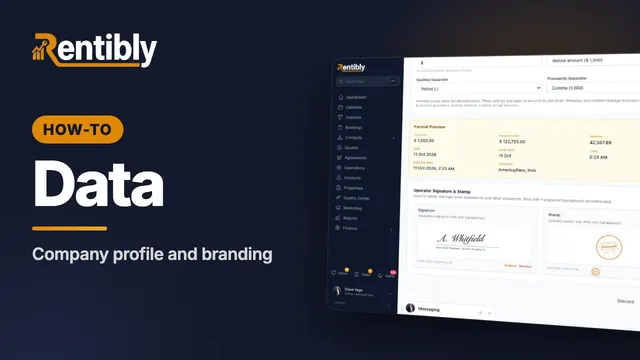
Company profile and branding
Your company details, time zone and formats, business hours, signature and stamp — and the logos on everything you send. Shown live on a real Rentibly workspace.
 1:37
1:37How-to · Part 5
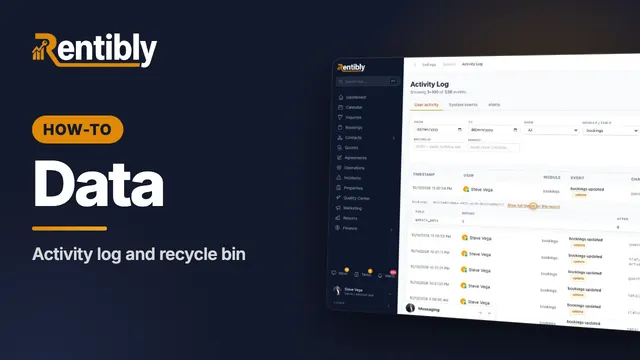
Activity log and recycle bin
See who changed what, field by field — and bring back a record that was deleted by mistake. Shown live on a real Rentibly workspace.
 1:54
1:54How-to · Part 6
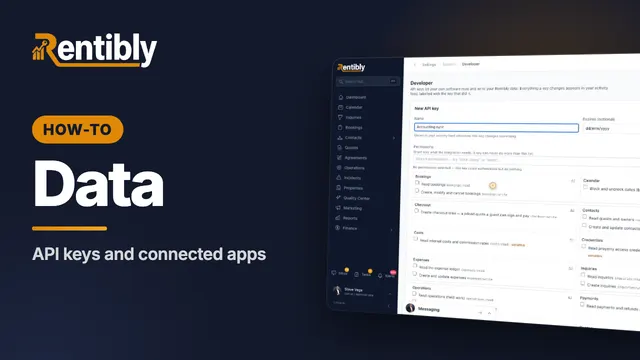
API keys and connected apps
Give your own software safe access to your Rentibly data with an API key — plus webhooks and Zapier. Shown live on a real Rentibly workspace.
Count your subscriptions. Then count ours.
A 30-minute demo on your numbers — every tool you pay for today, mapped to its native Rentibly module.
Book a demo