Use the Quality Center
Updated 13 October 2026
The Quality Center brings together your guest reviews from every channel, how healthy each listing is, a checker for each channel's listing rules, and guest mood scores. It has five tabs: Overview, Reviews, Listing Health, Analyzer and Sentiment.
Steps
Click Quality Center in the main menu.
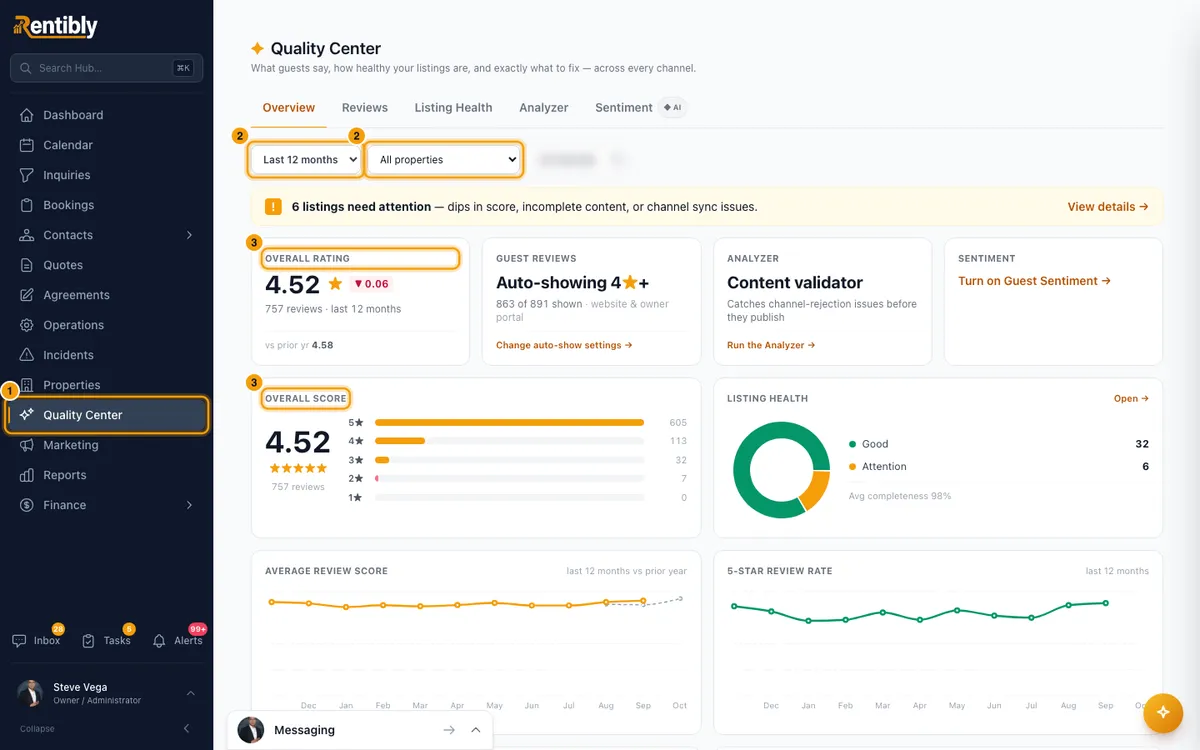
Use the filters above the tab to choose the period (Last 30 days, Last 90 days, Last 12 months or All time), a property and a channel. Each tab shows only the filters it uses. Click Clear filters to reset property and channel.
Overview: read the overall rating, the rating trend, category scores and the top positive and negative highlights. Click View reviews → on a category to list the reviews behind its score. Click a highlight tag to see how often it comes up and what guests wrote.
Reviews → Guest reviews: filter by stars, by Shown only or Hidden only, or type in Search reviews… and press Enter. Click a review to read it in full.
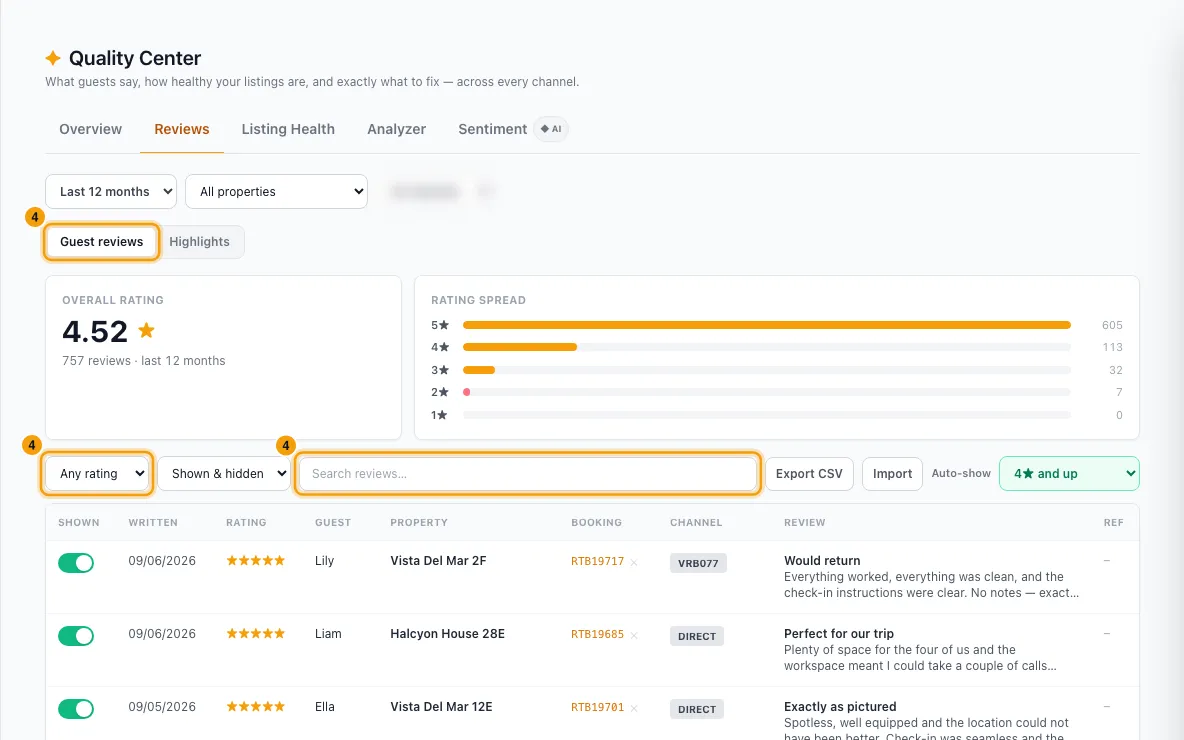
To show or hide a review on your website and owner portal, click its Shown switch.
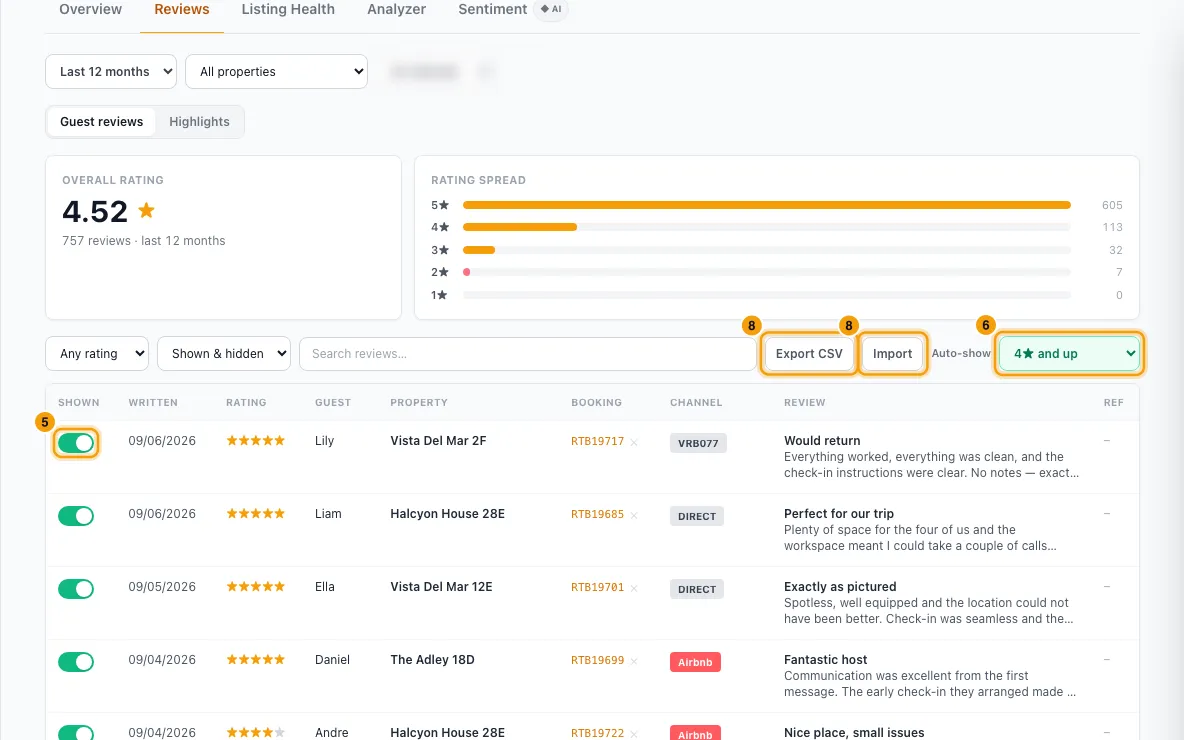
Choose which channel reviews show automatically under Auto-show: Only 5★ reviews, 4★ and up, All reviews or Manual only.
To link a review to its stay, click + Link in the Booking column (or Link a booking… in the review), search by guest name or booking ref, and click the booking. Click ✕ next to a linked booking to unlink it.
Click Export CSV to download the reviews matching your filters. Click Import to add past reviews from a CSV file.
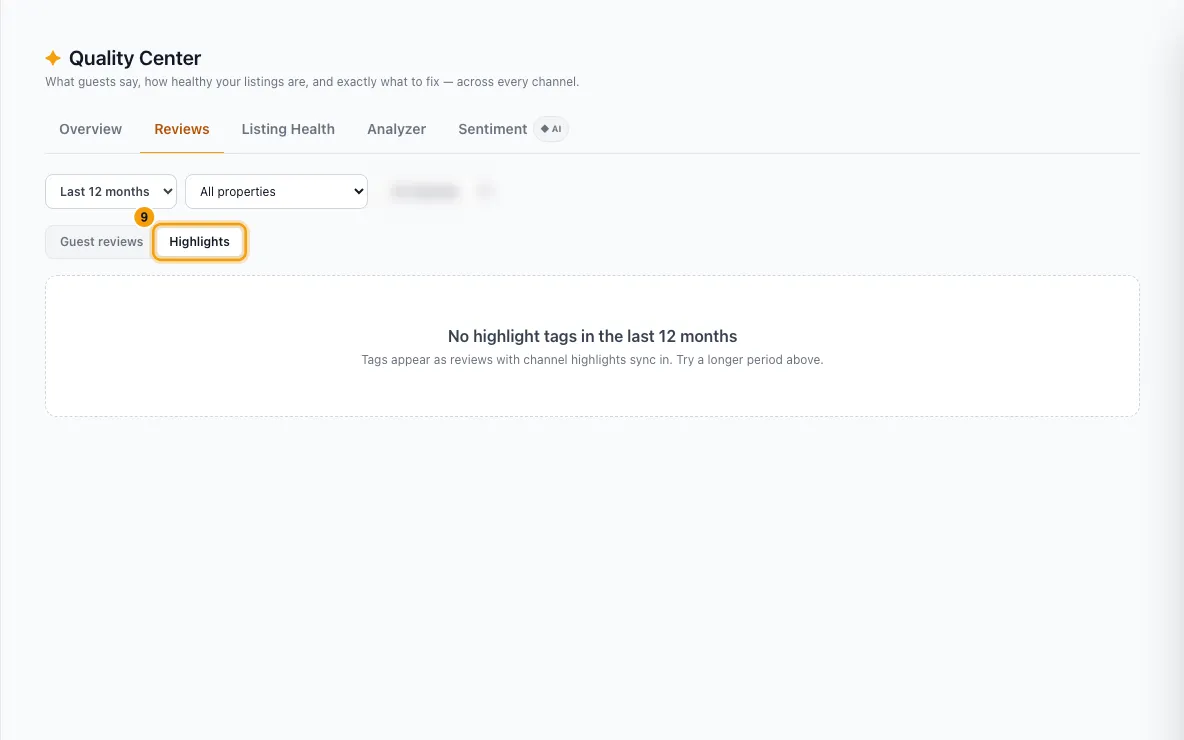
Reviews → Highlights: see every positive and negative tag and how often guests mention it.
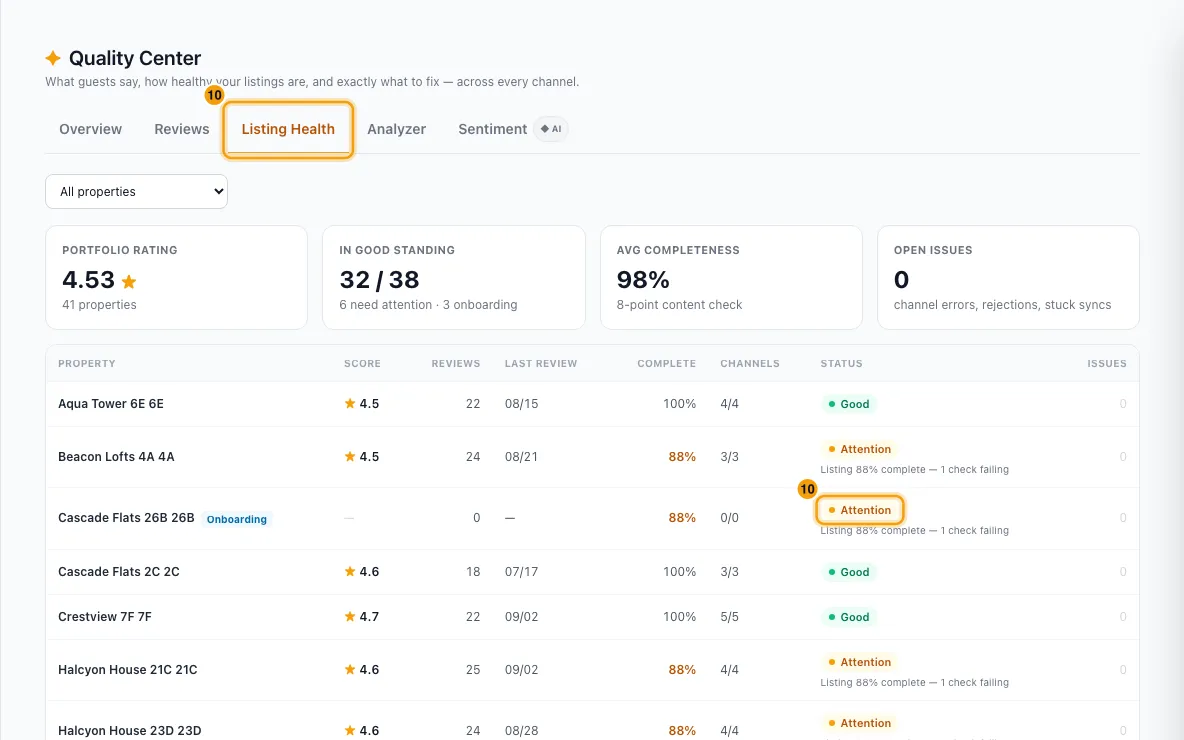
Listing Health: read each property's Status (Good, Attention or At risk) and click a property to see why and what to fix.
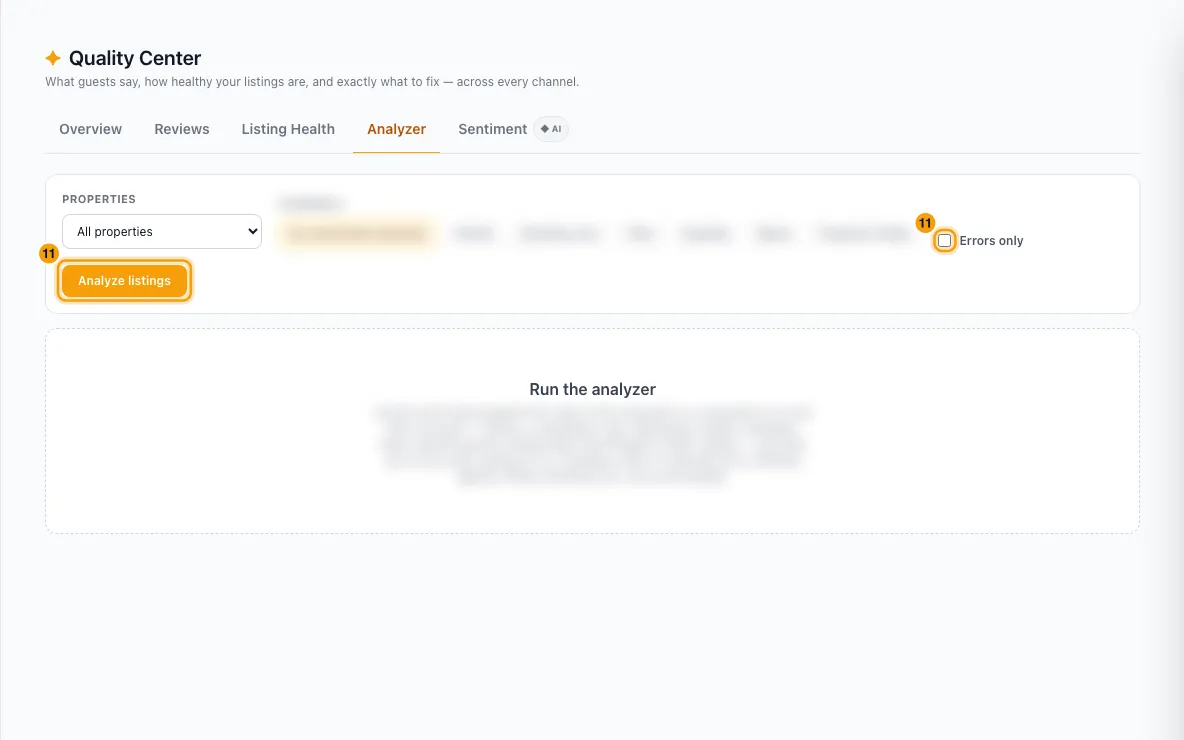
Analyzer: pick a property (or All properties) and Its connected channels or specific channels, tick Errors only if you like, and click Analyze listings. Click the link under Fix in to go straight to the setting to fix.
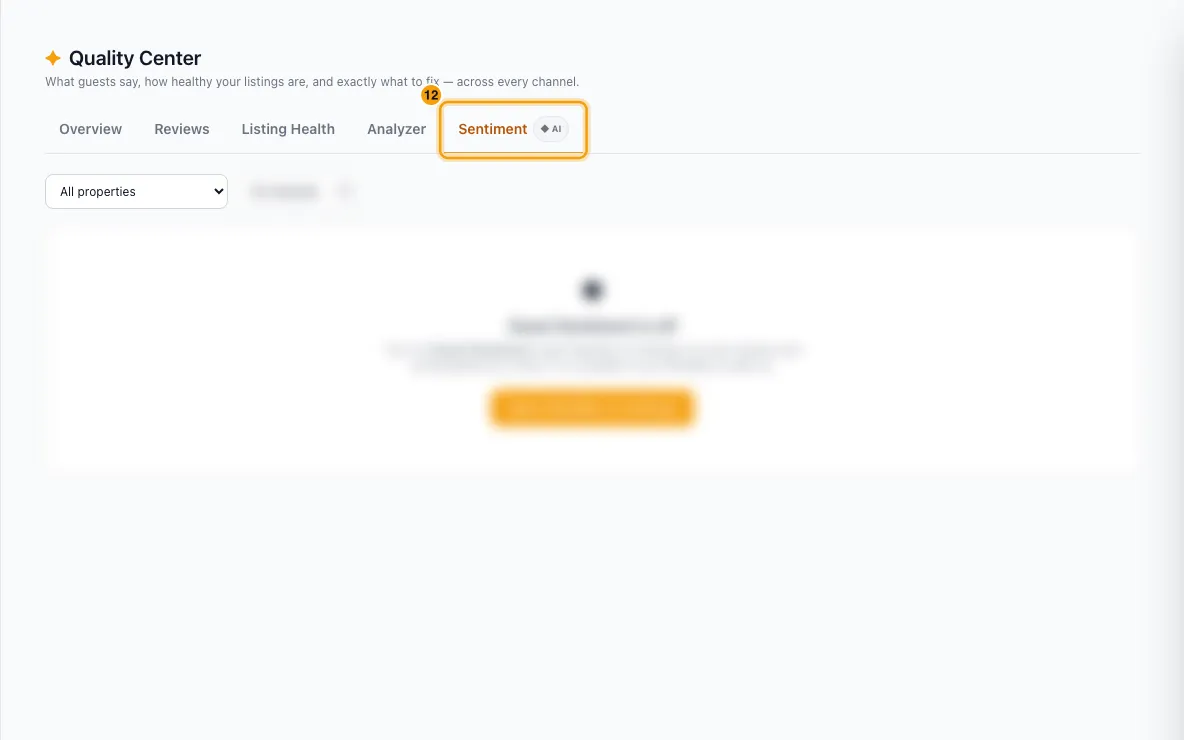
Sentiment: see guest mood from reviews and conversations, by month and by property, and the guests needing attention. Click Open conversation → or View booking to act.
Good to know
- Where reviews come from: they sync daily from Airbnb, Booking.com and Vrbo once your listings are connected. They are dated by when the guest wrote them. Bayut and Property Finder have no guest reviews.
- The two trend charts on Overview always show the last 12 months against the same months a year earlier, whatever period you pick.
- Shown means the review appears on your website and owner portal.
- Auto-show applies to channel reviews only. New accounts start on 4★ and up. Choosing a star rule (Only 5★ reviews, 4★ and up or All reviews) updates every channel review at once: those at or above the stars are shown, the rest hidden.
- Manual only changes no review: every channel review keeps the Shown setting it has. New channel reviews then arrive hidden until you switch them on.
- On a channel review, a Shown switch you set by hand stays when the review syncs again. Choosing a star rule resets it to the rule. Reviews you imported as manual or website keep your choice. The Auto-show menu says this when you hover it.
- Replies: a reply saved in Rentibly (for example one Rentibly AI drafted) shows on the review in Rentibly and the owner portal. Rentibly does not post replies to Airbnb, Booking.com or other channels; post your reply there yourself.
- Linking a booking: the list shows past stays at the review's property, not cancelled, that checked out by two days after the review. Linking puts the review on the booking and counts as "review received" for marketing journeys. Once you link or unlink by hand, the daily sync leaves it alone. A review with no property, such as a Google review, takes the booking's property.
- Export CSV stops at 10,000 rows and tells you if it did; narrow the filters for the rest. It includes the Property ID a re-import needs.
- Import opens Settings → Import / Export for reviews and needs the Settings permission plus Quality Center at Edit level (or an Admin role). Each row needs a
property_id(the Rentibly property ID, so export your properties first). Ratings are out of 5. Leaveshownblank to let Auto-show decide. Addexternal_review_idso a review that later syncs from the channel isn't counted twice. - Listing Health status:
- At risk: a channel is rejecting or failing the listing, channel sync errors, stuck syncs, or a review score below 3.5 (with at least 3 reviews).
- Attention: the listing is under 90% complete, a channel reports a smaller problem, a change has waited over 24 hours to reach a channel, or a review score from 3.5 to just under 4.2.
- Completeness is an 8-point check: photos, headline, description, amenities, map location, area, and a permit number that has not expired (UAE properties only).
- Archived properties aren't listed. Properties still in onboarding are marked Onboarding.
- Analyzer checks photos, map location, title, description length, amenities, rates and the permit number Bayut and Property Finder require. A property with no channels yet is checked against Airbnb, Booking.com and Vrbo. Running it changes nothing.
- Sentiment needs the Rentibly AI add-on and the Guest Sentiment switch, both under Settings → Rentibly AI (see Set up Rentibly AI for your team). Scores are updated once a day.
- You need the Quality Center permission at View level to open this page. Switching Shown, changing Auto-show and linking bookings need Edit.
- To turn what you find into fixes, see Find where guests are let down and fix it.
Rentibly AI can help
- Ask "How are our reviews this year?" or "Show me the negative reviews at Marina 2BR". Rentibly AI reads the same data as this page.
- Ask "Which listings need work before Airbnb?" for Listing Health and Analyzer findings, each with the page to fix.
- Ask "Draft a reply to review RGR-000012 thanking the guest". It saves the reply text after you confirm on its card. It does not post the reply to the channel.
Still stuck?
Open Support from your profile menu in Rentibly, or email hello@rentibly.com — we answer fast.