Use the dashboard
Updated 12 October 2026
The dashboard is the first page you see after signing in. It shows how the business is doing and what needs your attention now. Which dashboards you can open, and which one you land on, depends on your role.
Steps
Click Dashboard in the main menu. You land on your role's default dashboard.
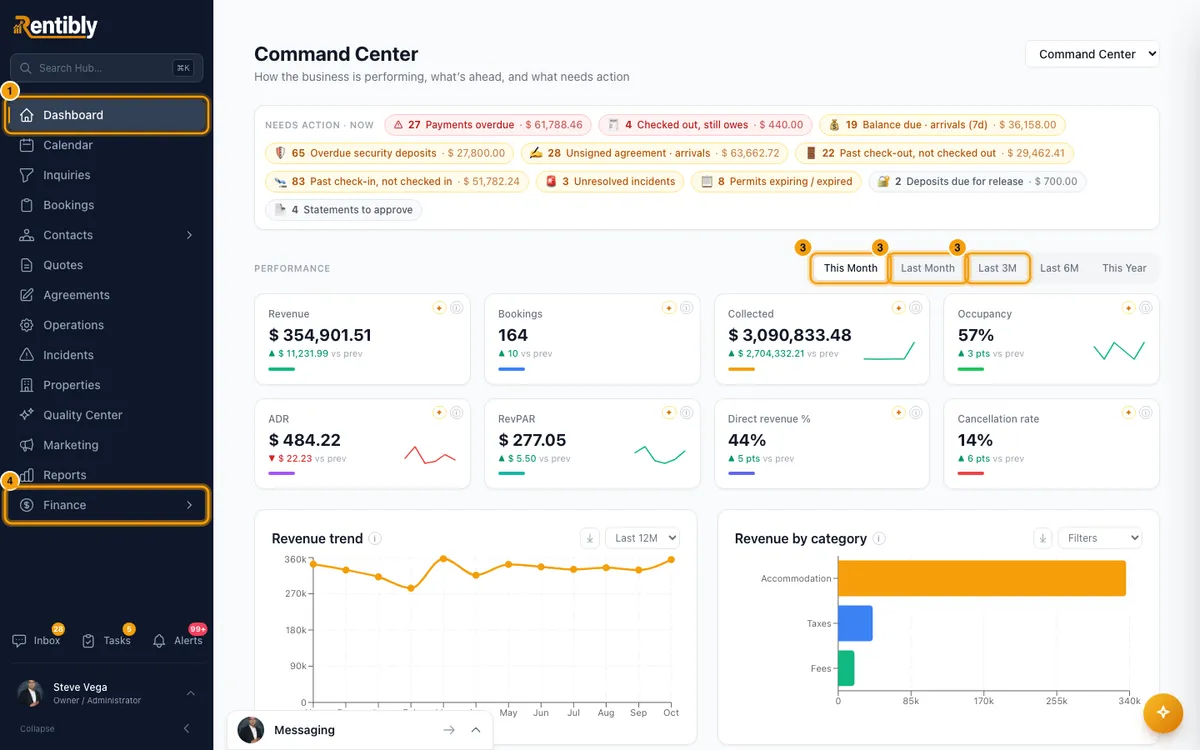
To open another dashboard, choose it in the drop-down at the top right. It only appears when your role can open more than one.
To change the dates, click This Month, Last Month, Last 3M, Last 6M or This Year. On Command Center the buttons sit next to Performance; on Reservations, next to Funnel; on Inbox Analytics, next to Performance.
On Analytics and Finance, use the filter bar instead. Pick a date range, or Custom… and two dates. Then filter by Area, Source and Beds. Click Reset to clear the filters.
On Analytics and Finance, choose Bookings by Booked, Arriving or Staying to change how the booking-count charts group bookings.
Click a figure tile to see the records behind it. Click a record to open it.
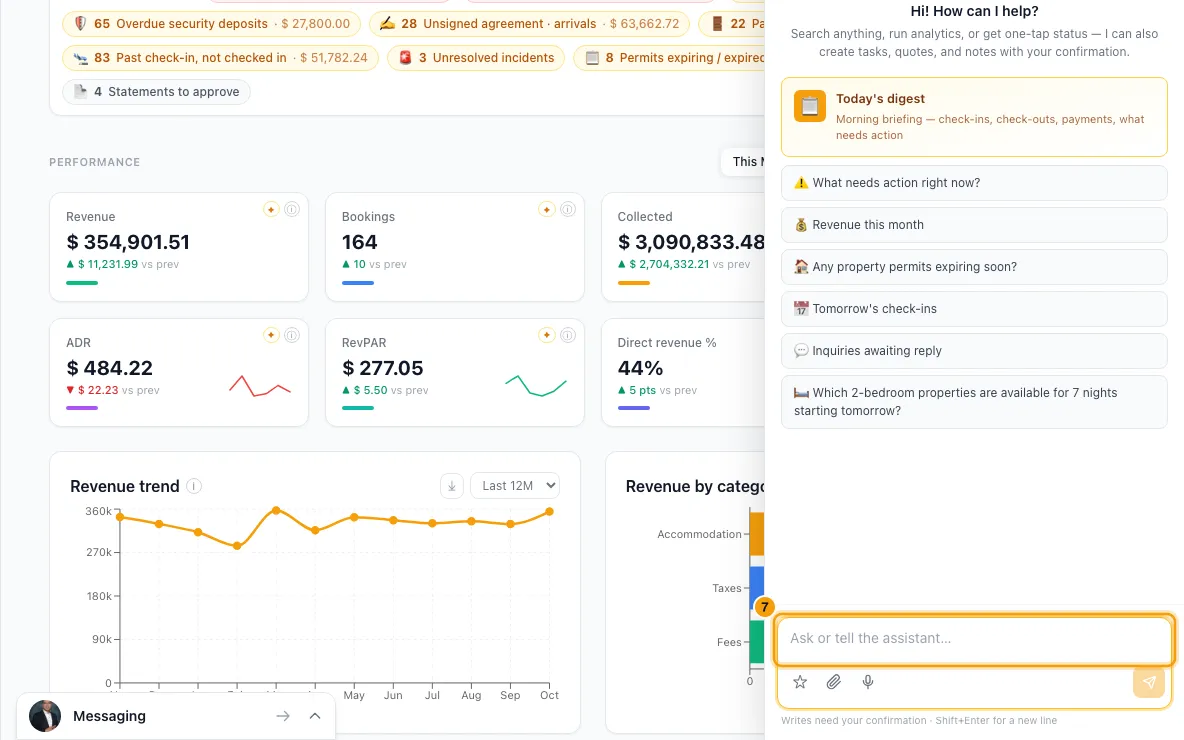
Click ⓘ on a tile to see how it is calculated. Click ✦ to ask Rentibly AI to explain the number.
In the Needs action strip at the top, click a chip to jump to that group of items further down.
Good to know
- The dashboards:
- Command Center: how the business is performing, what's ahead (from today), and what needs action.
- Analytics: slice and explore by date range, area, source and bedrooms.
- Today: run the day. Arrivals and departures, today's sales, overdue and due-today operations.
- Inbox Analytics: support performance, response times and SLA compliance.
- Reservations: the sales funnel, the open pipeline, quotes awaiting a decision, and the next 7 days.
- Operations: what's late or due today, who is carrying what, and today's turnovers.
- Finance: management income, cash, receivables, owner balances and deposits.
- Today and Operations are live views, so they have no date buttons.
- The dashboard you switch to isn't remembered. Next time you open the dashboard, you land on your default again.
- Each tile shows the change against the previous period of the same length (▲/▼ "vs prev"). "No prior-period data" means the previous period is before your account had data.
- ⓘ shows the formula, the date the figure is filtered by (or "point-in-time"), and whether cancelled bookings are included.
- Charts: click i for what the chart shows, ⤓ to download it as a CSV file, and, on dashboards without a filter bar, use the drop-down on a chart to change its own dates. Revenue trend on Command Center has its own range (Last 6M, Last 12M, YTD, Last year), and Revenue on the books looks ahead (Next 6M or Next 12M).
- On Bookings by source and Revenue by source, click a source to open Bookings filtered to that source and the period's check-ins.
- Bookings by only changes the booking-count charts. Revenue follows your revenue recognition setting, and occupancy always counts nights stayed.
- "✓ on track" in the Needs action strip means nothing needs action right now.
- What you see depends on your access. Revenue tiles and charts need View on Finance. Inbox figures need Access on Inbox. The funnel, pipeline and today's sales need View on Inquiries. Operations lists need View on Operations, and the arrivals and departures board needs View on Bookings. Anything you can't see is simply left out.
- How revenue is counted, and whether blocked nights count as occupied, are set by an admin. See Choose dashboards for each role, revenue recognition and occupancy.
- Figures can be up to about a minute old.
Rentibly AI can help
- It can explain any figure on your dashboard: the value, the previous period, how it is defined and what drives it. The ✦ button on a tile asks it for you.
- It can break a measure down to explain why it moved, across properties and any period.
Still stuck?
Open Support from your profile menu in Rentibly, or email hello@rentibly.com — we answer fast.